

This page walks through what actually happens during a Fourgent session — agent by agent. New here? Start with the Introduction.
You type. Four agents take it from there.
When you describe an integration in Fourgent — something like “When a deal closes in HubSpot, send a message to #sales in Slack” — you’re not filling out a form or configuring a template. You’re starting a conversation that hands off through four specialized agents, each responsible for a specific part of getting your integration live.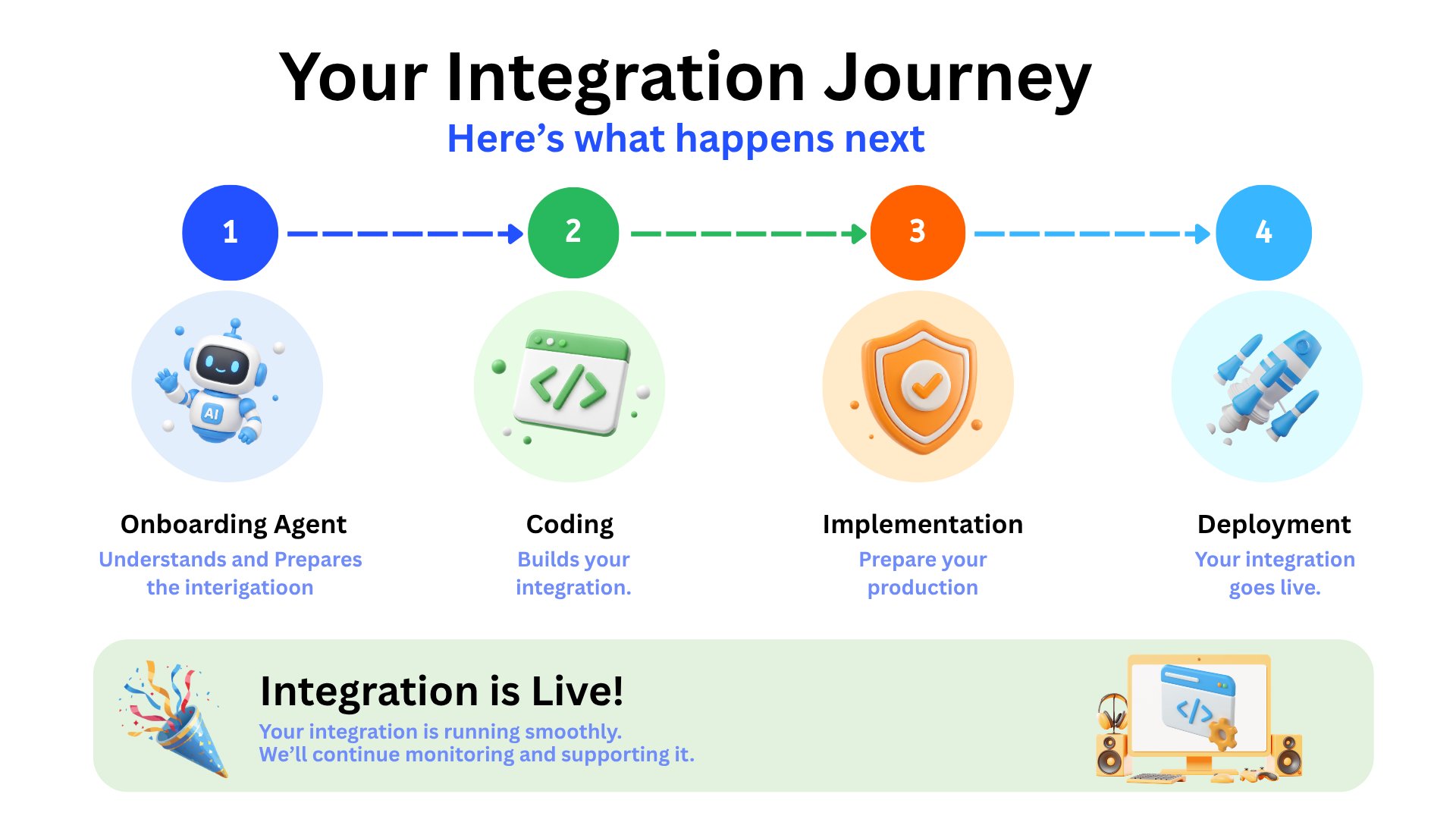
Starting a Session
Fourgent needs one thing from you: a clear description of what you want built. You don’t need to know which APIs are involved, what the field names are, or how authentication works.- Examples
- What to include
“When a deal is marked Closed Won in HubSpot, send a Slack message to #sales with the deal name and value.”
“Every hour, sync new customer records from Salesforce into our database.”
“When a Zendesk ticket is marked urgent, create a Jira issue and alert #support-escalations.”
Agent 1 — Onboard & Plan
What it does: Connects to your apps, discovers exactly what’s available, and defines every rule before anything is built.Connects to your apps
Authenticates with both platforms and confirms the connections are live. You’ll see connections retrieved and verified in the chat, one by one.
Discovers what's available
Inspects both platforms — what data exists, what events fire, how fields are structured on each side. You’ll see API Endpoints Found in the chat as it works.
Maps your workflow
Defines your workflow in precise terms — trigger, data, conditions, result. Asks targeted questions to prevent failures later:
“Should we include the deal owner’s name in the Slack message?” “Should this fire for all pipelines, or only your Enterprise pipeline?” “What should happen if the deal has no amount set?”As the workflow is mapped, the Flow and Mapping panels begin to populate.
Agent 2 — Generate & Map
What it does: Builds the integration shaped to your exact workflow — your field mappings, your business rules, every edge case the first agent defined. This isn’t a generic template being filled in. It’s built specifically for how your business runs. As it works, files appear in the Files panel on the right.Agent 3 — Test & Refine
What it does: Runs a full test suite before anything goes live. Every scenario documented by the Onboarding Agent — every trigger, condition, and edge case — gets validated against real data from your apps. If anything fails, the Testing Agent identifies exactly what’s wrong, fixes it, and retests. This continues until the suite is clean. Follow results in real time in the Progress panel.Agent 4 — Deploy & Monitor
What it does: Ships the tested integration to production. No manual setup required. Once testing is complete, the Deployment Agent takes over. Your credentials are stored securely and never exposed. From that point on, the integration runs automatically — every time its trigger fires.Once It’s Live
After deployment, Fourgent keeps your integration running reliably in the background.Every Run Is Logged
Every time your integration fires, it’s recorded — what triggered it, what happened, whether it succeeded. Nothing fails silently. See the full history in Workflow Runs.
Automatic Retries
If a connected app is temporarily unavailable, Fourgent retries automatically. Recovery happens without you doing anything.
One-Click Replay
Any failed run can be replayed with its original data — no need to wait for the trigger to fire again.
Conditional Routing
Workflows that take different paths depending on the data — different outcomes for different record types or values — handled automatically.
Making Changes After Launch
Your integration doesn’t freeze after it goes live. If your workflow changes — a new condition, a new field, a new app — describe the update in the chat. Fourgent handles it end to end: updates the integration, retests, and redeploys.Continue
Workflow Runs
Monitor every execution — filter, inspect, and replay runs.
Connections
Manage the app credentials your integrations depend on.
Tips for Prompting
Get better integrations with a stronger first description.
Talk to the Team
Complex use case? We’ll scope it with you.