Setting Up Customer Sync Preferences
Customer Search Field
Define how customer data is synchronized between Shopify and Fortnox. Choose a unique field, like email or VAT number, to prevent duplicates. A new customer is created only when the customer is not found in Fortnox by the defined search parameter.
Fortnox Customer Number Sync
Decide if Fortnox should automatically generate a customer number or if it should take the number from Shopify. a) Let Fortnox create the customer number The customer number will be created in Fortnox. Select the Shopify field to store the Fortnox customer number or select “Do not add it anywhere” if you don’t want to store this number b) Take the Fortnox customer number from Shopify The customer number is taken from Shopify. Select the Shopify field, which has the customer number or select “Do not add it anywhere” if you don’t want to add this number.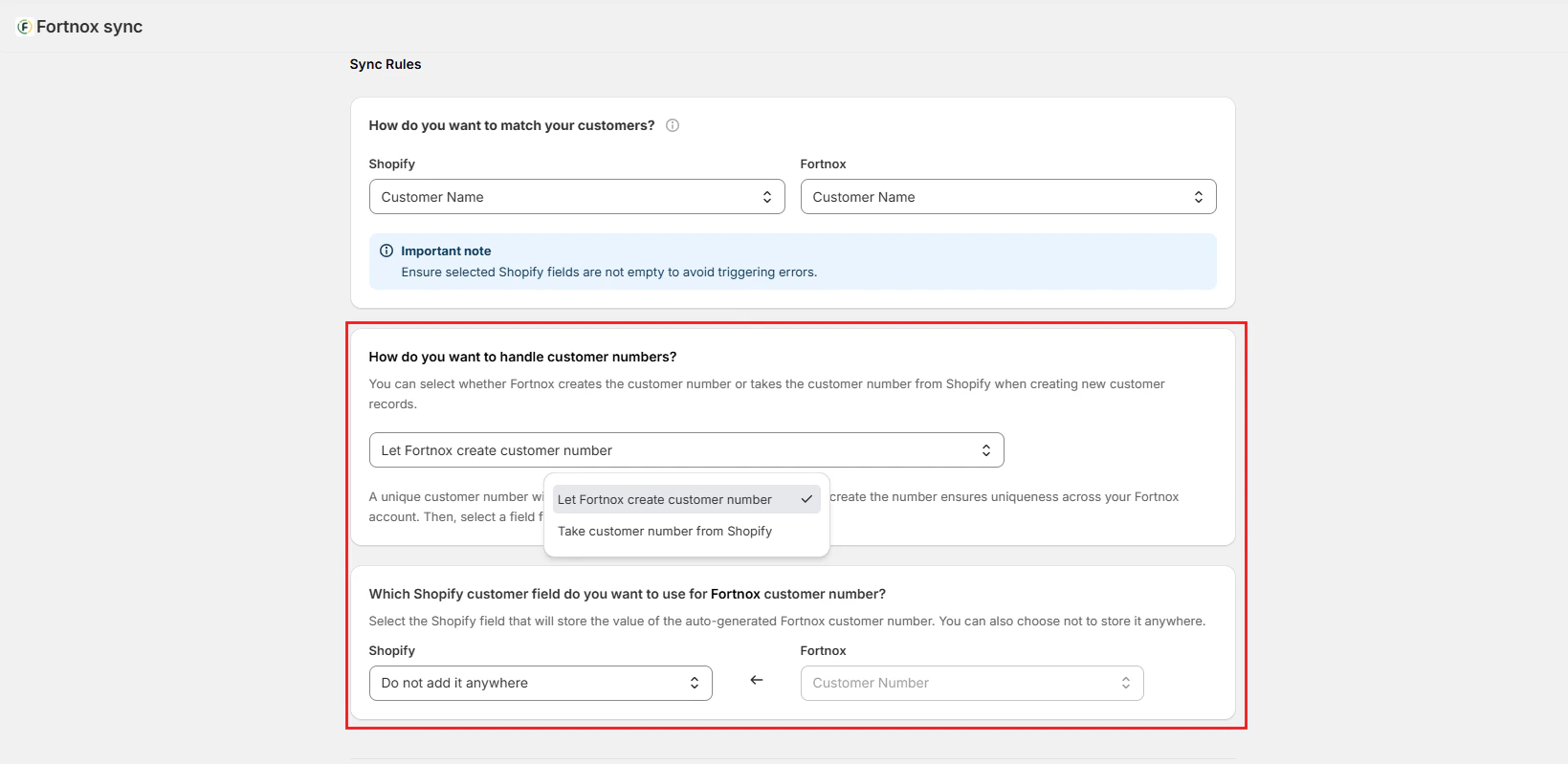
Customer Default Mappings
Set default values for Payment Terms, Currency, Price List, Delivery Ways, Delivery Terms, VAT Types and Languages. These default values apply when new customers are created in Fortnox.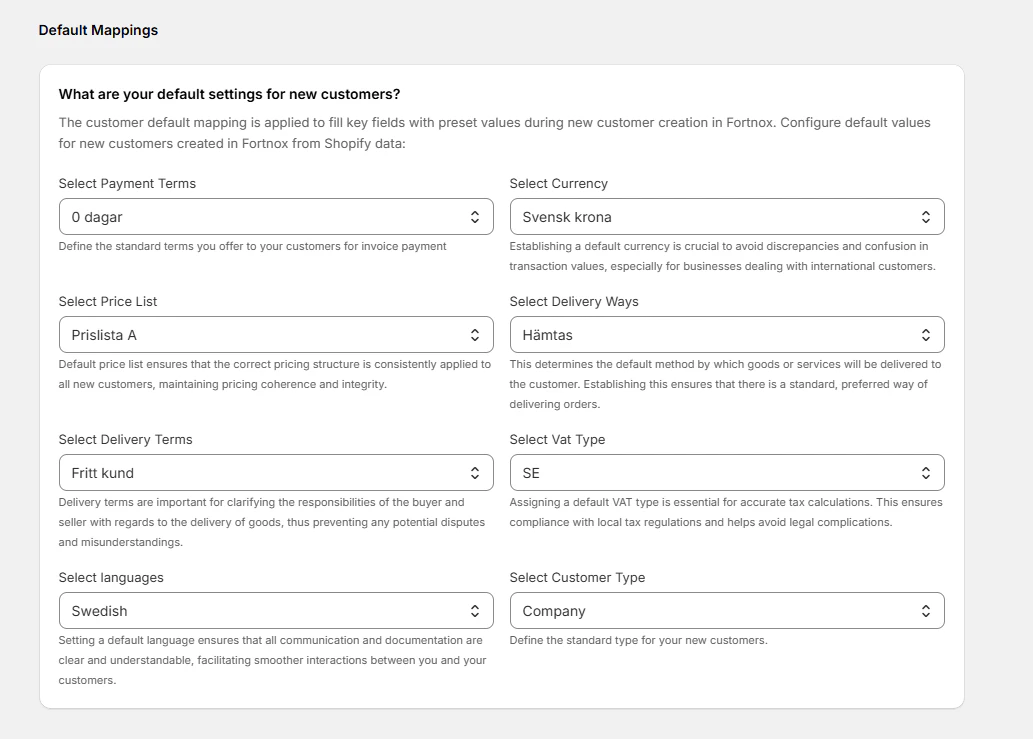
VAT zone mode
Configure VAT Zones automatically or define country-specific VAT Zones for your Fortnox customers & invoices.Standard Dynamic VAT Type
- Automatically assigns VAT type based on the customer’s billing country.
- The integration automatically determines your customer VAT Type based on the customer location (“SE”, “Subject to EU VAT” or “Export)
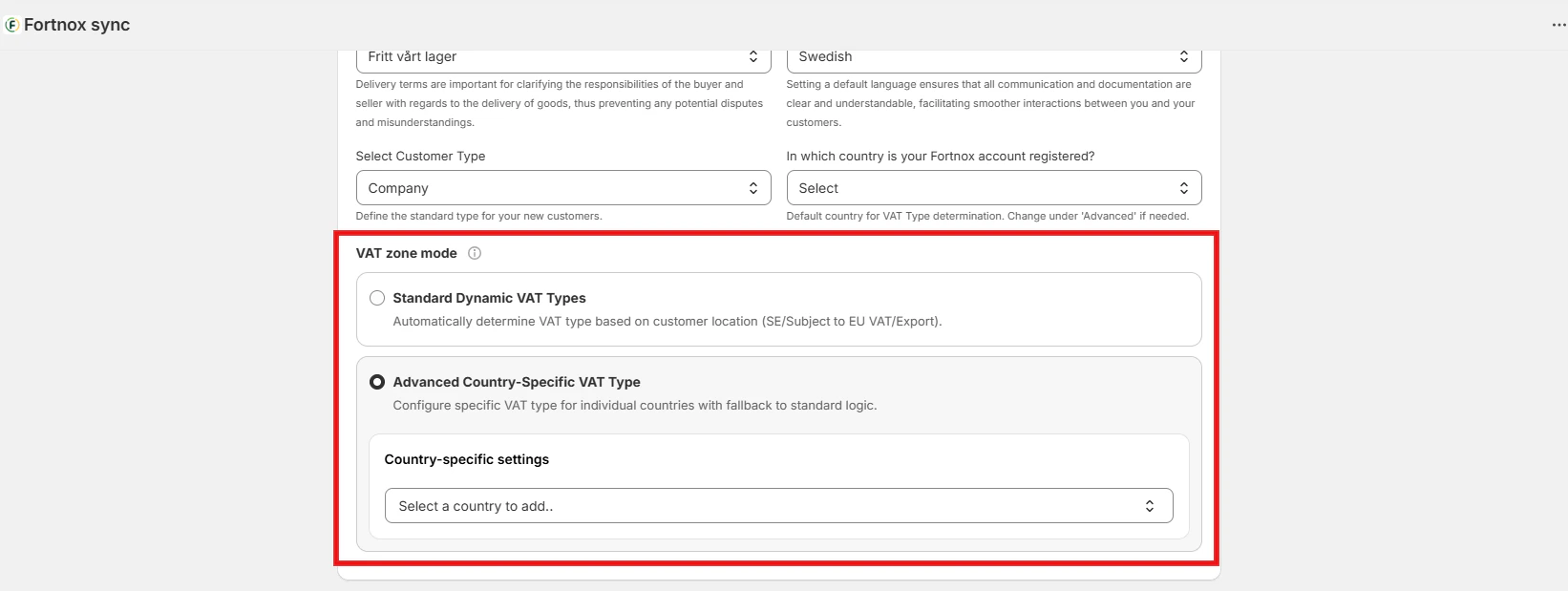
Advanced country-specific VAT Type
- Specify a custom VAT type for selected countries.
- All other countries will still use your standard dynamic VAT logic.
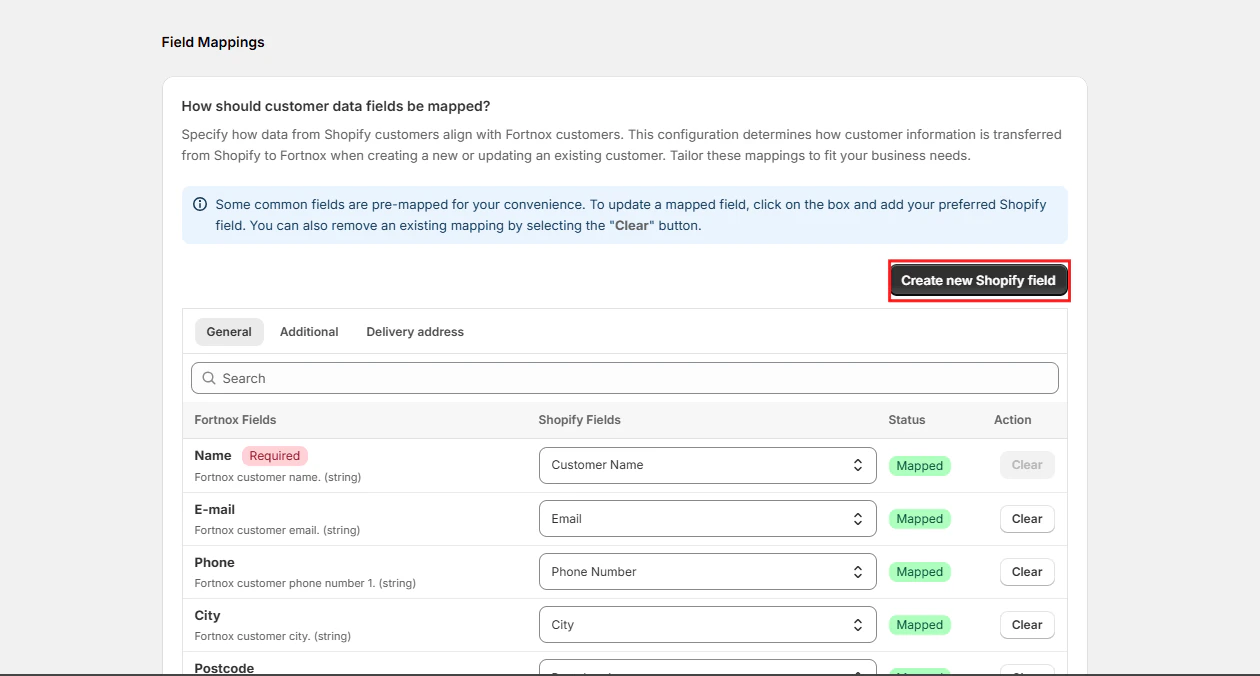
Customer Field Mappings
Customize the data transfer from Shopify to Fortnox to ensure accurate synchronization when a new customer is being created in Fortnox from Shopify. Some fields are mapped by default. Click “Create new Shopify property” if you want to add any new mapping fields to the window.