

What exactly does this integration do?
What exactly does this integration do?
- Turn your Shopify orders into Fortnox invoices/orders automatically
- Keep your Shopify and Fortnox product and customer data in sync
- Monitor sync status through detailed logs within Shopify order notes
- Handle refunds and shipping charges with ease
I get this error when I try to create invoices/orders in Fortnox using this integration: "The workflow execution failed due to this error: There is no active license for the desired scope".
I get this error when I try to create invoices/orders in Fortnox using this integration: "The workflow execution failed due to this error: There is no active license for the desired scope".
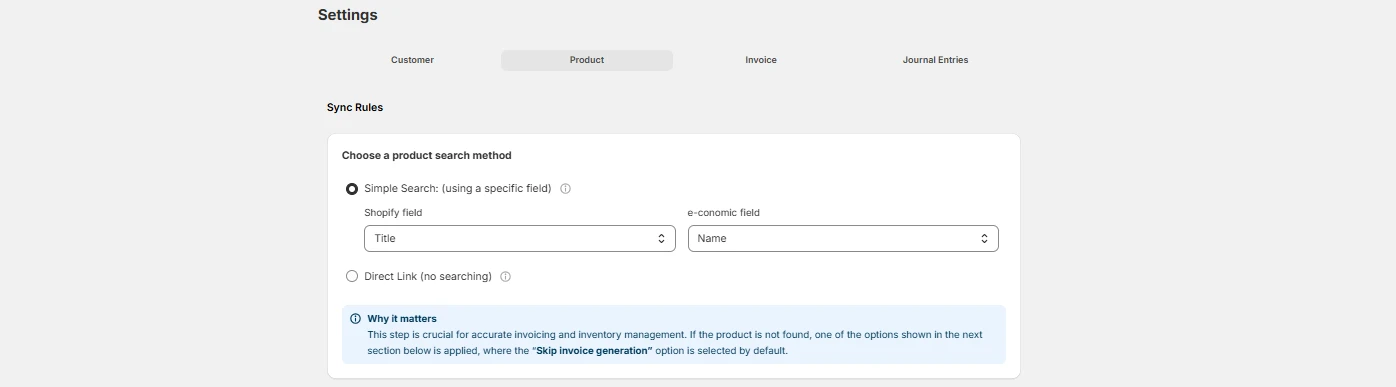
I've installed the app, but how do I start creating the Fortnox invoices/orders?
I've installed the app, but how do I start creating the Fortnox invoices/orders?
When I try to create invoices/orders in Fortnox, it says I am not licensed. What do I do?
When I try to create invoices/orders in Fortnox, it says I am not licensed. What do I do?
Will the invoice/order be directly sent to my customer after it is created?
Will the invoice/order be directly sent to my customer after it is created?
How do I know if my invoice/order was created successfully?
How do I know if my invoice/order was created successfully?
- View the “Notes” section in your Shopify order for a successful message
- Check Fortnox for the newly created invoice/order
- Monitor any error messages under the Shopify order’s “Notes” section
Can I connect my Shopify store with multiple Fortnox accounts?
Can I connect my Shopify store with multiple Fortnox accounts?
What happens if my Shopify customer isn't in Fortnox?
What happens if my Shopify customer isn't in Fortnox?
- Customer information from Shopify
- Your configured default settings
- Mapped customer fields
What if my Shopify product isn't present or found in Fortnox when the integration runs?
What if my Shopify product isn't present or found in Fortnox when the integration runs?
- Halt the invoice/order creation (for manual review)
- Use a default product as a placeholder
- Automatically create new articles in Fortnox from your Shopify order
I am unable to import my Fortnox customer and product data to Shopify with this application.
I am unable to import my Fortnox customer and product data to Shopify with this application.
I can't see the created invoice/order in Fortnox. What should I check?
I can't see the created invoice/order in Fortnox. What should I check?
- Check the Shopify order notes for any errors
- Verify your Fortnox connection status
- Confirm if it’s a draft invoice or draft order that you created
My custom field mappings aren't working. What should I check?
My custom field mappings aren't working. What should I check?
- Ensure field types match between systems (e.g., name to name, email to email, ID to ID)
- Check required fields are properly mapped
There's a mismatch in invoice/order amounts between Shopify and Fortnox. What should I review?
There's a mismatch in invoice/order amounts between Shopify and Fortnox. What should I review?
- Tax inclusion/exclusion settings
- Shipping charge configuration
- Currency settings and conversions in Shopify
Some customer/product/order information is missing on invoices/orders. How can I fix this?
Some customer/product/order information is missing on invoices/orders. How can I fix this?
How do I map the Shopify order number in the Fortnox invoice/order?
How do I map the Shopify order number in the Fortnox invoice/order?
Why does my Fortnox invoices show an additional 25% VAT, causing the invoice total to be different from my Shopify order total?
Why does my Fortnox invoices show an additional 25% VAT, causing the invoice total to be different from my Shopify order total?
- Open the Cloudify’s Fortnox Sync app in Shopify.
- Go to Settings > Product Settings.
- Under Tax Settings, enable the Exclude Shopify Tax option.
- Click Save.
- Next, update the affected invoices:
- Open the Dashboard in the Cloudify Fortnox Sync app in Shopify.
- Locate the orders where the Fortnox Invoice total differs from the Shopify order total.
- Click Rerun next to each affected order.
- The integration will update the existing draft invoices using the new tax logic and going ahead all the new invoices will be created correctly in Fortnox.