

Company Matching Criteria
1
From the “Pipedrive Company Identifier” dropdown, select the Pipedrive field you want to use for matching (e.g., Organization Name, Email).
2
From the “Fortnox Company Field” dropdown, select the corresponding field in Fortnox. This ensures both platforms refer to the same company data when syncing, maintaining consistency across systems.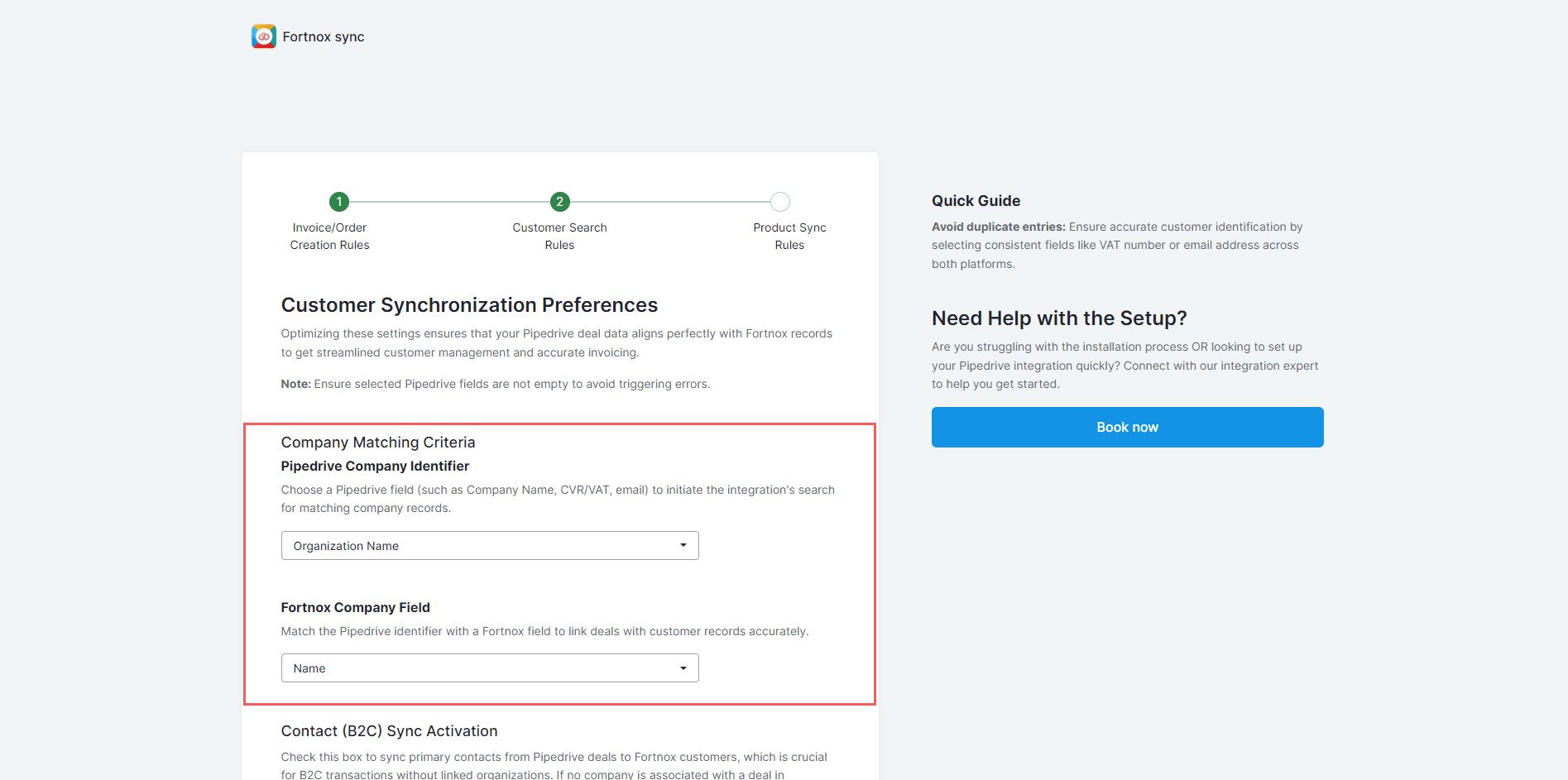
Enable Primary Contact Sync
This feature is essential for businesses dealing directly with consumers, allowing individual contacts from Pipedrive to be added to Fortnox as customers when there is no associated company.1
Check “Enable Primary Contact Sync” if your contacts are not associated with a company.
2
From the “Pipedrive Contact Identifier” dropdown, select the Pipedrive field that uniquely identifies your contacts (e.g., person name or email).
3
From the “Fortnox Contact Field” dropdown, select the corresponding field in Fortnox to match and identify the same contact. This should also be a unique identifier such as an email address or customer number.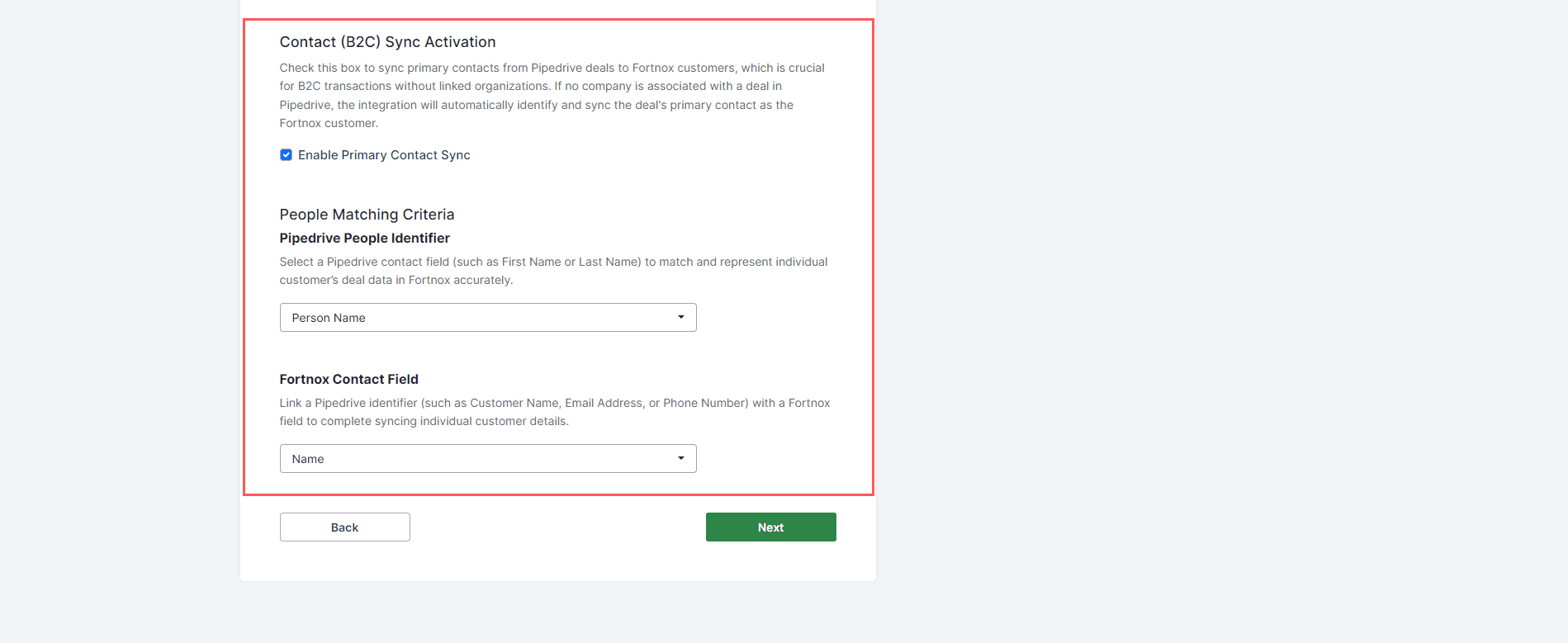
4
Click “Next”.