Sync Rules
Choose a product search method
When a Shopify order syncs, the integration needs to find the right product in Exact Online to put on the invoice. Choose the method that fits how your catalog is set up.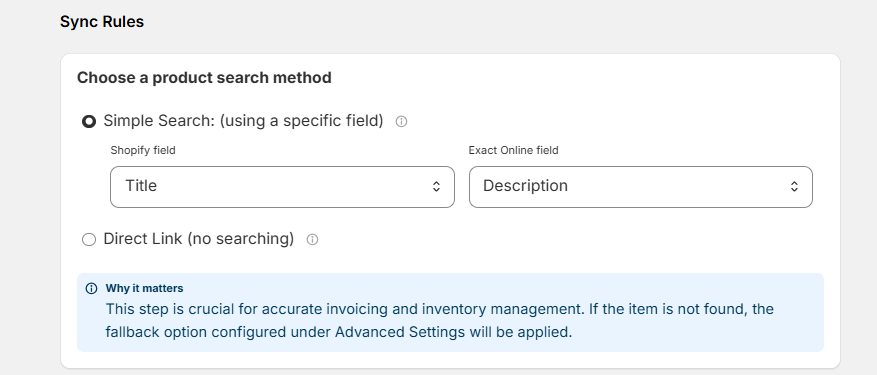
Simple Search
The integration automatically looks up the product in Exact Online by comparing a field from Shopify against a field in Exact Online. For example: match Shopify Title against Exact Online Description — if they match, the integration uses that product on the invoice. This works well for larger catalogs where you want matching to happen without any manual work.Make sure the fields you select are consistently filled in and formatted the same way on both sides. A mismatch in spelling or casing can cause a product not to be found.
Direct Link
Manually connect each Shopify product to a specific product in Exact Online yourself. Once linked, the integration always uses that exact product — no searching involved. This is the best option for smaller catalogs where you want full control over which Exact Online product ends up on each invoice.Getting your product match right matters. If a product isn’t found, Exact Online can’t generate an accurate invoice — and the fallback option below will be used instead.
If a product is not found in Exact Online
Sometimes a Shopify product won’t have a match in Exact Online. Choose what you want the integration to do in that situation.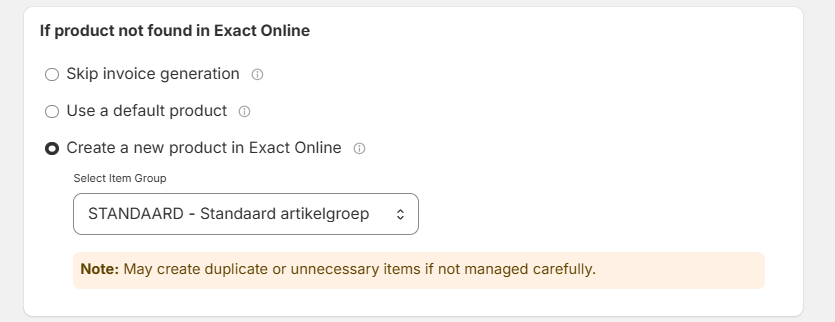
Skip invoice generation
The integration stops and does not create an invoice for that order. Use this if you’d rather investigate manually than have an invoice created with the wrong product.Use a default product
The integration still creates the invoice, but uses a pre-selected Exact Online product as a stand-in. Only the product code of that default product is used — all other details like price, quantity, and description are taken directly from the Shopify order. This keeps your invoicing running without interruption, even when a product match isn’t found.Create a new product in Exact Online
The integration automatically creates a brand new product in Exact Online using the details from the Shopify order. You’ll also select a default GL account to assign to any newly created products. Choose this if you want your Exact Online product list to stay in sync with whatever you sell on Shopify.Tax settings
Exclude Shopify Tax from Exact Online invoices
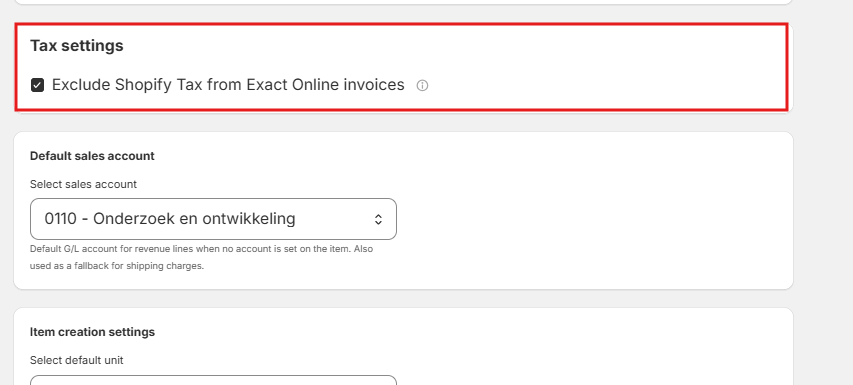
This is relevant if your Exact Online VAT codes are already set up correctly. Once enabled, tax on Shopify orders is ignored and Exact Online handles all VAT calculation on its own.
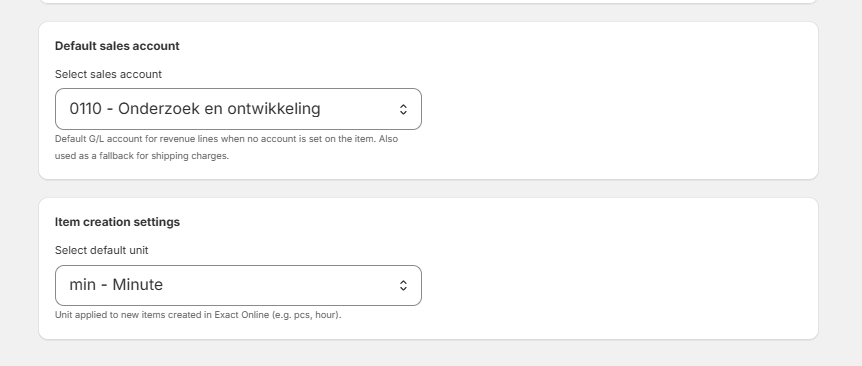
Default sales account
This is the general ledger (GL) account where revenue gets posted when no specific account is set on the product itself. It also acts as the fallback account for shipping charges. Set this to the revenue account in Exact Online that best represents your general sales income.