

Sensible defaults are already applied. You only need to change these settings if your business works differently — for example if you sell B2B, or if you use Shopify POS.
Customer Sync Rules
How do you want to match your customers?
Before creating anything, the integration looks for an existing customer in Pennylane. This setting tells it which field to compare. You choose a Shopify field on the left and the matching Pennylane field on the right.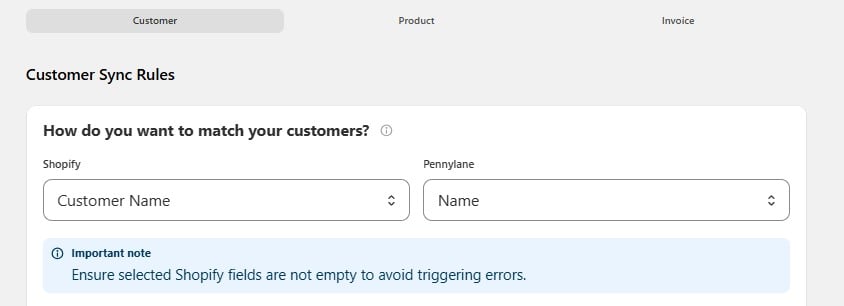
If a match is found, the existing Pennylane customer is used. If not, a new customer is created.
Use a Default Customer for Point of Sale (POS) Order
Shopify POS orders often have no customer attached — someone walks in, pays, and leaves. Pennylane still needs a customer on the invoice. When this option is on, the integration creates a customer called POS Customer – Cloudify in Pennylane and assigns it to every POS order that has no customer.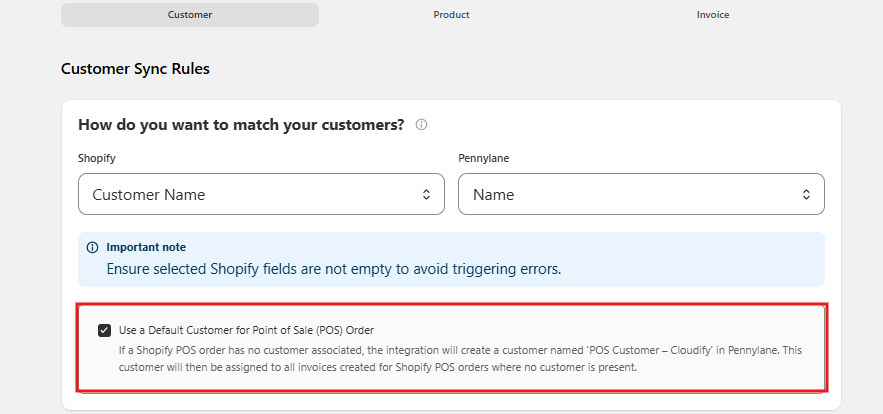
Turn it on if you use Shopify POS and don’t collect customer details at the till. All walk-in sales are grouped under one customer, which keeps your Pennylane contact list clean.Turn it off if every POS sale in your store is tied to a named customer.
How do you want to handle customer numbers?
Every customer in Pennylane has a customer number. This setting decides who generates it.Which Shopify customer field do you want to use for the Pennylane customer number?
This question follows on from the choice above, and works in one of two directions. If you chose “Let Pennylane create customer number”, you can write the generated number back into Shopify so both systems show the same reference.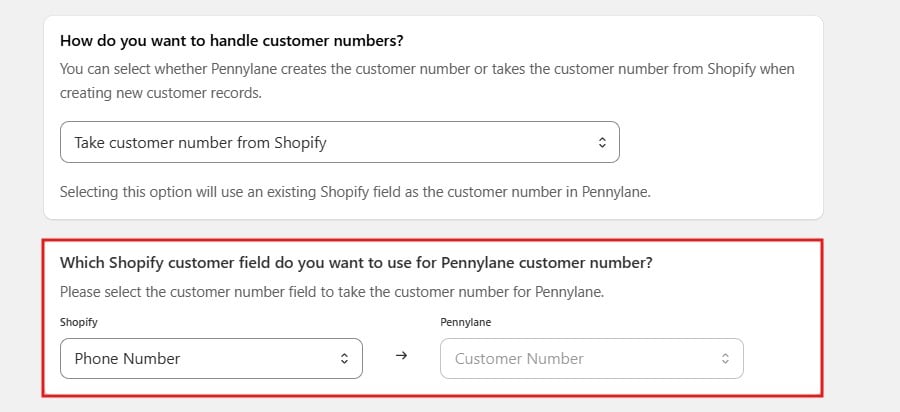
Customer Default Mappings
What are your default settings for new customers?
Some Pennylane fields have no equivalent in Shopify. These defaults fill them in whenever a new customer is created.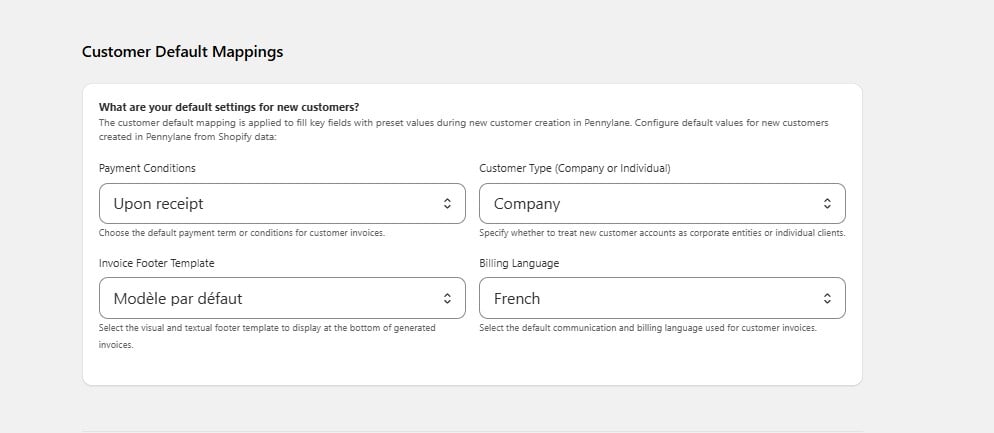
These defaults apply only when a customer is created. Changing them later does not update customers that already exist in Pennylane.
Customer Field Mappings
How should customer data fields be mapped?
This is where you decide which Shopify value fills each Pennylane customer field.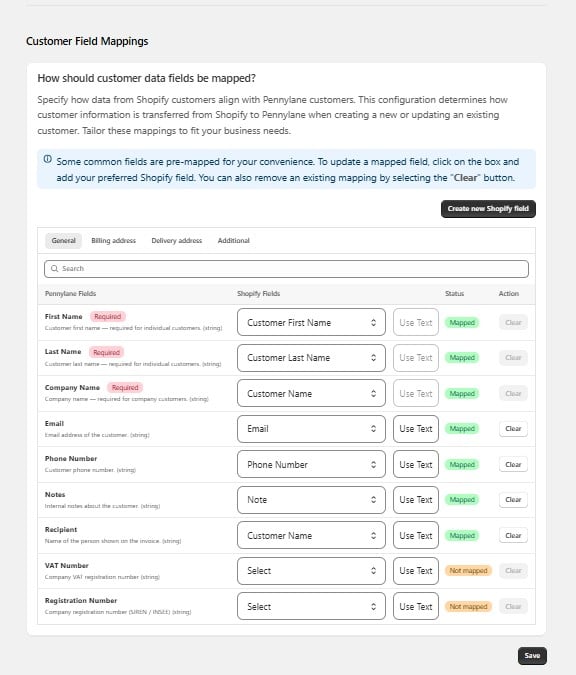
General
Name, email, phone, notes, and recipient.
Billing address
The address used on the invoice.
Delivery address
The address goods are shipped to.
Additional
Any remaining Pennylane customer fields.
Reading the table
Required fields
Three fields must be filled for a customer to be created:- First Name — required for individual customers
- Last Name — required for individual customers
- Company Name — required for company customers
Making changes
- Find the Pennylane field you want to change, using the Search box if the list is long.
- Open the Shopify Fields dropdown and choose a source, or select Use Text to enter a fixed value.
- To remove a mapping, select Clear.
- Select Save.
Changes apply to customers created or updated after you save. Existing Pennylane customers are not rewritten.