

Invoice Sync Rules
Automatically create (Pennylane) Invoices
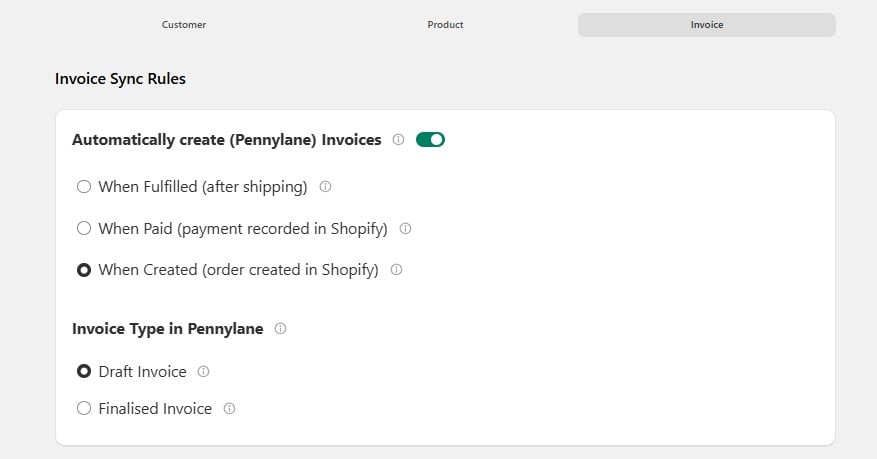
Order Status
This setting decides when the integration creates the invoice, based on the status of the Shopify order.When Fulfilled (after shipping)
When Fulfilled (after shipping)
Choose this option to create a Pennylane invoice when the Shopify order is marked as Fulfilled. This usually happens after the order has been shipped. Use this if you want to create invoices only after products are sent to the customer.Use this when you ship before invoicing, sell made-to-order goods, or hold stock for long periods. Cancelled orders never reach Pennylane at all.
When Paid (payment recorded in Shopify)
When Paid (payment recorded in Shopify)
Choose this option to create a Pennylane invoice as soon as the Shopify order is marked as Paid. The invoice is created after the payment is received, even if the order hasn’t been shipped yet. This is a good option if you want to record sales quickly.Use this when you offer payment methods that don’t settle at checkout — bank transfer, invoice terms, cash on delivery — and you only want confirmed sales in Pennylane.
When Created (order created in Shopify)
When Created (order created in Shopify)
Choose this option to create a Pennylane invoice as soon as a new order is received in Shopify. It’s ideal for Cash on Delivery (COD) orders or if you want invoices to be created immediately.Use this when you want your books to reflect sales immediately. This suits most online stores, where payment is taken at checkout.
Only one option applies. Choose the point in your process that you’d call “the sale has happened” — your expert-comptable may have a preference here.
Invoice Type in Pennylane
This decides what state the invoice arrives in.Choose Draft if you want to review invoices before they are issued. This is the safer starting point while you’re checking that the integration produces what you expect.Choose Finalised if you’re confident in the setup and want invoices issued without a manual step.
Additional Options
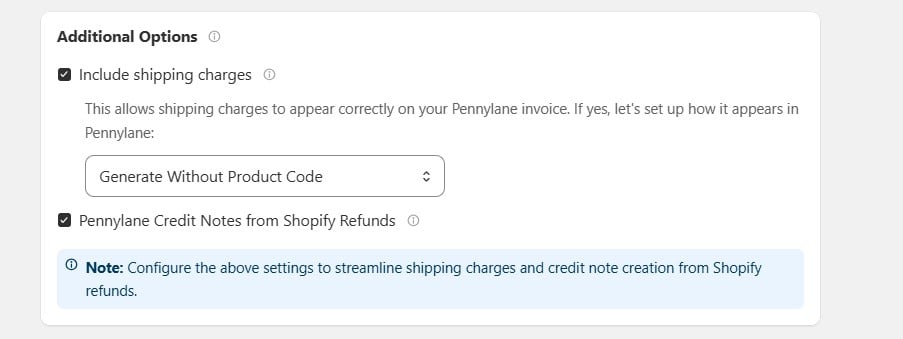
Include shipping charges
Enable this option to add shipping charges from the Shopify order to the Pennylane invoice. After enabling it, select any product from the list. The integration will use that product to add the shipping charge automatically.Pennylane Credit Notes from Shopify Refunds
When this is on, issuing a refund in Shopify creates a credit note (avoir) in Pennylane. You select a Pennylane product to represent refunds. The amount comes from the Shopify refund — the product is only there to give the credit note a line to sit on.Invoice Field Mappings
How should invoice data fields be mapped?
This decides which Shopify values appear on the invoice.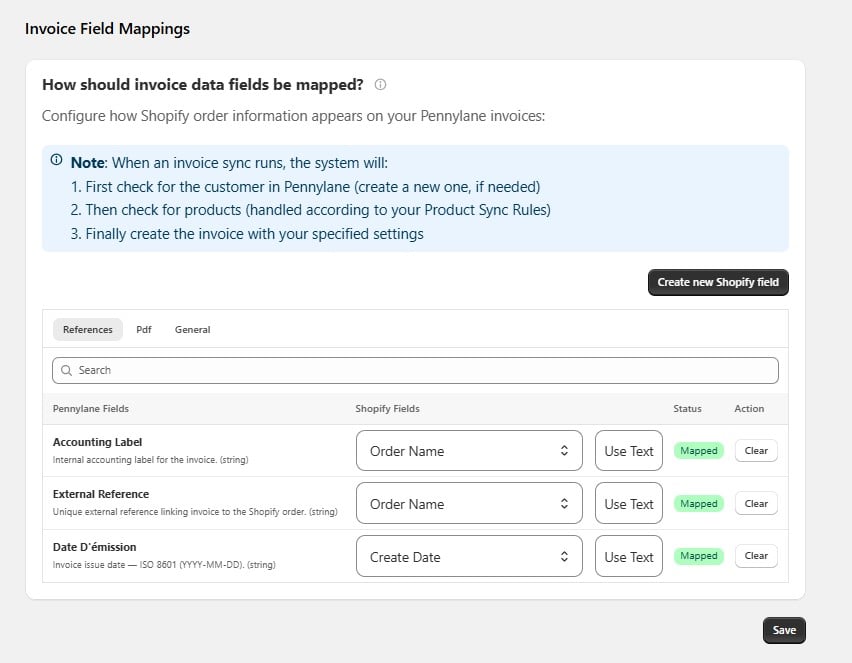
What happens on each sync, in order:
- The customer is found in Pennylane, or created if needed.
- The products are found, following your Product Sync Rules.
- The invoice is created using the settings on this page.
References
Labels, references, and the invoice date.
What appears on the invoice document itself.
General
Remaining invoice-level fields.
References tab
The invoice date follows the Order Status setting above. If you invoice When Created, the date is the order date; if you invoice When Paid or When Fulfilled, consider whether the create date is still the right one for your books.
Reading the table
Need a value Shopify doesn’t hold? Select Create new Shopify field to add one, then map it here.
Making changes
- Open the tab you need, and use Search if the list is long.
- Choose a Shopify field, or select Use Text for a fixed value.
- Select Clear to remove a mapping.
- Select Save.
Changes apply to invoices created after you save. Invoices already in Pennylane are not changed.