

Getting this section right matters more than most. If a product can’t be found and there’s no fallback in place, the invoice isn’t created at all.
Product Sync Rules
Choose a product search method
There are two ways for the integration to find the right Pennylane product.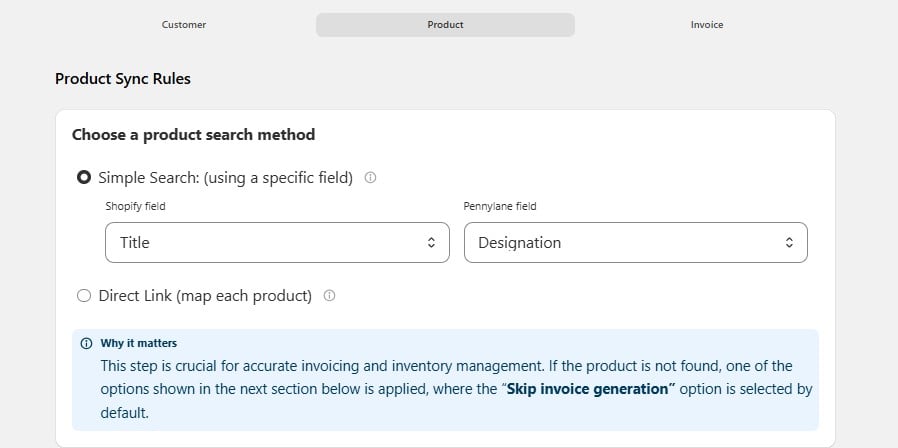
- Simple Search
- Direct Link
The integration compares one Shopify field against one Pennylane field.
Use this when your Shopify catalogue and your Pennylane product list already share a common value — usually the product title or the SKU.
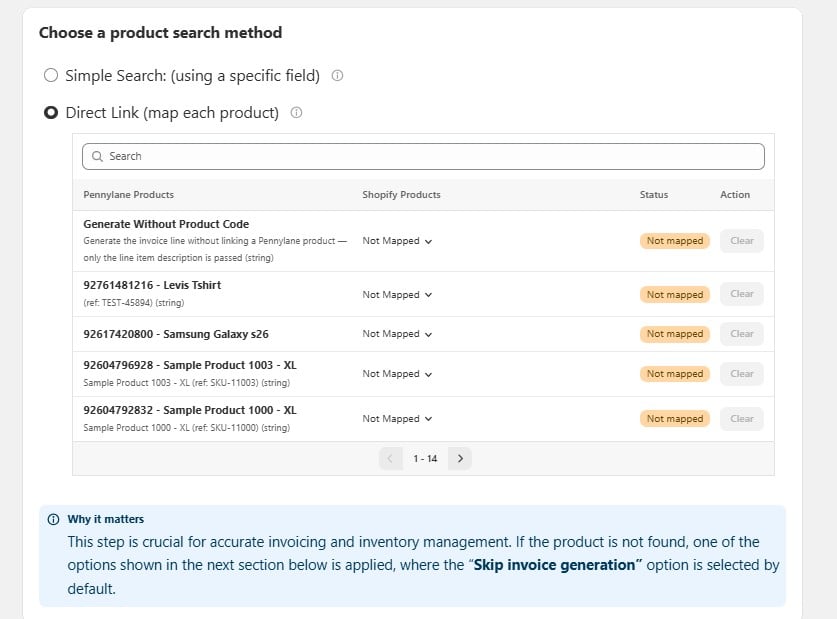
If product not found in Pennylane
This is the fallback. It decides what happens when the search above comes back empty.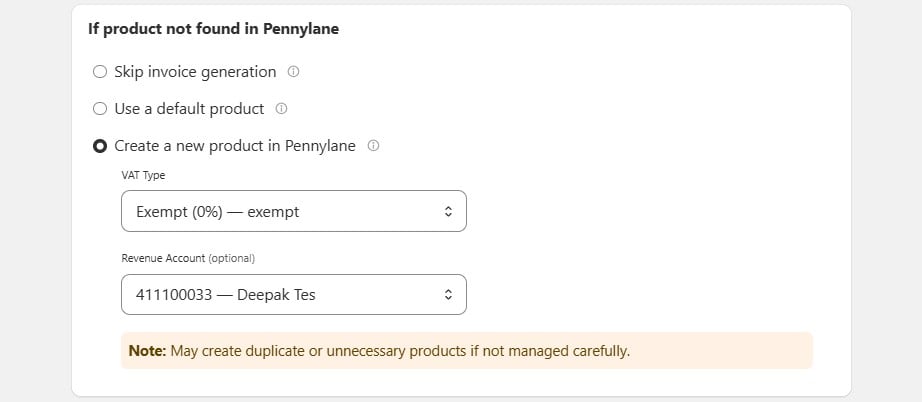
Skip invoice generation
Skip invoice generation
If the Shopify product isn’t found, the integration will skip creating the invoice in Pennylane. This helps avoid errors, but you’ll need to check and fix the missing products manually.
Use a default product
Use a default product
If the Shopify product isn’t found, the integration will still create the invoice in Pennylane using the product you selected. Only the product ID comes from the selected Pennylane product. The product name, price, and quantity are taken from Shopify.
Create a new product in Pennylane
Create a new product in Pennylane
If the Shopify product isn’t found, the integration will automatically create a new product in Pennylane using the Shopify product details. Choose a product group for new products. This makes sure all products are synced, but it may create duplicate products if the same product already exists.Two settings apply to every product created this way:
Tax settings
Exclude Shopify Tax from Pennylane invoices
Enable this option to remove Shopify taxes when creating invoices in Pennylane. If enabled, only the tax set in Pennylane will be applied to the invoice.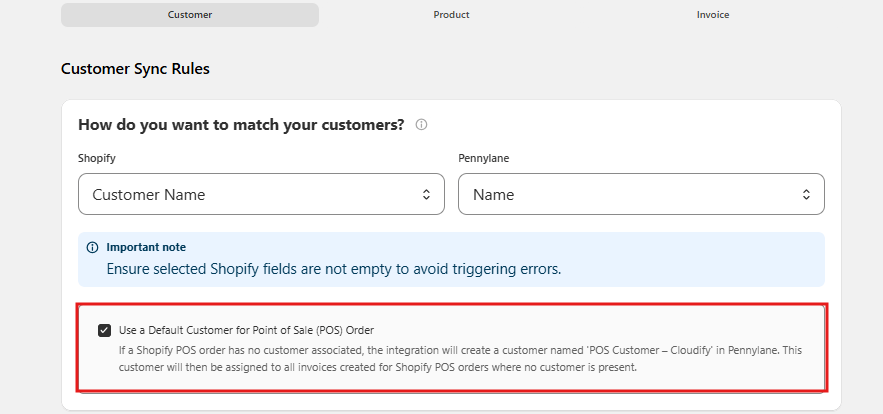
Product Field Mappings
This section applies only if you chose Create a new product in Pennylane above. If you didn’t, nothing here has any effect.
How should product data fields be mapped?
This decides which Shopify value fills each field on a newly created Pennylane product.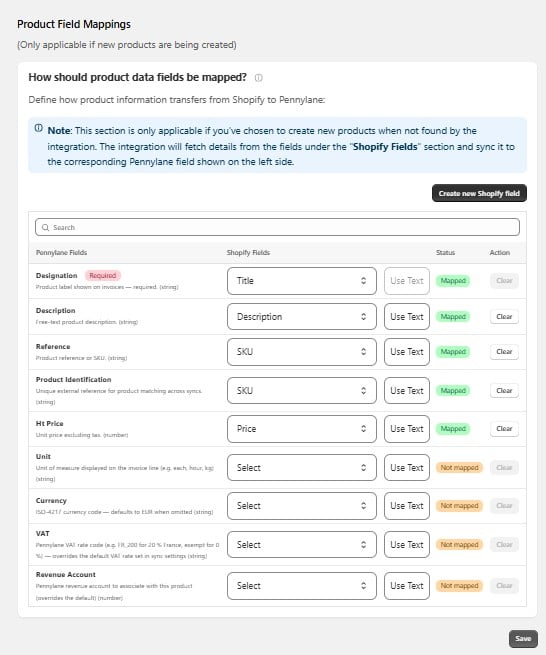
Reading the table
Leaving VAT and Revenue Account unmapped is fine for most stores — the defaults you set under Create a new product in Pennylane are used instead. Map them only if different products need different rates or accounts.
Making changes
- Find the Pennylane field, using the Search box if the list is long.
- Choose a Shopify field from the dropdown, or select Use Text for a fixed value.
- Select Clear to remove a mapping.
- Select Save.
Mappings apply to products created after you save. Products already in Pennylane are not changed.