Creating a FlowLink Action
1
Log in to your HubSpot account and navigate to Automation → Workflows.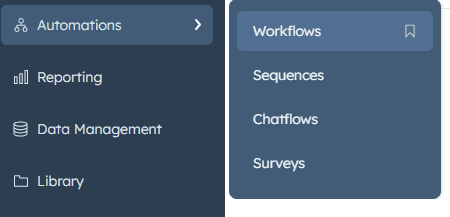
2
Create a new workflow or edit an existing one.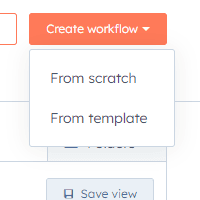
3
Create a blank workflow.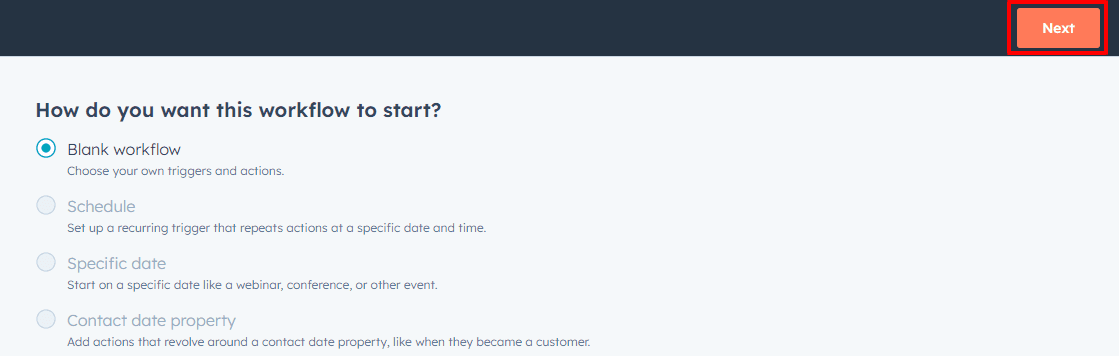
4
Set up your trigger.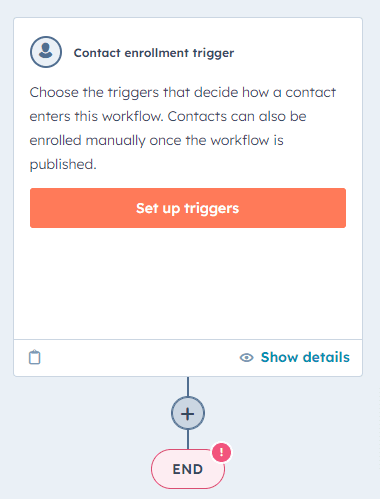
5
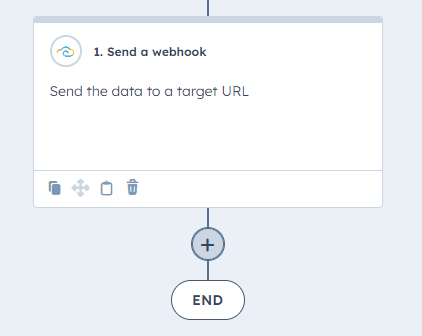
In the workflow editor, click the ”+” icon to add a new action.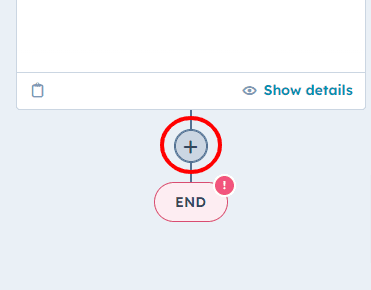
6
In the actions menu, look for the “Integrations” or “Apps” section and select “FlowLink”.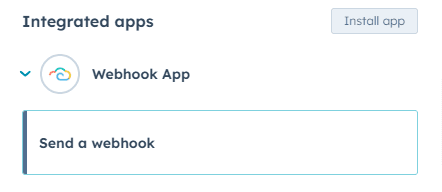
Basic Configuration
HTTP Method
Select the HTTP method for your request: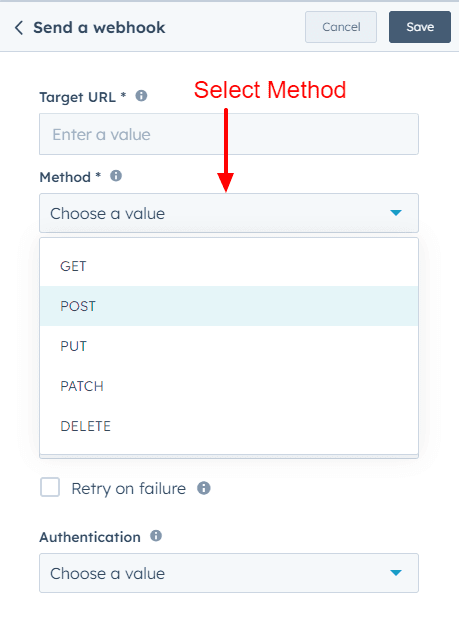
- GET — Retrieve data
- POST — Create a new resource
- PUT — Update an existing resource
- PATCH — Partially modify a resource
- DELETE — Remove a resource
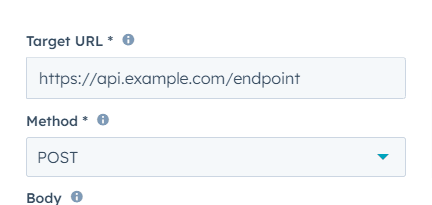
Target URL
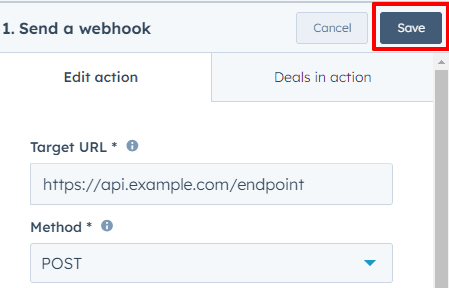
Enter the full URL where you want to send the webhook request. Example:https://api.example.com/endpoint
Authentication
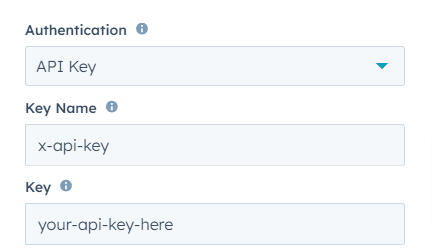
Select from the following options:- None — For public APIs
- Basic — Enter username and password
- Bearer — Provide a token
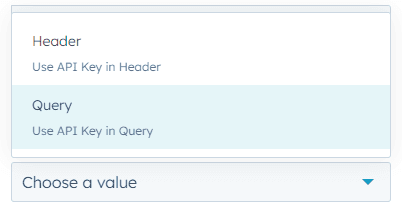
- API Key — Can be included in header or query parameters
- Basic: Username:
myuser, Password:mypassword - Bearer: Token:
abcdef123456 - API Key: Key Name:
x-api-key, Key:your-api-key-here
Advanced Settings
Body Configuration (POST, PUT, PATCH only)
Click on the “Body” field and insert HubSpot properties using{{property.name}} syntax. Structure your data in JSON format.
Example:
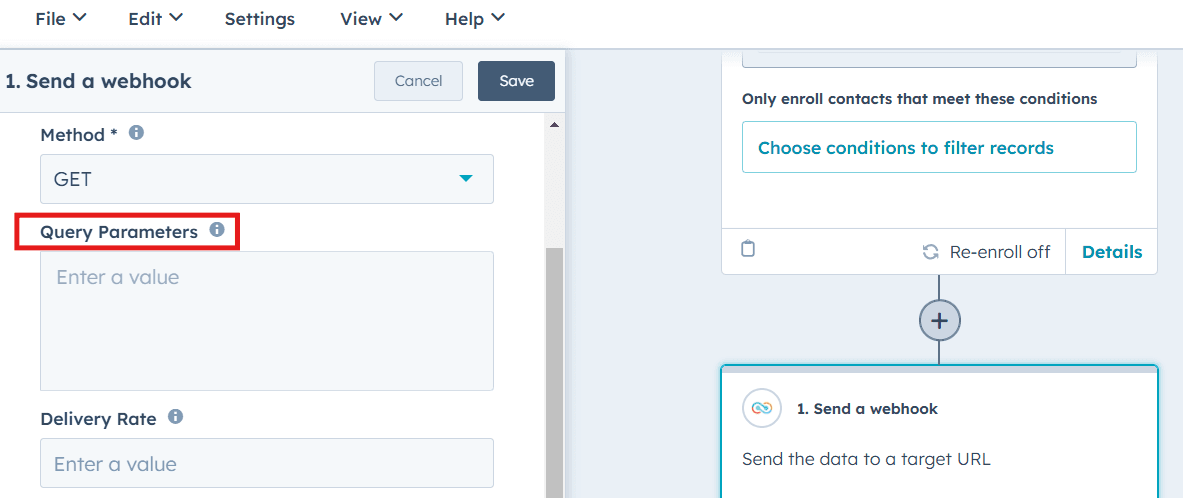
Query Parameters (GET, DELETE, POST, PUT, PATCH)
Add key-value pairs using HubSpot properties or static values, separated by&.
Example:
customerId={{contact.id}}&orderDate={{deal.closedate}}
Resulting URL: https://api.example.com/orders?customerId=1234567&orderDate=2023-09-03
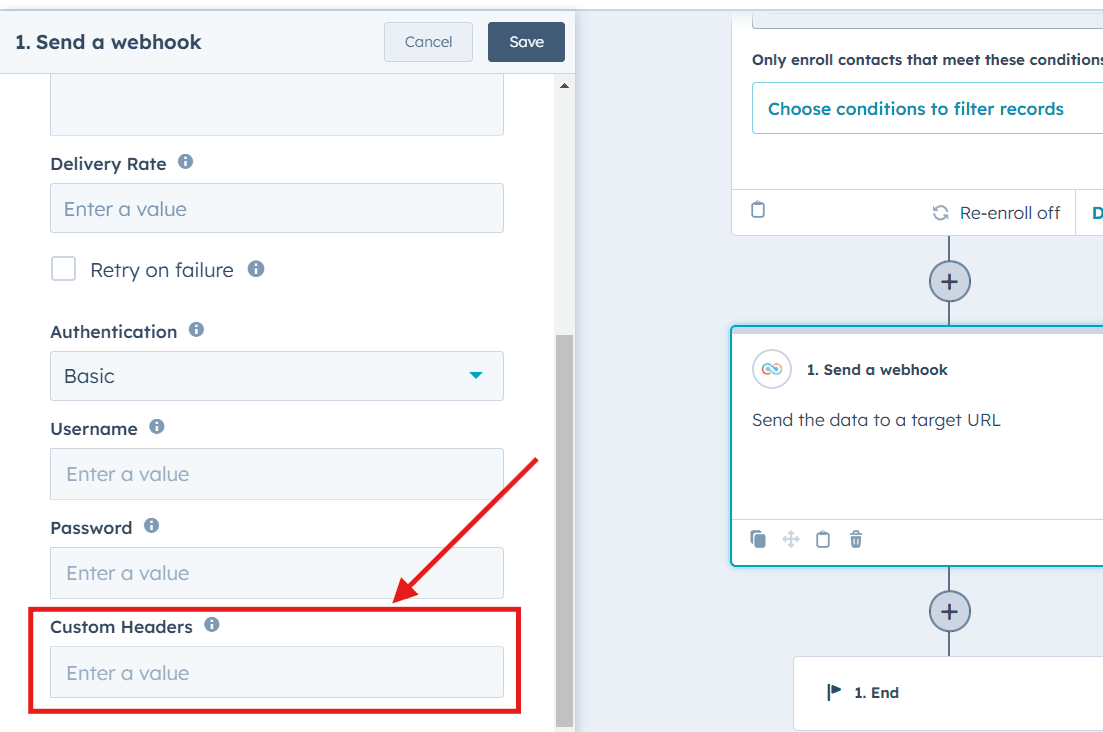
Custom Headers
Add any required custom headers, useful for API versioning or additional authentication. Use comma-separated key-value pairs. Example:X-API-Version=v2, x-custom-header=value
Escape Values to Valid JSON
To escape a value, use theescape function:
Save Your Configuration
Once finished configuring the webhook, click “Save”.