

- Country-specific compliance: By customizing fields for each country, you ensure your VAT data aligns with local regulations.
- Data accuracy: Proper mapping reduces errors in VAT calculations and reporting.
- Streamlined operations: Matching HubSpot fields to your VAT data structure improves workflow efficiency.
- Flexibility: You can adapt the app to your unique business structure and information needs.
How Does It Work?
1
Select your country from the dropdown menu.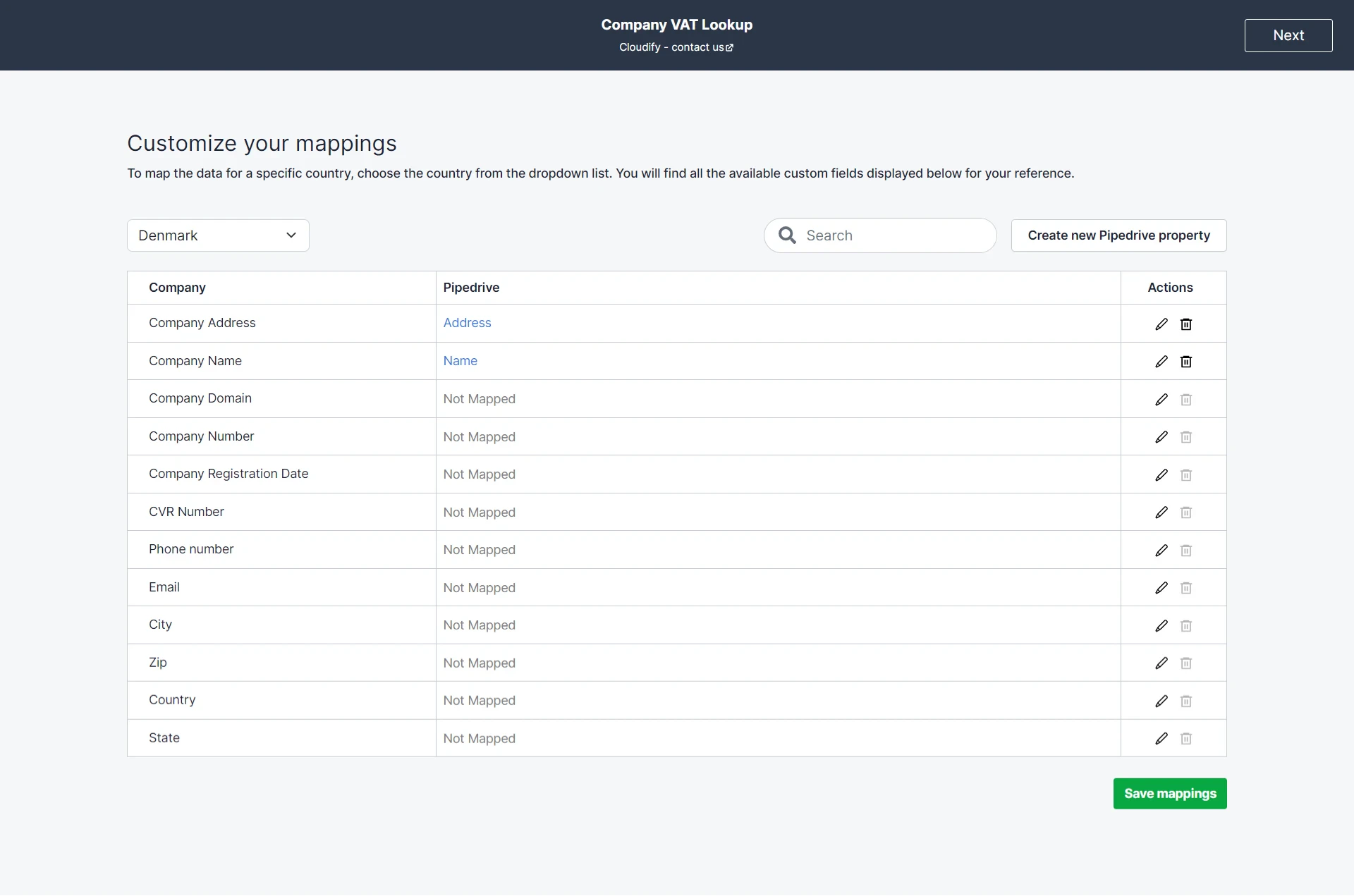
2
Review the pre-mapped fields. These typically include essential information like Company Name and Address.
3
For unmapped fields (shown as “Not Mapped”), click the “Actions” button to assign a corresponding HubSpot property.
4
If needed, use the ‘Create a new Pipedrive property’ option to add custom fields.
5
Ensure all mandatory fields are mapped. Remember, a Company Name is required for all countries.
6
Click “Save Mappings” when you’re satisfied with your selections.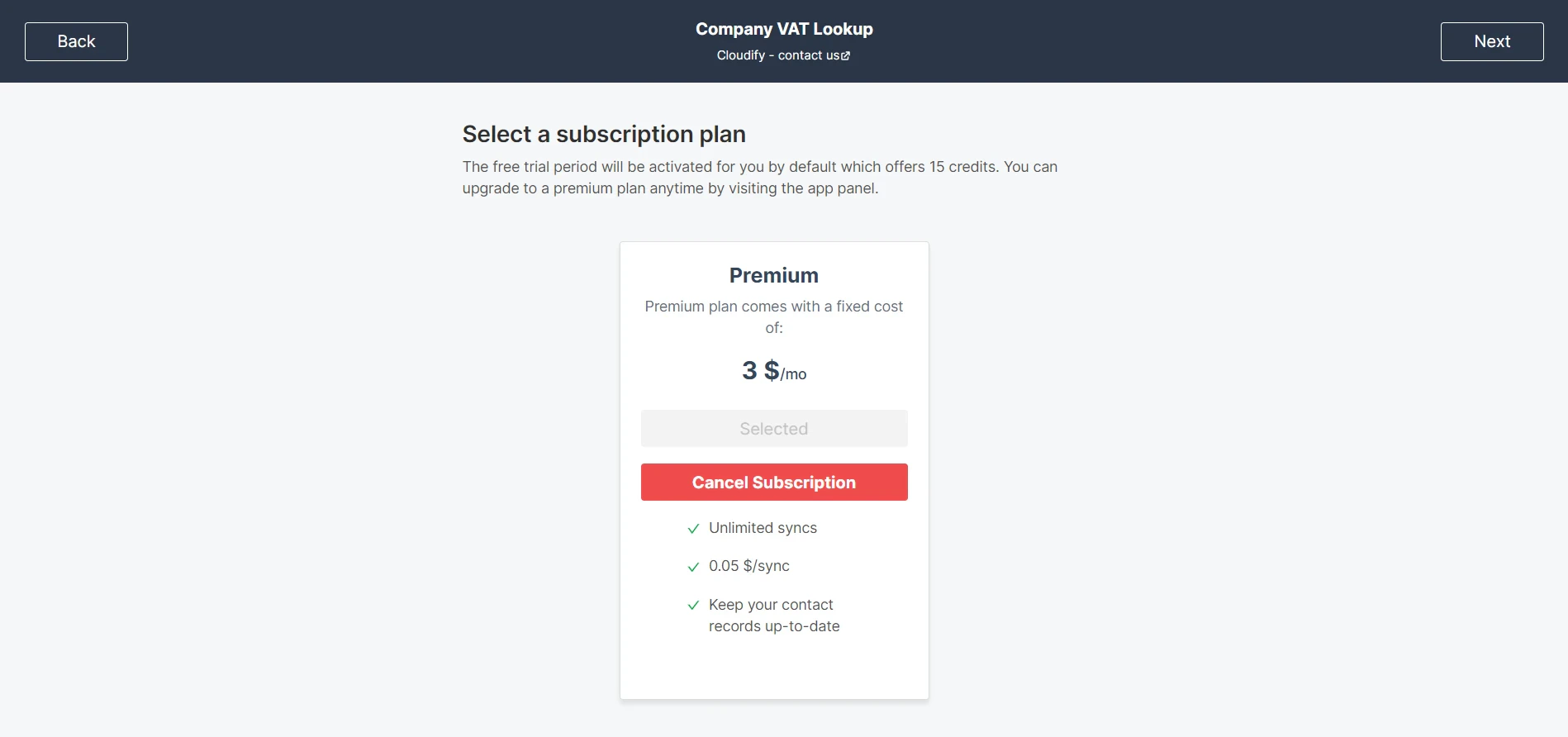
Note: Feel free to click Get Guided Installation if you require assistance from Cloudify experts regarding the installation steps
7
The trial plan will be selected for you by default. You can upgrade to the Premium Plan by clicking on “Select”.
8
Click Next.
9
You will view the steps to add the company. Click “Finish”.