

How to Install the App
1
Find the app in the Pipedrive Marketplace
Log in to your Pipedrive account and search for the Visma e-conomic sync app in the marketplace. If you have already logged into your Pipedrive account, click the application link directly.Then click Install now.
2
Allow and Install
Click Allow and Install to grant the necessary permissions.
3
Start the setup
Click Start to begin the setup process.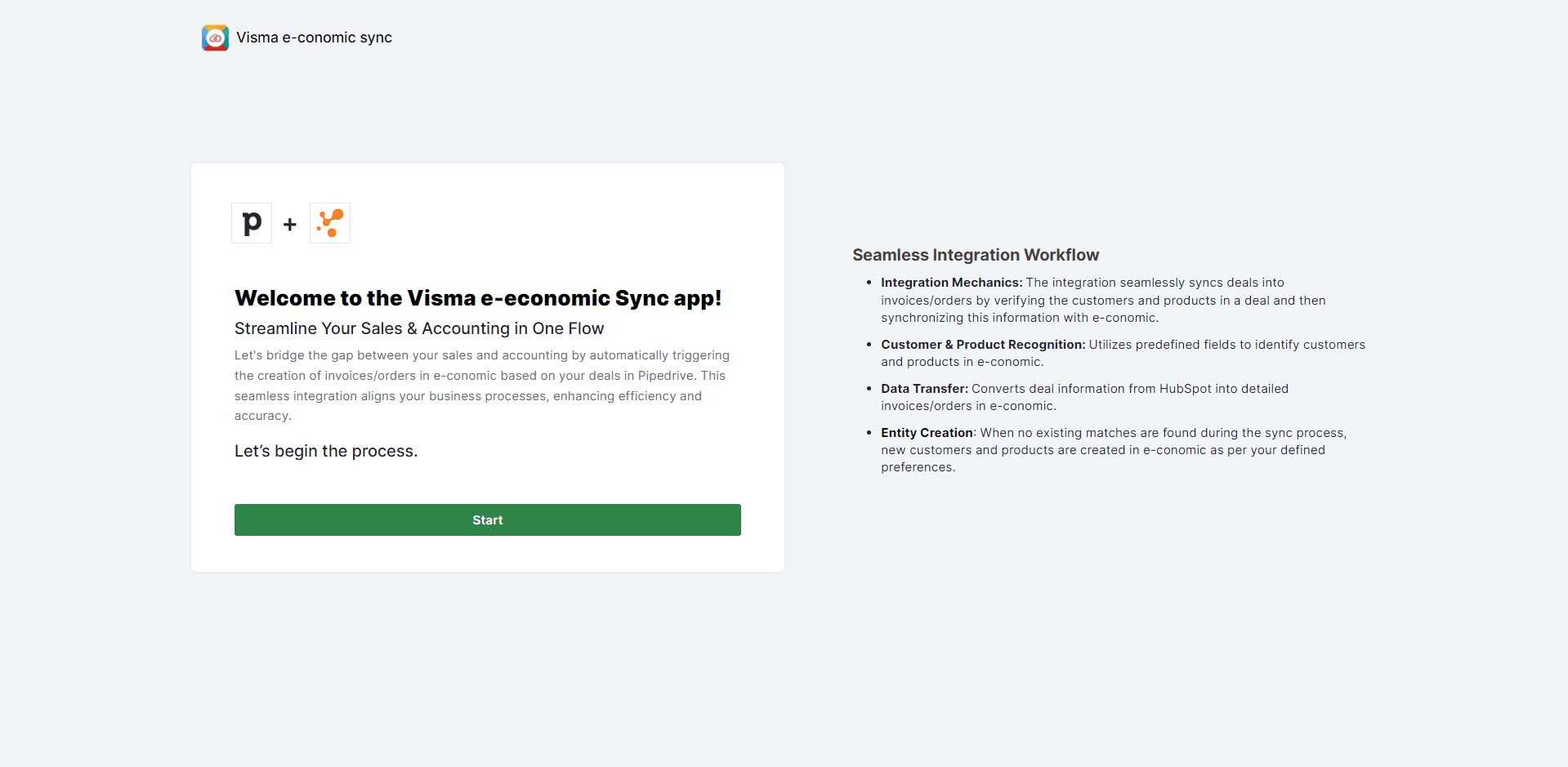
Connecting Your e-conomic Account
1
Connect e-conomic
Click Connect e-conomic to begin linking your e-conomic account.
2
Proceed through the authentication window
You will be redirected to the e-conomic authentication window. Click OK to proceed to the next step.
3
Enter your email
Fill in the email address connected to your e-conomic account, then click Next.
4
Enter your password
Input your password and click Sign In.
5
Add the app to your agreement
You will be asked for permission to add the app to your agreement. Click Add App.
6
Confirmation
You will receive a success message confirming that your e-conomic account is now connected to Pipedrive. Click anywhere on the screen to close the popup.
7
Continue to next steps
Click Continue to move on to the next steps in the setup.