

Contact Sync Rules
Choose how Stripe customers should be matched with existing customers in Business Central. The app first checks whether a Stripe customer already exists in Business Central before creating a new one. This helps prevent duplicate customer records. You can select which field should be used for matching, such as:- Phone Number
- Tax ID
- Metadata Fields From Stripe
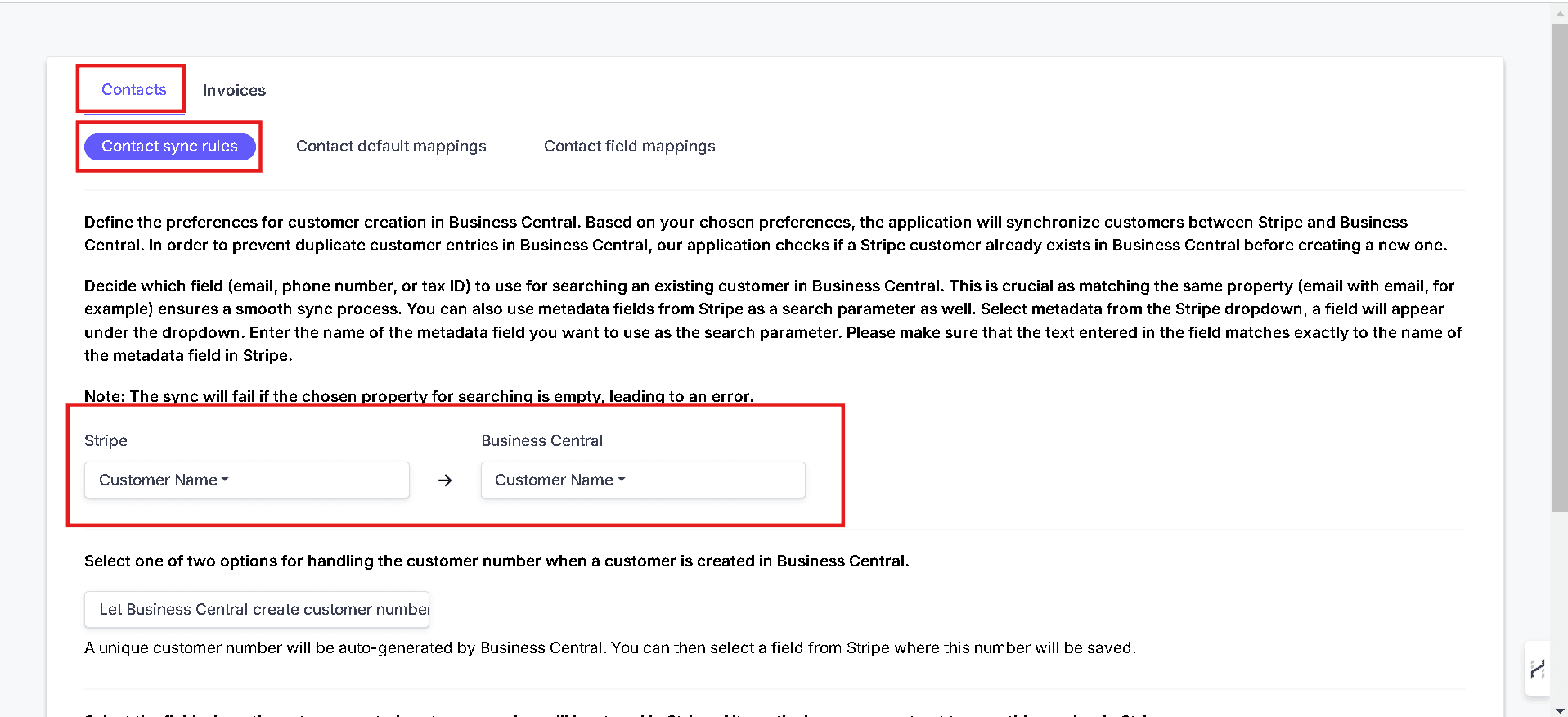
Customer Number Preference
Choose one of the two options for handling the customer number when a new customer is created in Business Central.Let Business Central Create Customer Number
Business Central generates a unique customer number automatically. You can then choose which Stripe field should store that generated number, or choose not to store it anywhere.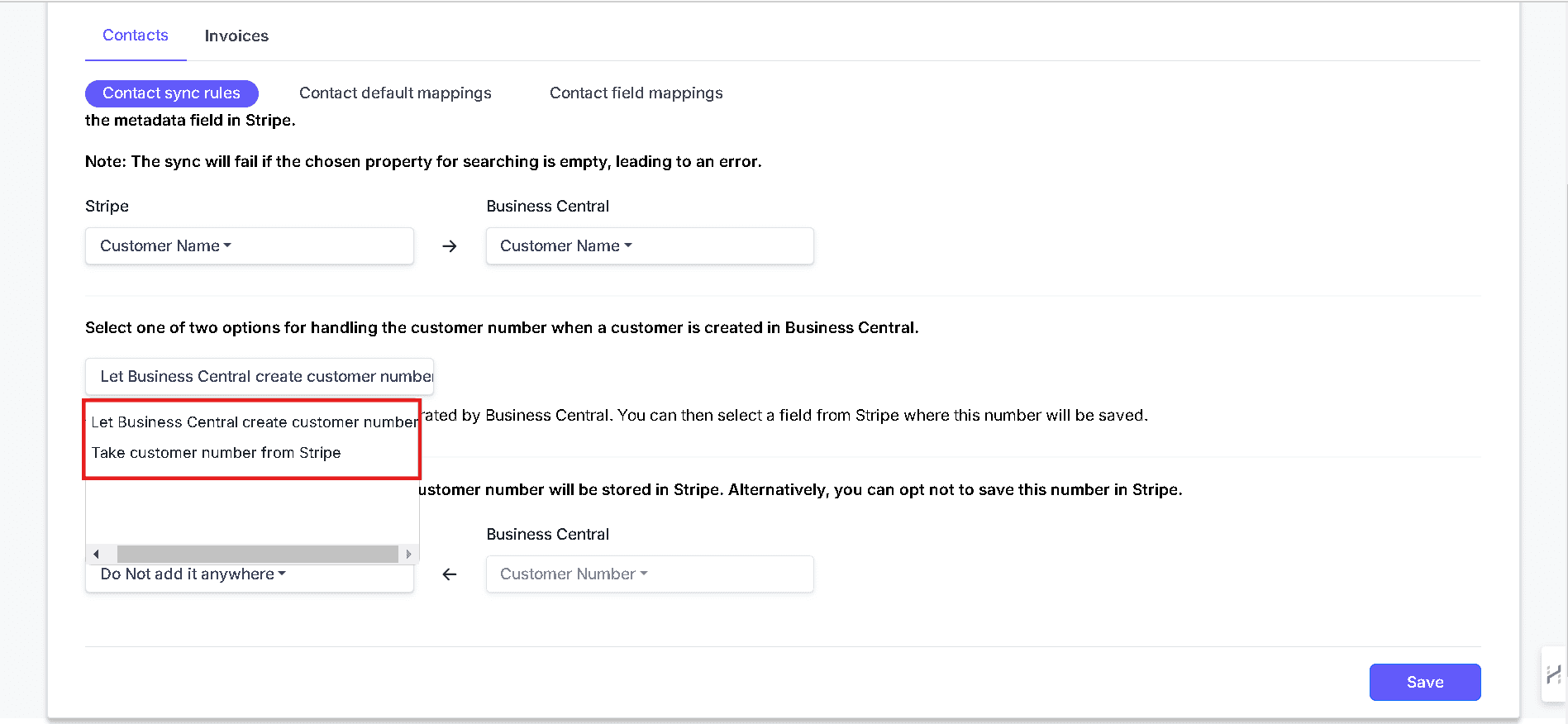
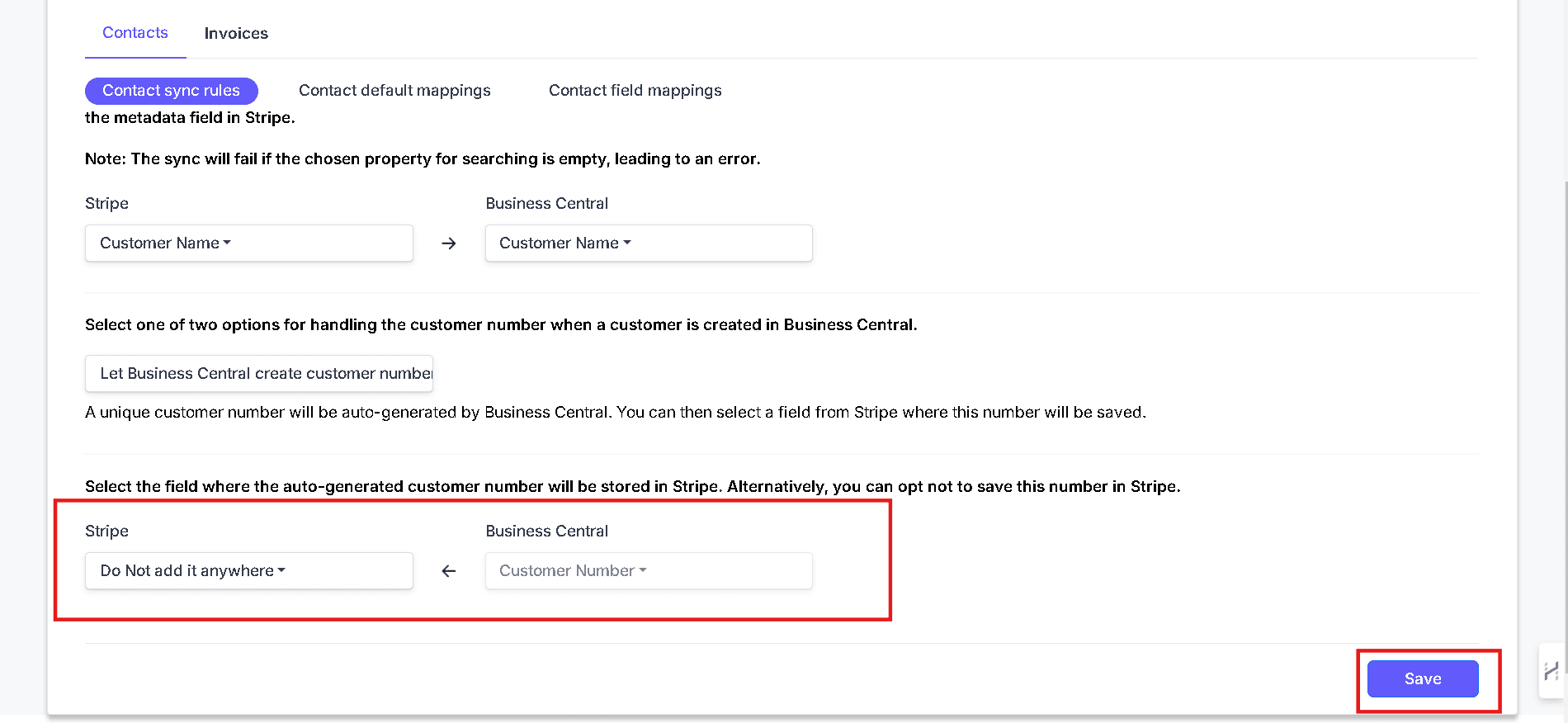
Take Customer Number From Stripe
Choose this option if you want Stripe to provide the customer number that should be used in Business Central.Letting Business Central create the customer number is usually the safer option because it helps keep customer numbering consistent inside Business Central.
Contact Default Mappings
Use this section to define default values that should be applied whenever a new customer is created in Business Central. The source page shows defaults for:- Payment Terms Code
- Currency Code
- Customer Posting Group
- VAT Business Posting Group
- General Business Posting Group

Contact Field Mappings
Use this section to control how Stripe customer fields map to Business Central customer fields. Some fields may already be mapped by default, but you can edit them as needed. The page highlights that Customer Name is a mandatory field and must be mapped. To update mappings:- Click the edit icon in the Actions column
- Choose the correct Stripe field
- Repeat for any other fields you want to update
- Save your changes

Match similar field types where possible, such as email to email or phone to phone, to improve data accuracy.
Need Something More Advanced?
Cloudify can help with tailored integrations, specialised data mappings, and workflow automations.