

Invoice Sync Rules
Product Matching Method
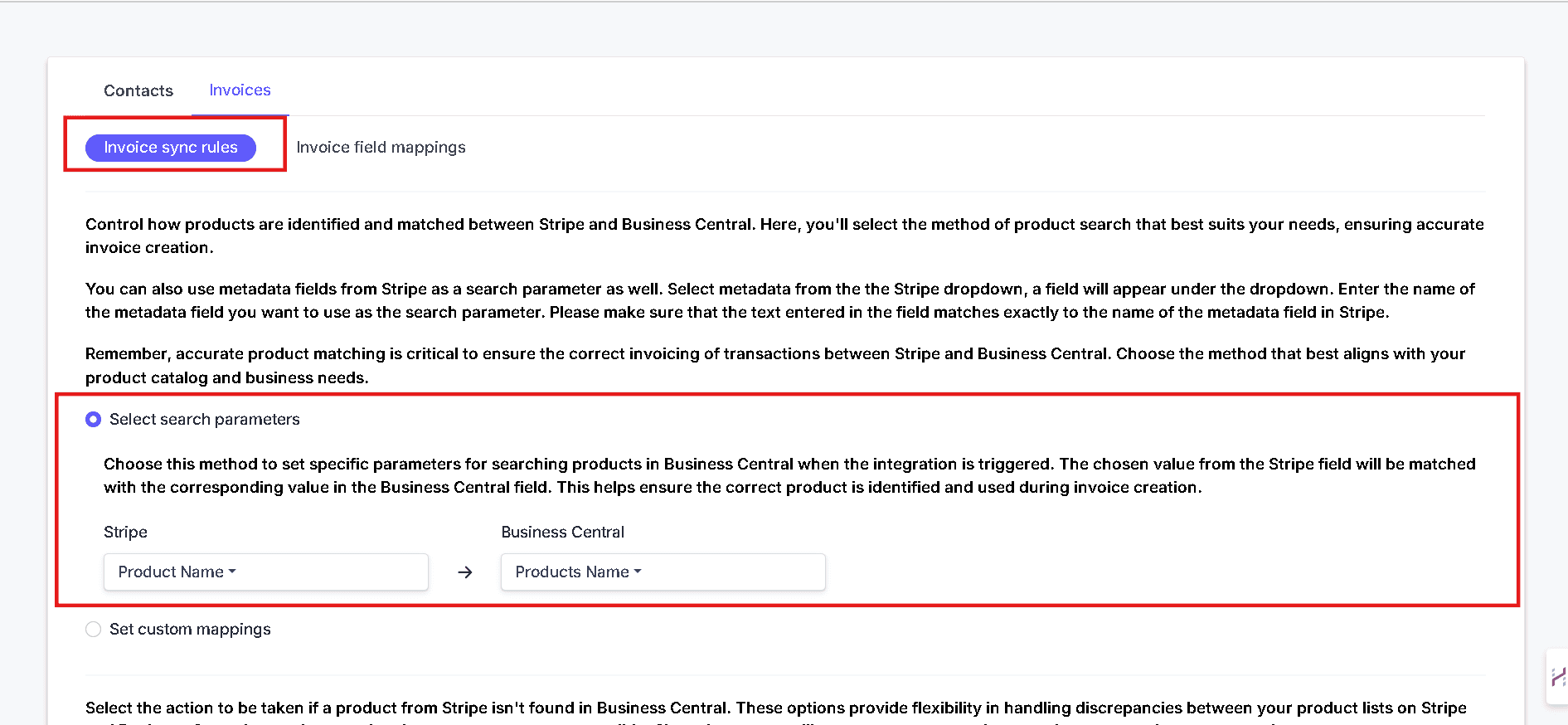
Choose how products from Stripe should be identified and matched in Business Central during invoice creation.Select Search Parameters
Use this option when you want to match products by comparing a Stripe field with a Business Central field. For example, you can match:- Product Name To Product Name
- SKU To Product Number
- Metadata Fields To Matching Business Central Fields
Set Custom Mappings
Use this option when you want to manually link specific Stripe products to specific Business Central products. This is especially useful when you have a smaller product catalogue and want tighter control over exact product matching.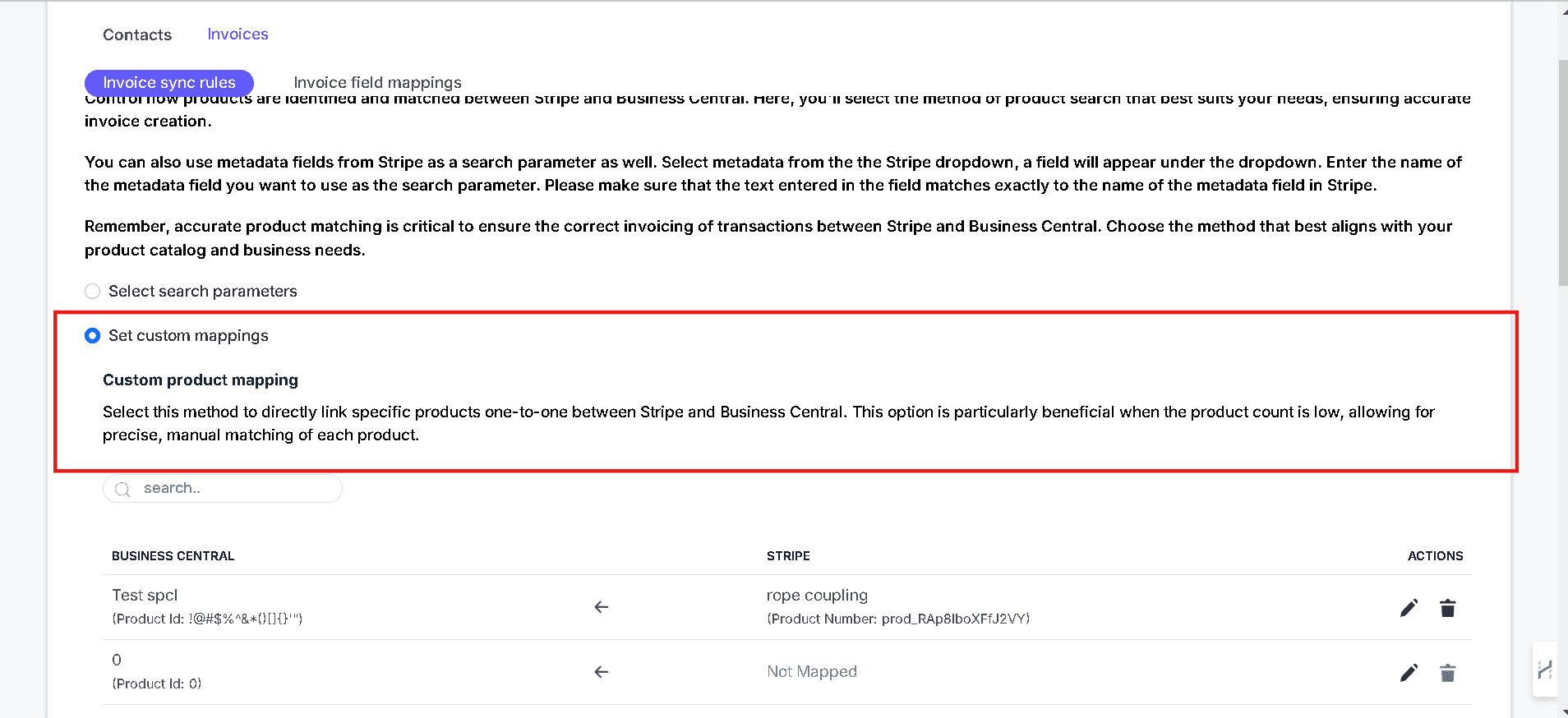
Choose only one matching method at a time: Select Search Parameters or Set Custom Mappings.
Product Not Found Handling
Choose what should happen if a product from Stripe cannot be found in Business Central.Do Not Generate Invoice
Choose this option if you want the integration to stop invoice creation when a matching product cannot be found. This helps ensure that only complete and accurate invoices are created.
Use Default Product
Choose this option if you want the integration to use a predefined Business Central product when the Stripe product cannot be found. The default product is used to provide the product reference, while the remaining invoice information still comes from Stripe.
Invoice Trigger Stage
Choose the invoice stage in Stripe that should trigger invoice creation in Business Central. The page notes that this can be tied to different points in the Stripe invoice lifecycle, such as when an invoice is first issued, updated, or paid. It also notes that invoices in Business Central will be created in Open status. :contentReference[oaicite:1]
Save The Rules
After reviewing the settings, click Save.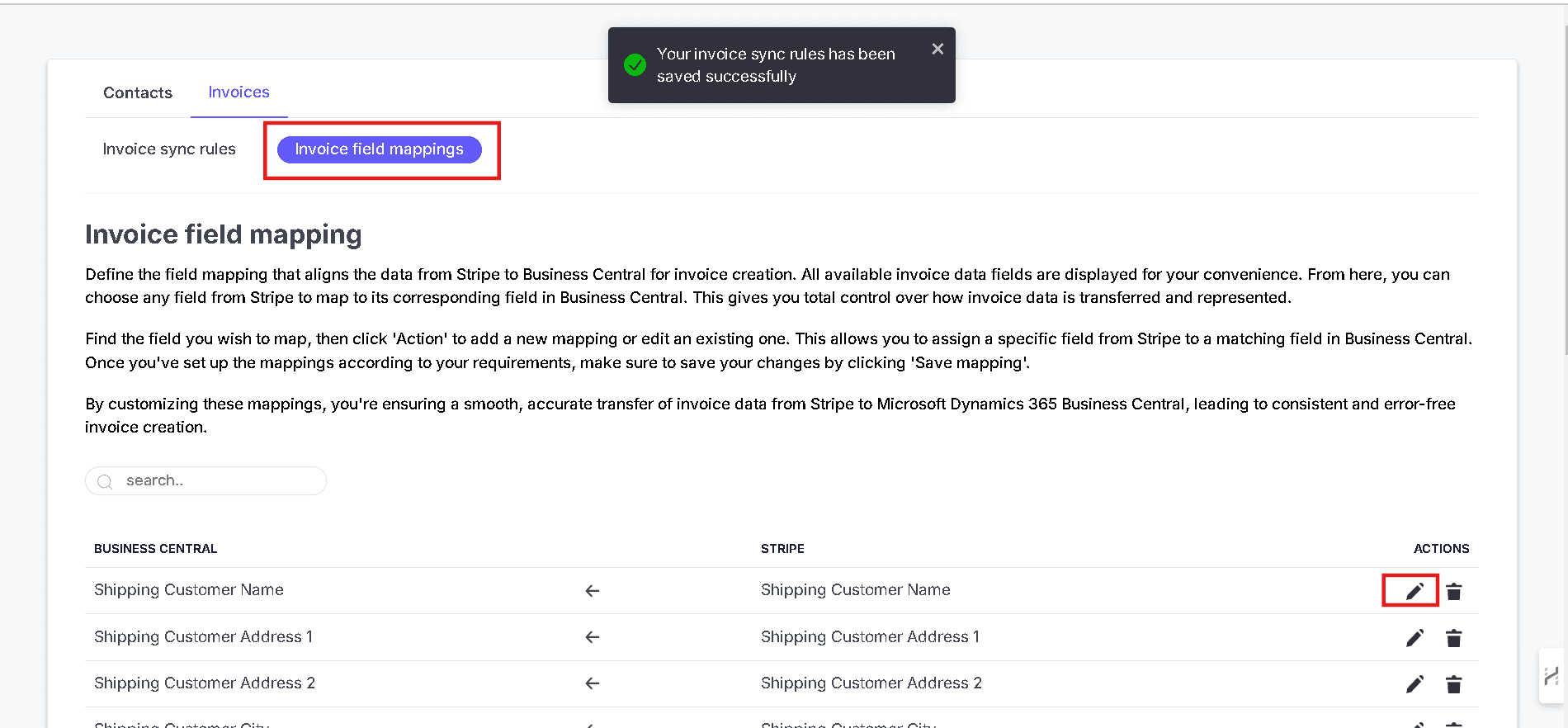
Invoice Field Mappings
Use the Invoice field mappings tab to define how invoice data from Stripe should map to invoice fields in Business Central. The source page shows fields such as:- Shipping Customer Name
- Shipping Customer Address 1
- Shipping Customer Address 2
- Phone Number
- Seller Customer Address 1
- Seller Customer Address 2
- Seller Customer City
- Seller Customer Country
- Seller Customer State
- Seller Postal Code
- Shipping Contact Person Name
Edit A Mapping
Click the edit icon in the Actions column for the field you want to update. Then choose the correct Stripe field for that Business Central field.Save The Mappings
After updating your field mappings, click Save.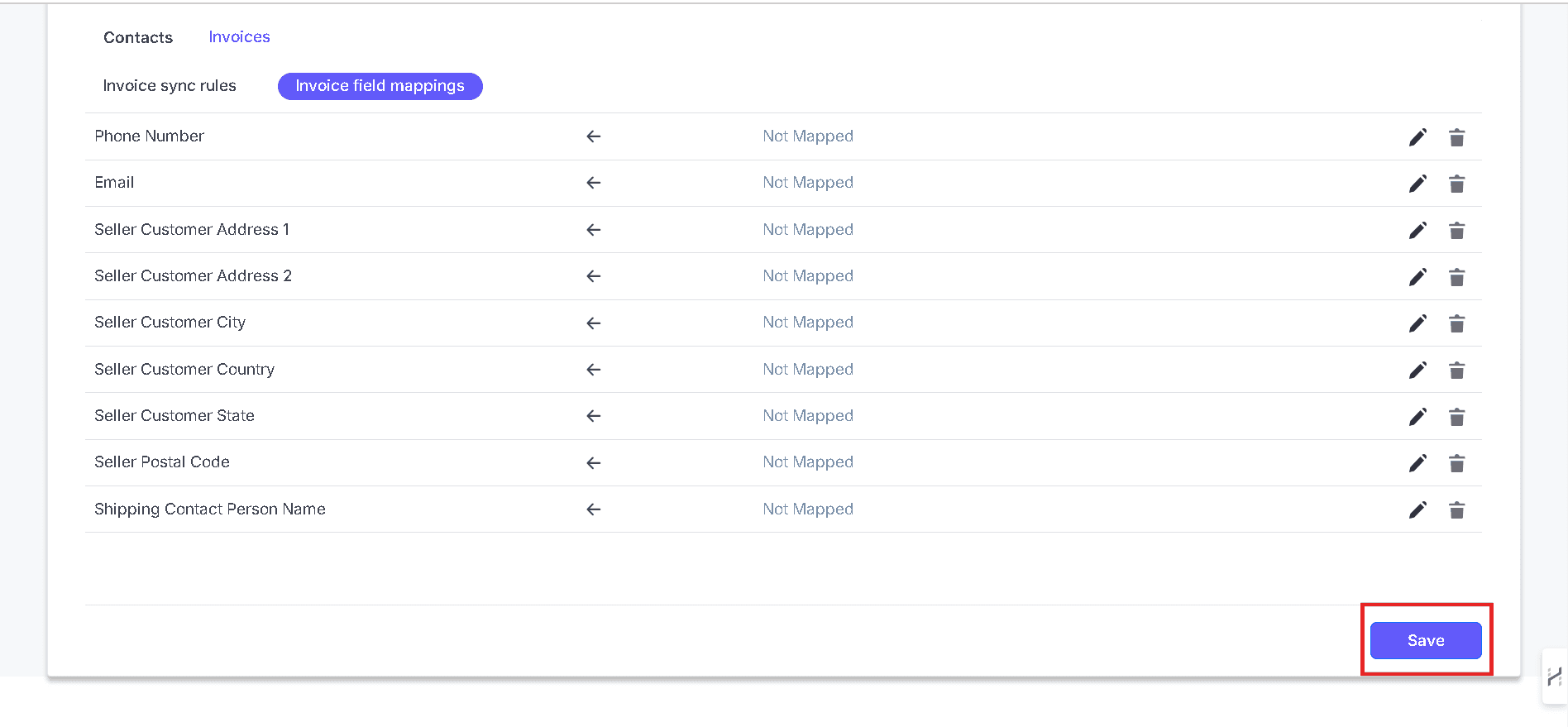
Use similar field types where possible, such as address to address or email to email, to improve invoice accuracy.
Need Something More Advanced?
Cloudify can help with tailored integrations, specialised data mappings, and workflow automations.