

Company Field Mappings
This step forms the foundation of your data integration. Proper mapping ensures that company information from Danish CVR aligns correctly with your HubSpot fields.1
Edit a company field
Click Edit next to the field you want to map.
2
Choose the HubSpot property
Select the correct HubSpot property from the dropdown.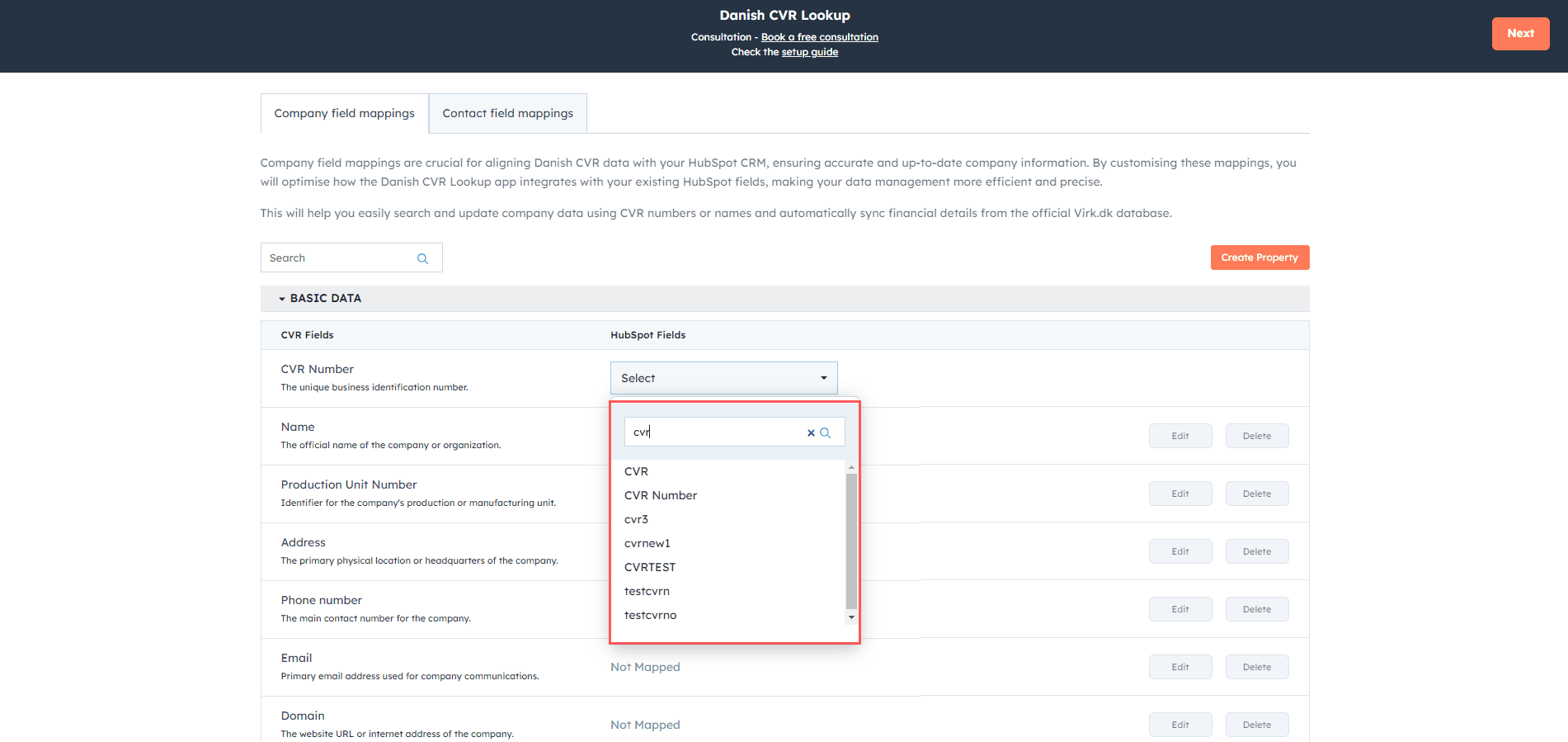
3
Save the field
Click Save.
4
Save all mappings
After completing your mappings, click Save Mappings.
Contact Field Mappings
This section helps enrich HubSpot with contact details associated with companies.You must enable Create Contacts if you want to sync contact details for added companies.
1
Enable contact creation and edit a field
Check Create Contacts, then click Edit on the contact field you want to map.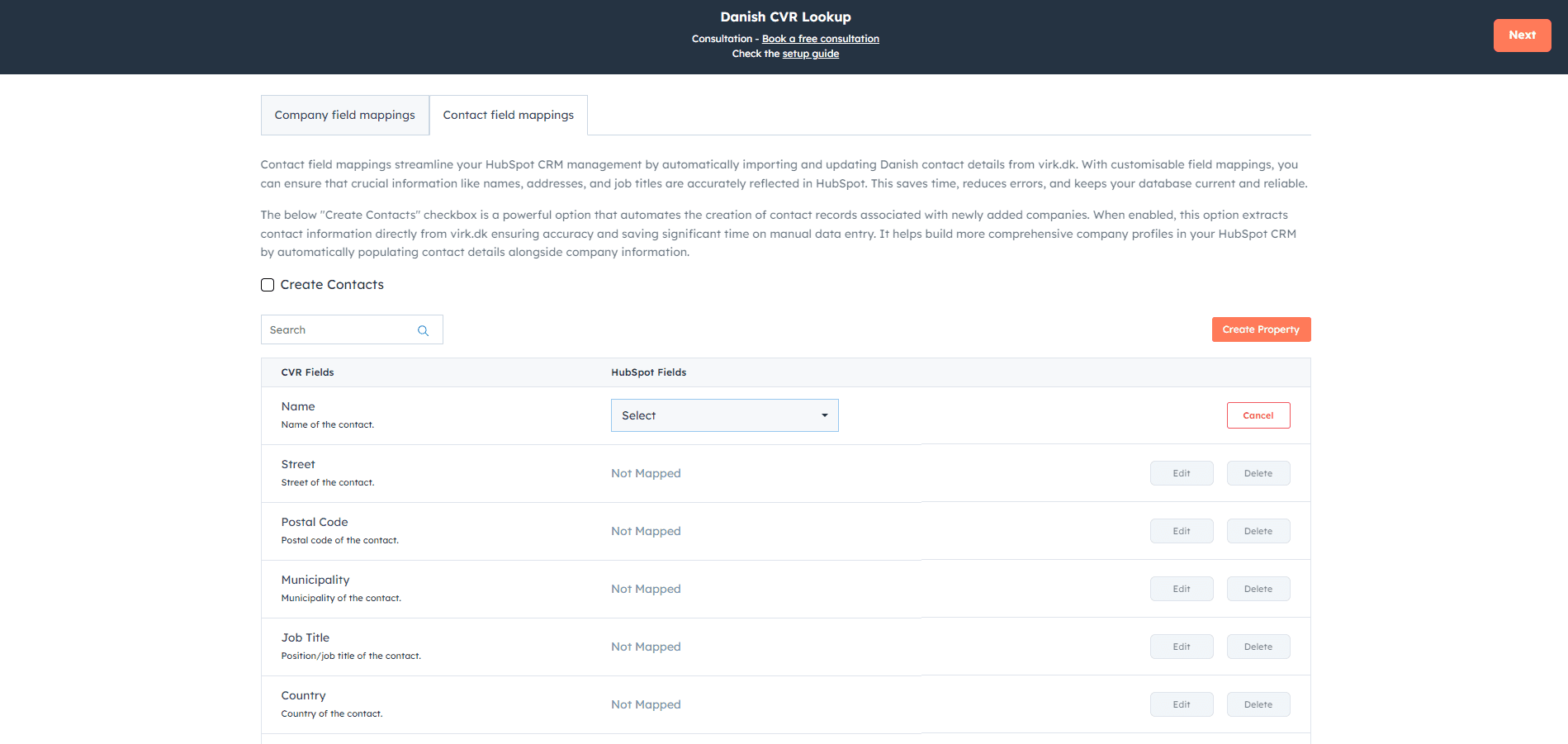
2
Choose the HubSpot contact property
Select the correct HubSpot property from the dropdown.
3
Save the contact field
Click Save.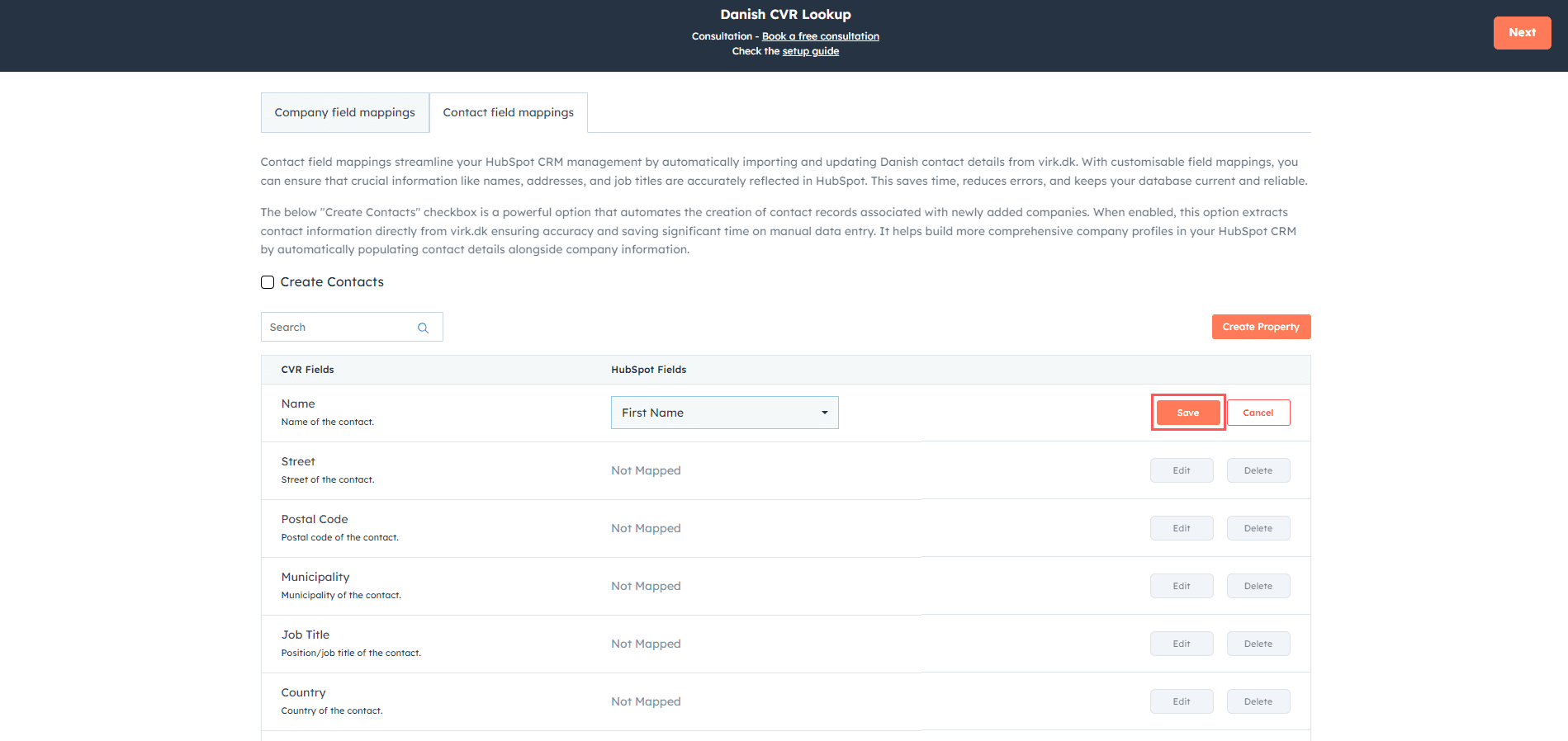
4
Save all contact mappings
Click Save Mappings.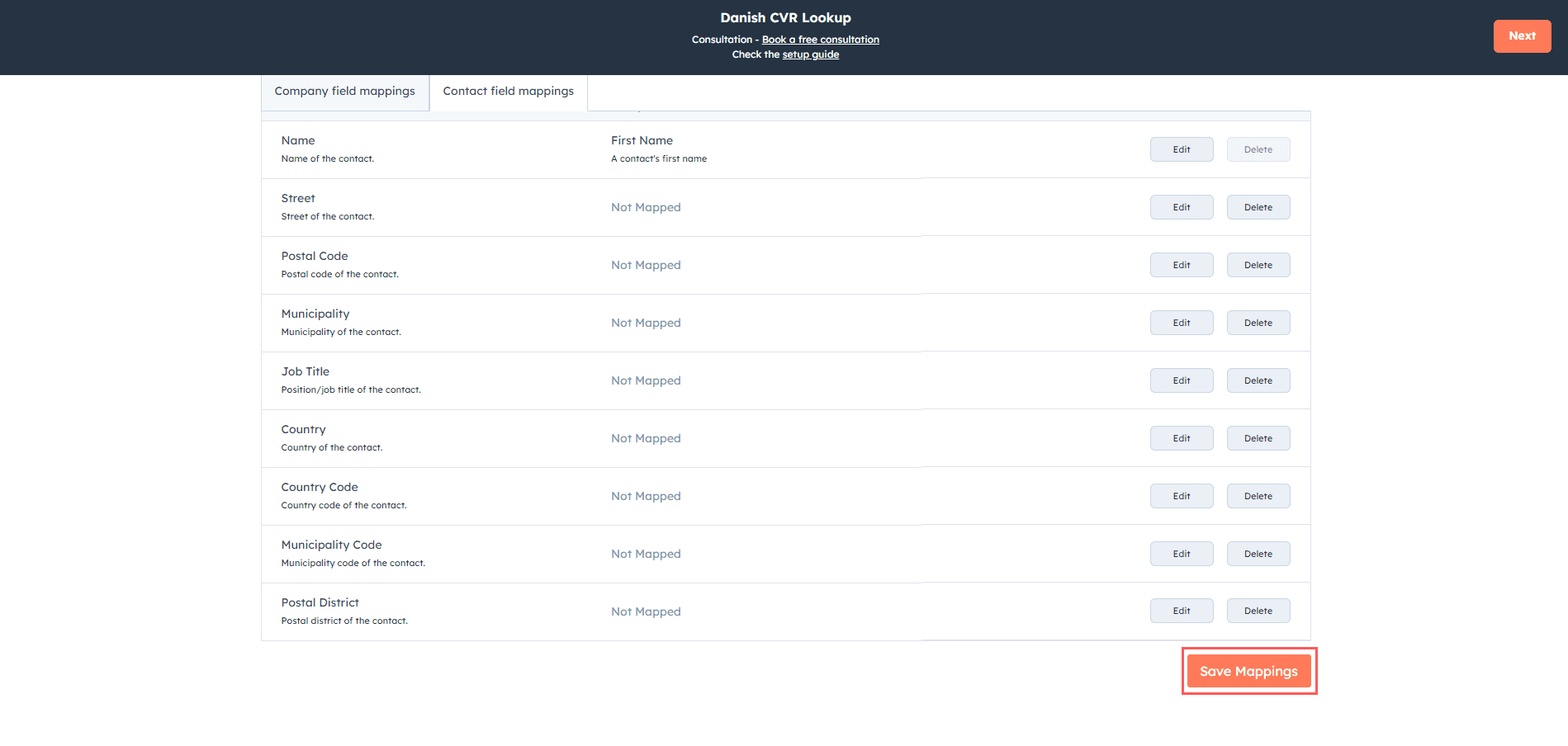
Next Step
Continue to the post-installation settings overview.