If you require assistance from Cloudify experts, feel free to book a Guided Installation.
Company Field Mappings
1
Click the “Edit” icon and change the fields you want to sync.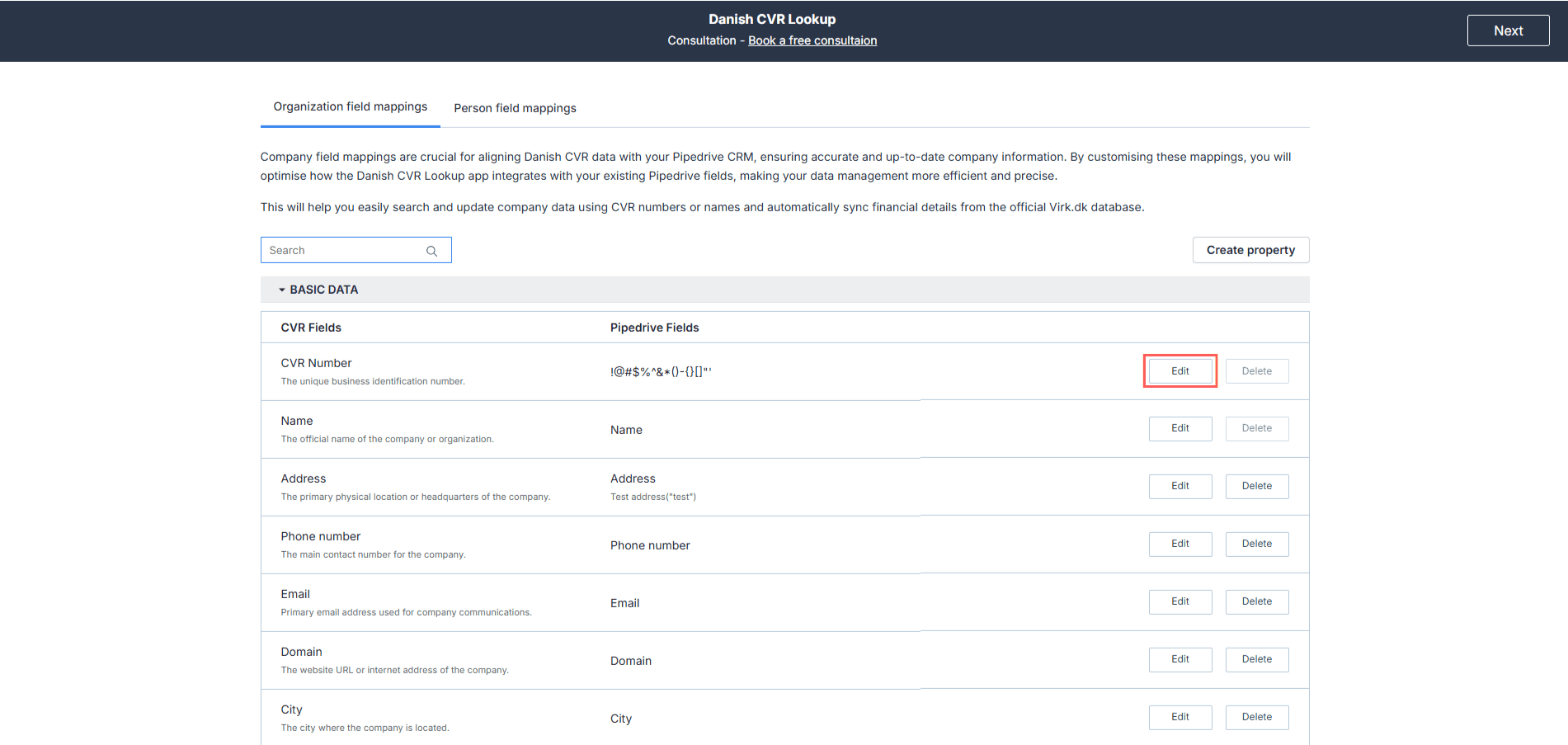
2
In the Pipedrive column, click the drop-down menu for the respective field. You will see a list of all your Pipedrive organisation properties (text and number fields only are currently supported). Search for and select the Pipedrive property where you want the CVR app data to be stored.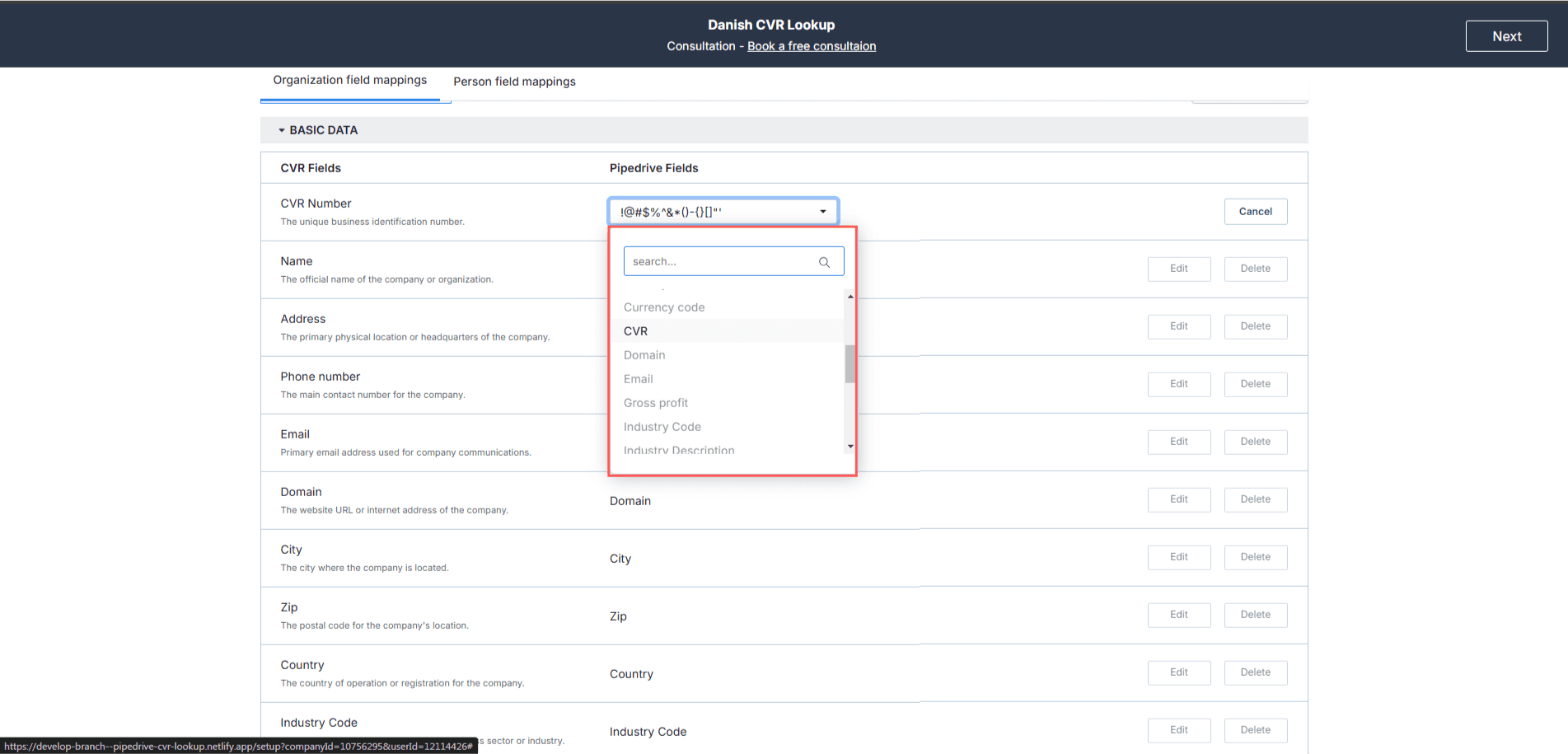
3
Click on the “Financial Data” section where default financial fields are listed — such as Net Turnover, Gross Profit, Balance Sheet, and Currency Code.
4
If you need a property that doesn’t exist in your organisation’s properties list, click “Create Property” to add a new custom property.
5
Give it a name and click “Create”. This will create a new custom organisation property under Organisation Information in your Pipedrive CRM. Then click “Save”.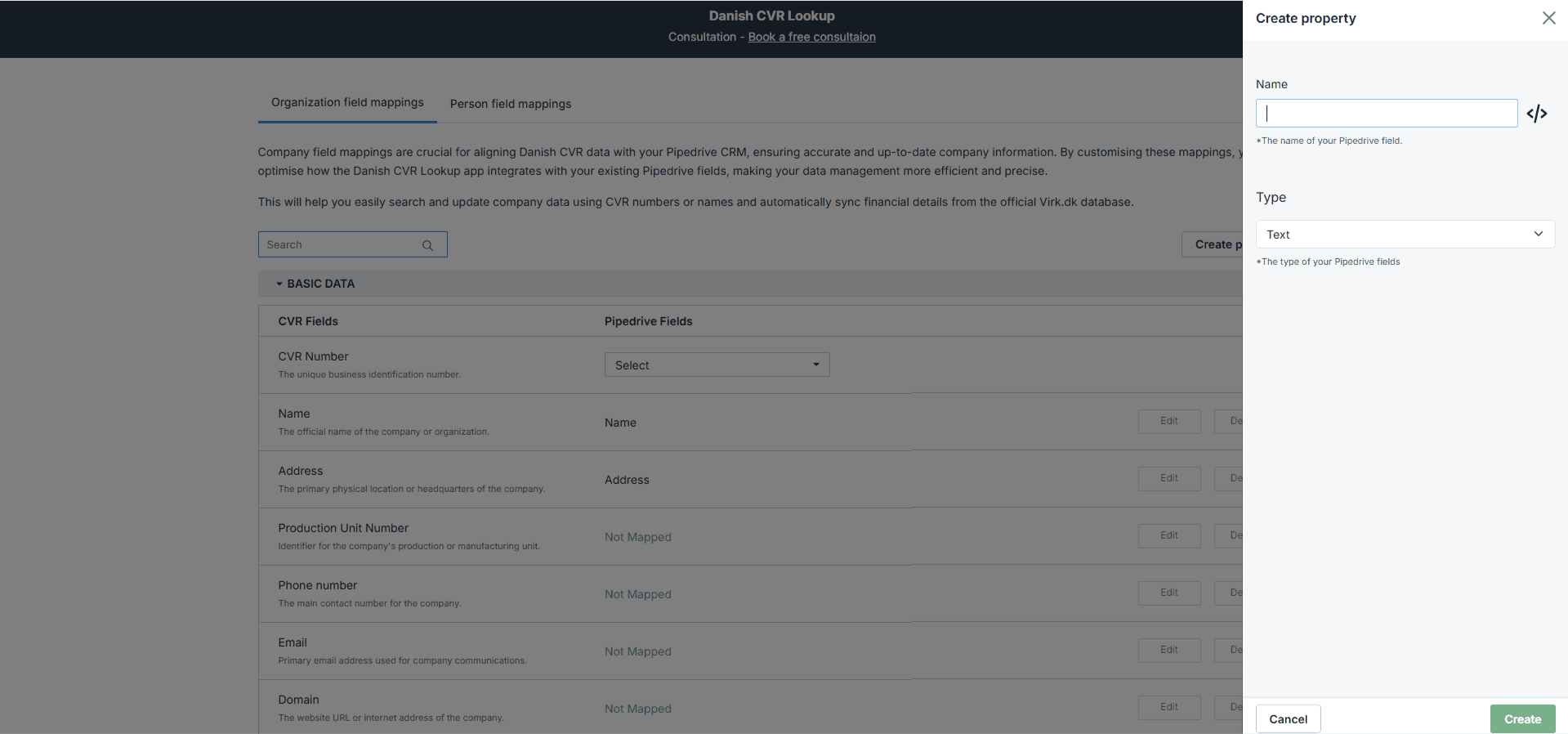
6
Once you are satisfied with your mapping settings, click “Save Mapping”.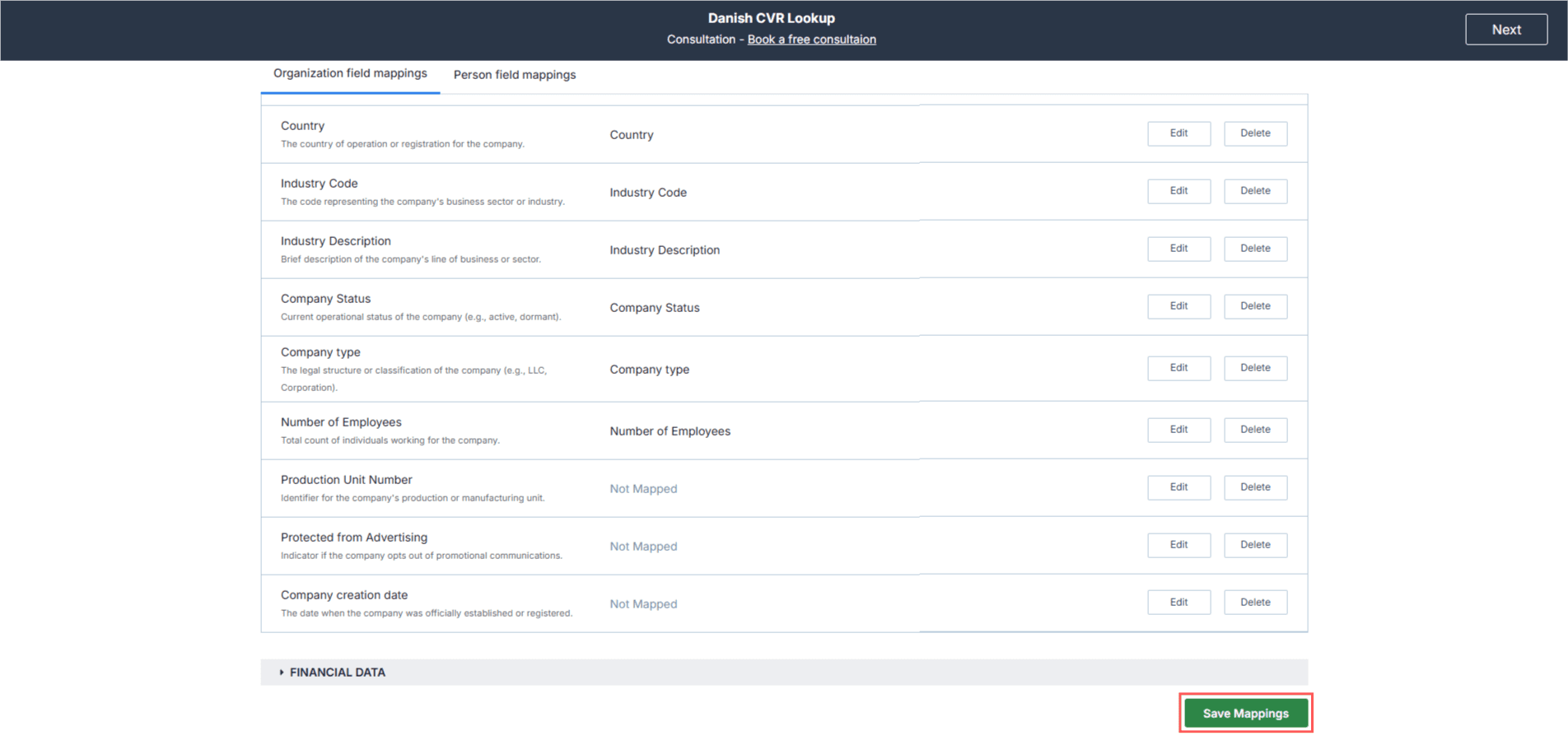
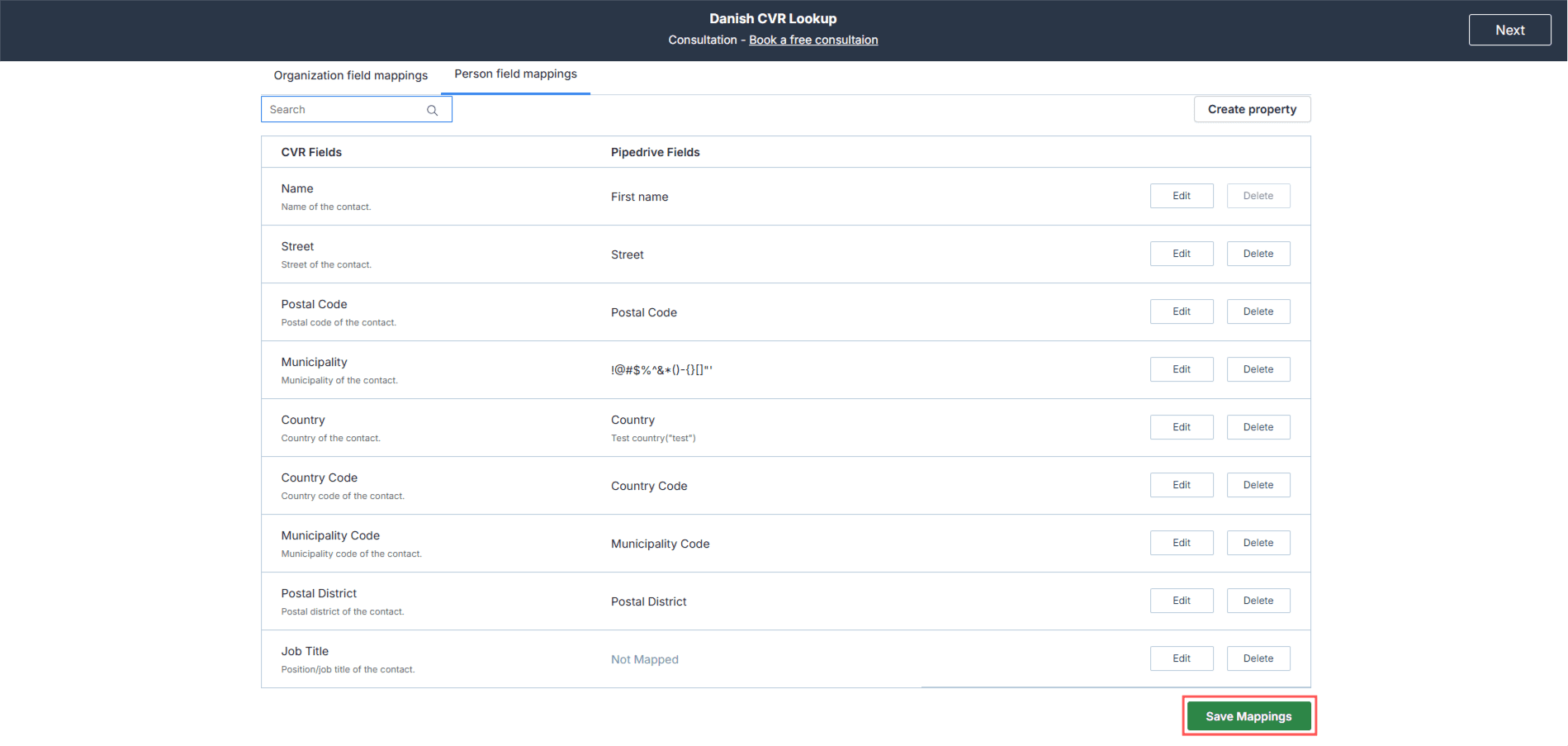
Person Field Mappings
This step enhances your Pipedrive CRM with detailed contact information, improving your ability to engage with key individuals within companies.It is compulsory to check the “Create Contact” option if you want to sync the contact details for the added companies.
1
Click the “Edit” button.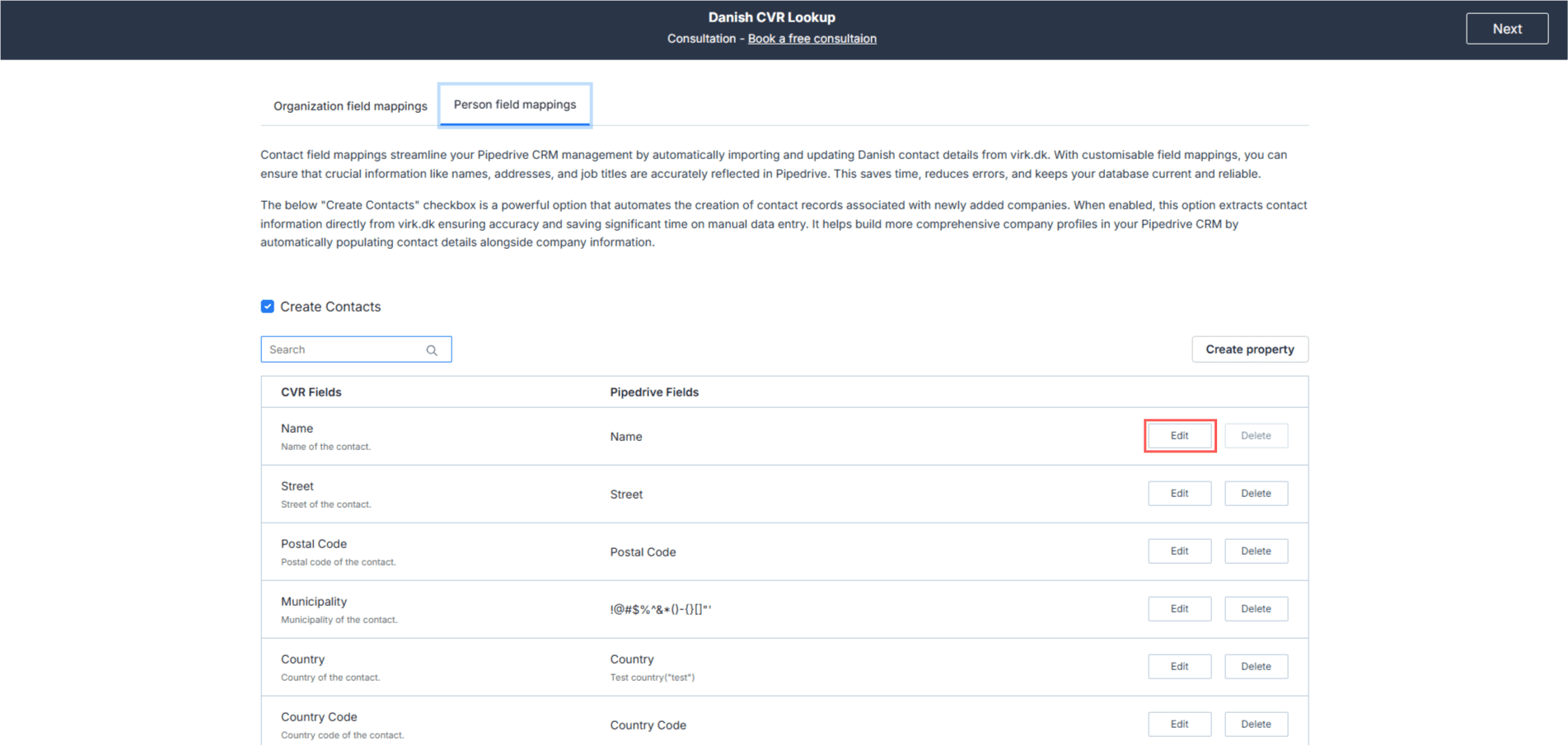
2
Select the option from the dropdown menu.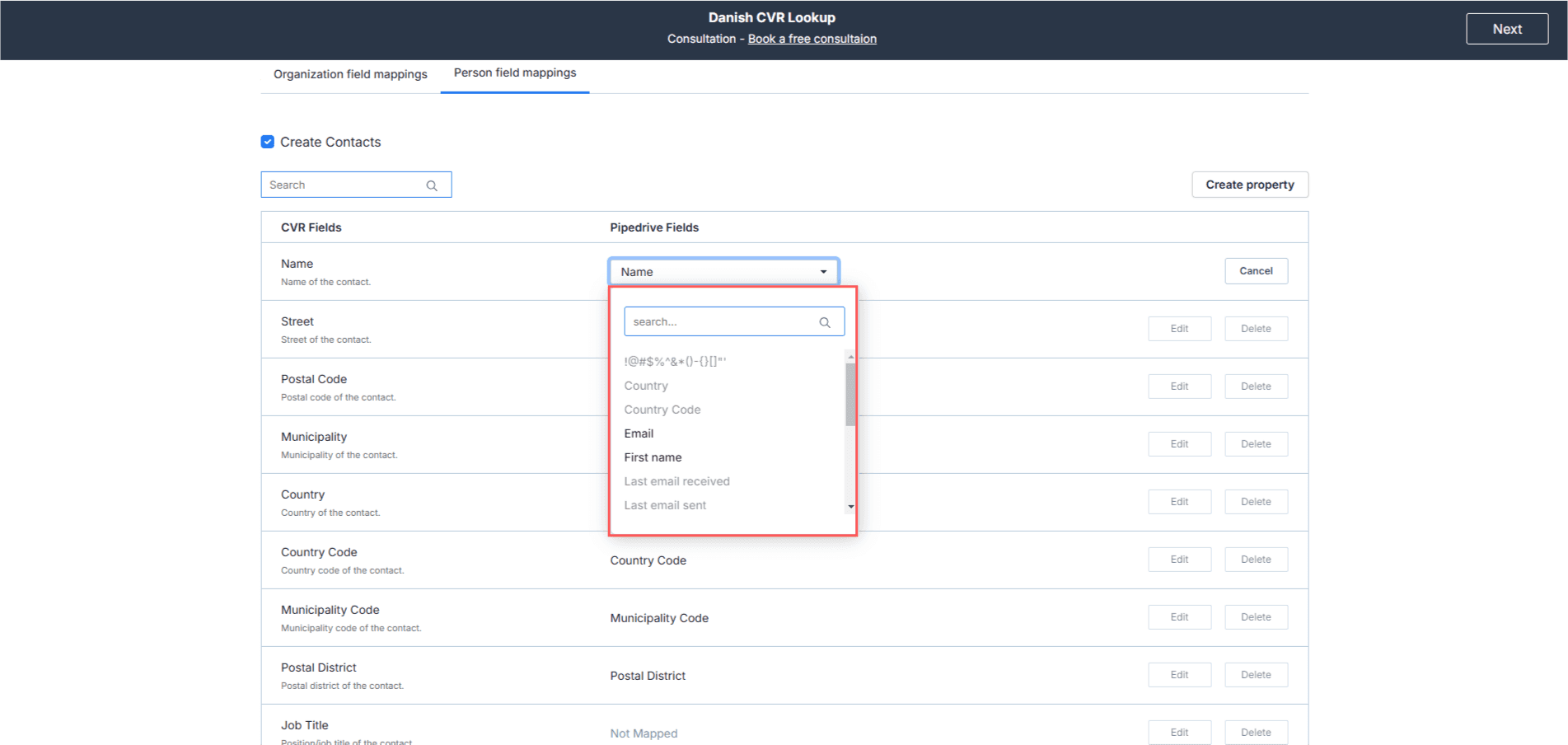
3
Click “Save”.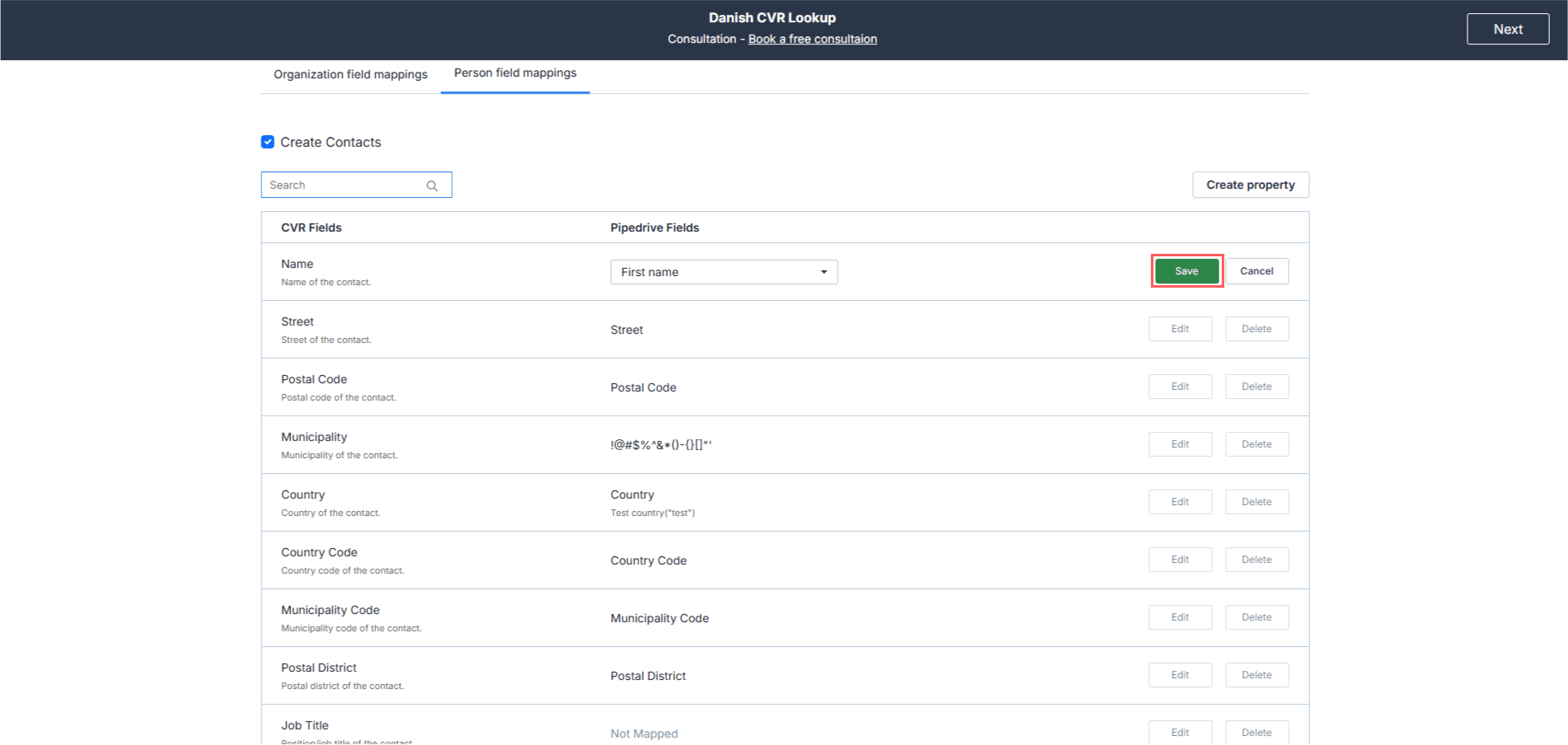
4
Click “Save Mappings”.