- Customer matching rules
- Customer default mappings
- Field mappings
Customer Matching Rules
Why Customer Matching Rules Matter
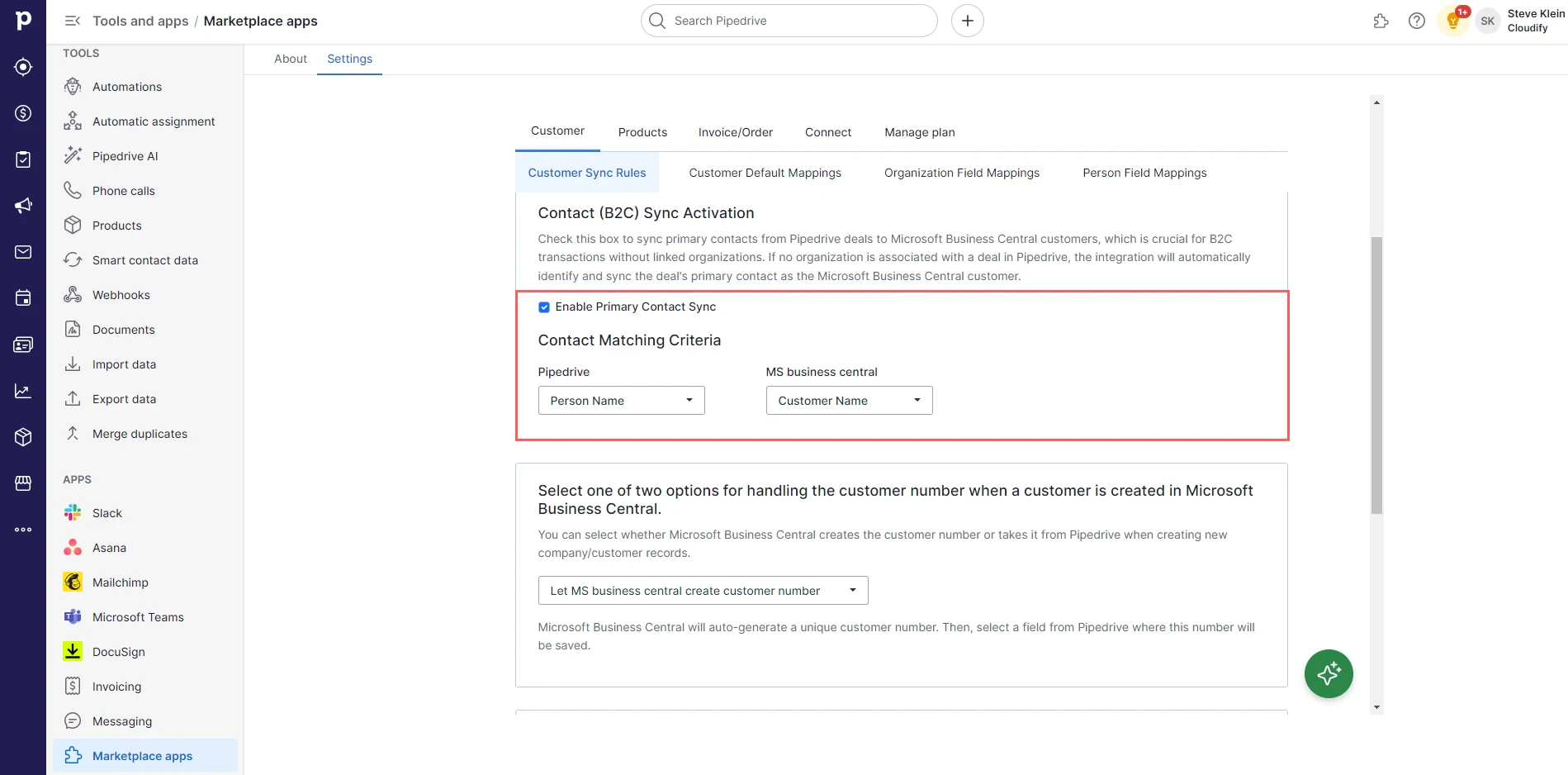
Customer matching rules are crucial because they:- Prevent duplicate customers: By accurately matching Pipedrive companies and contacts to existing Business Central customers, you avoid creating duplicate records in Business Central.
- Ensure data consistency: Matching rules help maintain consistent customer data between Pipedrive and Business Central, ensuring that both systems have the most up-to-date information.
- Streamline customer creation: When a match is not found, the app automatically creates a new customer in Business Central, saving you time and effort.
- Simplify customer management: Properly configured matching rules make it easier to manage your customer relationships across both platforms.
Setting Up Customer Matching Rules
Define Search Parameters: Set search preferences to match Pipedrive companies with Microsoft Business Central customers using specific fields, reducing duplicates by verifying existing records. Select a field (such as Organization Name) from a drop-down in Pipedrive for the customer sync rules and select a corresponding field (Customer Name) from the drop-down in Microsoft Business Central. Click “Save”.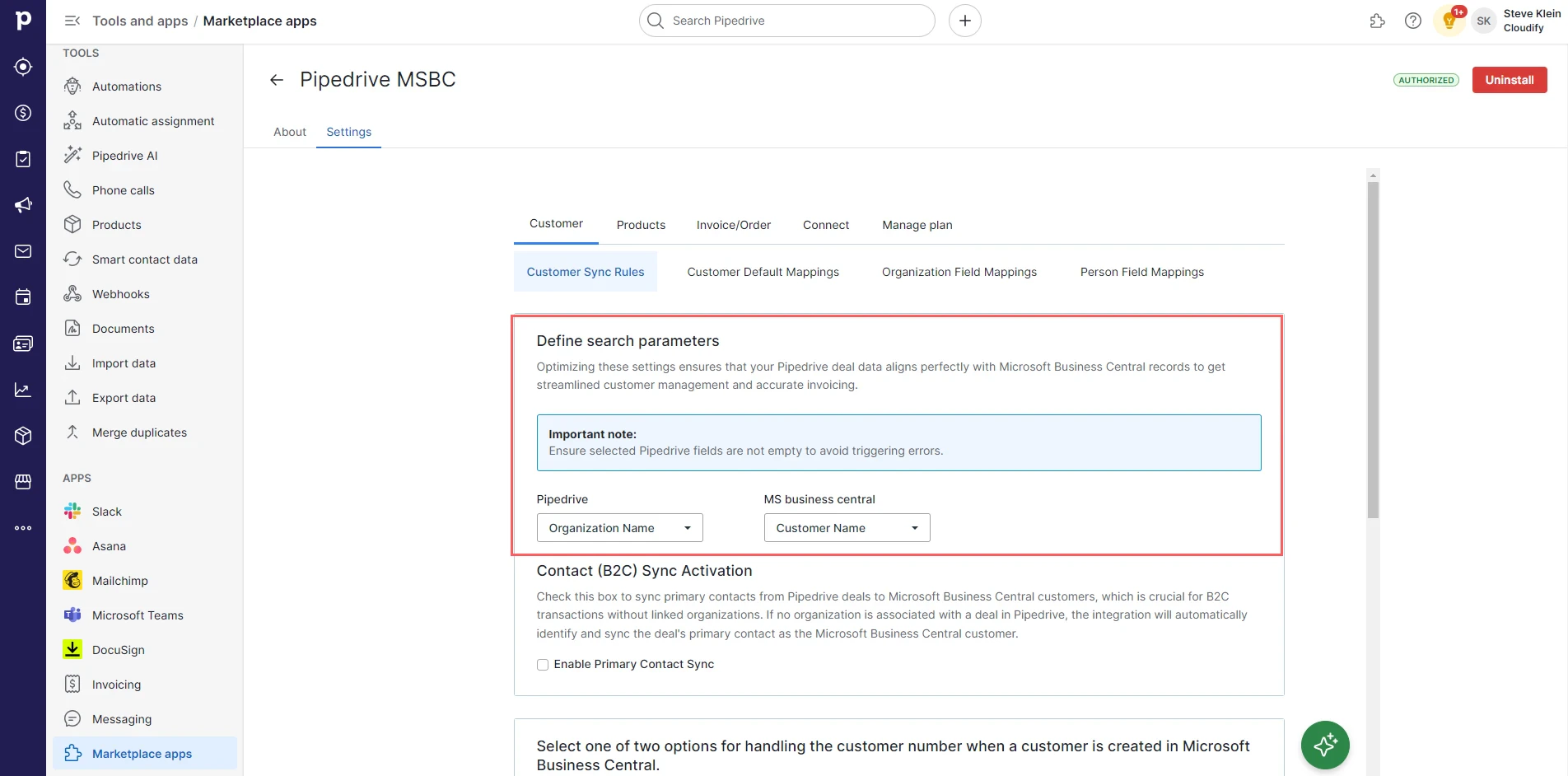
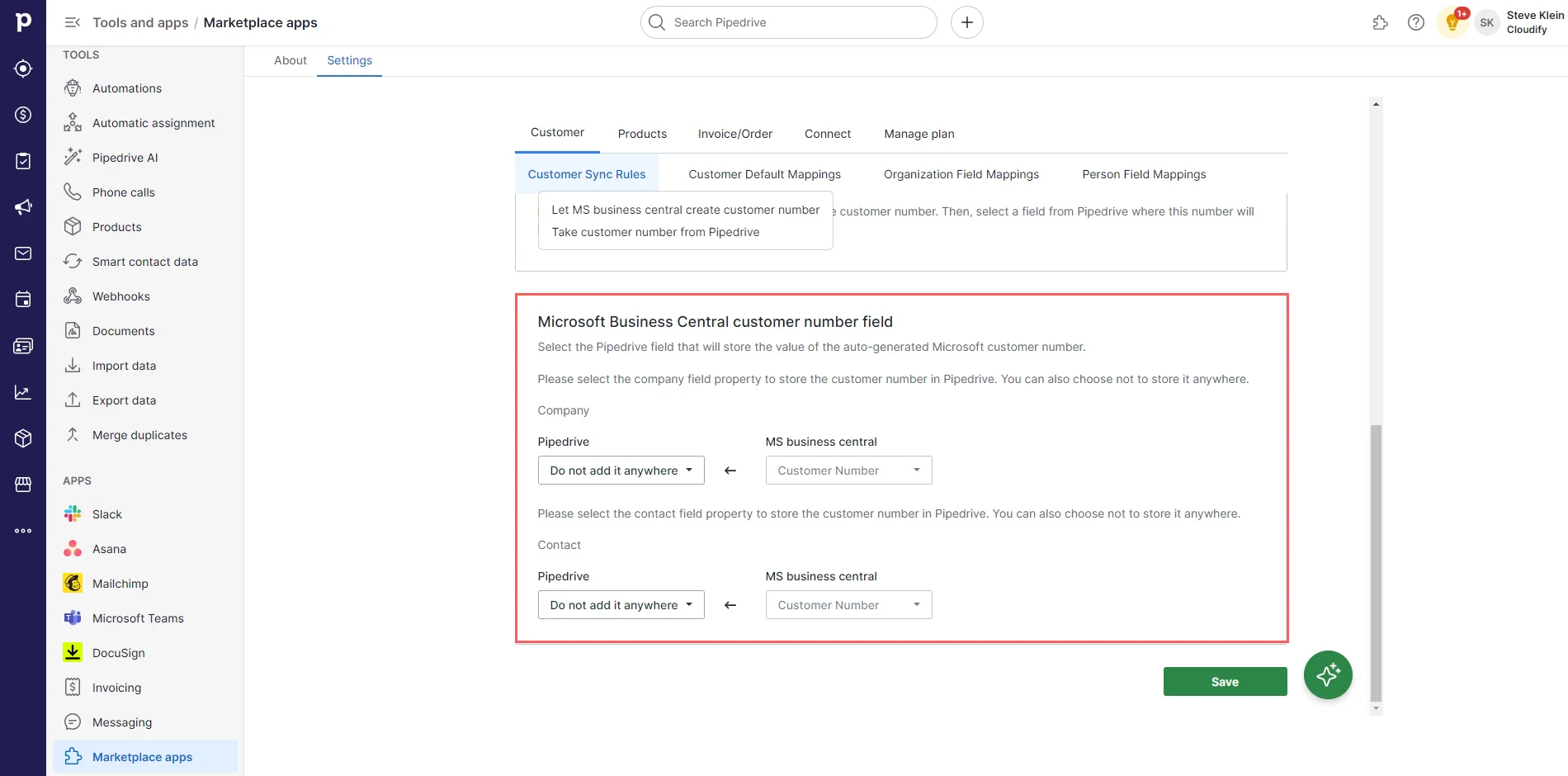
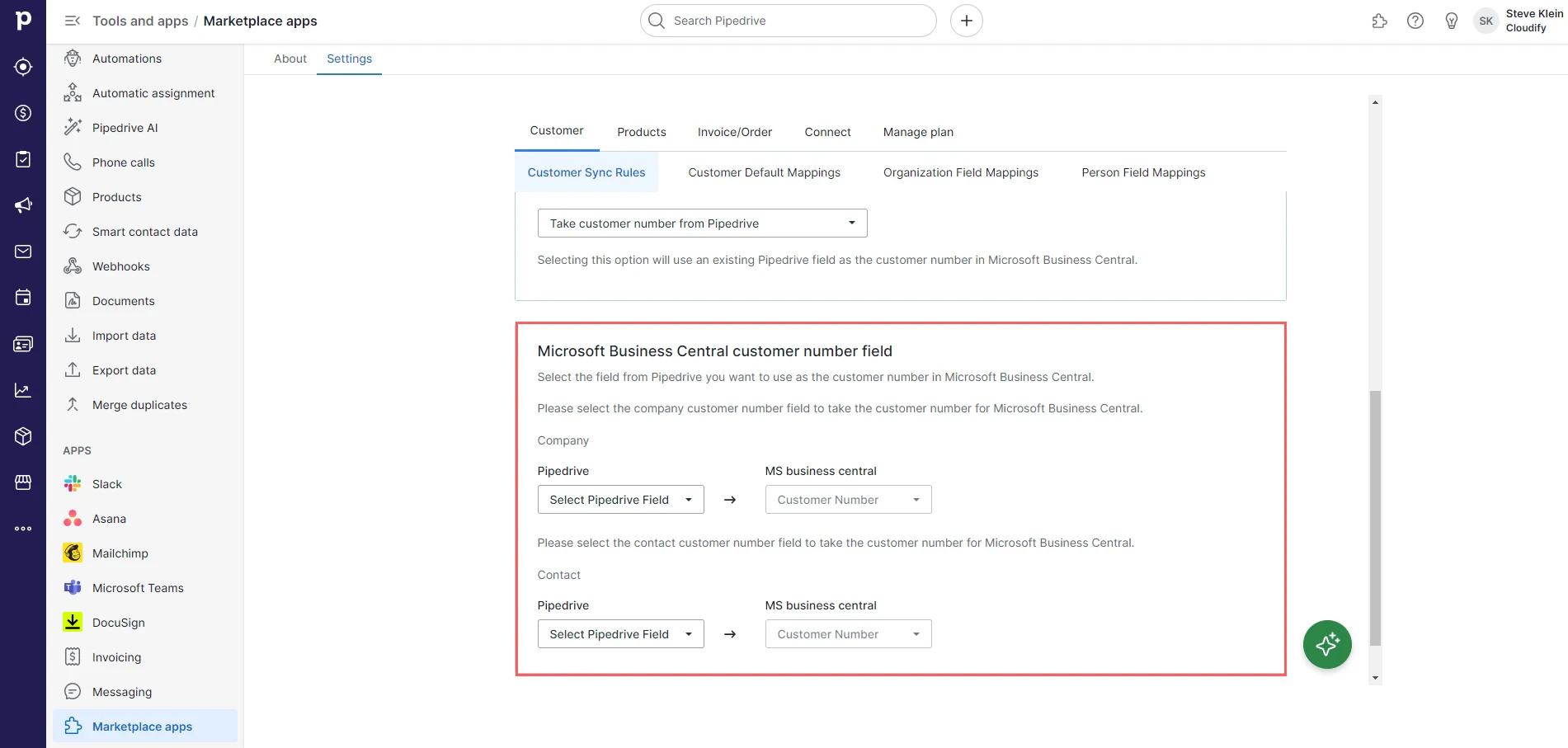
Customer Default Mappings
Why Customer Default Mappings Are Important
- Ensure all required Business Central fields are filled: These mappings provide values for fields that Business Central requires to create a new customer.
- Streamline customer creation: By setting defaults, you reduce manual data entry and potential errors.
- Maintain consistency: All new customers will have the same baseline settings unless overridden by Pipedrive data.
Setting Up Customer Default Mappings
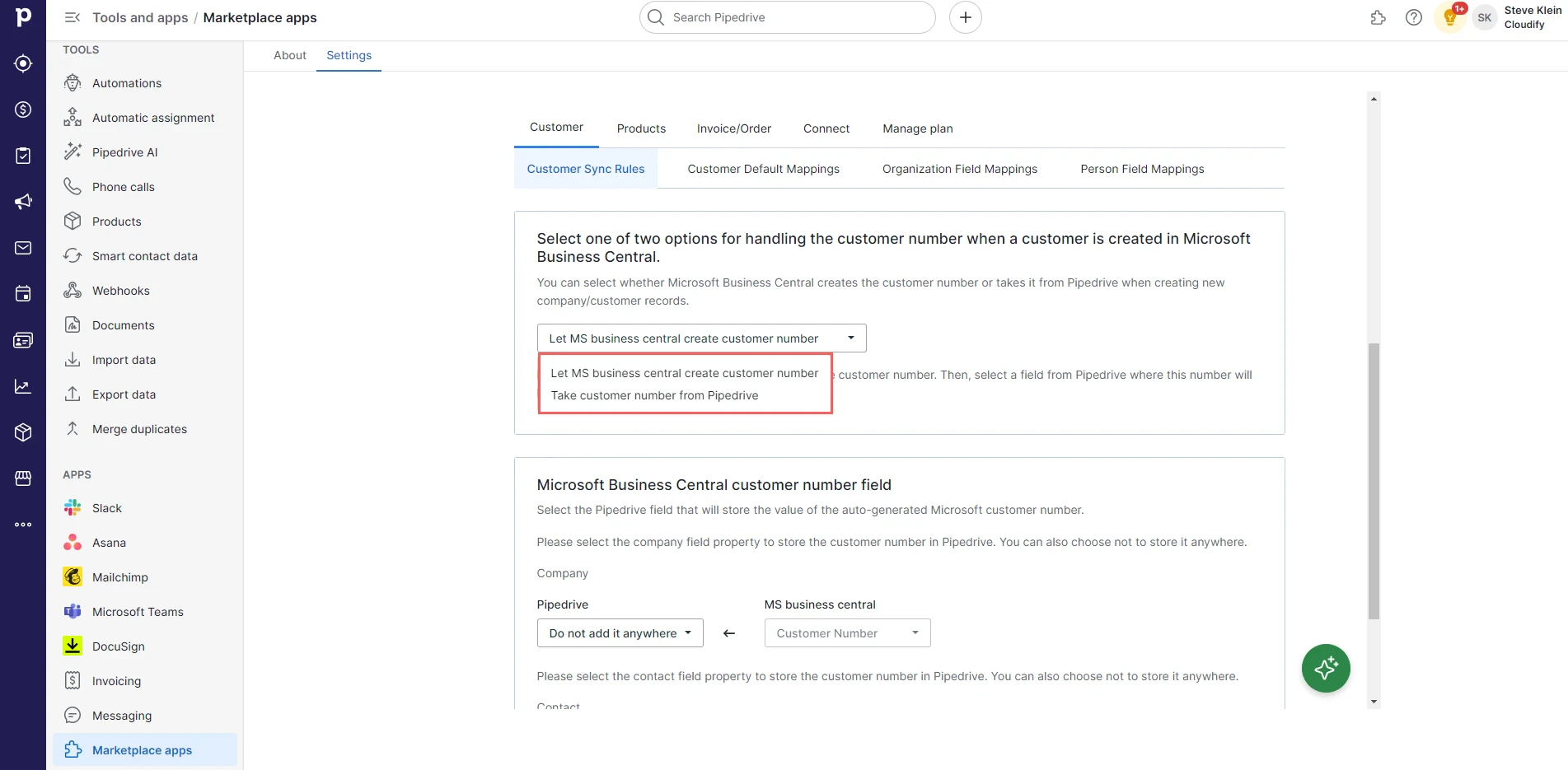
The company default mapping is applied to fill key fields with preset values during new customer creation in Microsoft Business Central from Pipedrive when certain data is missing. Set default values for key fields to facilitate customer and invoice creation in Microsoft Business Central. These default values will be applied automatically whenever a new customer is created. Select the options that fit your preference and click “Save”.Field Mappings (Organization and Person)
Why Field Mappings Matter
- Ensure data consistency: Match the right information between Pipedrive and Business Central.
- Customize for your needs: Adapt the integration to fit your unique business processes.
- Save time: Automate the transfer of customer data, reducing manual entry.
- Improve data quality: The more fields you map, the more comprehensive your customer profiles will be in both systems.
Setting Up Company Field Mappings
Organization field mappings dictate the flow of customer data from Pipedrive to Microsoft Business Central, allowing for tailored synchronization of company information to align with specific business needs. You can customize these mappings according to your specific business requirements by clicking Edit > Select the Pipedrive field from the drop-down box and click “Save”.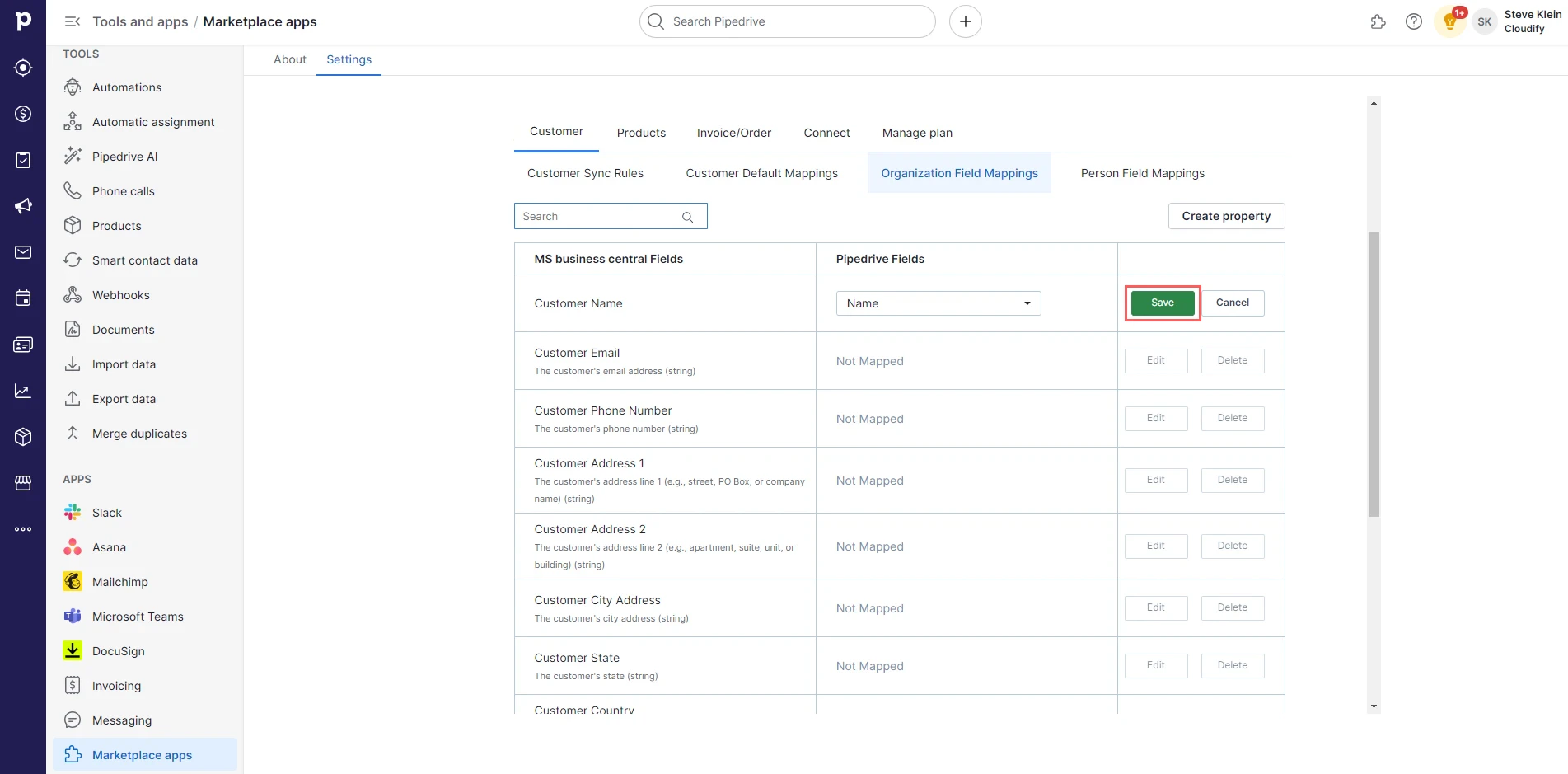
Setting Up Person Field Mappings
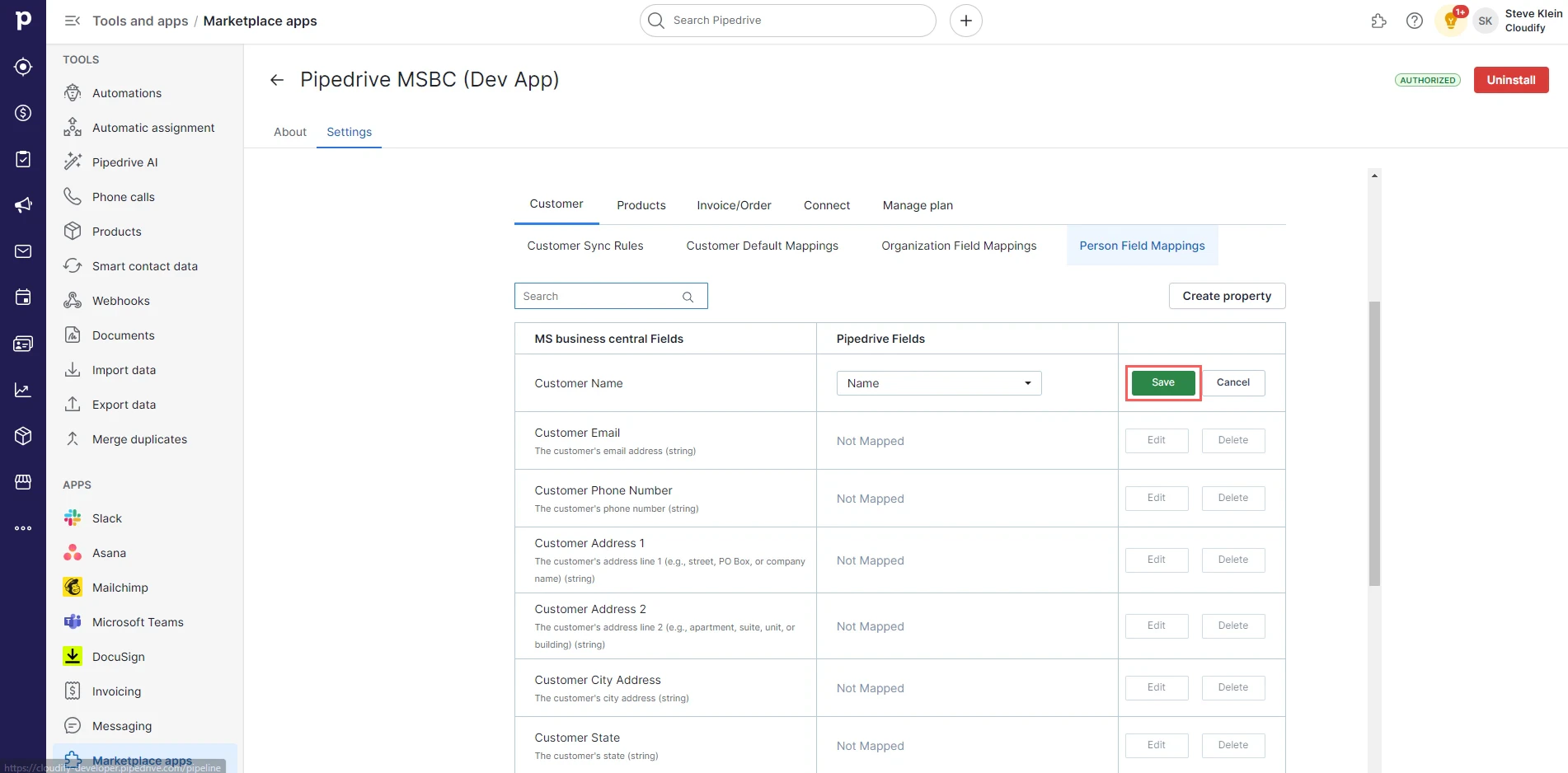
Define the field mapping between Pipedrive persons and Microsoft Business Central customers. This step shows how customer data will flow from Pipedrive to Microsoft Business Central when a new customer is created. You can customize these mappings according to your specific business requirements by clicking Edit > Select the Pipedrive field from the drop-down box and click “Save Mappings”.