

Setting Up Invoice Sync Preferences
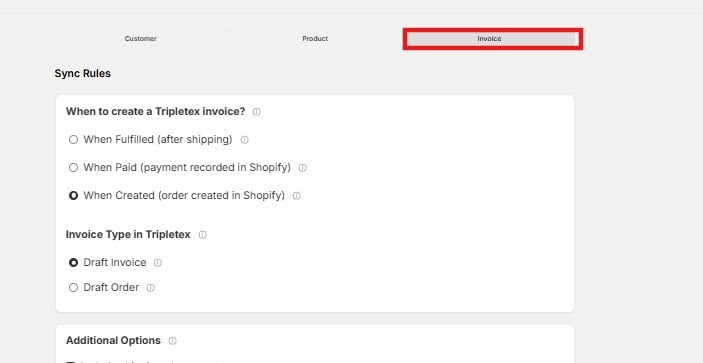
These settings control when an invoice is created in Tripletex, what form it takes, and which extra details (shipping, refunds) carry across from Shopify.When to Create a Tripletex Invoice
This decides the point in the Shopify order’s life at which the integration creates the invoice in Tripletex.- When Fulfilled (after shipping) — The invoice is created once the Shopify order is marked Fulfilled, i.e. after you’ve shipped. Choose this if you only want to invoice orders that have actually gone out.
- When Paid (payment recorded in Shopify) — The invoice is created as soon as Shopify records the order as Paid, whether or not it has shipped. Choose this for faster financial record-keeping.
- When Created (order created in Shopify) (default) — The invoice is created the moment a new order lands in Shopify. Suits Cash-on-Delivery (COD) orders, or any case where you want the record in Tripletex right away.
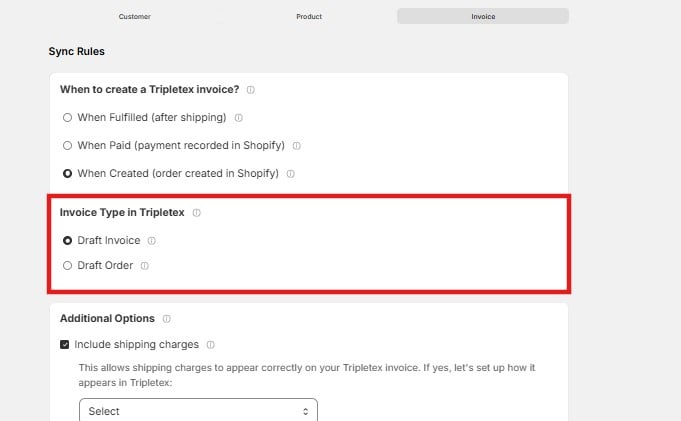
Invoice Type in Tripletex
This sets what the integration creates in Tripletex for each order.- Draft Invoice — Creates an editable draft invoice. Nothing is finalized — you review and post it in Tripletex yourself. Choose this if you usually adjust invoices before they go out.
- Draft Order — Creates a draft order rather than an invoice. Choose this when your workflow starts from an order in Tripletex (for example, so you can pick, confirm, or invoice it there on your own schedule).
Additional Options
Optional settings that control how extra order details carry into Tripletex. Each option reveals a dropdown when enabled, so you can tell the integration exactly how to handle it.- Include shipping charges — Carries the Shopify shipping cost onto the Tripletex invoice so it appears correctly. When enabled, use the dropdown to choose how shipping is represented in Tripletex.
- Tripletex Credit Notes from Shopify Refunds — Creates a credit note in Tripletex whenever a Shopify order is refunded, keeping refunds reflected in your accounting. When enabled, use the dropdown to configure how refunds are handled in Tripletex.
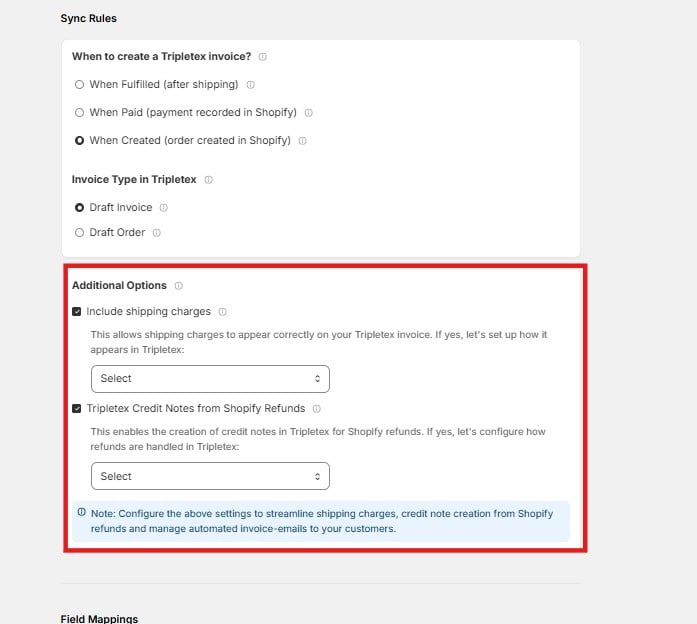
Configure these settings to streamline shipping charges, credit note creation from Shopify refunds, and automated invoice emails to your customers.
How Should Invoice Data Fields Be Mapped?
Set how Shopify order information appears on your Tripletex invoices. For each Tripletex field, choose the Shopify field it should pull from, use Use Text to enter a fixed value, or click Clear to remove a mapping. Add fields that aren’t listed with Create new Shopify field. Click Save when done.When an invoice sync runs, the integration works in this order:
- Checks for the customer in Tripletex (and creates one if needed)
- Checks for the products (handled by your Product Sync Rules)
- Creates the invoice with the settings above
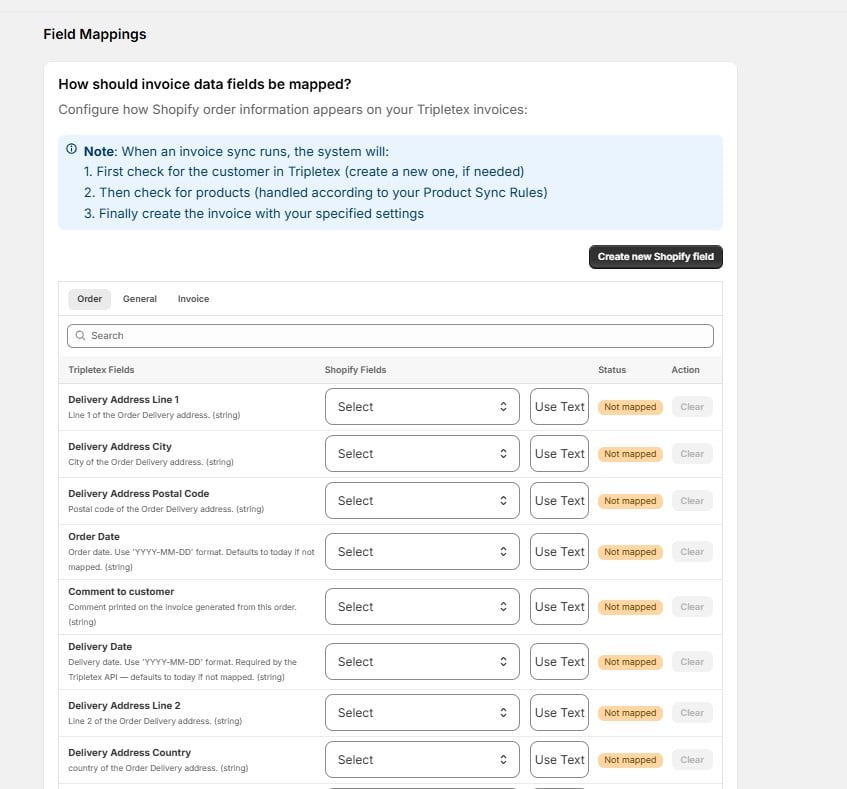
The General and Invoice tabs contain additional fields you can map the same way.