Status Cards
The top of the dashboard summarises how the integration is set up.- Connection status — Shows whether your Tripletex account is Connected. Click Connection to disconnect.
- Plan details — Shows your current plan and sync Usage. Click Manage to change or manage your subscription.
- Customer — Summarises your customer match rule (the Shopify field and the Tripletex field it maps to). Click Configure to edit.
- Product — Summarises your Product matching method and Product preference (what happens when a product isn’t found). Click Configure to edit.
- Invoices — Summarises When to create invoice and the Invoice type. Click Configure to edit.
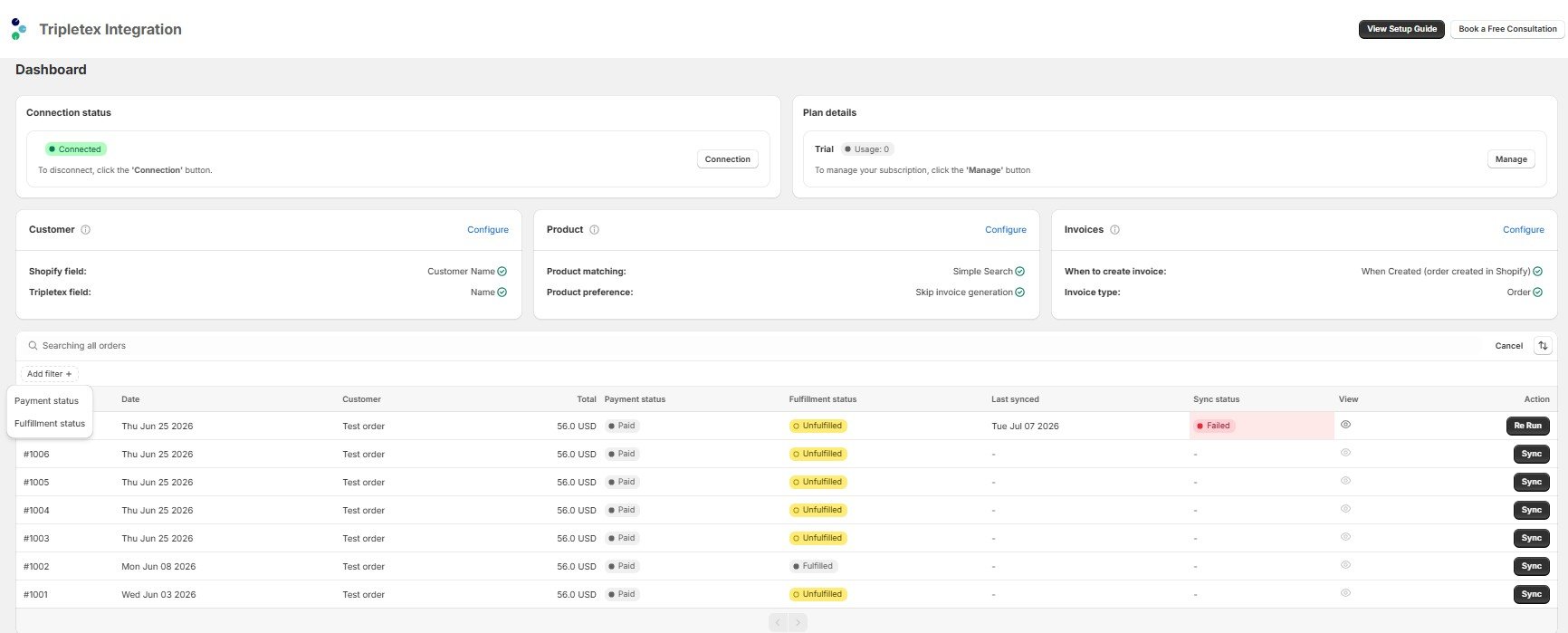
Each Configure link opens the matching Sync Settings section, so you can adjust rules without leaving the dashboard for long.
Orders Table
Every Shopify order appears here with its sync state. Use the All, Unfulfilled, and Unpaid tabs to switch views. Columns:Search, Filter & Sort
- Search — Click the search icon to search across all orders.
- Add filter — Filter the list by Payment status or Fulfillment status.
- Sort — Sort by Date, Order Number, Customer Name, Payment Status, Fulfillment Status, or Total, in either Oldest to newest or Newest to oldest order.
Syncing an Order
- Sync — For an order that hasn’t synced yet, click Sync to create the invoice or order in Tripletex.
- Re Run — For an order whose Sync status is Failed, fix the underlying issue first, then click Re Run to retry.
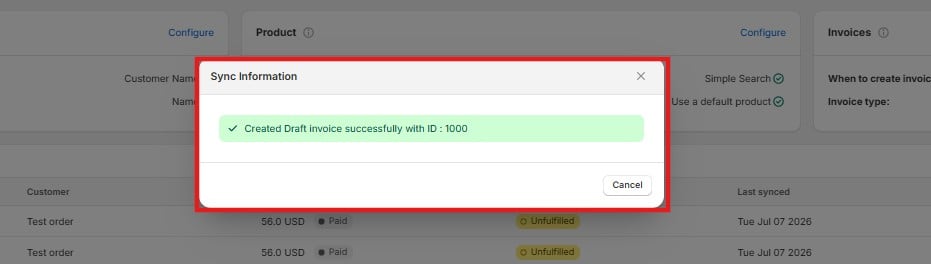
Sync Information
Click the View (eye) icon on any order to open its Sync Information. This shows the result of the last sync — a success confirmation, or the specific reason a sync failed and what to change.