

Why Use Custom Mapping
- Country-Specific Compliance
- Better Data Accuracy
- More Streamlined Operations
- Greater Flexibility For Your Business Structure
How It Works
1
Choose the country you want to configure from the dropdown.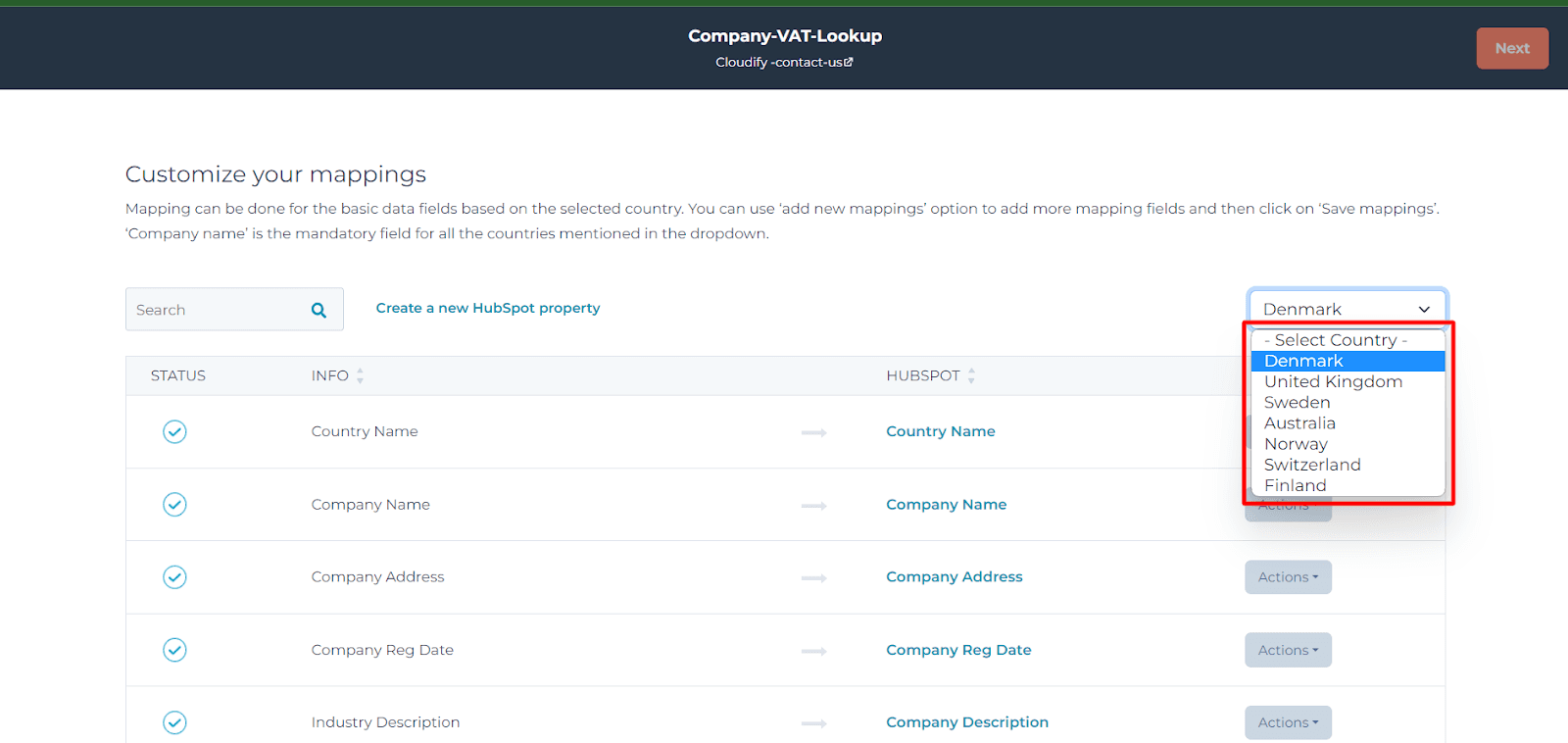
2
Review the pre-mapped fields such as Company Name and Address.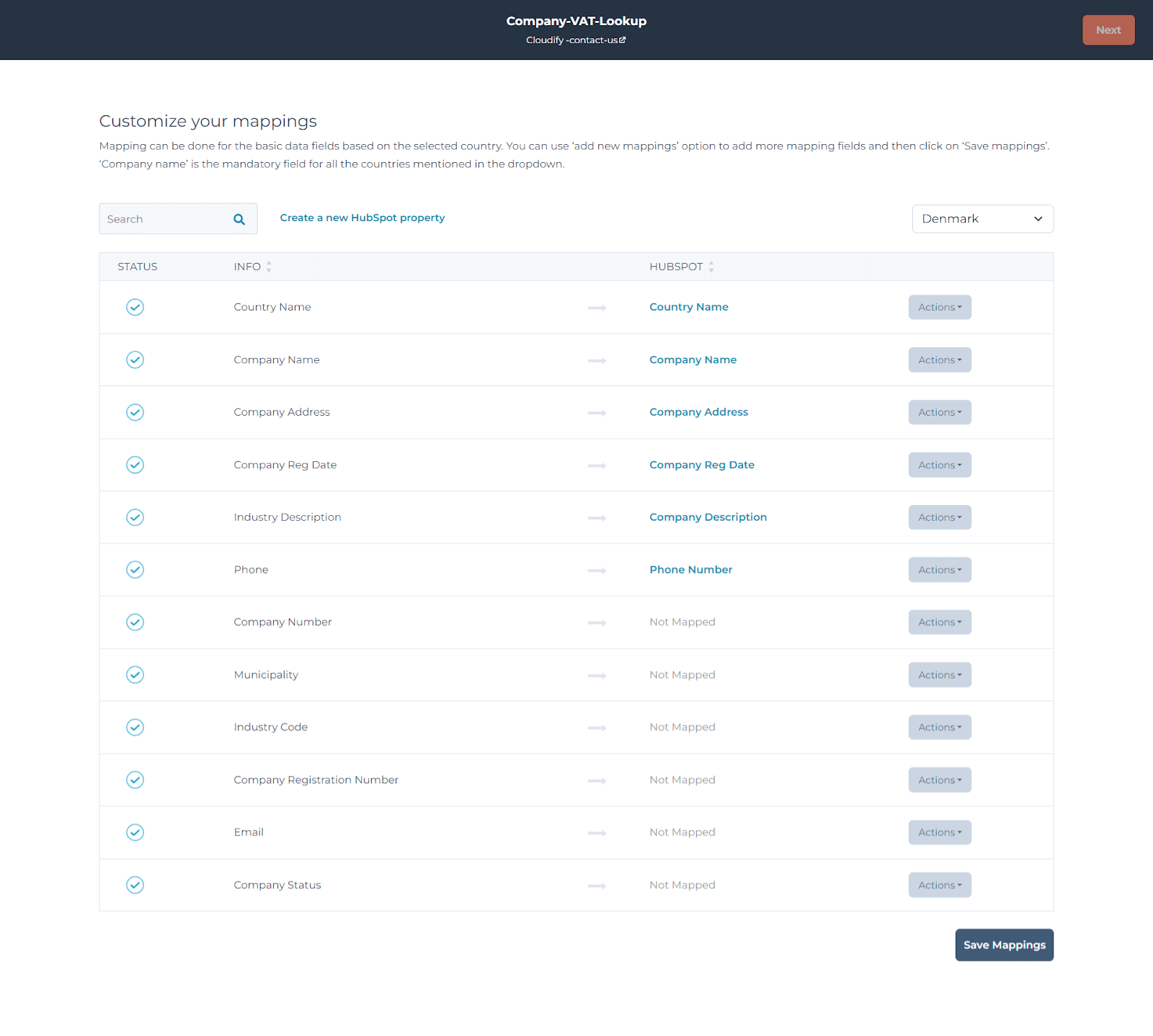
3
For fields marked Not Mapped, use Actions to assign the correct HubSpot property.
4
If a required field does not exist yet in HubSpot, create a new HubSpot property from the mapping screen.
5
Make sure all mandatory fields are mapped, then click Save Mappings.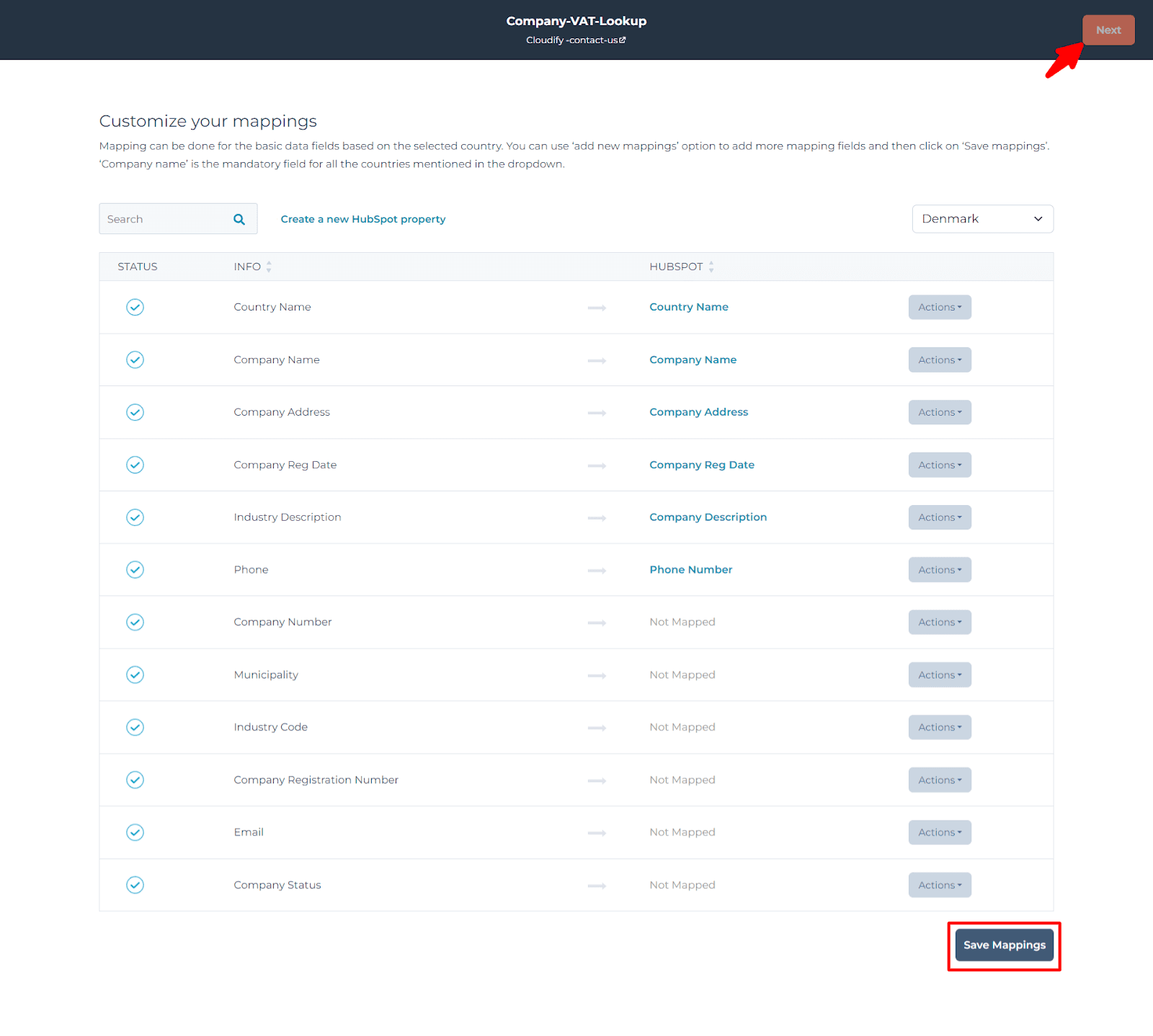
Company Name is mandatory for all countries supported in the dropdown.
Need Help With Installation?
Talk to Cloudify experts if you want help with installation and mapping setup.