

1
Define Search ParametersSelect a field (e.g., Company Name) from the HubSpot dropdown and a corresponding field (e.g., Customer Name) from the QuickBooks dropdown. This matches HubSpot companies with QuickBooks customers using specific fields, reducing duplicates by verifying existing records. Click “Save”.
2
Enable Primary Sync Contact (Optional)This feature is essential for businesses dealing directly with consumers. It allows individual contacts from HubSpot to be added to QuickBooks as customers when there is no associated company.Check “Enable Primary Sync Contact”, then: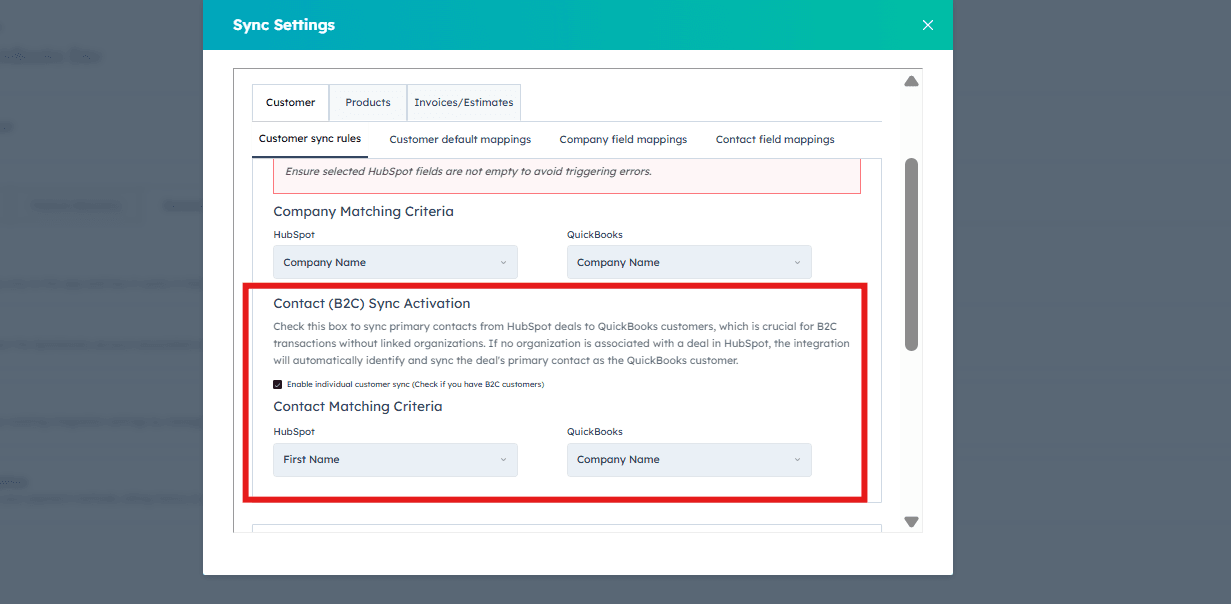
- From the “HubSpot Contact Identifier” dropdown, select the HubSpot field that uniquely identifies your contacts (e.g., person name or email).
- From the “QuickBooks Contact Field” dropdown, select the corresponding field in QuickBooks to match and identify the same contact (e.g., email address or customer number).
3
Select the HubSpot field that will store the value of the auto-generated QuickBooks contact number. You can also choose not to store it in HubSpot for a cleaner dataset.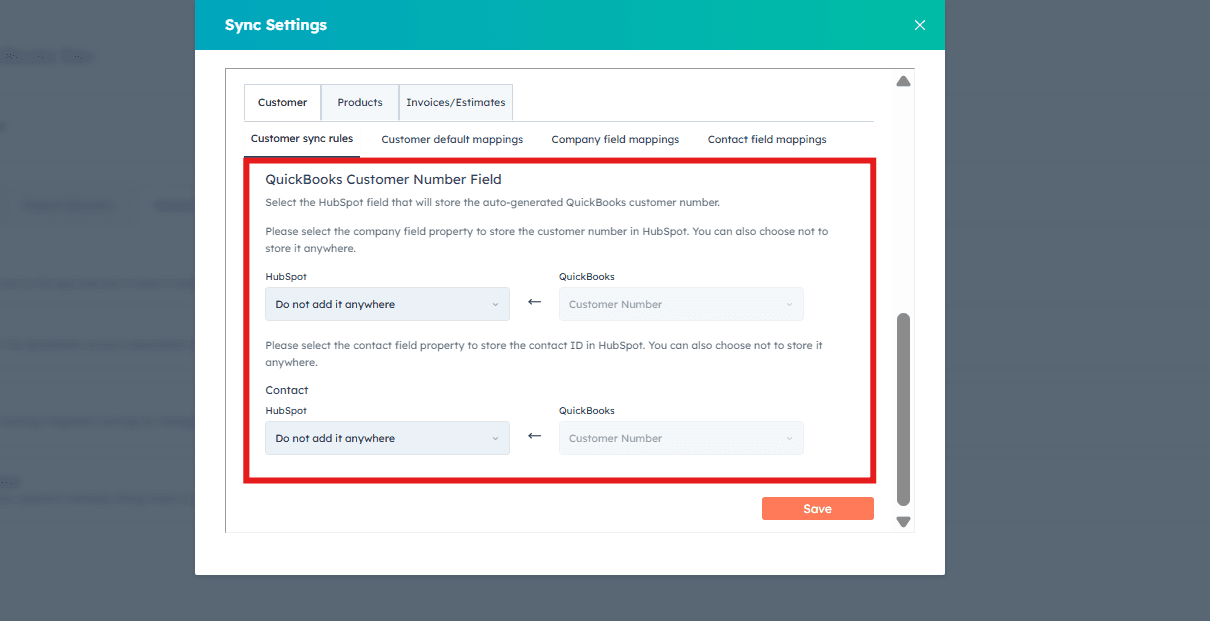
4
After selecting your parameters, scroll down and click “Save”.
Customer Default Mappings
The customer default mapping fills key fields with preset values during new customer creation in QuickBooks from HubSpot when certain data is missing. These default values are applied automatically whenever a new customer is created.Sales account is preset based on your revenue-type accounts in QuickBooks. Cloudify does not manipulate any taxes — it simply takes your existing revenue type account in QuickBooks and displays it here.
1
Select the options that fit your preference.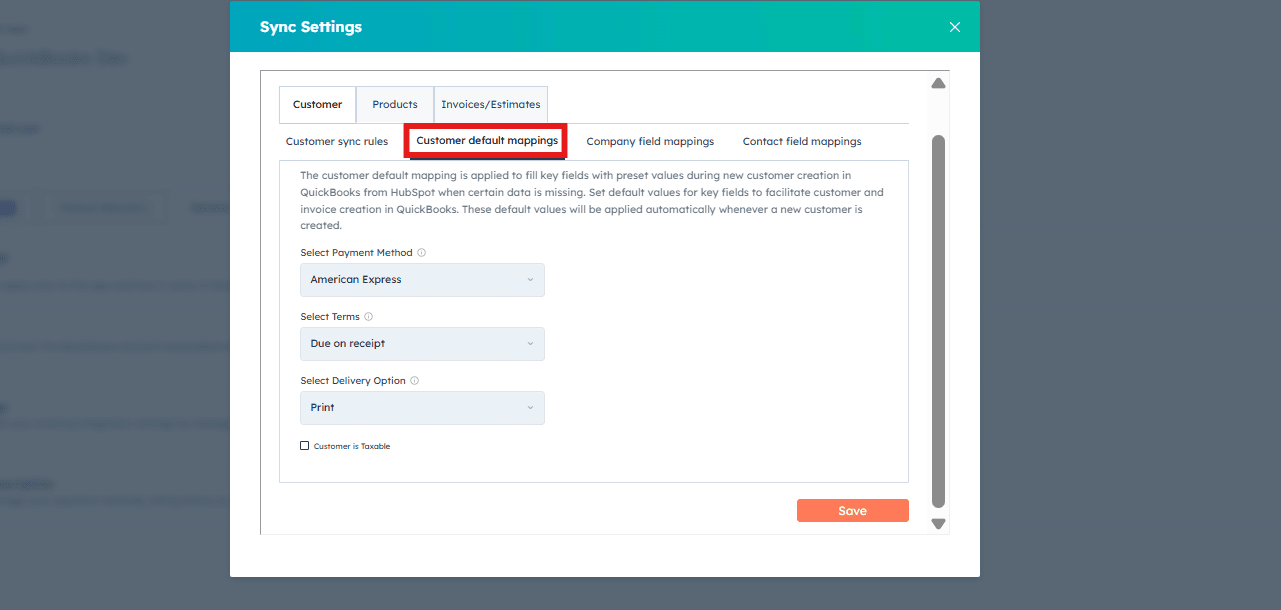
2
Click “Save”.
Company Field Mappings
Company field mappings dictate the flow of customer data from HubSpot to QuickBooks, allowing for tailored synchronization of company information to align with specific business needs.1
Navigate to the Company Field Mappings section.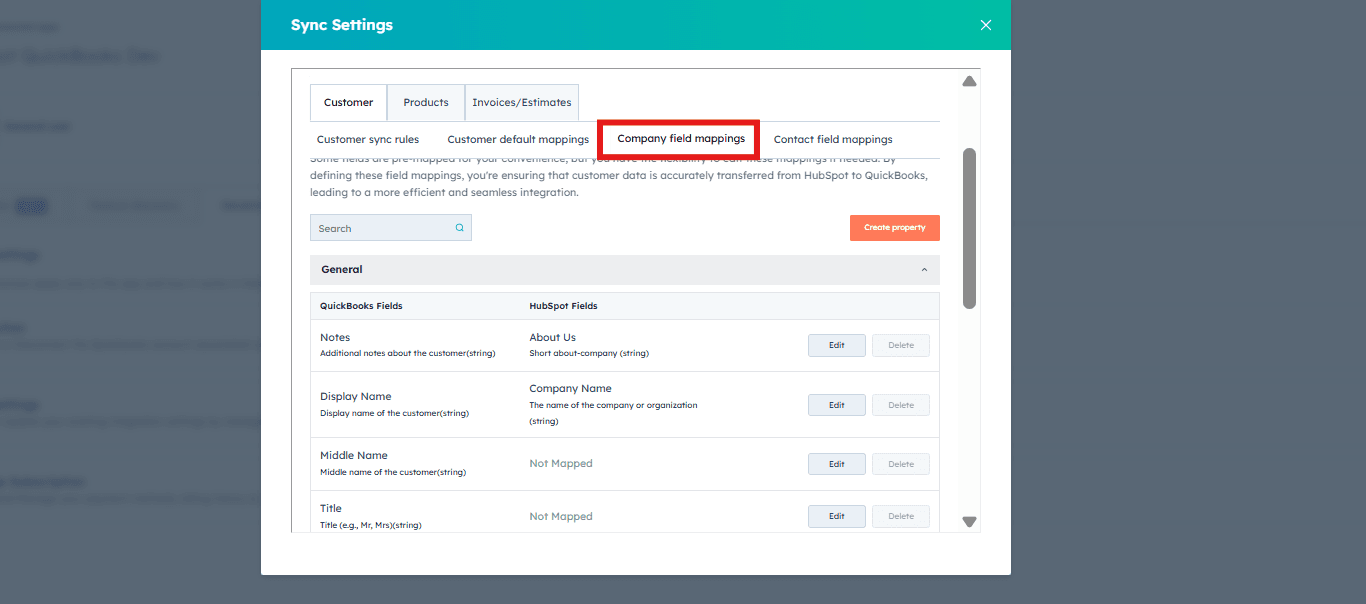
2
Click “Edit”, select the HubSpot field from the drop-down box, and click “Save”.
Contact Field Mappings
Contact field mappings define how customer data flows from HubSpot contacts to QuickBooks customers during the creation of a new customer.1
Navigate to the Contact Field Mappings section.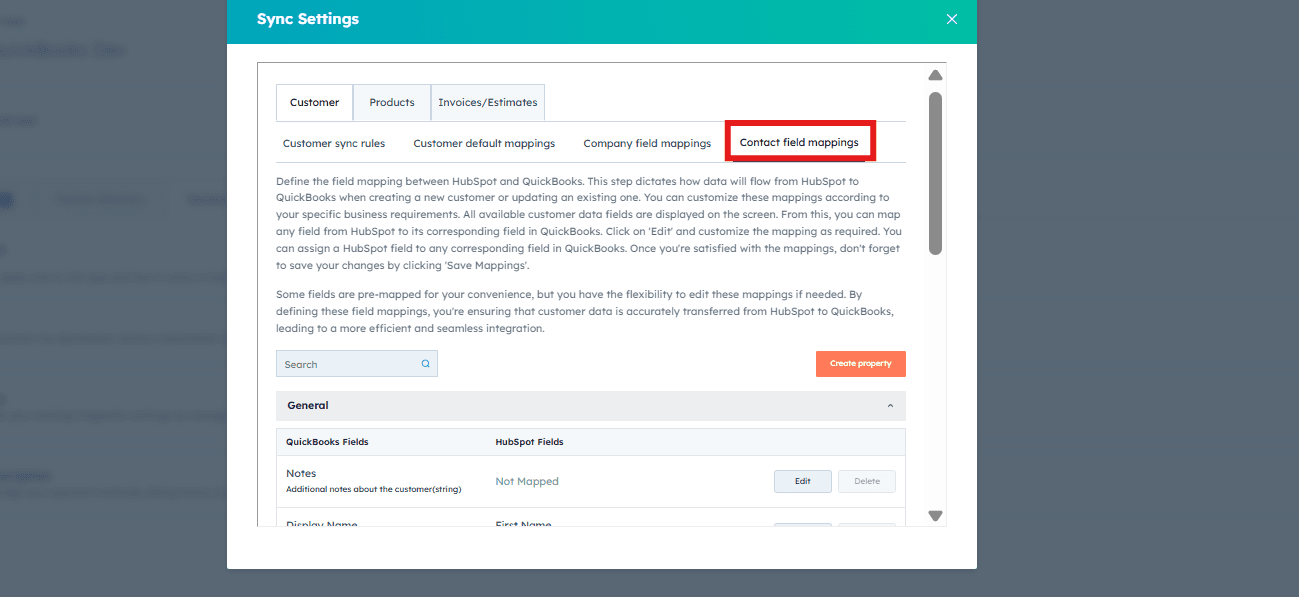
2
Click “Edit”, select the HubSpot field from the drop-down box, and click “Save Mappings”.