

Option 1: Select Search Parameters
Choose this method to set specific parameters for searching products in QuickBooks when the integration is triggered.
Do Not Generate an Invoice
Select this option to avoid creating an invoice when an item isn’t found in QuickBooks.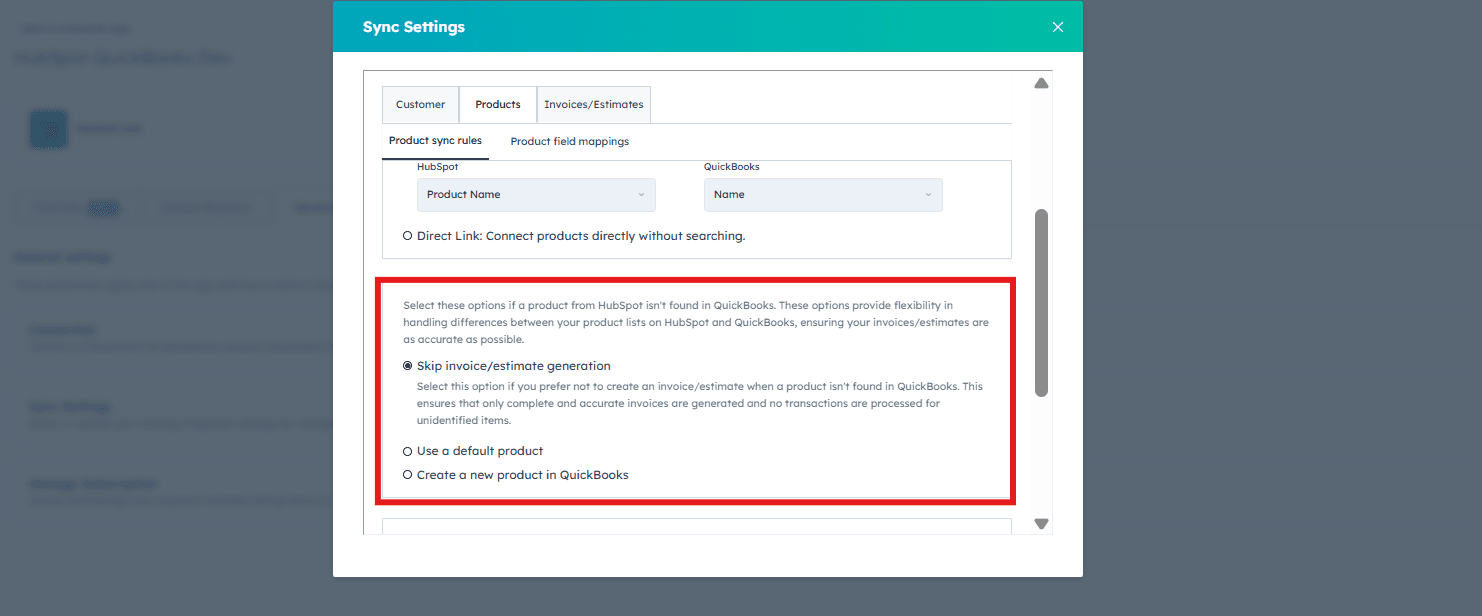
Use a Default Item
When a HubSpot product isn’t found, the integration uses a default QuickBooks item to generate the invoice. This ensures uninterrupted invoice creation. If you select this option, you must specify a default item from your QuickBooks item list.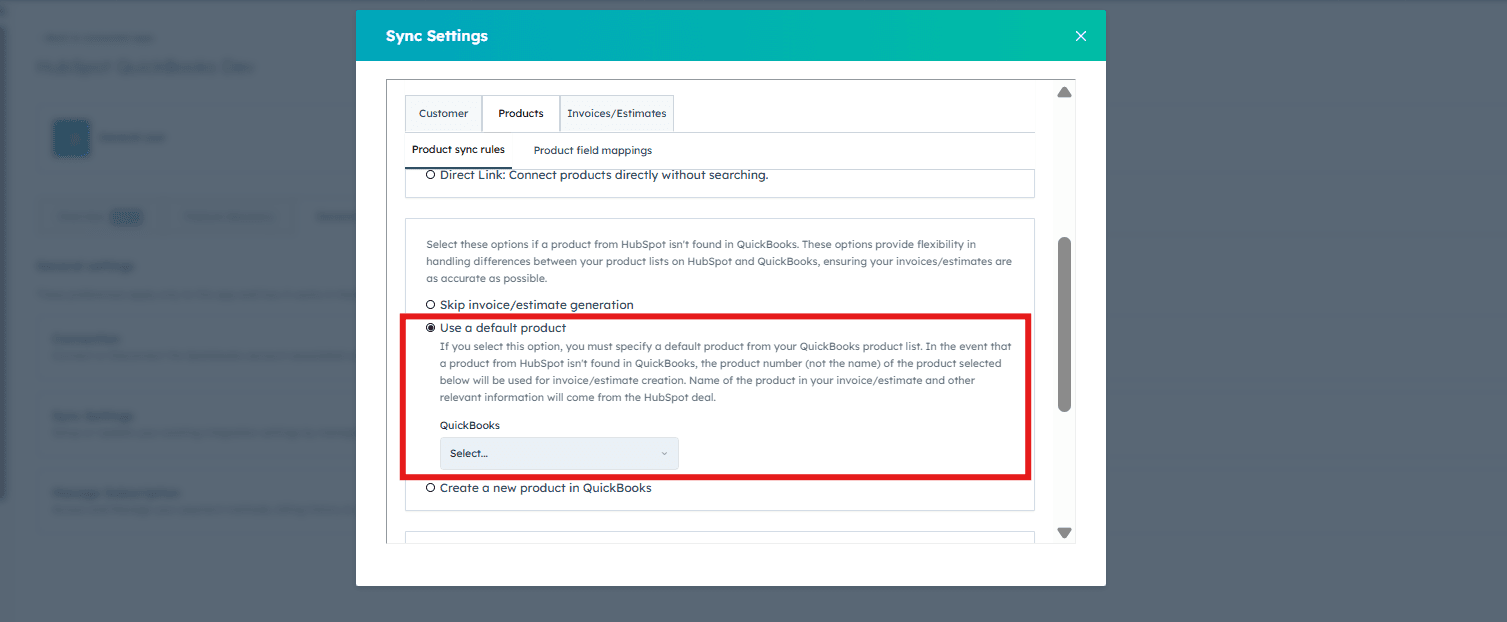
Create a New Product in QuickBooks
Automatically generates a new item entry in QuickBooks when a matching item isn’t found, using the product details from HubSpot.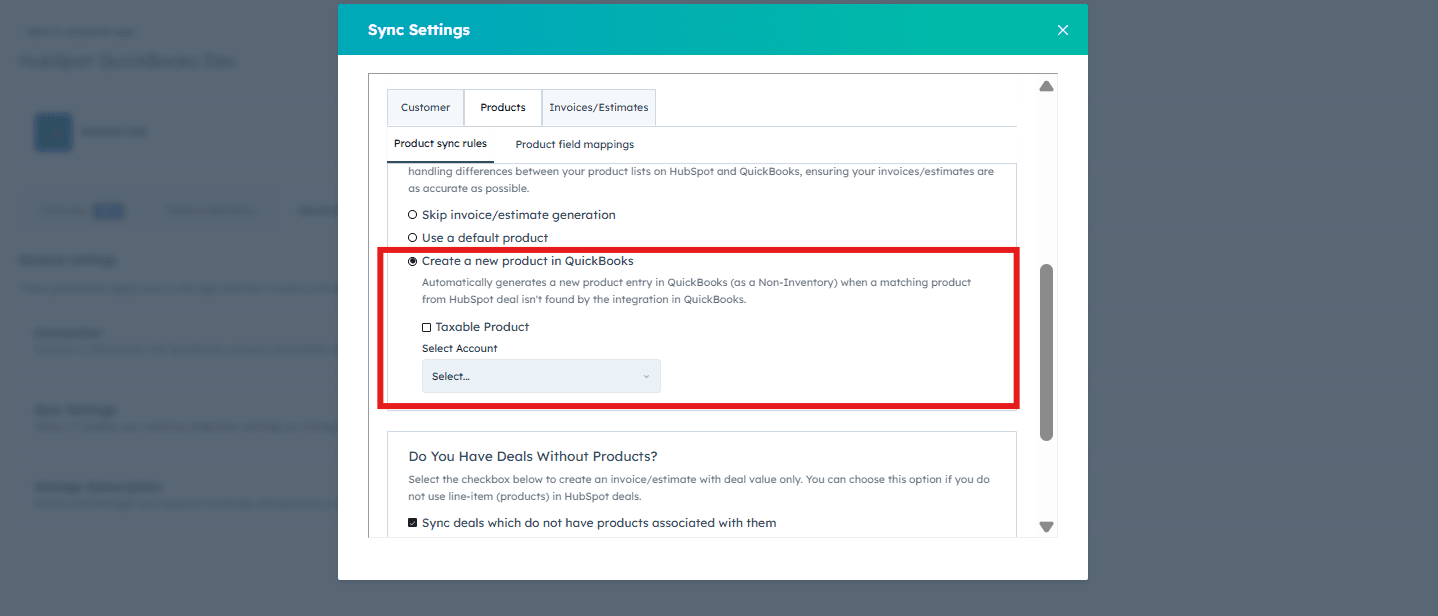
Sync Deals Without Products
This option creates an invoice using the deal value only — useful if you do not use products in HubSpot deals. Select the product from the drop-down list and click “Save”.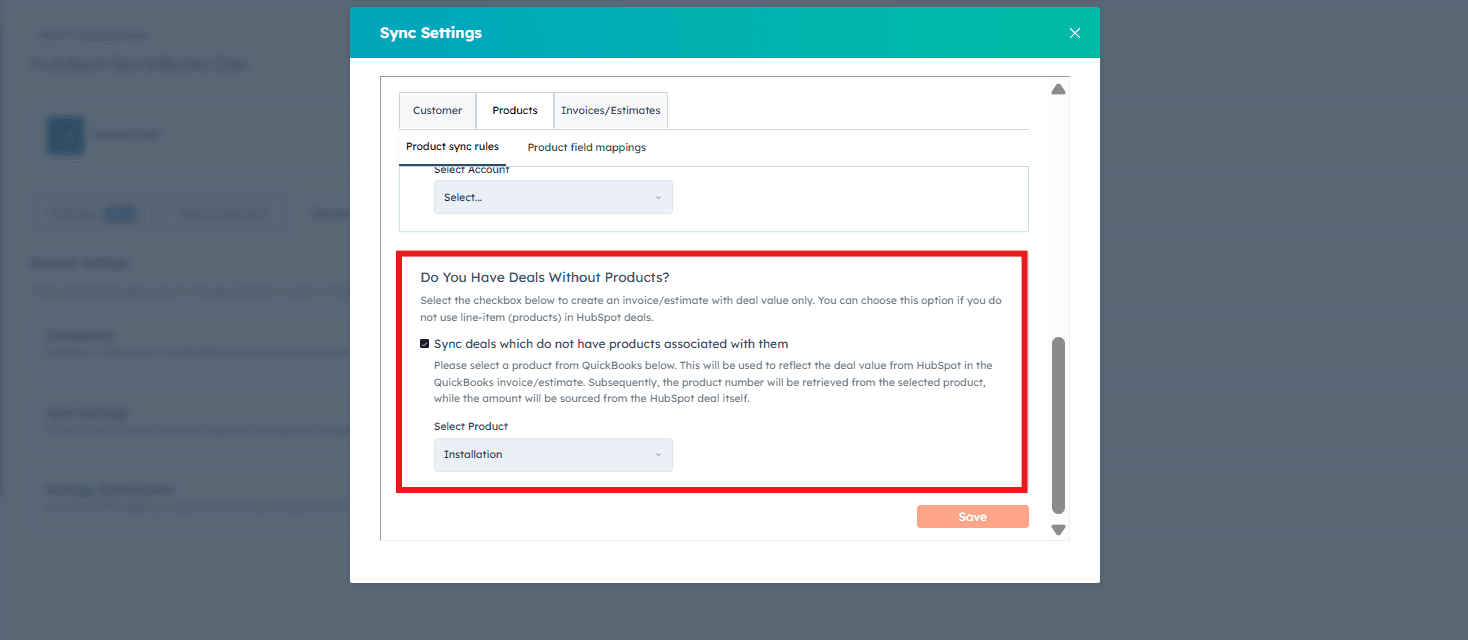
Product Field Mappings
Product field mapping involves customizing how product data aligns between HubSpot and QuickBooks by setting equivalent fields. This ensures that product information like names and numbers is consistently and accurately transferred between the two systems.1
Navigate to the Product Field Mappings section.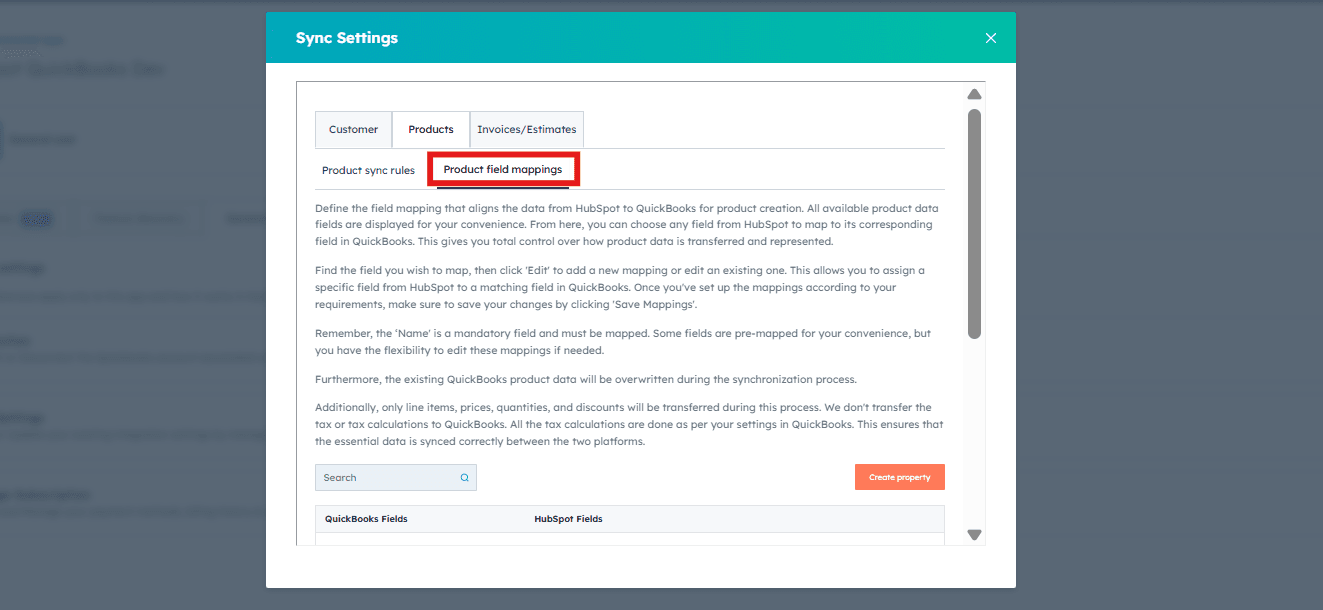
2
Click “Edit”.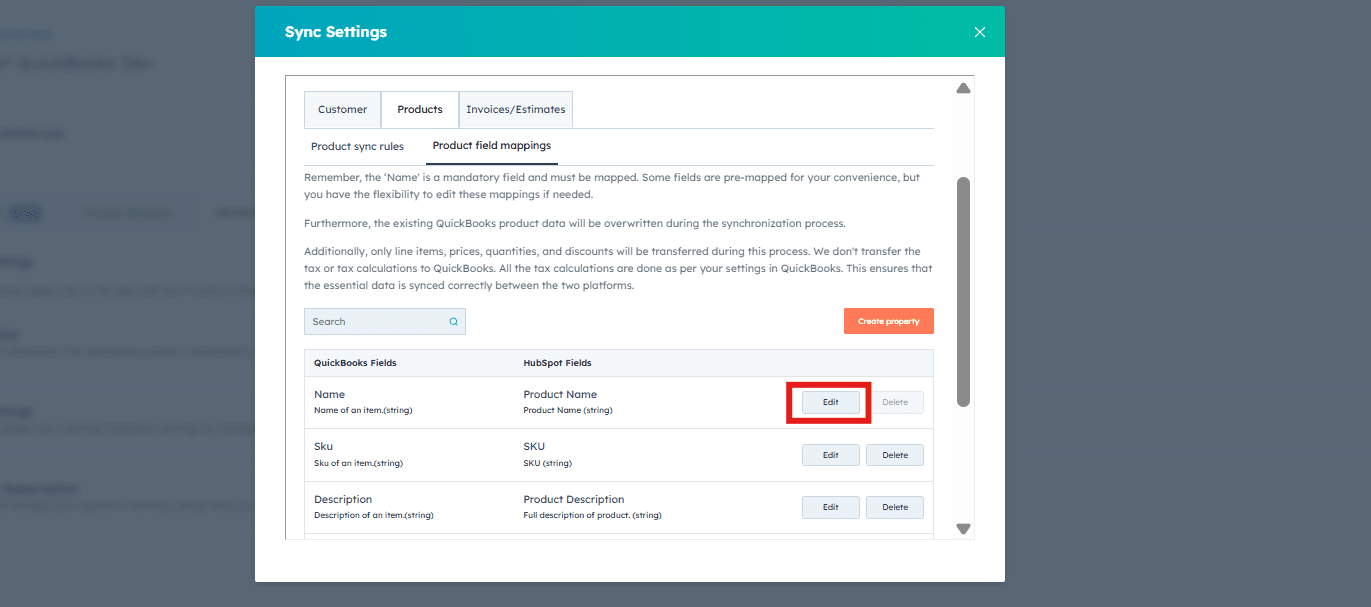
3
Select the HubSpot field you want to map from the drop-down menu.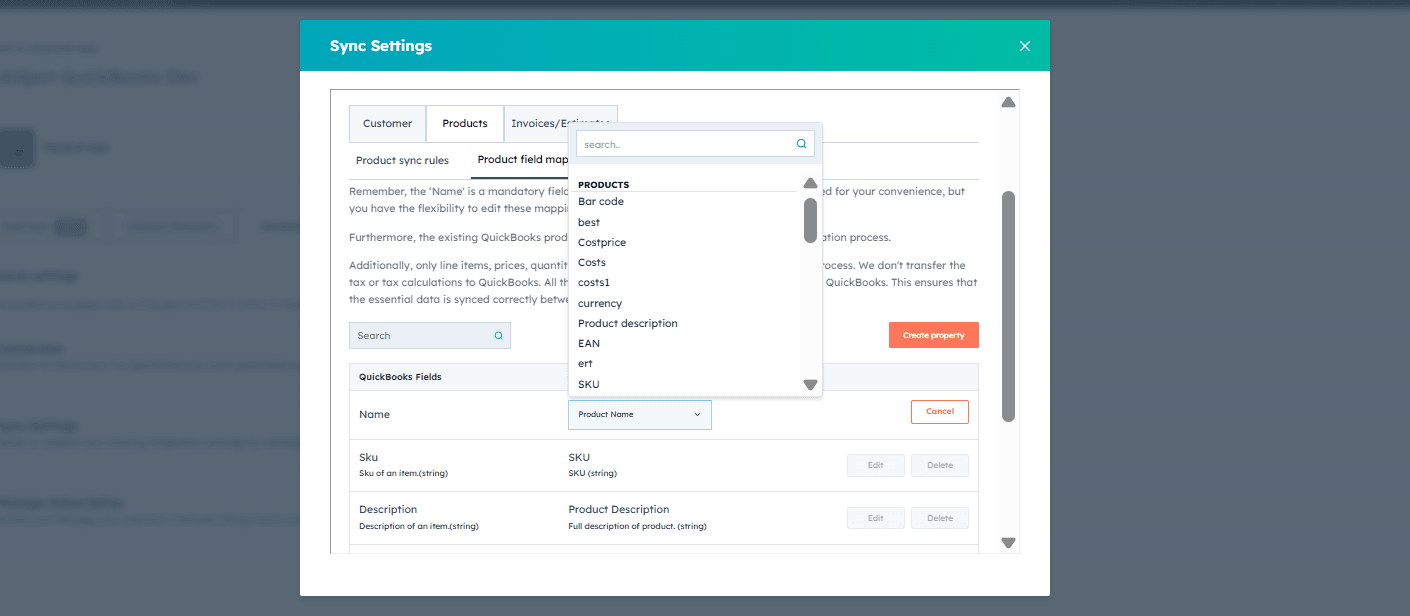
4
Click “Save”.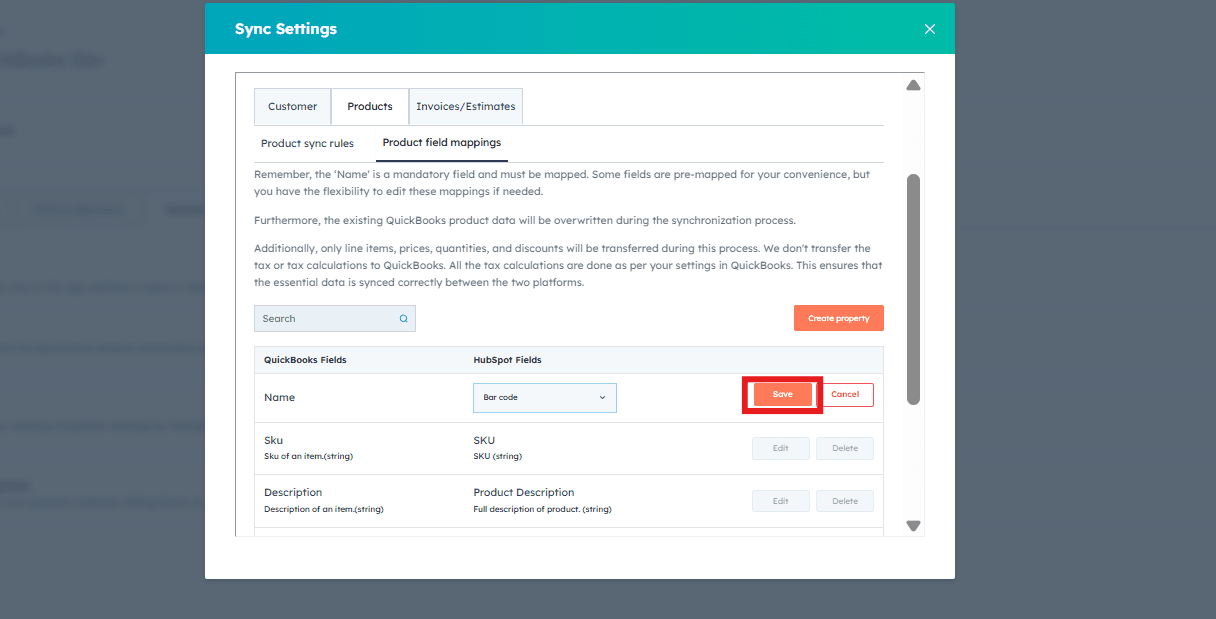
5
Click “Save Mappings”.