

Creating an Invoice or Quote from a Deal
1
Open the Xero Integration panel
Go to a Deal in Pipedrive and navigate to the Xero Integration section in the left panel.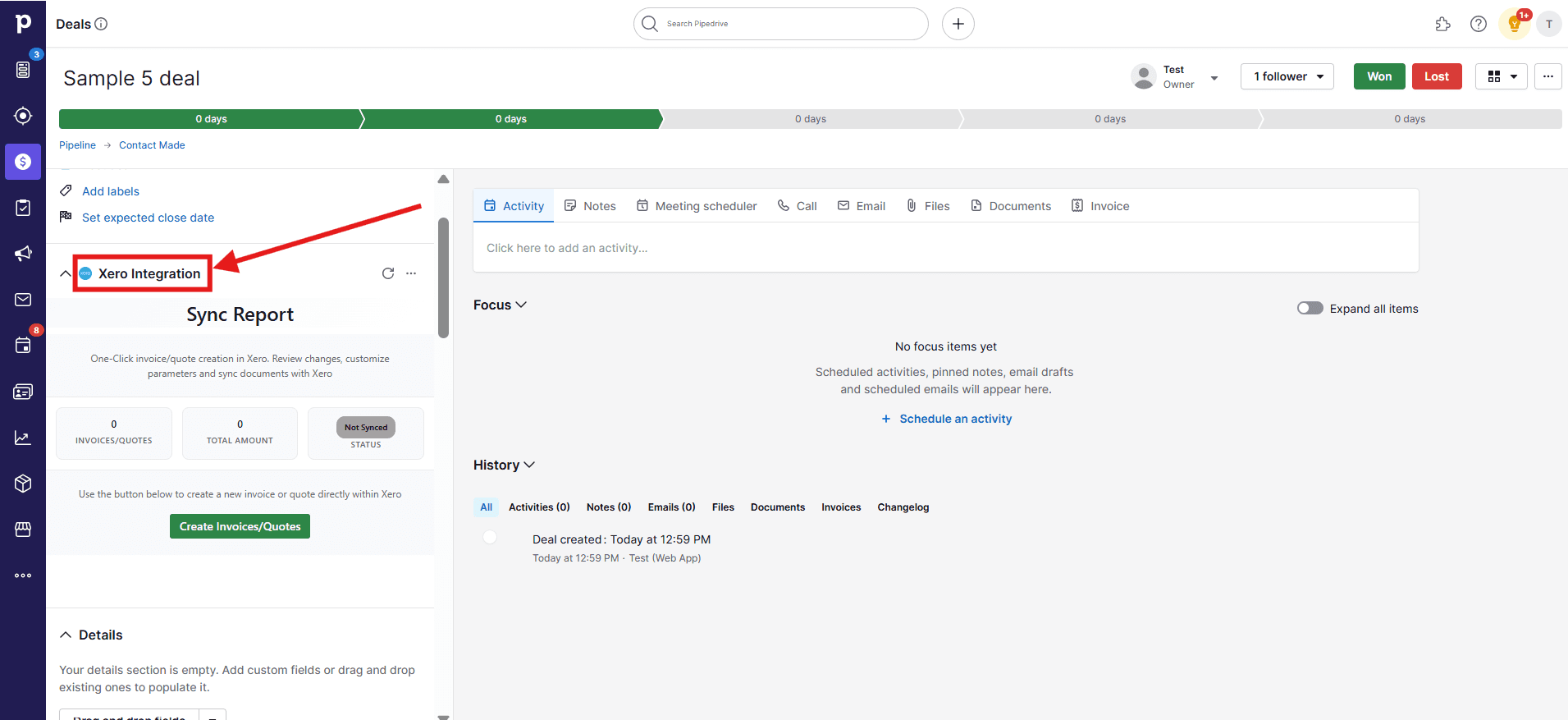
2
Create an invoice or quote
Click Create invoice/quotes.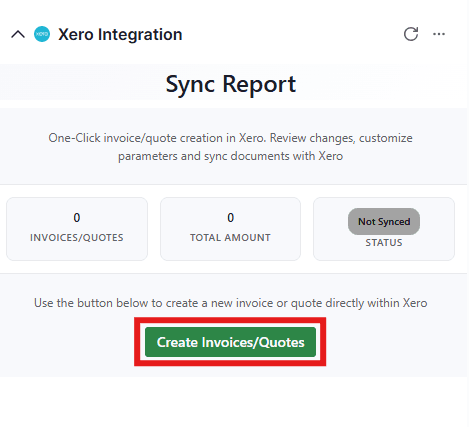
3
Add invoice details or start a new one
Once the window opens, you will get multiple options to manage your invoice or quote manually. Add relevant invoice details in this window, or click the blue + icon to create a new invoice or quote.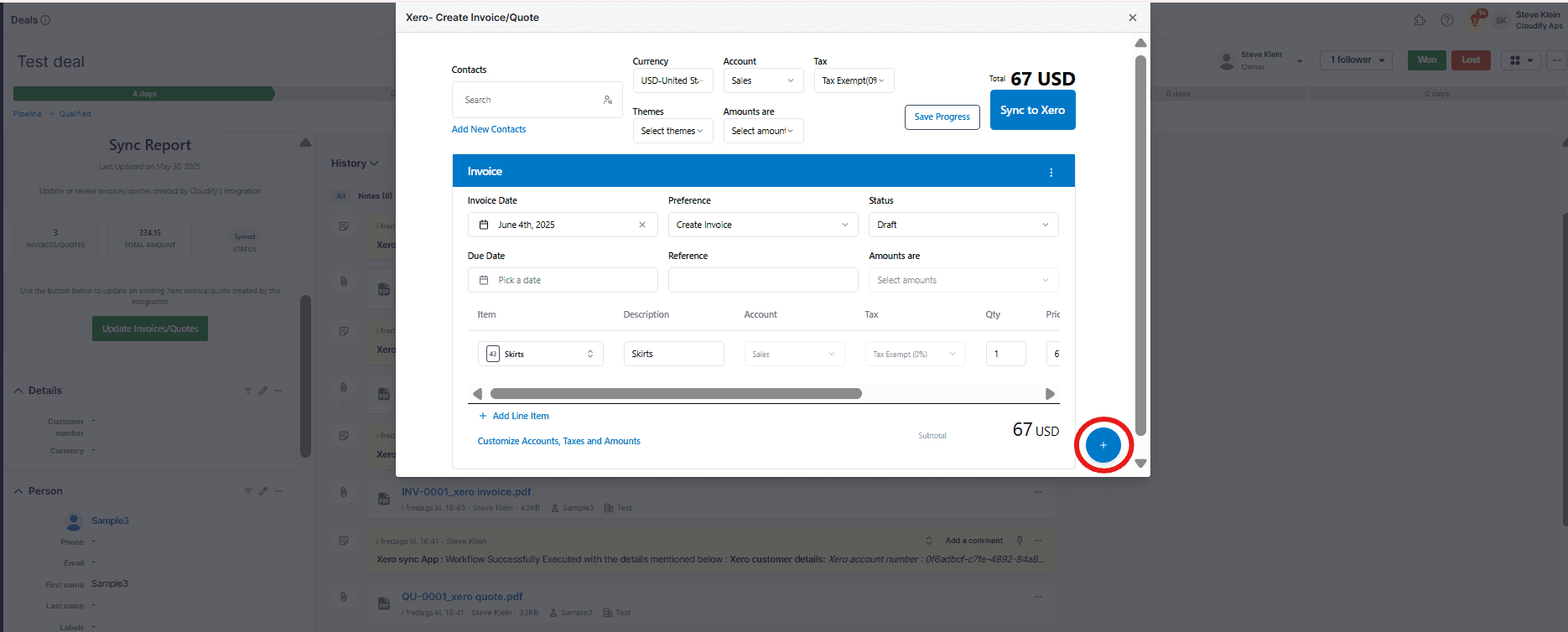
4
Select contact, currency, tax, and account details
Select the contact, currency, tax, and account details to get started.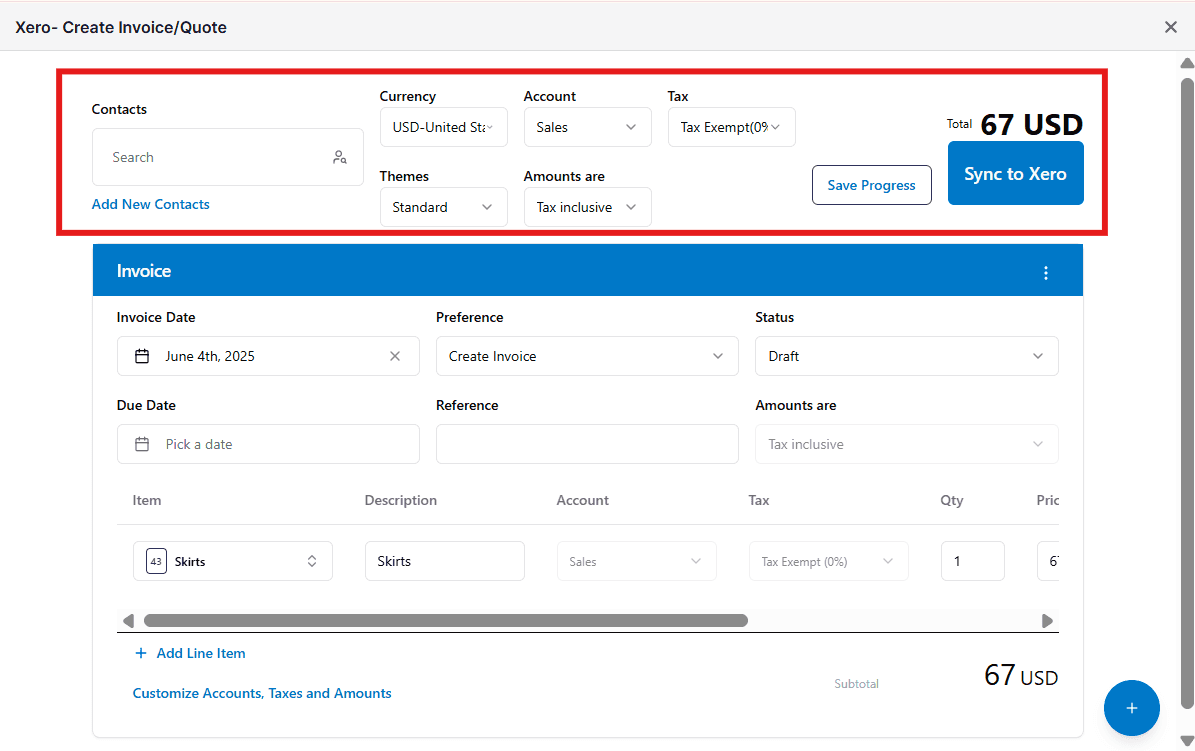
5
Set invoice-specific details
Select invoice-specific details such as Invoice date, Due date, Status, and Tax preferences.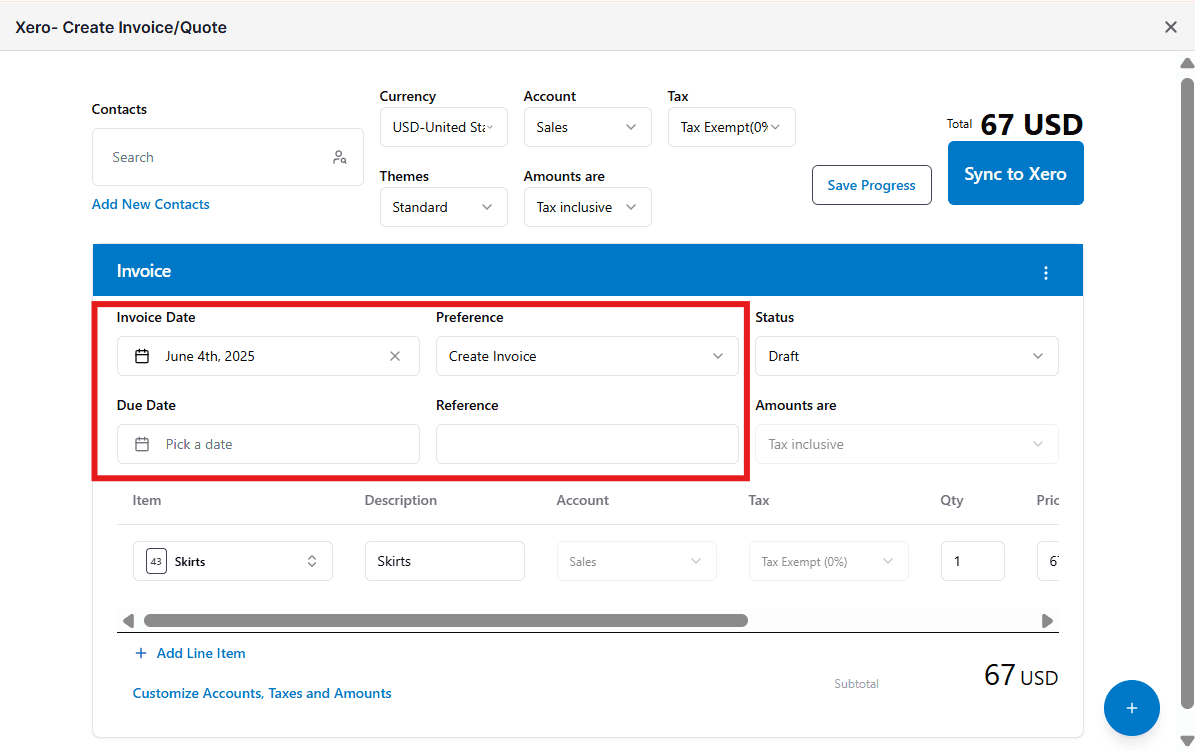
6
Add line items
Add new products to your draft invoice by clicking + Add Line Item.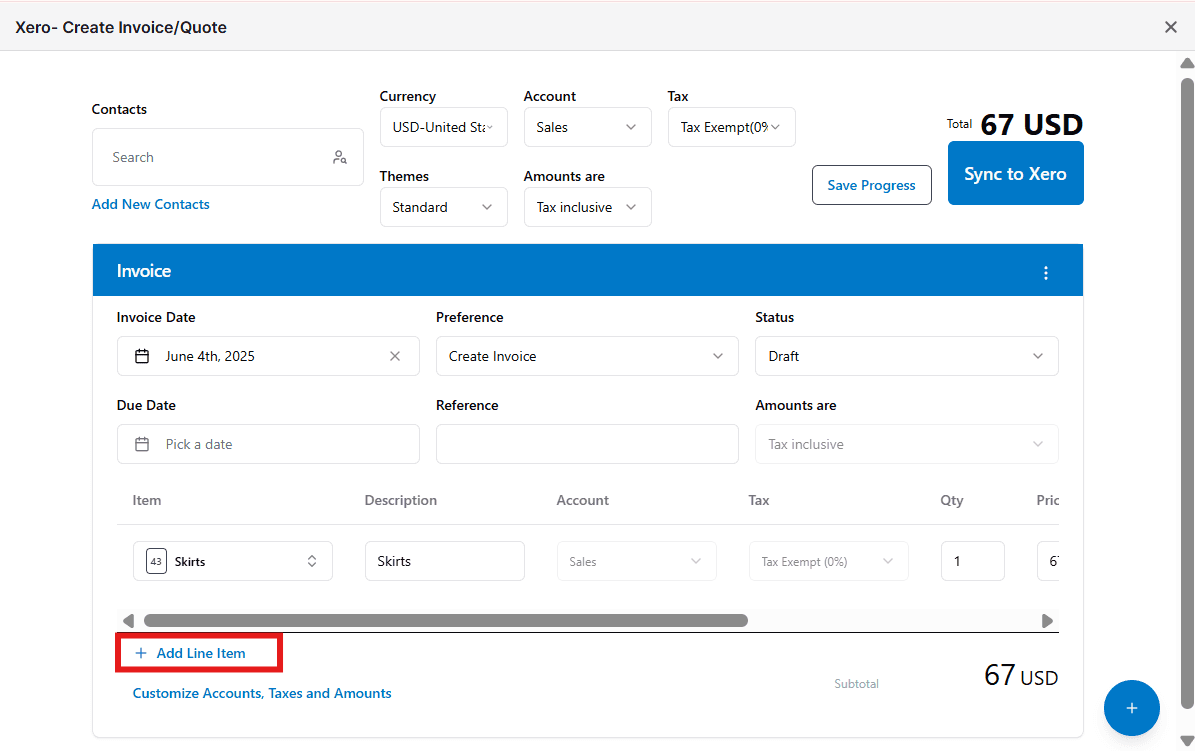
You can only select products using this option if they are already present in Xero.
7
Customize accounts, taxes, and amounts (optional)
Add custom preferences to individual products by clicking Customize Accounts, Taxes and Amounts.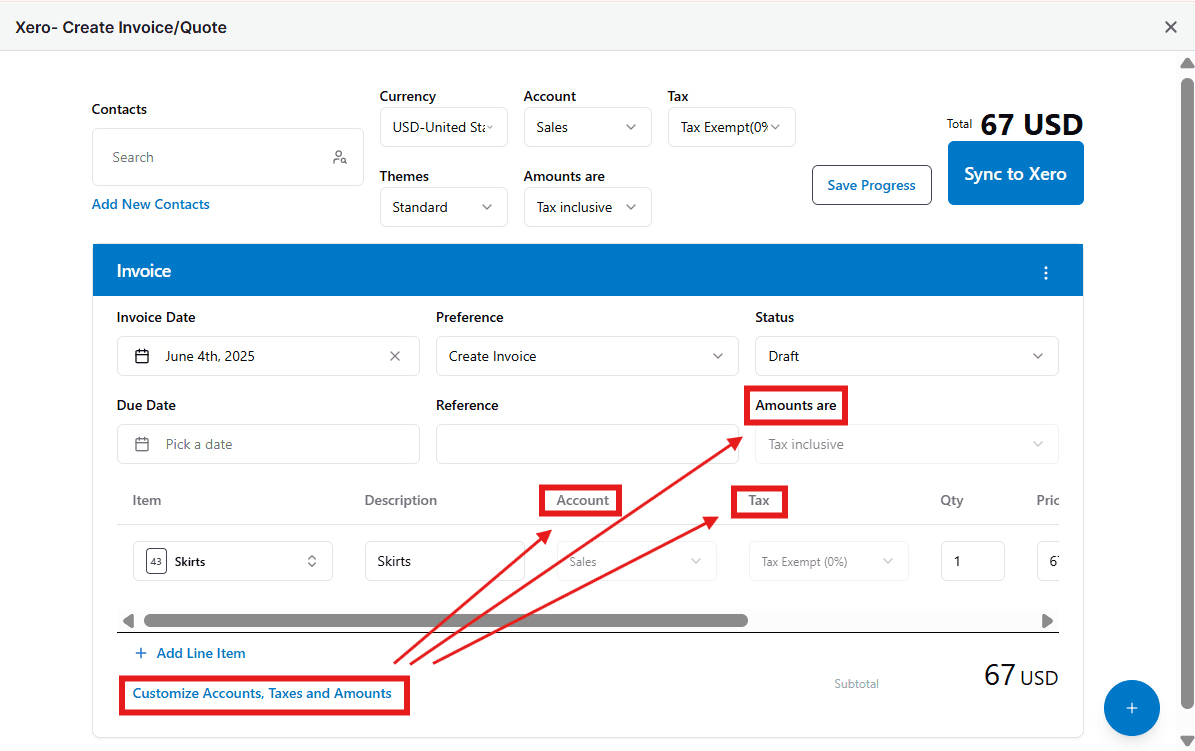
8
Split the invoice (optional)
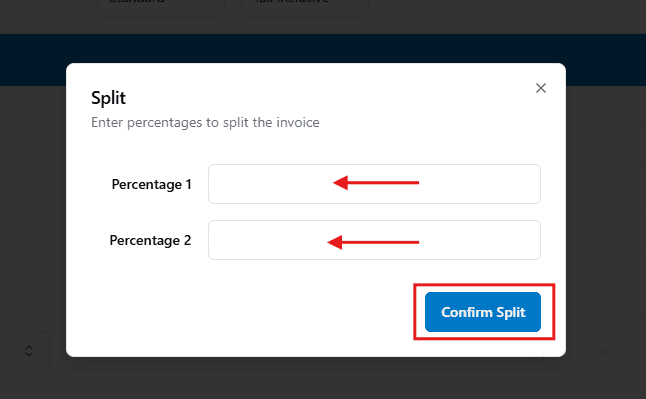
Split your invoice into two by specifying a percentage ratio. Click the three dots and select Split.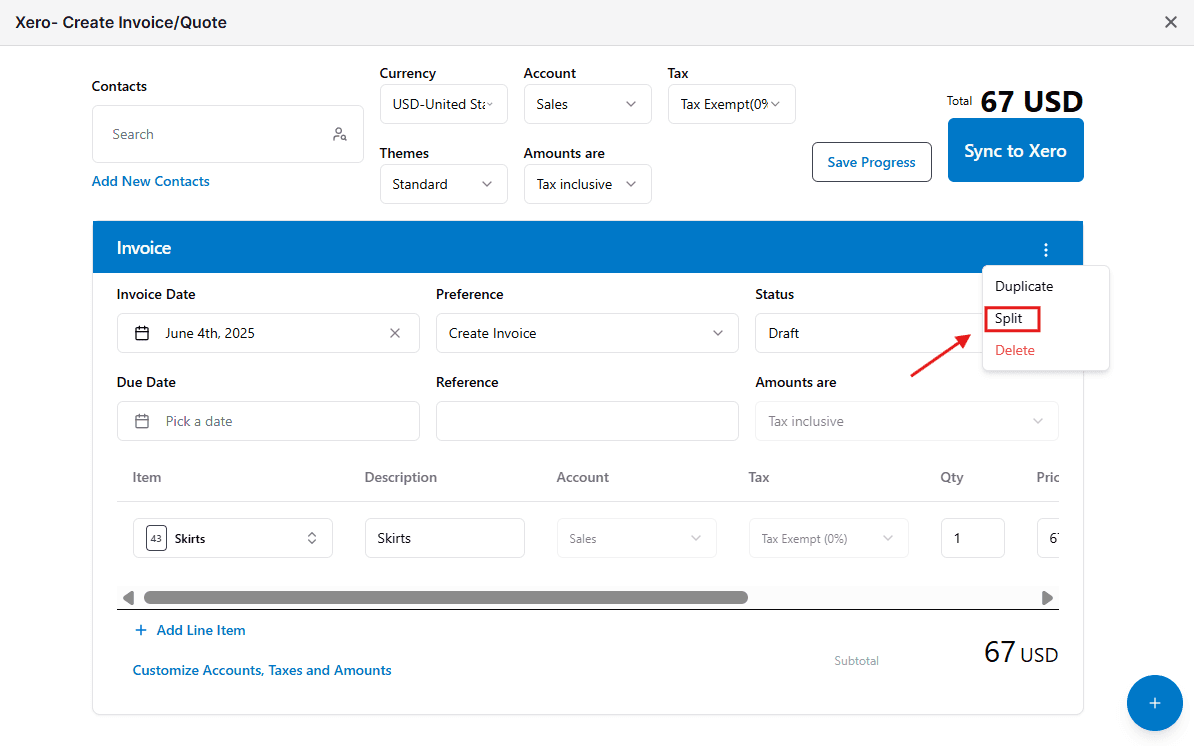
9
Duplicate the invoice or quote (optional)
To duplicate an invoice or quote, click the three dots and select Duplicate.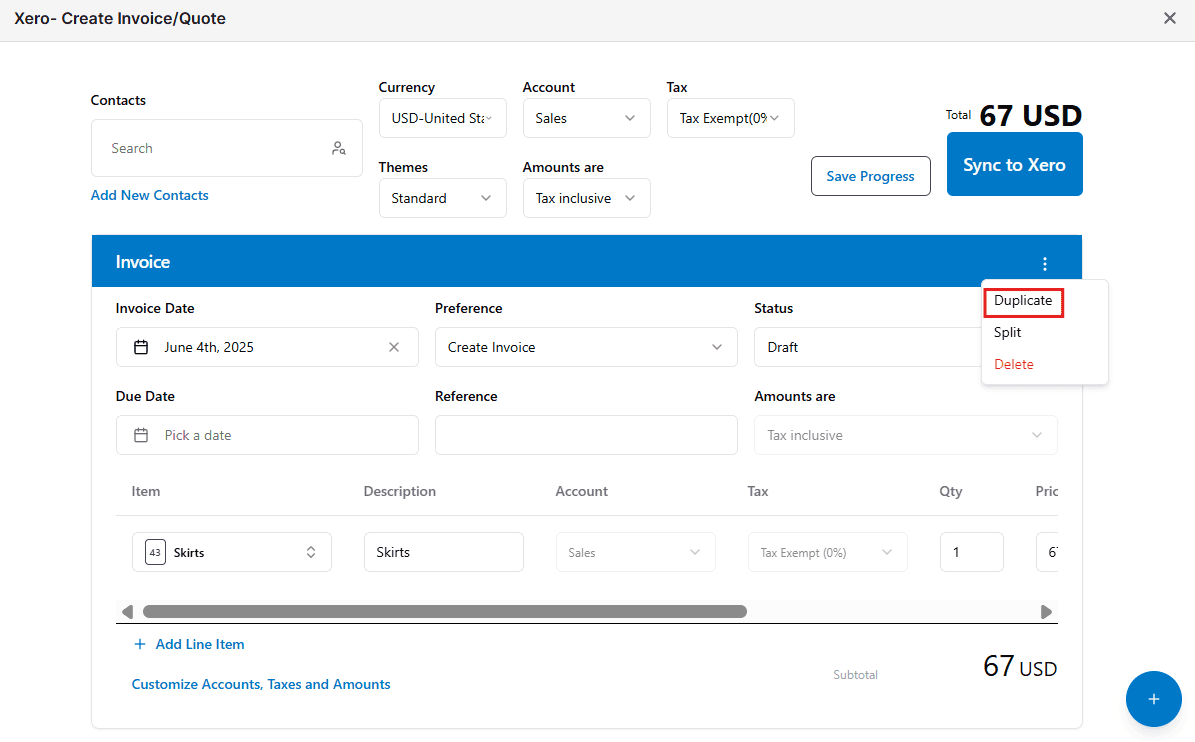
10
Save progress for later (optional)
If you need to come back and update the details later, click Save Progress.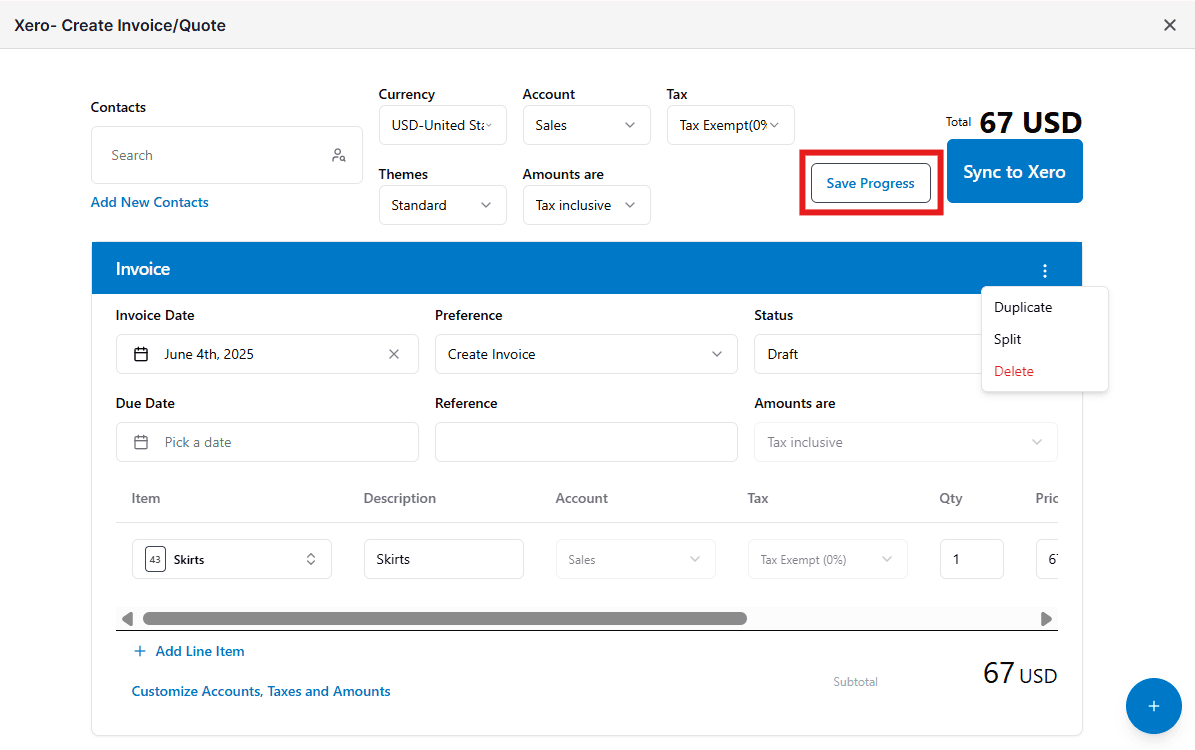
11
Sync to Xero
Once you are ready to send the draft invoice to Xero, click Sync to Xero.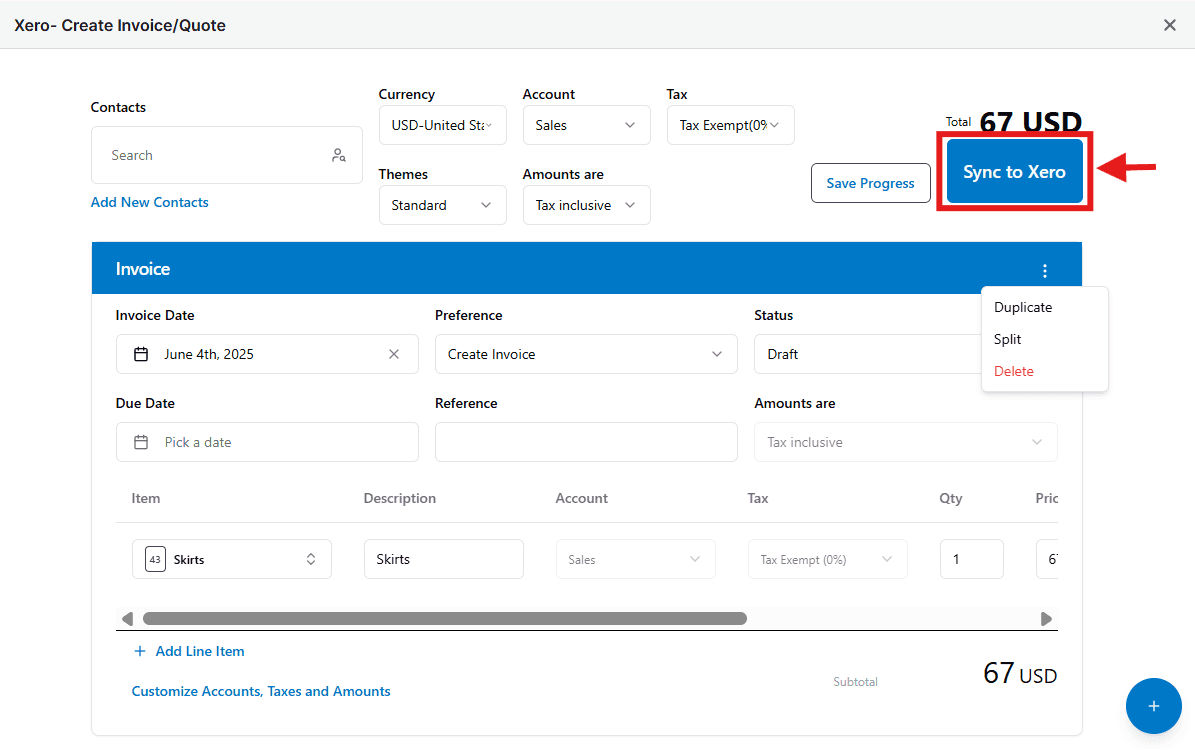
12
View the invoice in Pipedrive
Close the window and view your synced invoice in the Notes section within the Pipedrive deal.