The Customer section has three tabs: Customer Sync Rules, Customer Default Mappings, and Customer Field Mappings. Work through each tab and click Save before moving to the next.
Customer Sync Rules
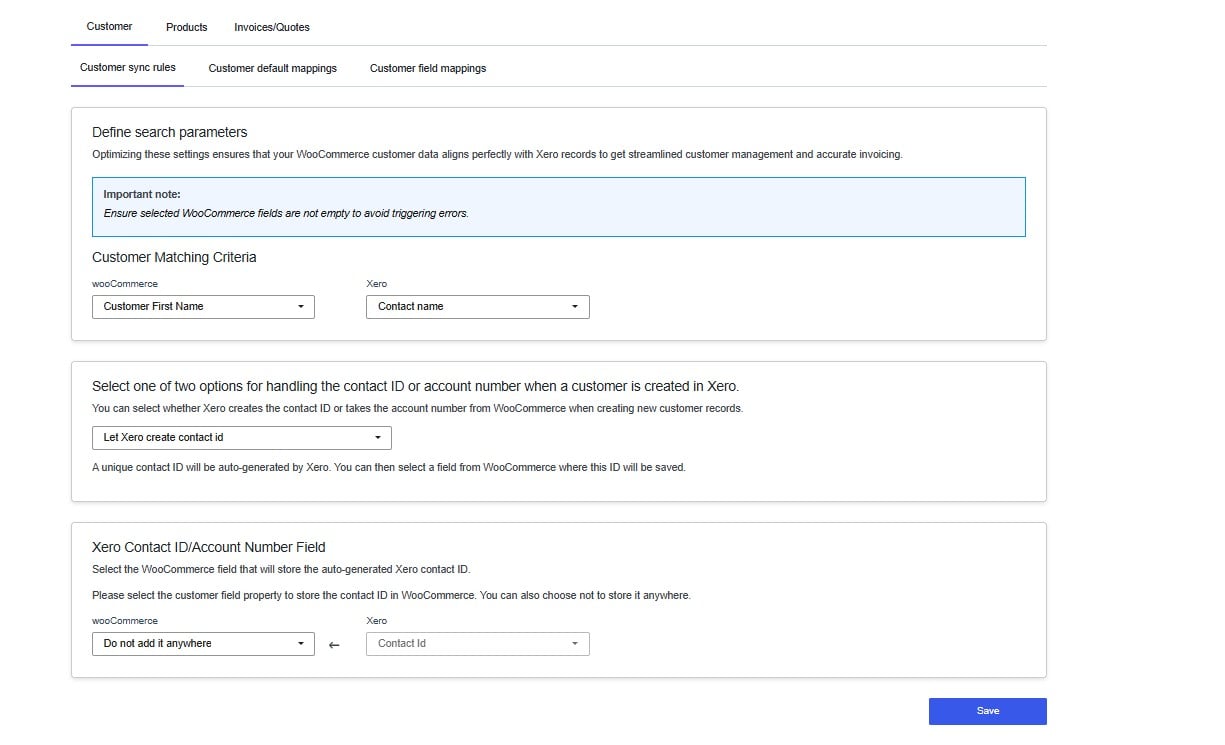
When an order is placed in WooCommerce, the integration searches for the matching customer in Xero before creating an invoice. This tab tells it how to do that search.
Customer Matching Criteria
You select one field from WooCommerce and one field from Xero. The integration compares the two values — if they match, the existing Xero contact is used. If no match is found, a new contact is created automatically.
Why this matters: If the integration cannot reliably identify your customers, it will create duplicate contacts in Xero. Duplicate contacts lead to messy records, reconciliation issues, and inaccurate invoicing history.
Which field to choose: Email address is the most reliable option. It is unique per customer and almost always filled in on a WooCommerce order. Fields like first name are not unique — two customers named “John” will cause a mismatch.
The WooCommerce field you select must not be empty on orders. If the field is blank, the integration cannot search for a match and will trigger an error.
Customer Default Mappings
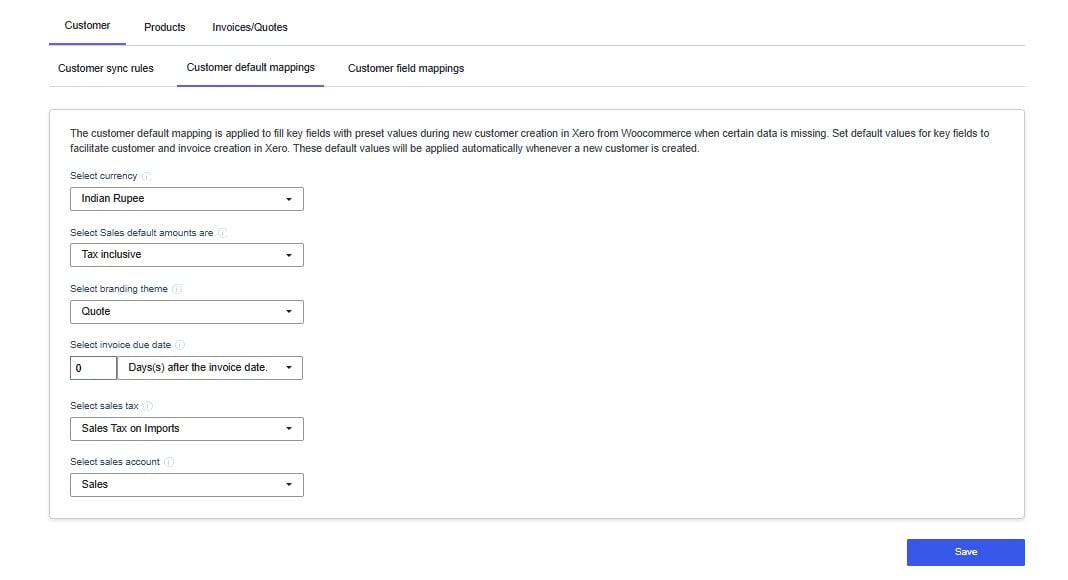
This tab sets the default values applied when the integration creates a new customer record in Xero. These defaults fill in required Xero fields that may not exist on a WooCommerce customer record.
Why this matters: Xero requires certain fields to be populated when creating a contact — for example, currency and tax rate. If these are left unconfigured, new customer records may be created with incorrect or missing accounting information, which causes problems when processing payments or filing tax returns.
Set each field to match your Xero account configuration:
Click Save before continuing.
Customer Field Mappings
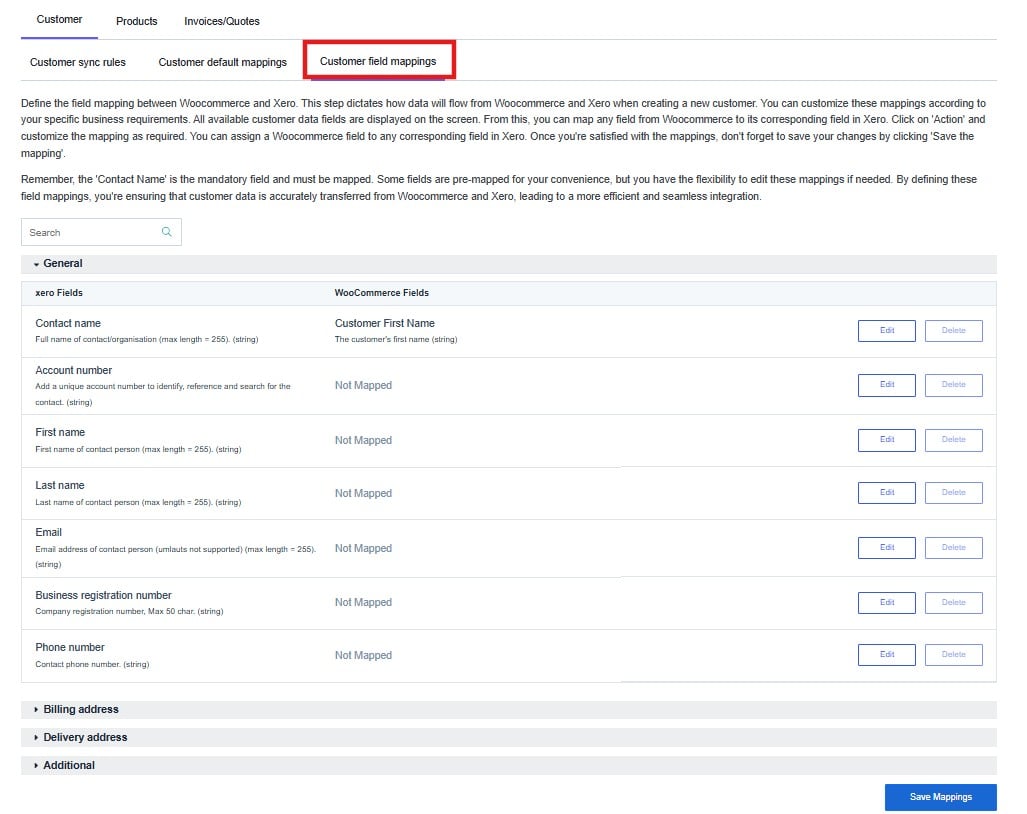
This tab controls exactly which WooCommerce customer fields are transferred to Xero when a new contact is created. Each row maps one Xero contact field to a WooCommerce field.
Why this matters: The more accurately your customer data is mapped, the less manual correction is needed in Xero. Incomplete mappings mean your Xero contacts may be missing names, addresses, or contact details — making it harder to send invoices.
Fields are organised into four groups: General, Billing Address, Delivery Address, and Additional.
Contact Name is mandatory and must be mapped. Without it, Xero cannot create a valid contact record. Some fields are pre-mapped by default — you can edit or delete any mapping to suit your requirements.