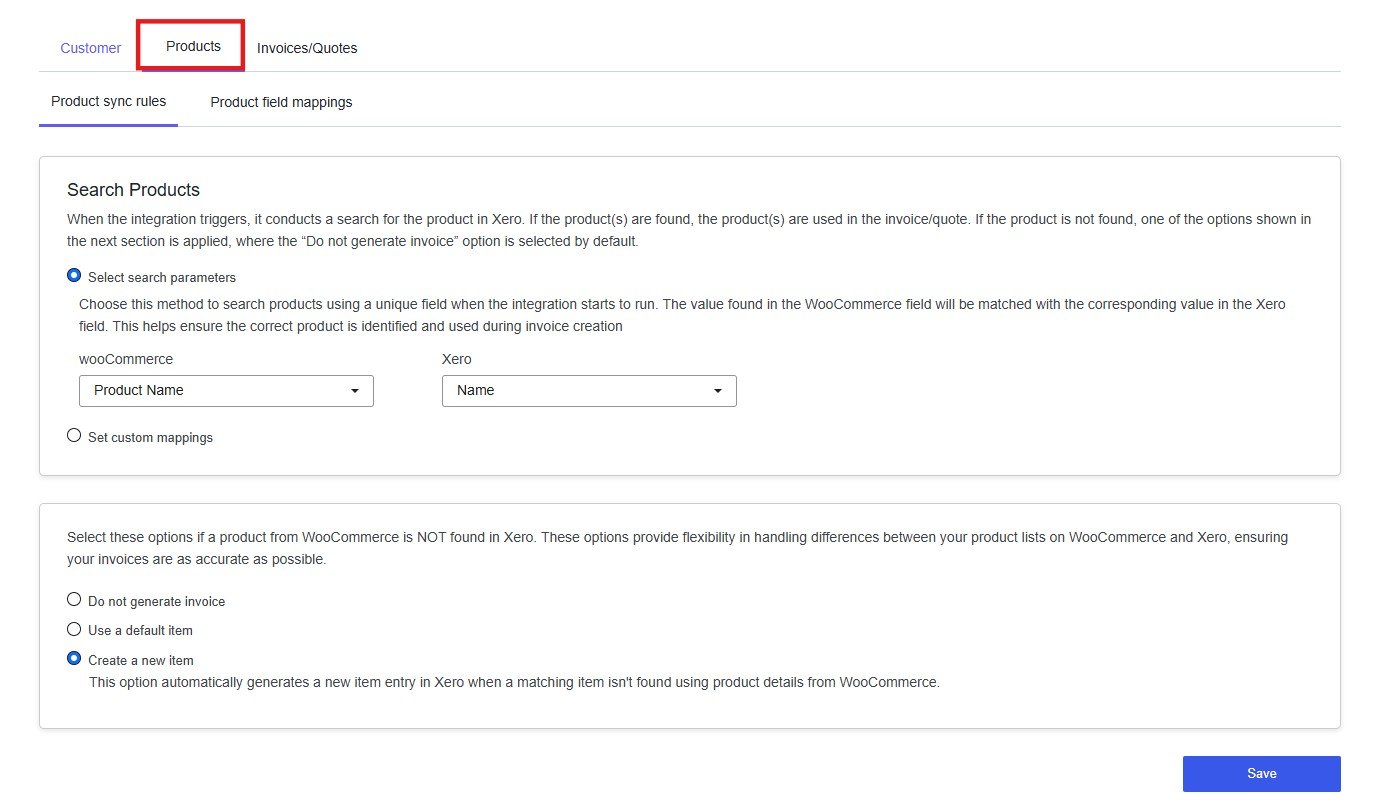
The Products section has two tabs: Product Sync Rules and Product Field Mappings. Work through each tab and click Save before moving to the next.
Product Sync Rules
When an order syncs from WooCommerce, the integration searches Xero for a matching product to build the invoice line items correctly. This tab controls how that search works and what happens when a product cannot be found.
Select Search Parameters
This method automatically searches Xero for a product by comparing a WooCommerce field against a Xero field each time an order syncs. No manual work is required after the initial setup.
This is the right choice for most stores. Matching by SKU to Product Code is the most reliable approach — SKUs are unique identifiers and rarely change. Matching by Product Name is less reliable because names can vary in formatting between platforms.
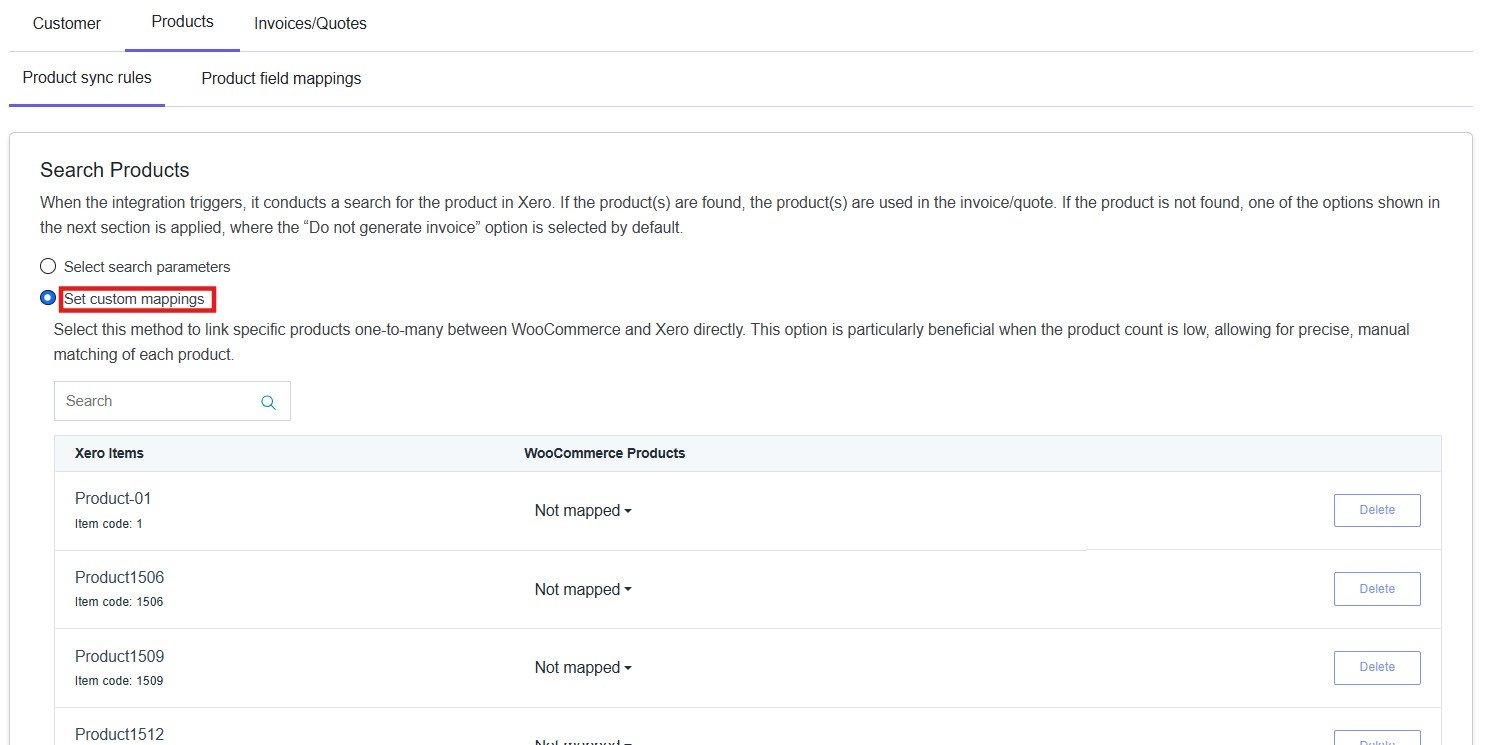
Set Custom Mappings
This method lets you manually link each WooCommerce product to a specific Xero item, one by one. It is best suited to stores with a small, stable product catalogue where you want complete control over which Xero item is used for each WooCommerce product.
You can only use one search method at a time. Switching methods will replace your previous configuration.
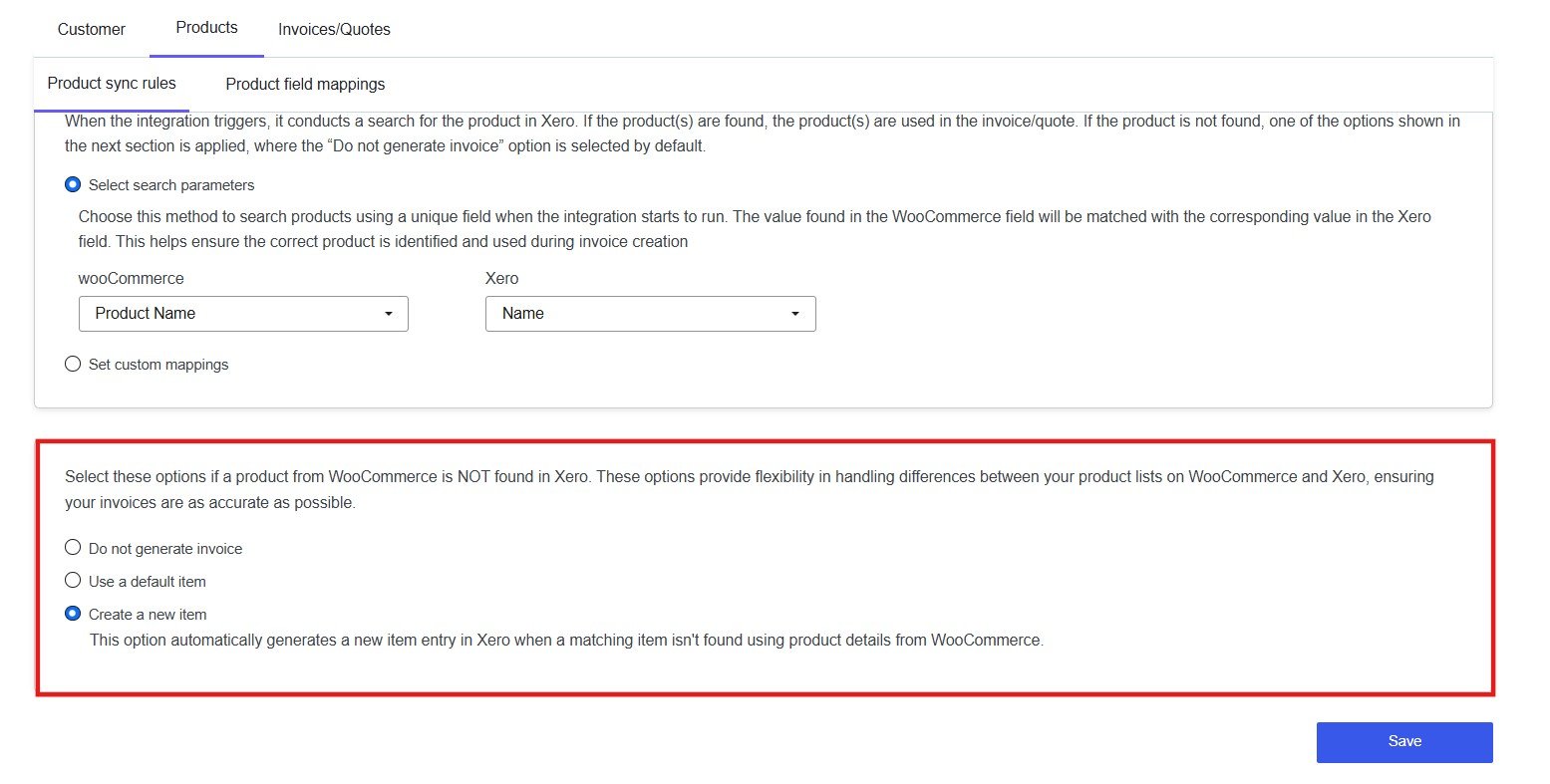
If a Product Is Not Found in Xero
This setting determines what happens when no matching product can be found in Xero. Configure this deliberately — the wrong default can result in missing invoices or unwanted products being created in your Xero account.
Create a new item is the most hands-off option, but it can produce duplicate or unnecessary items in Xero if product names vary slightly between orders. Review your Xero item list periodically if you use this option.
Click Save before continuing.
Product Field Mappings
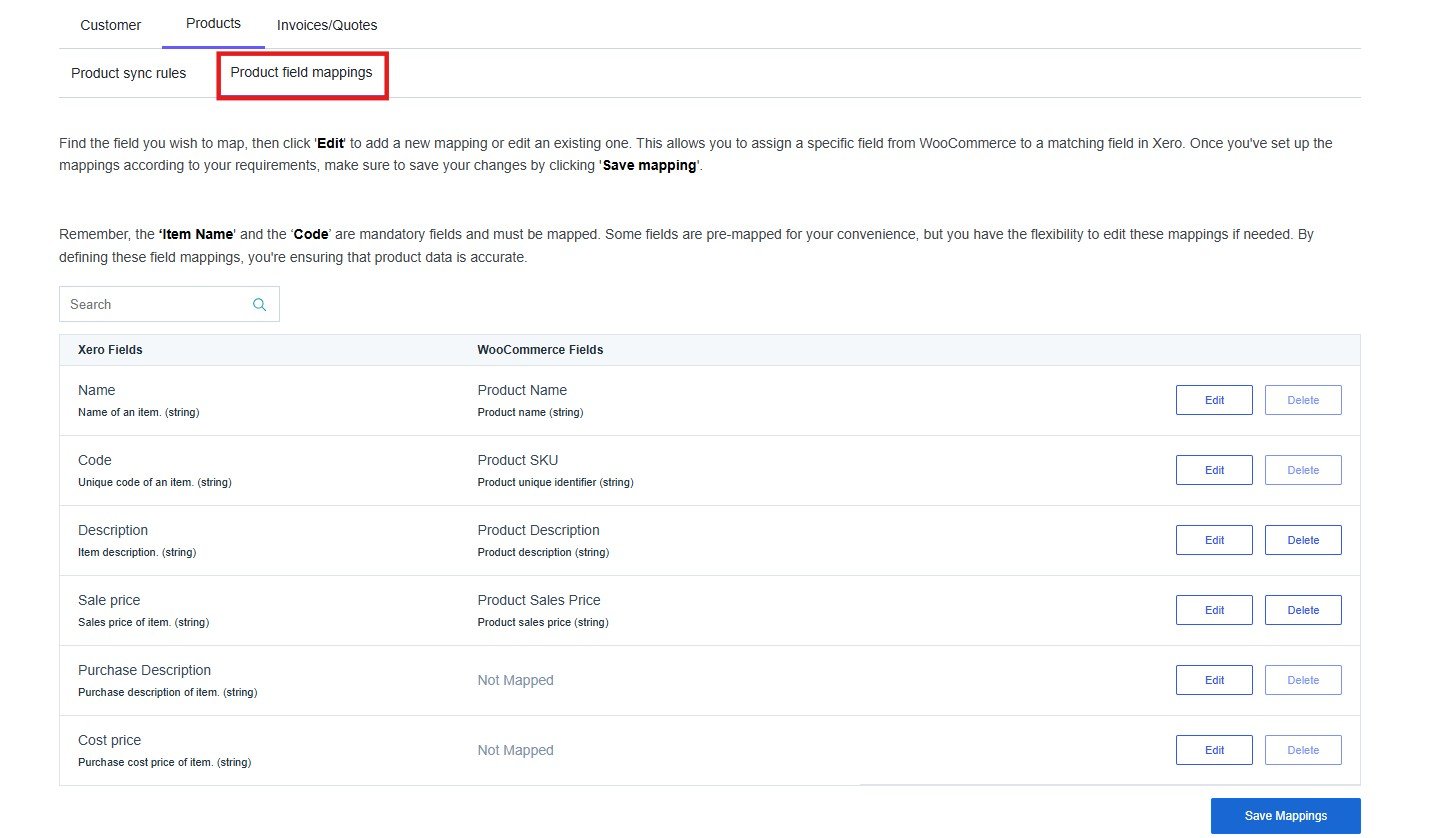
This tab controls which WooCommerce product fields are transferred to Xero when a new item is created. Each row maps one Xero item field to a WooCommerce product field.
Why this matters: When the integration creates a new product in Xero, it uses these mappings to populate the item record. Incomplete or incorrect mappings result in Xero items with missing names, codes, or prices — which creates reconciliation issues and makes your Xero item list harder to manage.
The default mappings are:
Item Name and Code are mandatory fields and must be mapped. Without them, Xero cannot create a valid item record.