When an order syncs, the integration needs to match each WooCommerce product to an item in Xero to build the invoice line items correctly. This step controls how that matching works.

Product Matching

Screenshot 2026 06 25 010305
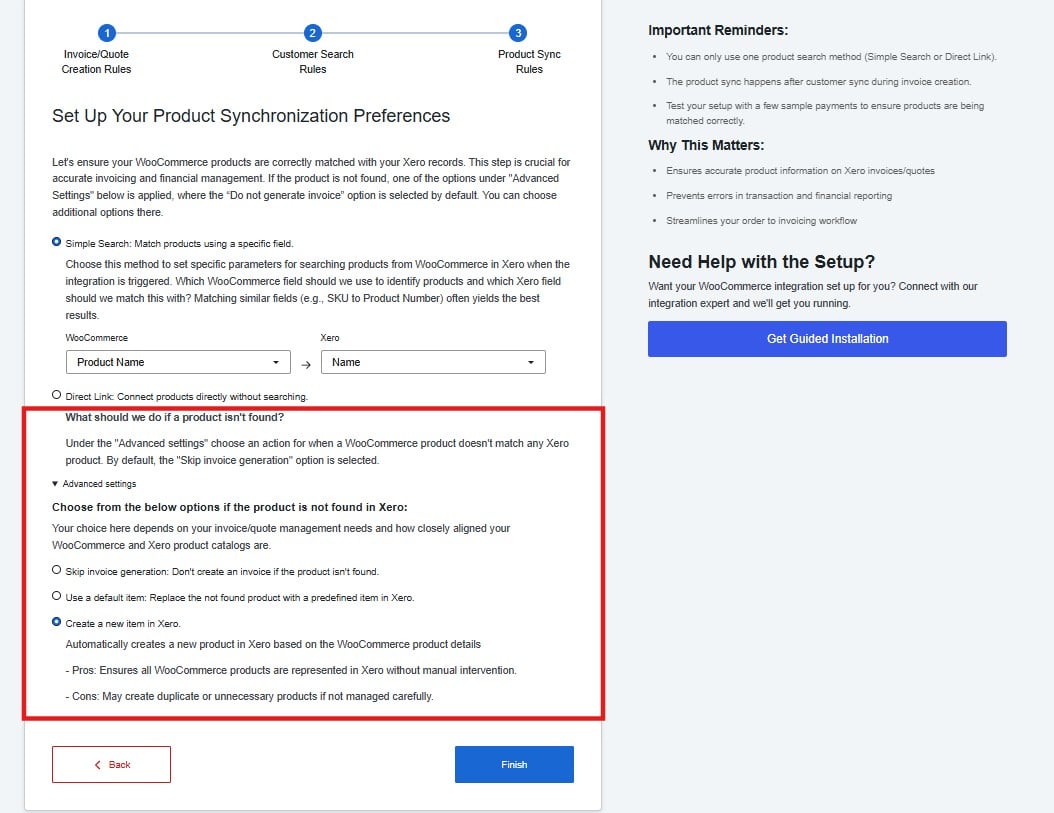
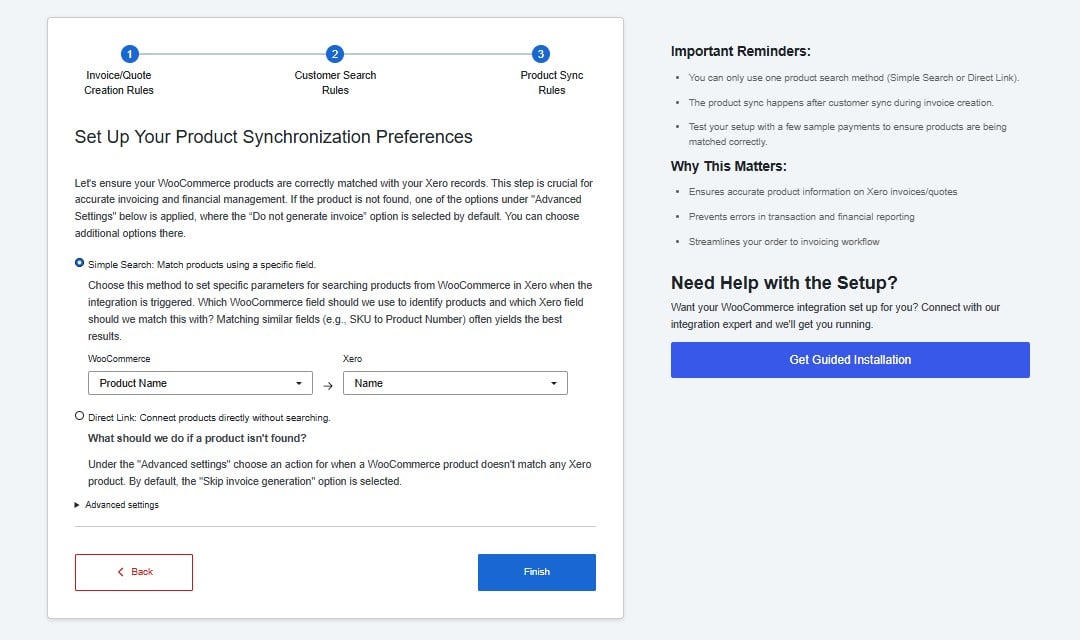
Simple Search — The integration automatically searches Xero for a product by comparing a WooCommerce field against a Xero field on every sync. This is the right choice for most stores. Matching by SKU to Product Code gives the most reliable results — SKUs are unique identifiers that rarely change. Matching by product name is less reliable as names can vary slightly between platforms. Direct Link — You manually link each WooCommerce product to a Xero item, one by one. This works well for stores with a small, stable product catalogue where you want precise control over the matching.

If a Product Is Not Found in Xero

Screenshot 2026 06 25 010517
This setting decides what happens when the integration cannot find a matching product in Xero.
OptionWhat happens
Skip invoice generationThe invoice is skipped if the product is not found
Use a default itemA predefined fallback item is used in place of the missing product
Create a new itemA new product is automatically created in Xero using the WooCommerce product details
Create a new item is the most convenient option but can generate duplicate products in Xero if your product names or SKUs are inconsistent. Review your Xero item list periodically if you use this option. Click Finish to complete the setup.