

- Customer matching rules
- Default customer mappings
- Field mappings
Customer Matching Rules
Customer matching rules determine how existing customers are identified before creating new ones.Why Customer Matching Rules Matter
- Prevent duplicate customers
- Ensure consistent data across systems
- Automatically create customers when no match is found
- Simplify customer management
1
Select the Company Matching Criteria.Choose a HubSpot field (e.g. Company Name or CVR) and map it to the corresponding Business Central field.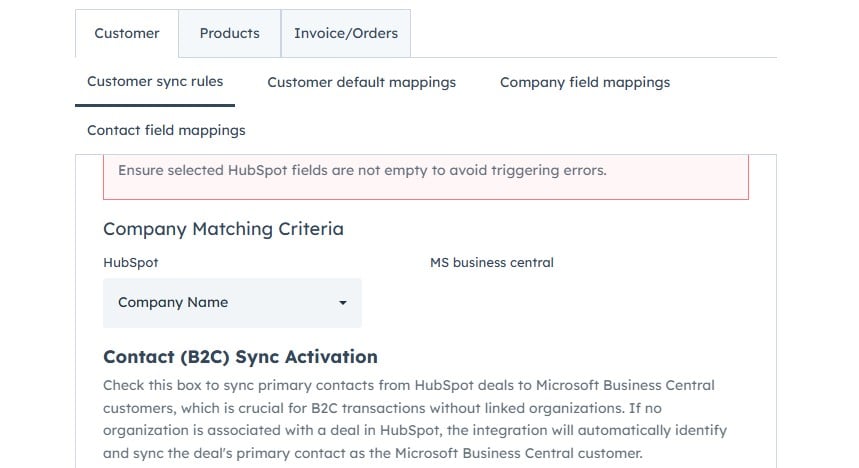
2
(Optional) Enable Primary Contact Sync.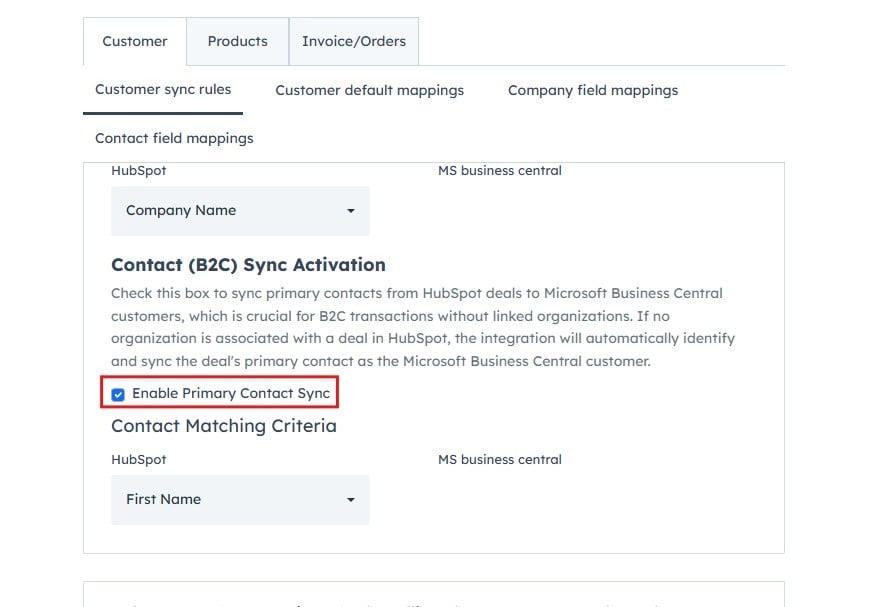
3
Choose how to handle the Customer Number: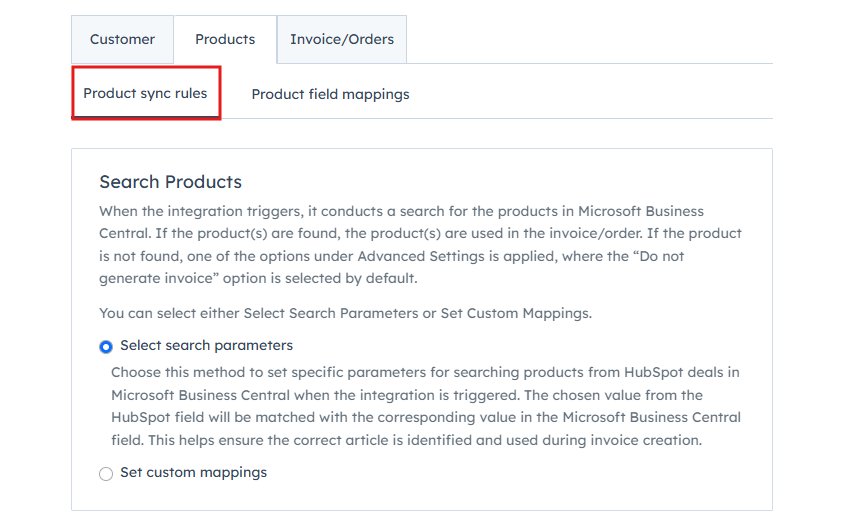
- Let Business Central generate it
- Use a number from HubSpot
Customer Default Mappings
Default mappings define required values when creating customers in Business Central.1
Navigate to the Customer Default Mappings section.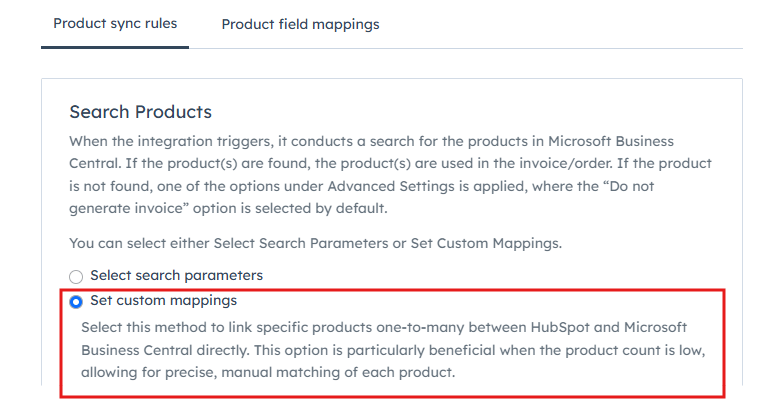
2
Configure required fields such as:
- Payment Terms
- Customer Group
- VAT Zone
- Currency
- Invoice Layout
Field Mappings (Company & Contact)
Field mappings control how data is transferred between HubSpot and Business Central.
Why Field Mappings Matter
- Ensure correct data syncing
- Reduce manual work
- Improve data quality
1
Navigate to the Company/Contact Field Mappings section.
2
Review existing mappings or click Edit to modify them.
3
Add new mappings using the search field.You can also create new HubSpot properties if needed.