

Setting these default values is mandatory for the integration to run. If these values are already configured, you do not need to repeat the setup. Otherwise, follow the steps below.
Step-by-Step Instructions
1
Click on the search bar and type API. Select API Setup from the search results.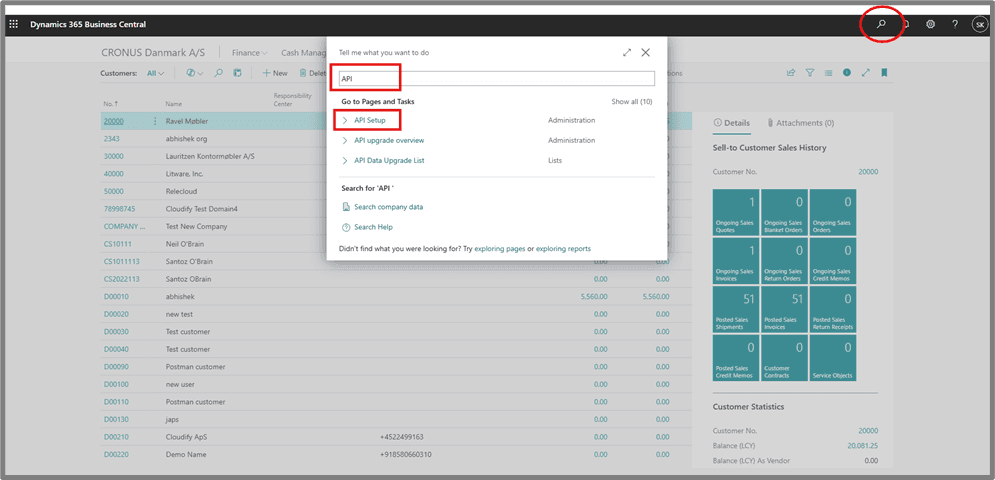
2
Click on the drop-down next to Table ID and select Customer.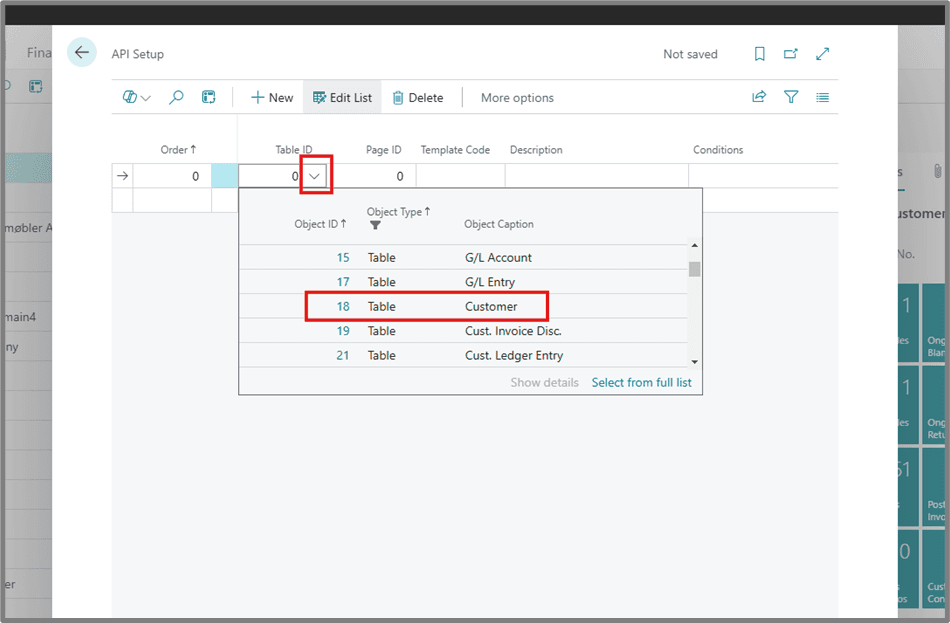
3
Click the drop-down in Template Code and select + New.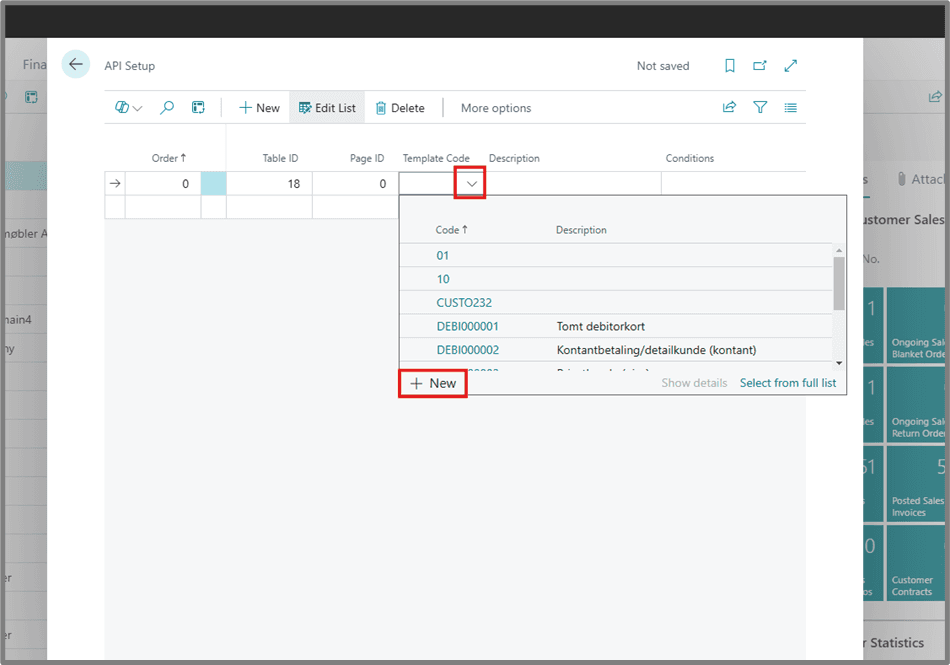
4
Enter a Code (e.g. CUS001) and a Description (e.g. for posting group fields).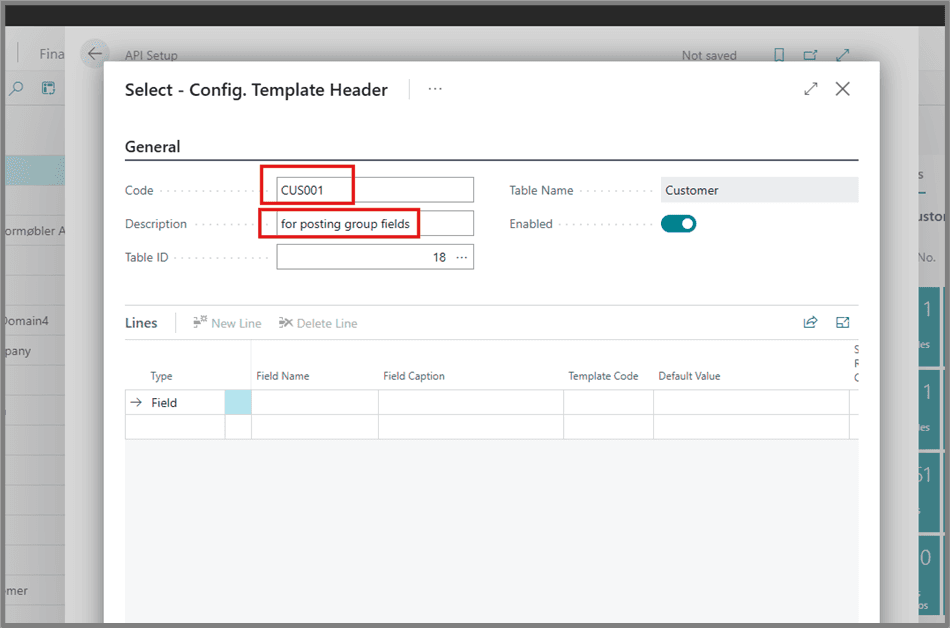
5
Click on the empty space under Field Name.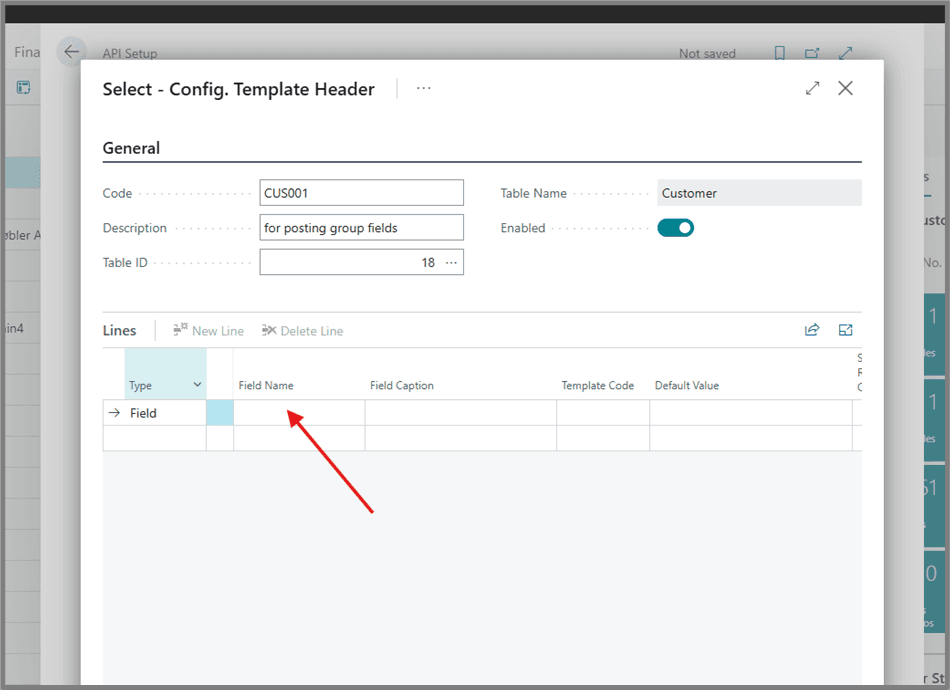
6
Search for post and select Customer Posting Group, then click OK.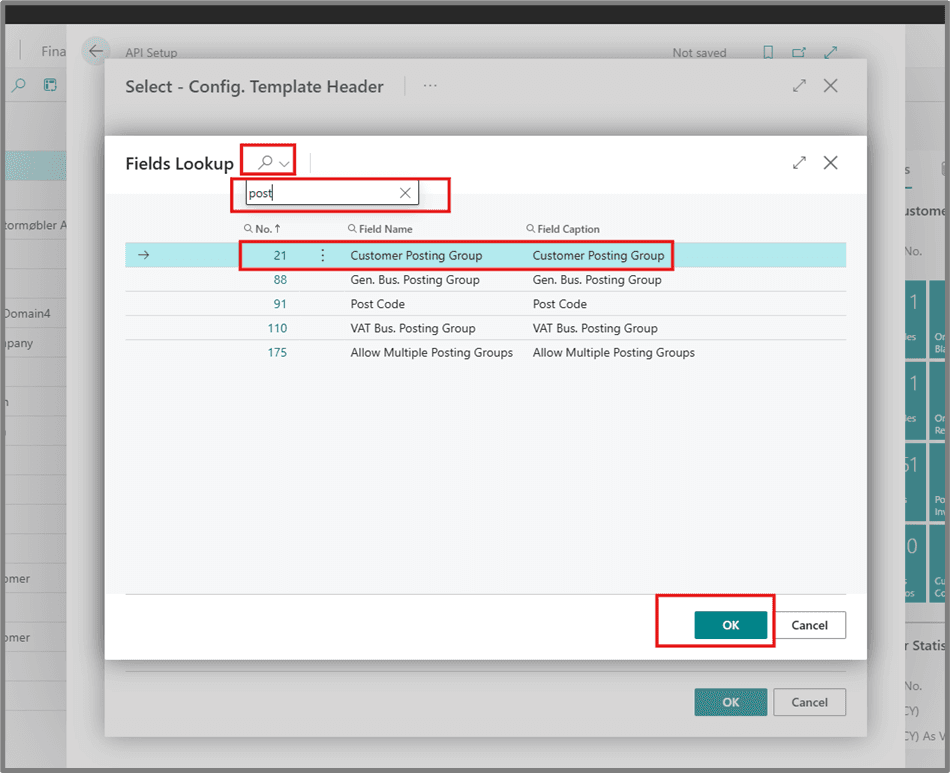
7
Click the three dots under Default Value.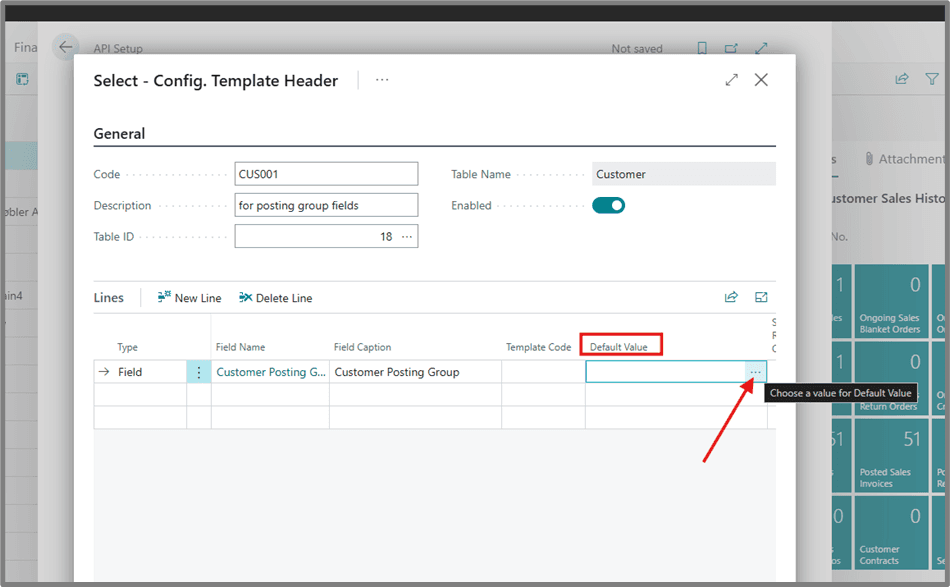
8
Select a value from the list.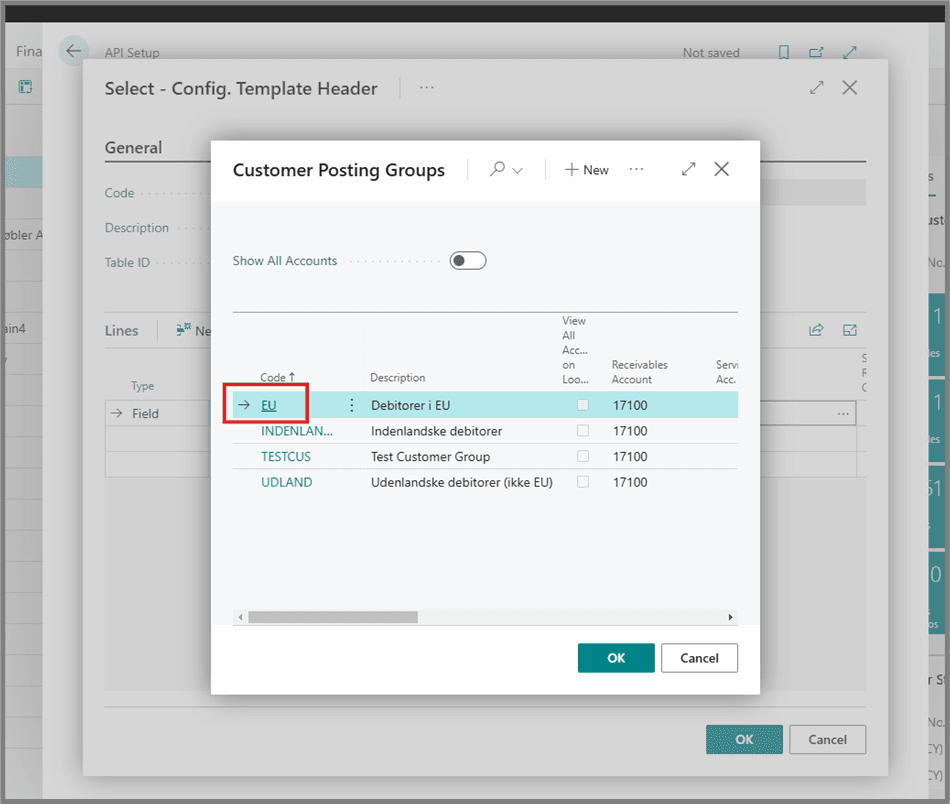
9
The selected value will appear in the template.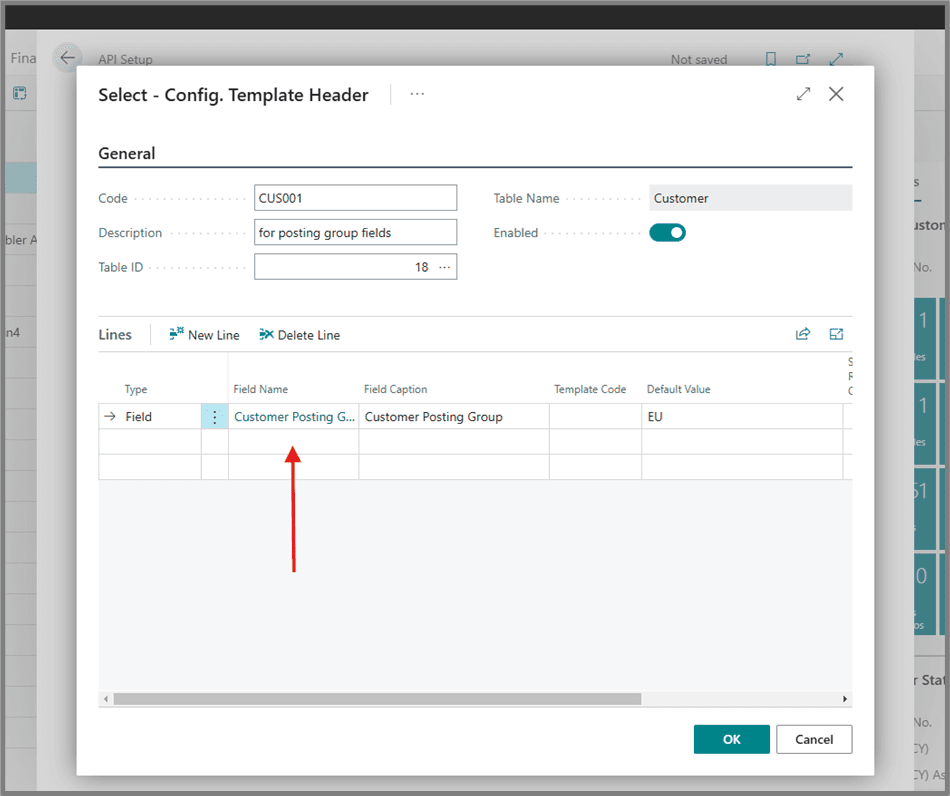
10
Repeat the process for the remaining fields. Add: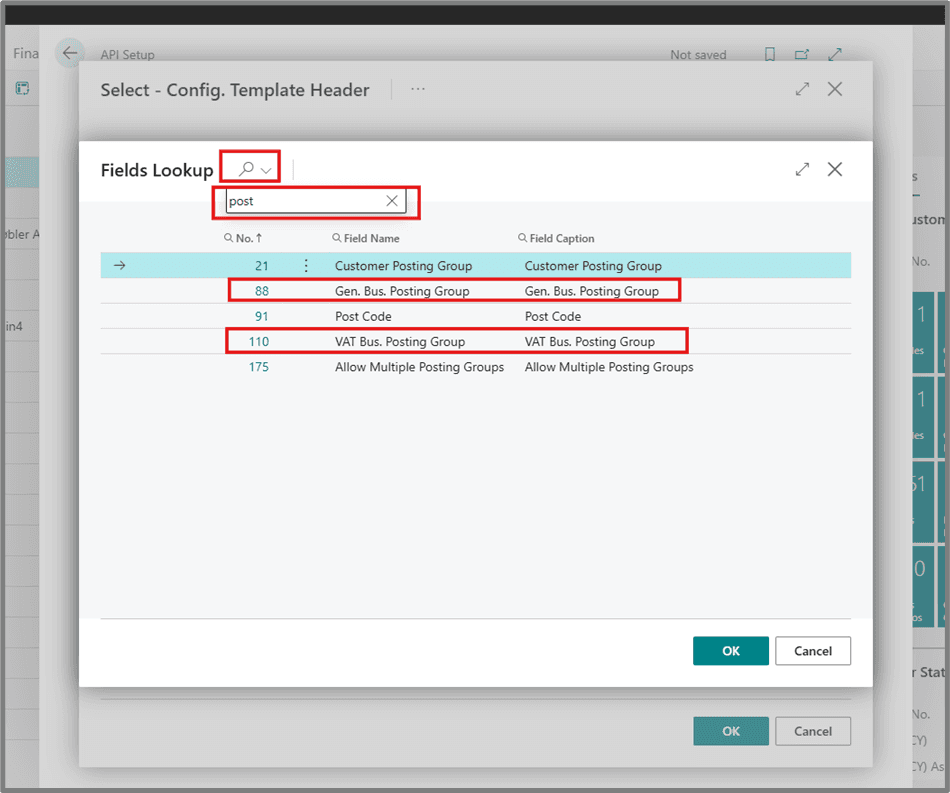
- Gen. Bus. Posting Group
- VAT Bus. Posting Group
11
Once all fields are added, click OK.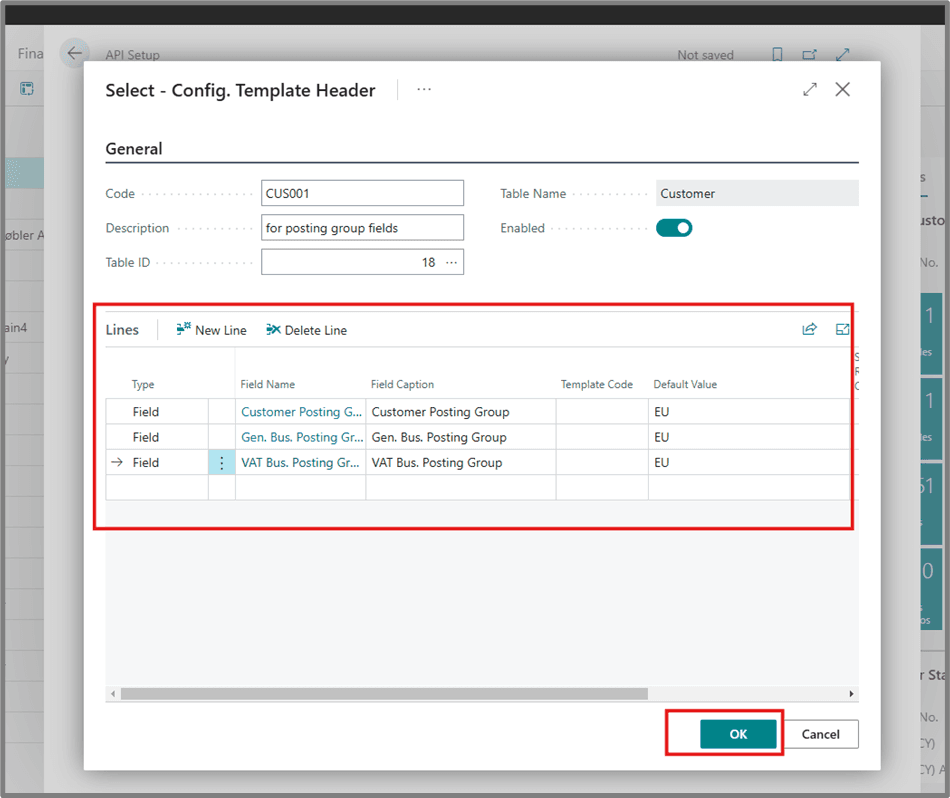
12
Click the back button or outside the window to close it.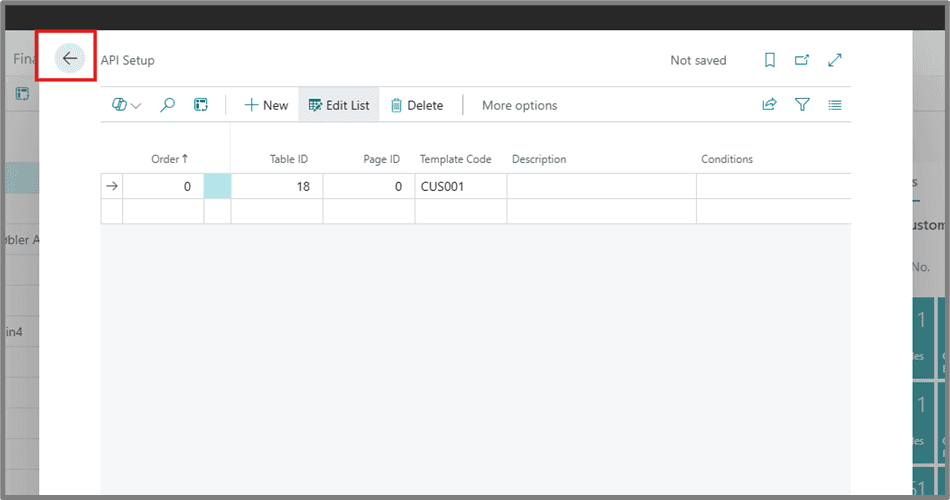
For any questions or issues during setup, contact support@cloudify.biz.