

Why Product Sync Settings Matter
Product sync settings are important because they:- Ensure accurate product matching between HubSpot and Business Central
- Streamline invoice and order creation
- Maintain consistent product data across platforms
- Handle scenarios where products may not match exactly :contentReference[oaicite:1]
Setting Up Product Sync Settings
1. Searching for Products
This method is best when you have a large number of products and want to match them automatically using a unique identifier.1
Go to the Product sync rules tab.
2
Select Search parameters.
3
Choose a HubSpot field (e.g. SKU) and match it with a Business Central field (e.g. Product Number).
4
When creating an invoice or order, the integration will use this identifier to find the correct product in Business Central.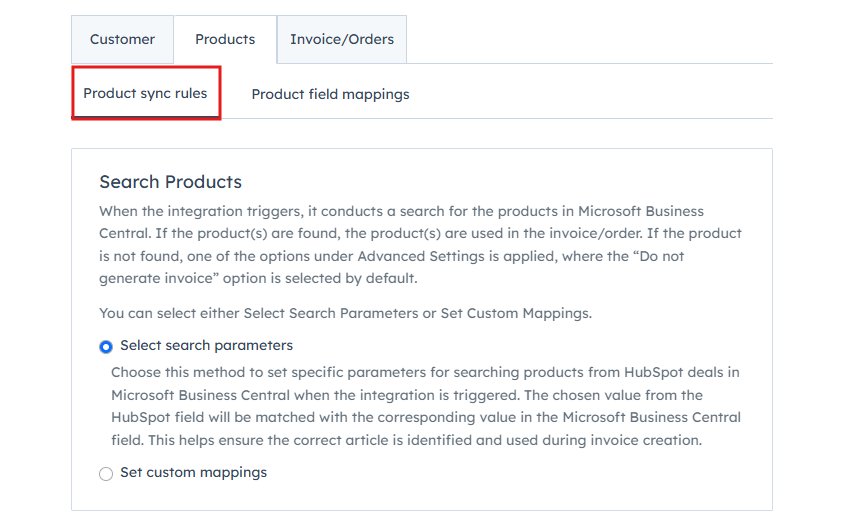
2. Custom Mappings
This method is useful when you have a smaller product set or when product identifiers do not match between systems.1
Go to the Product sync rules tab.
2
Select Set custom mappings.
3
Manually map HubSpot products to Business Central products.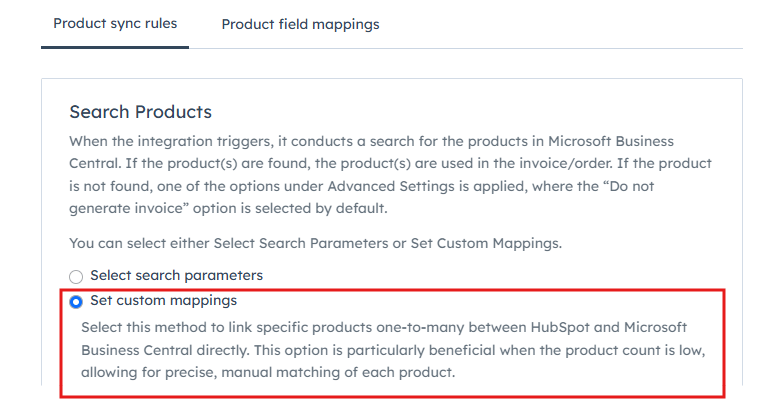
3. Handling Products Not Found
This section defines what happens when a product does not exist in Business Central.1
Scroll down to the Product sync rules section.
2
Choose one of the following options:
- Do not generate invoice
- Use a default product
- Create a new product
3
Configure the selected option based on your business needs.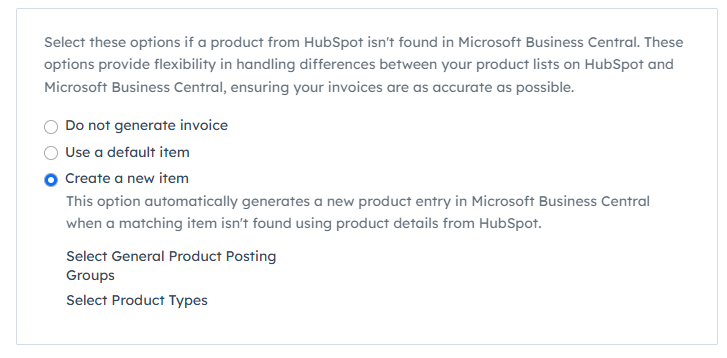
4. Deals Without Line Items
This option allows syncing deals even when no products are associated.1
Scroll to the Deal Syncing When Products Are Unavailable section.
2
Enable Sync deals which do not have products associated with them.
3
Select a default product to be used.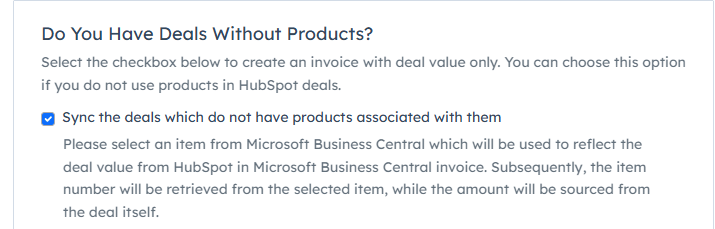
Product Field Mappings
Why Product Field Mappings Matter
- Ensure data consistency between HubSpot and Business Central
- Allow customization of product data transfer
- Maintain accurate financial and product records
Setting Up Product Field Mappings
1
Navigate to the Product field mappings tab.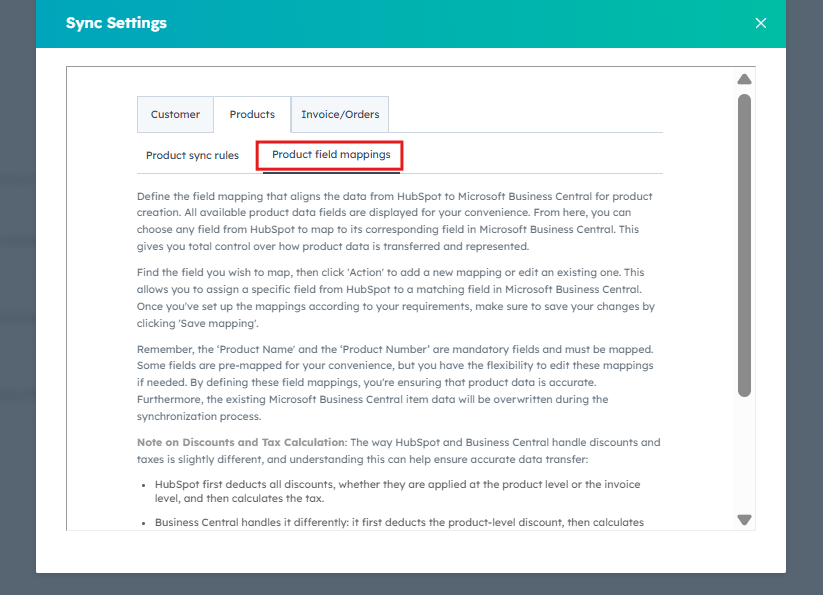
2
Review each Business Central field.The default HubSpot field (if available) will already be mapped.
3
Click Edit to modify mappings or Delete to remove them.
4
Ensure required fields are mapped correctly before proceeding.