

Invoice/Order Sync Rules
These rules determine when invoices or orders are generated based on your HubSpot deal pipeline.Why Invoice/Order Sync Rules Matter
- Automate invoice/order creation at the right stage in your sales process
- Ensure data consistency between HubSpot and Business Central
- Reduce manual work and errors
1
Navigate to the Invoice/Order Sync Rules tab in your integration settings.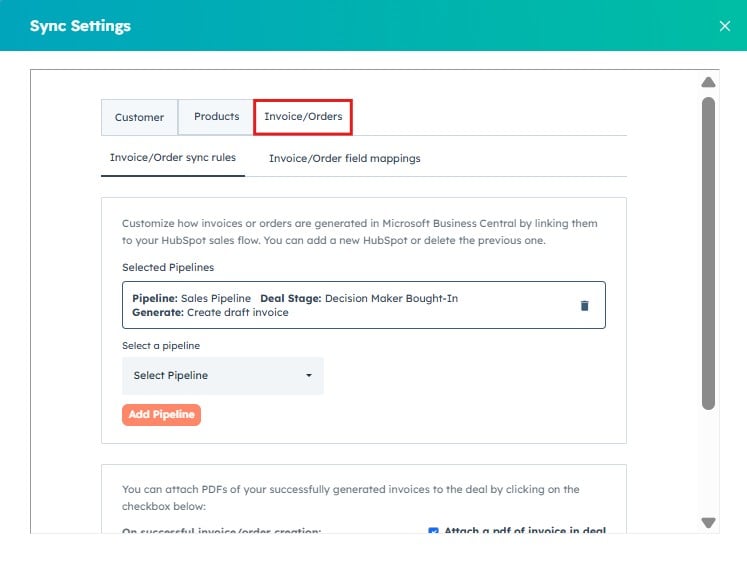
2
Click Add Pipeline to create a new rule.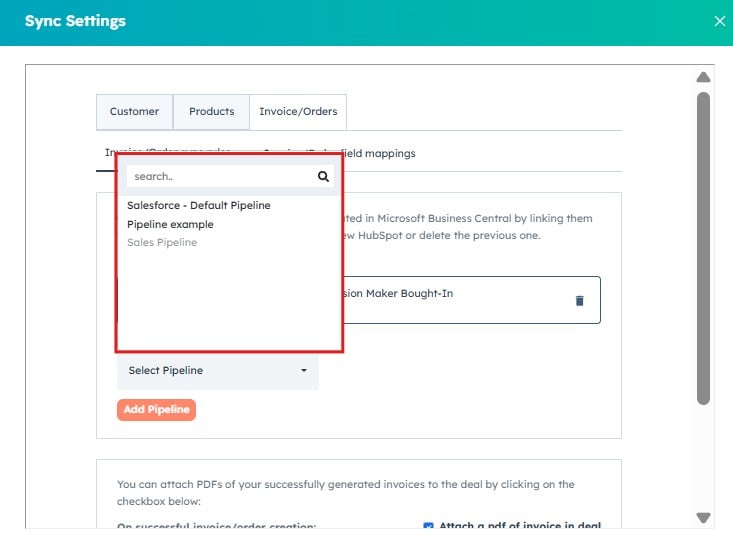
3
Choose the Deal Stage that will trigger invoice or order creation.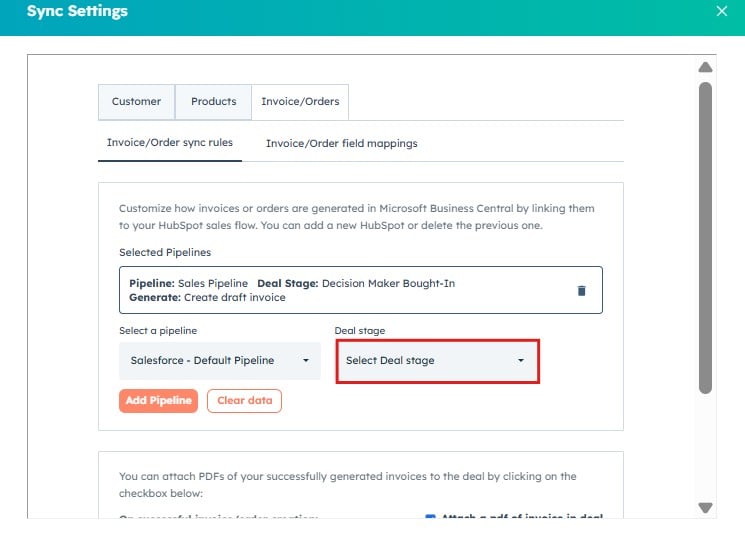
4
Select whether to generate a Draft Invoice or Draft Order in Business Central.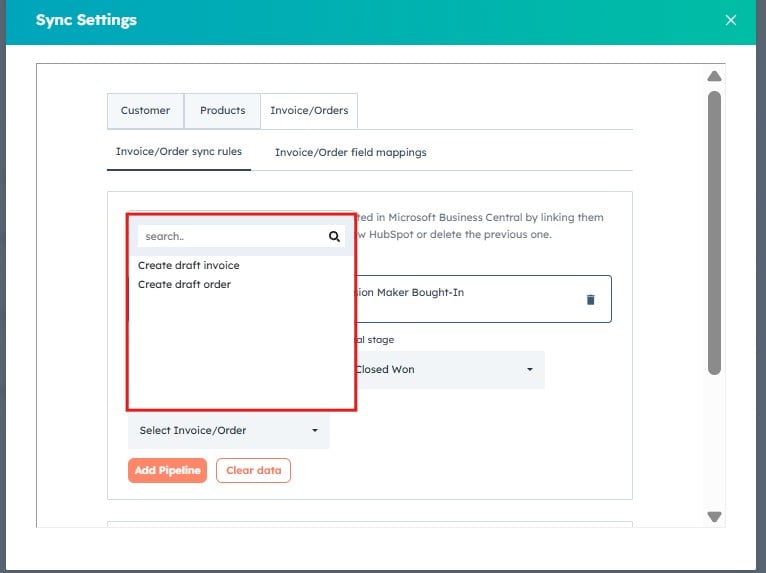
5
Click Save after configuring your rules.
Invoice/Order Field Mappings
Field mapping ensures that the correct data is transferred from HubSpot to Business Central.Why Field Mapping Matters
- Ensures accurate invoice creation
- Matches correct fields between systems
- Reduces manual corrections
1
Navigate to the Invoice/Order Field Mappings tab.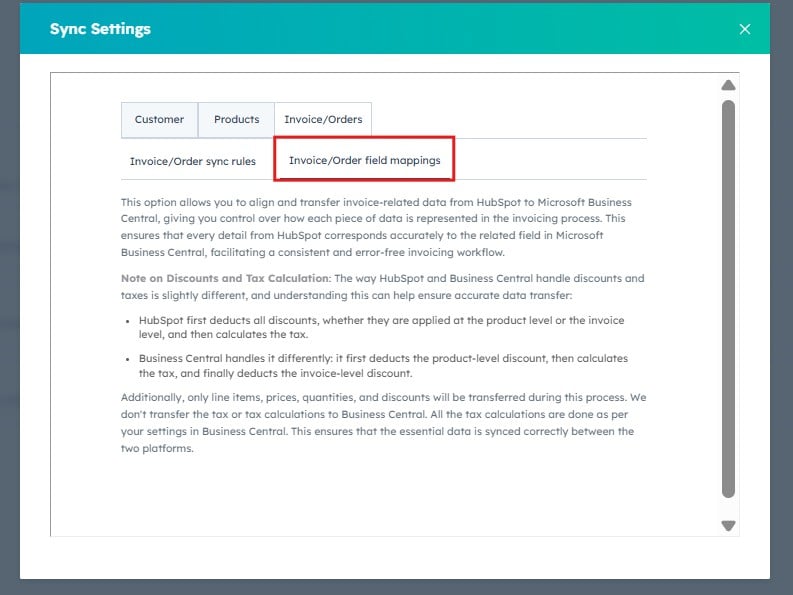
2
Review the available mapping sections:
- Notes and References
- Delivery Address
- Billing Address
3
Click Edit to modify a field mapping or Delete to remove it.
4
Ensure key fields are mapped correctly:
- Notes Headline
- References (Purchase Order Number)
- Invoice Date
- Delivery & Billing Addresses
5
Click Save Mappings to apply your changes.
Correct field mapping is essential to ensure accurate invoice creation in Microsoft Business Central. Always test your configuration before going live.