

Product Search Preference
Accurate product matching is important to ensure the correct invoice is generated and synced. Choose the method that best fits your product catalogue and workflow.Select Search Parameters
Select a matching field in HubSpot and Tripletex to identify the correct product during sync. The product sync uses the selected field as the unique identifier. This helps prevent duplicate products from being added.
Set Custom Mappings
Use this option to directly map specific HubSpot products to specific Tripletex products. This works especially well when you have a smaller product catalogue and want tighter control over product matching.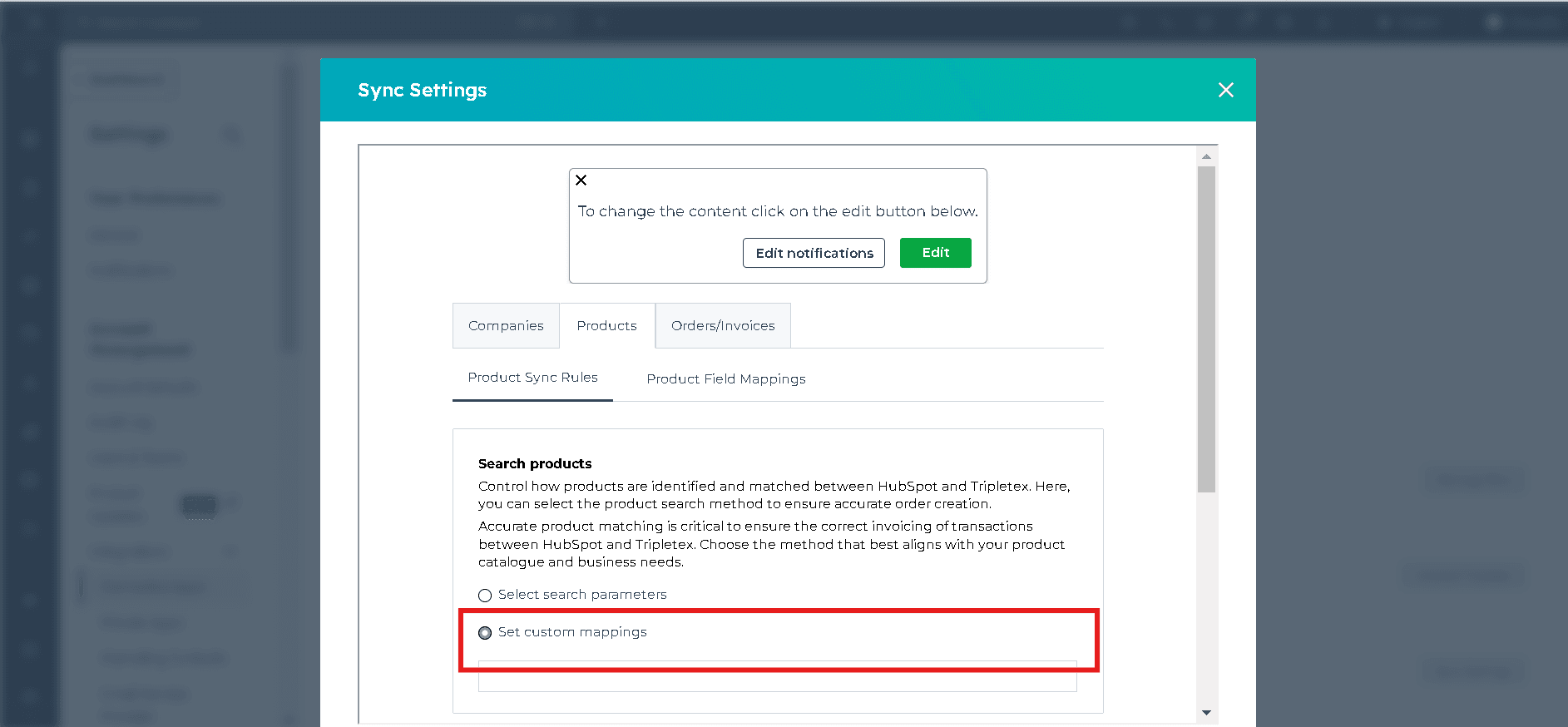
Advance Settings
Product not found
When a product is not found in Tripletex during invoice creation, you can choose one of these options.Don’t create the invoice
Select this option if you do not want an invoice to be created when a product cannot be found.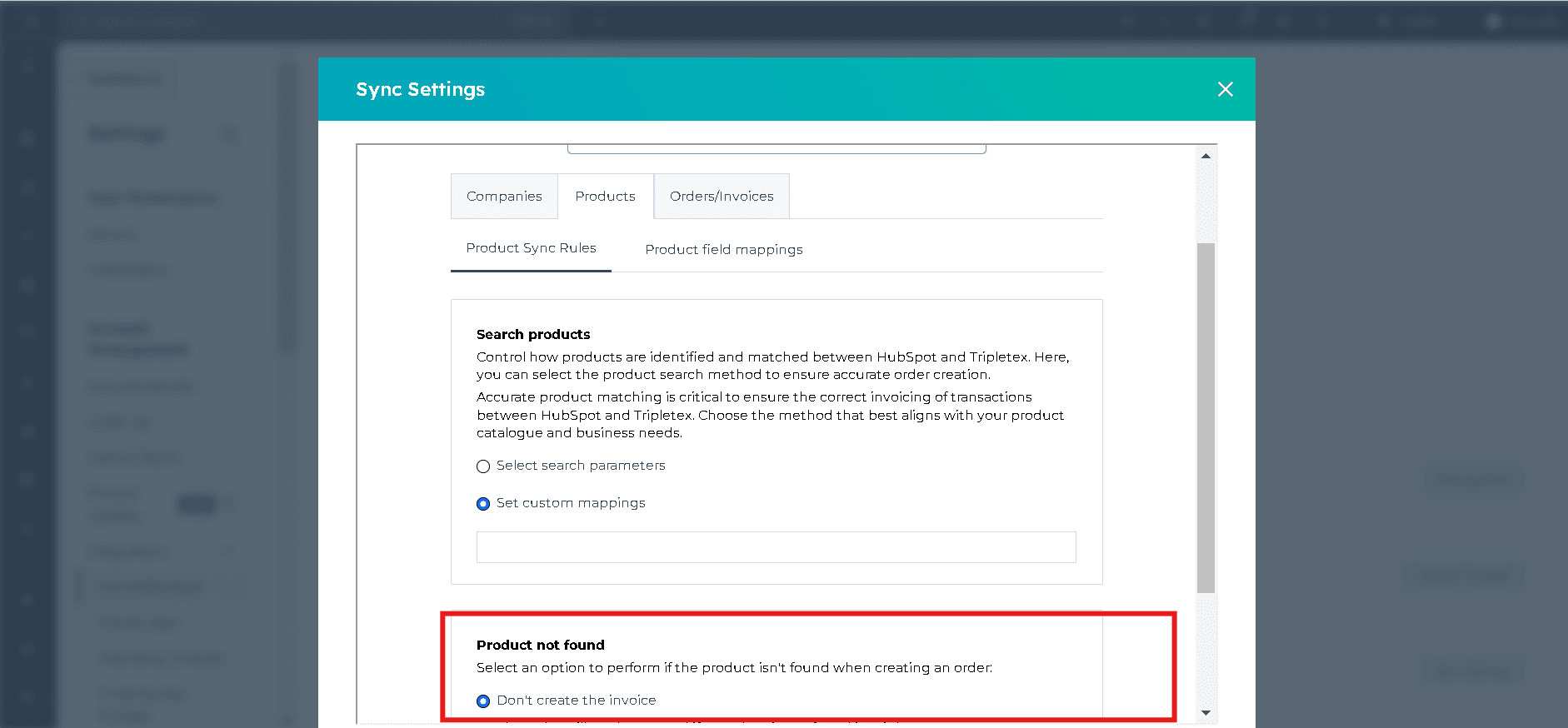
Use a pre-chosen product
Choose a default product from your Tripletex product list. If the intended product is missing, the integration will use that default Tripletex product number, while the rest of the product information will come from the deal line items in HubSpot.
Create a new product
Enable this option if you want the integration to create a new product in Tripletex based on your product field mappings. This is useful if you frequently add new or custom products.
Product Field Mappings
You can add new mappings for the fields you want to populate from HubSpot to Tripletex. Some fields are already mapped by default. To update mappings:- Click Actions on the right side
- Click Edit mapping
- To add a new field, click Create new HubSpot property
- Enter the property name and select the property type
- Click Save mappings

Product field mappings are only used when Create a new product is selected under Product not found.