Step-by-step guide to installing the Cloudify Xero Integration from either the HubSpot Marketplace or the Xero App Store, and connecting your Xero account.
How to Install the App
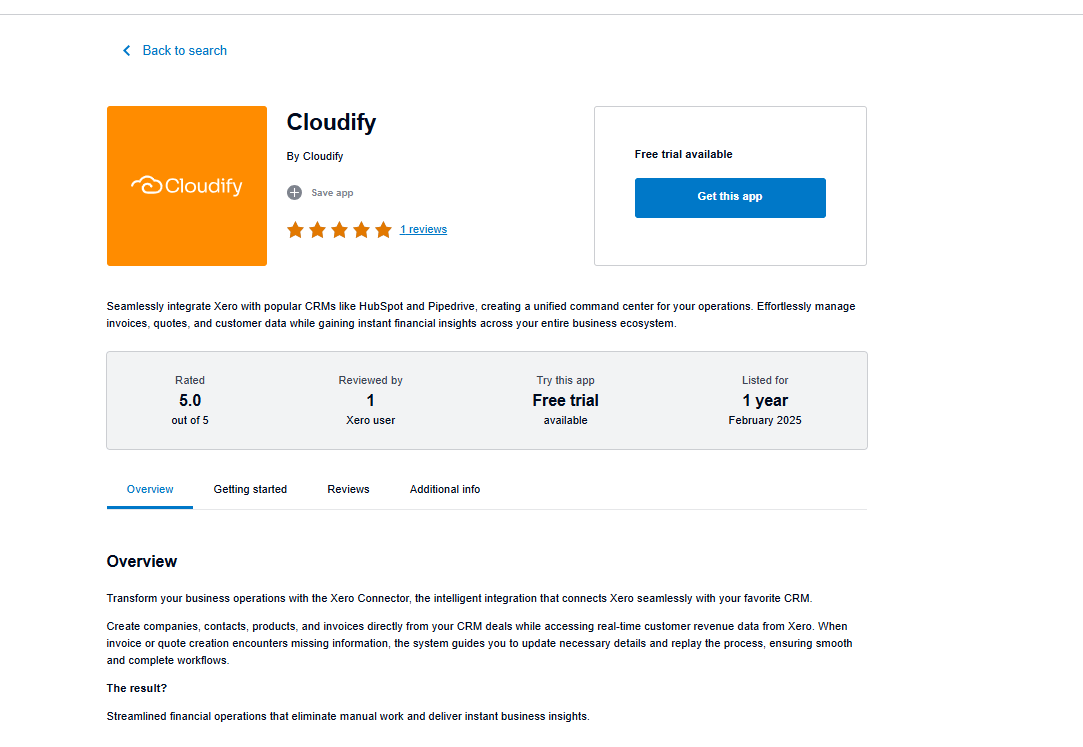
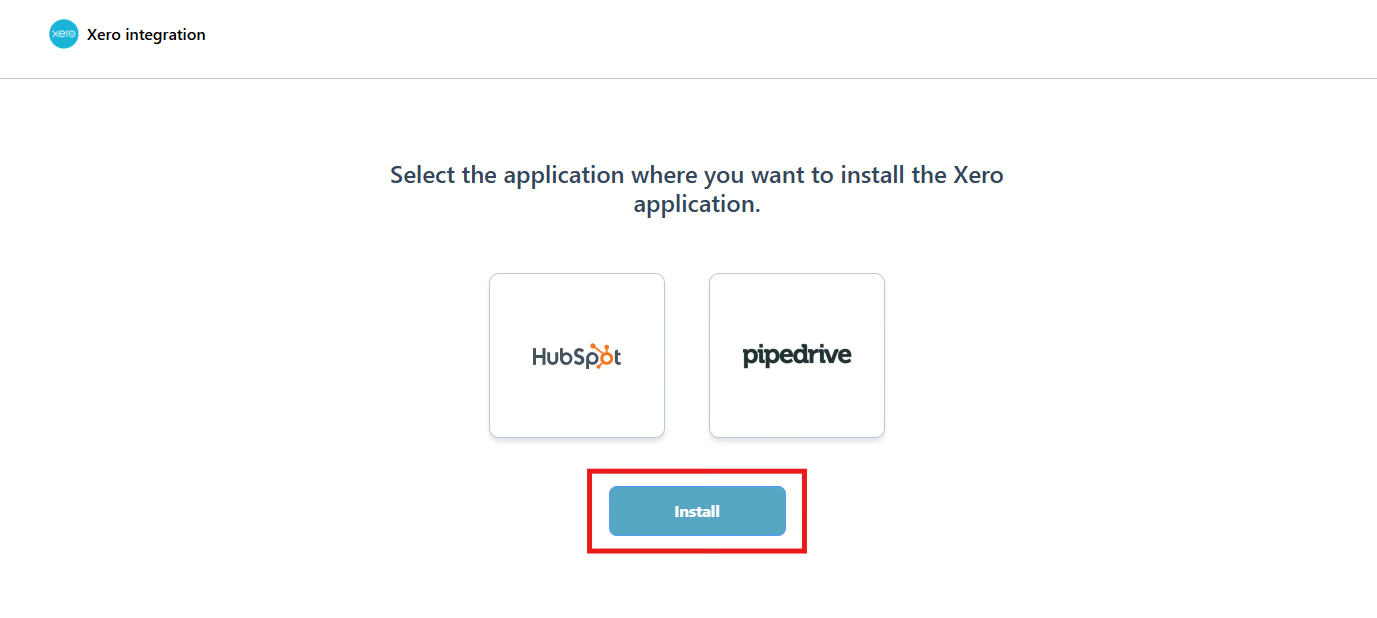
You can install the Cloudify Xero Integration from two places — the HubSpot Marketplace or the Xero App Store. Follow the path that suits you.- From the HubSpot Marketplace
- From the Xero App Store
1
Find the app in the HubSpot Marketplace
Log in to your HubSpot account and search for Cloudify or Xero Integration app in the HubSpot Marketplace. This will display the Xero integration developed by Cloudify. Click Install app.
2
Choose your HubSpot account
Select the HubSpot account in which you wish to install the Xero app and click Choose Account.
3
Connect the app
Review the requested permissions and click Connect app to authorize Cloudify to access your HubSpot account.
4
Start the installation
Click Let’s get started to begin the installation.


Connecting Your Xero Account
1
Connect Xero Account
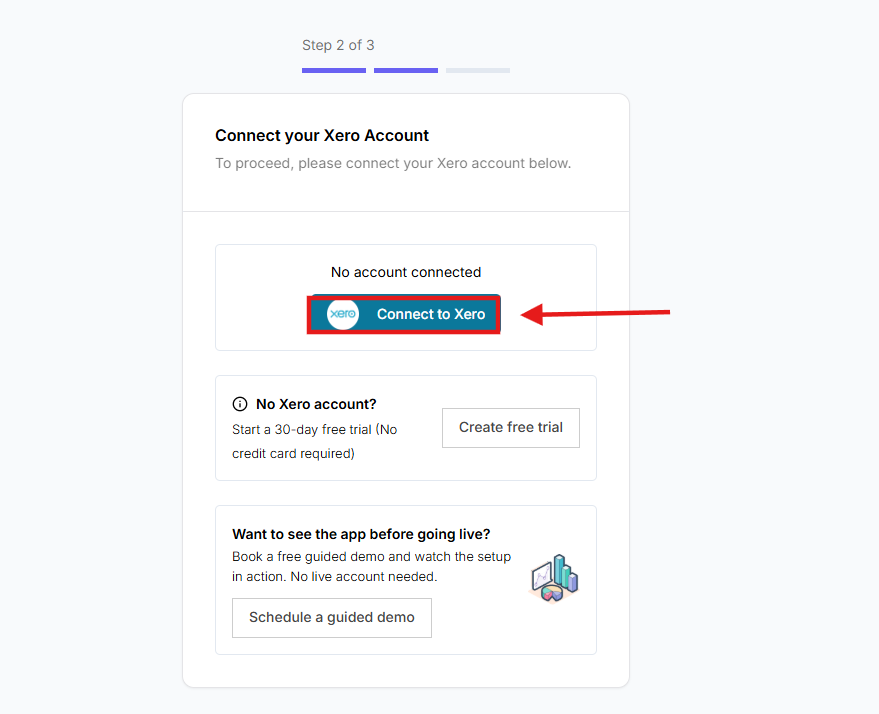
Click Connect to Xero to begin connecting your Xero account.
No Xero Account:
If you don’t have a Xero account, you can start a free trial and come back to connect it once your account is set up.Want to See the App Before Going Live:
If you’d like to explore the app first, you can schedule a guided demo to see how it works before connecting your account.
If you don’t have a Xero account, you can start a free trial and come back to connect it once your account is set up.Want to See the App Before Going Live:
If you’d like to explore the app first, you can schedule a guided demo to see how it works before connecting your account.
2
Enter your Xero credentials
Input your Xero registered email address and password, then click Log In.
3
Select your organisation
If prompted, select your Organisation and click Allow access.
4
Confirmation
You will receive a success message once the Xero account is connected.
5
Choose Your Setup Method
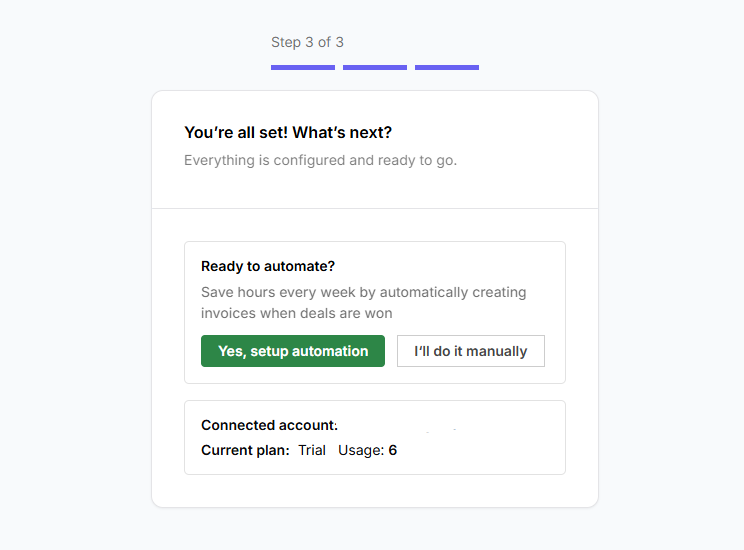
Click on “Yes, setup automation” or “I’ll do it manually” to proceed. Choose the option that best fits your workflow.