

How to access the Integration Dashboard
To view and manage your HubSpot–Xero integration dashboard:1
Click on “Connected Apps” → “Xero” → “Settings”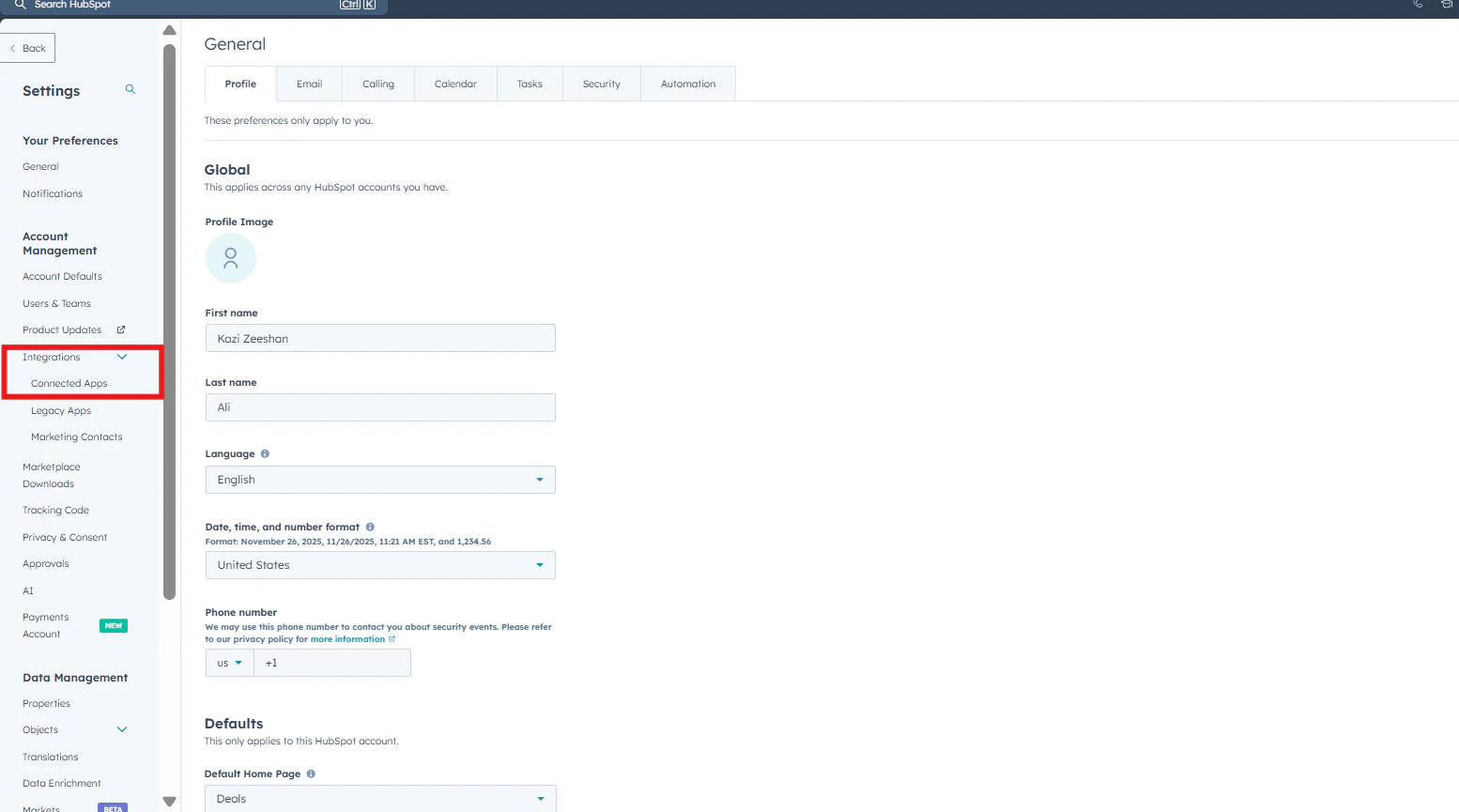
2
Under the “Settings” tab, go to “Cloudify Dashboard” and click the “View Dashboard” button on the right side.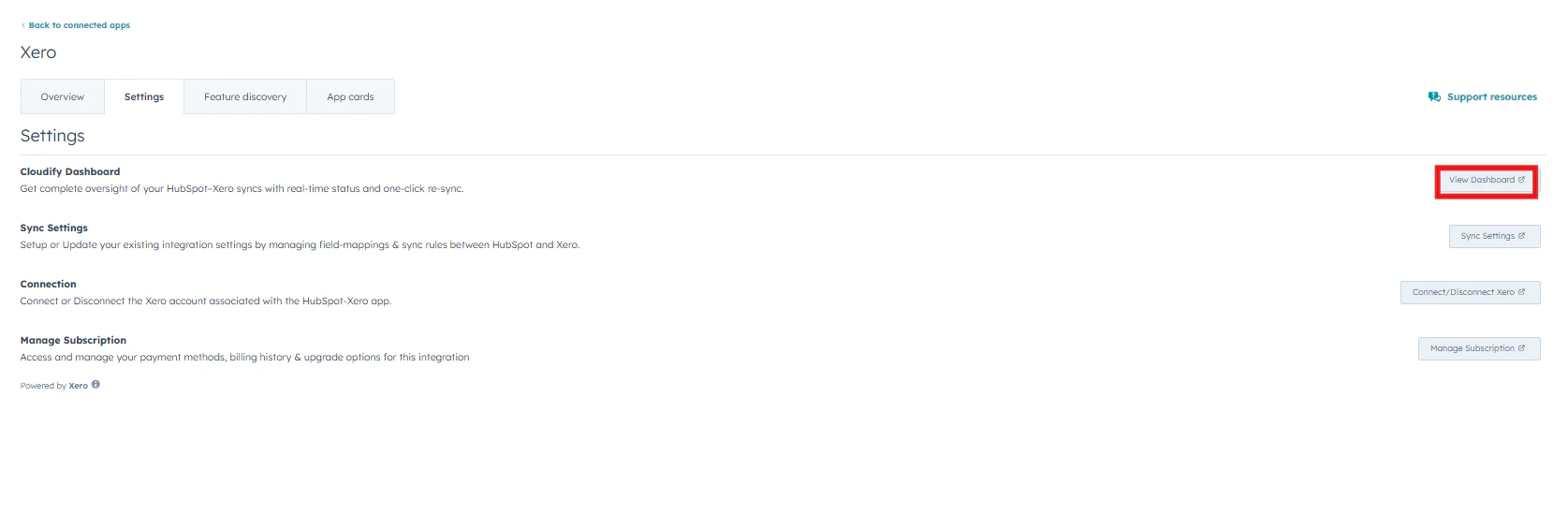
Benefits
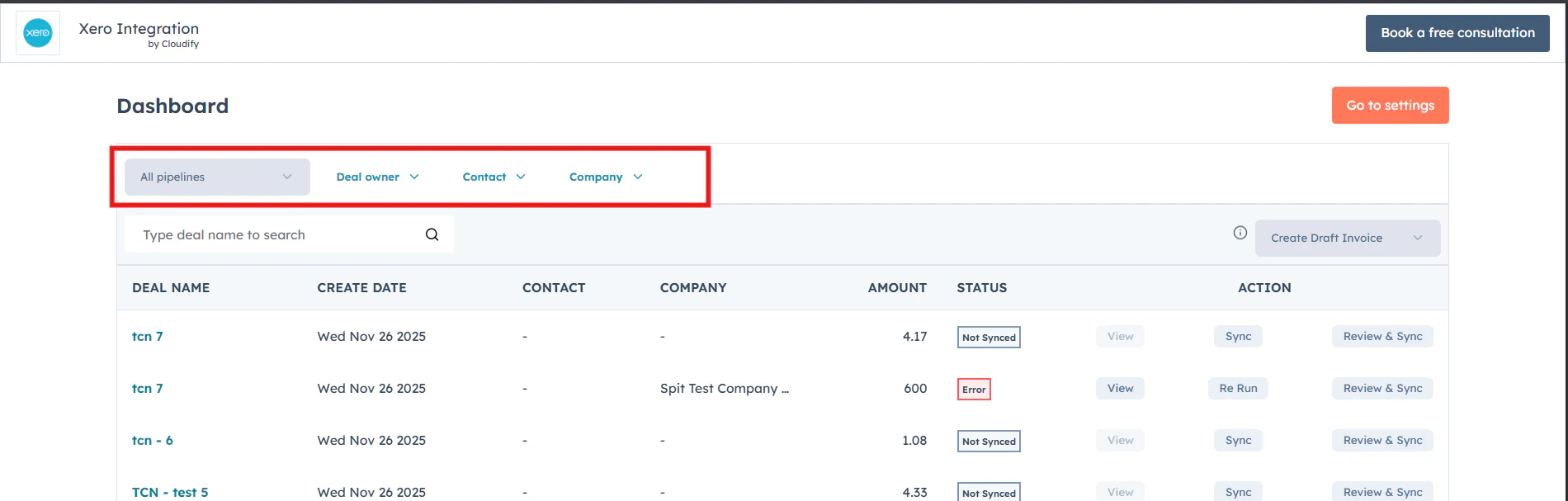
- Effortlessly refine your view by filtering deals based on Pipeline, Deal Owner, Contact, or Company, helping you find exactly what you’re looking for in seconds.
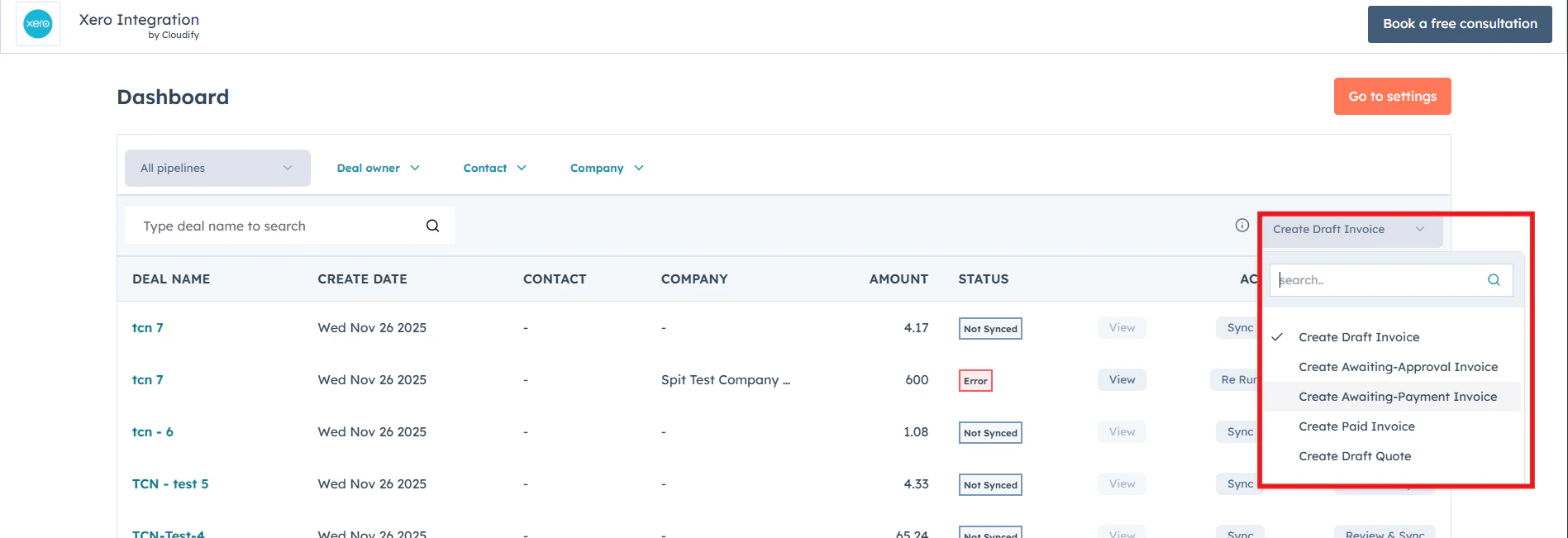
- Choose the invoice or quote type you’d like to create in Xero, making it easy and saving time without switching screens
- View all your HubSpot deals along with their create date, contact, company, amount, and real-time sync status so you can instantly see what’s synced, pending, or needs attention.
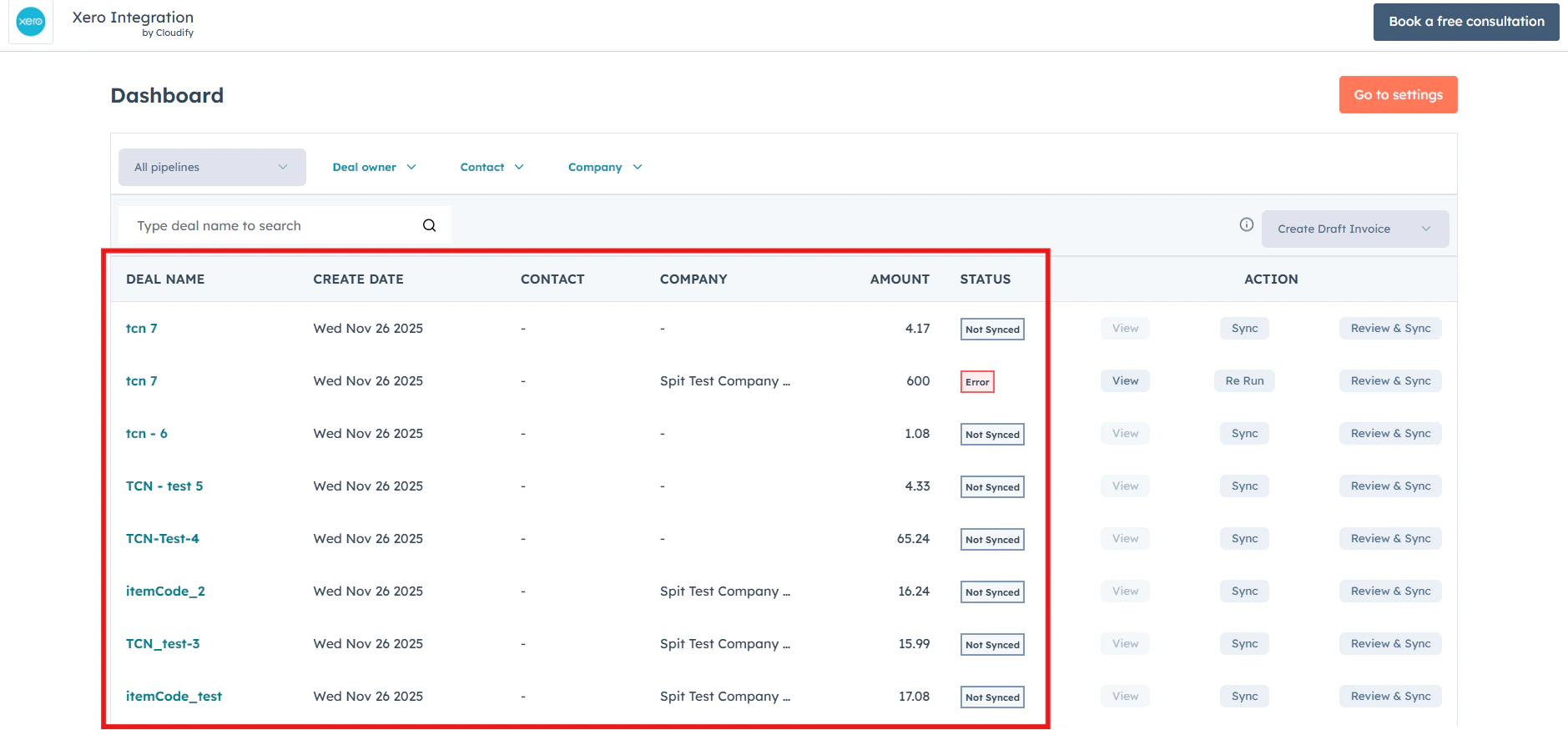
- Use the “View” button to quickly open and review the associated HubSpot deal, along with its sync details and invoice information.
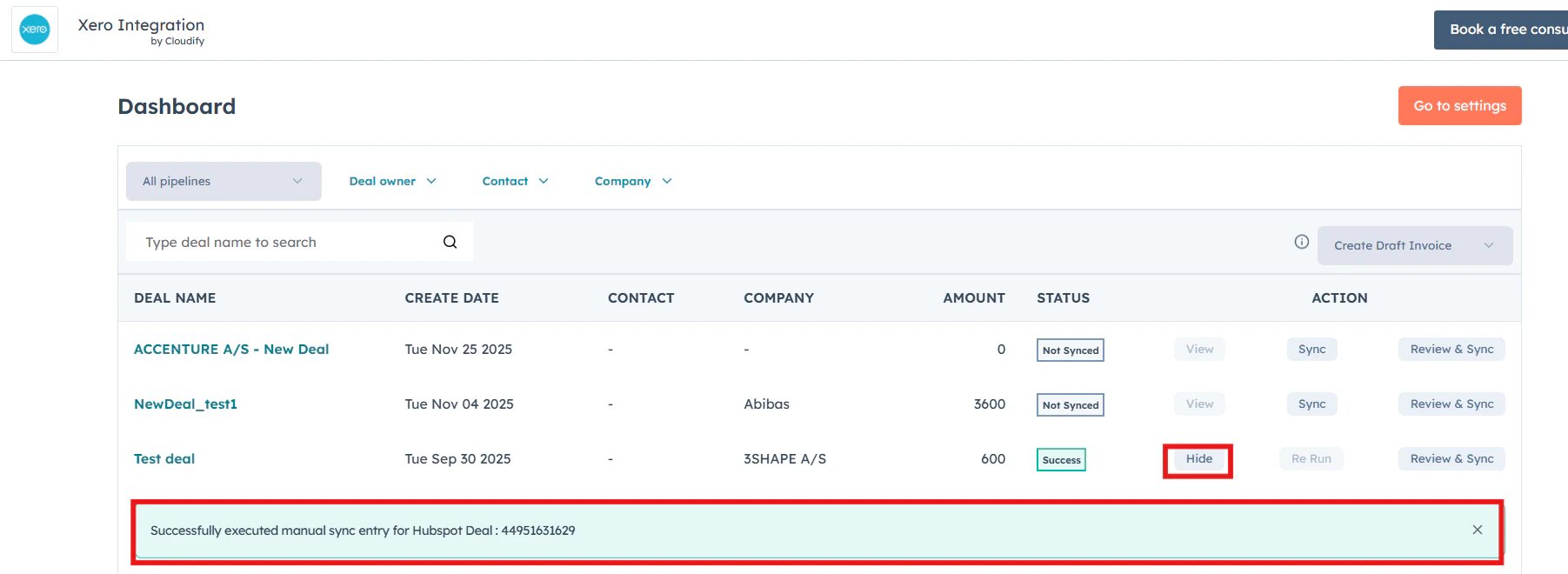
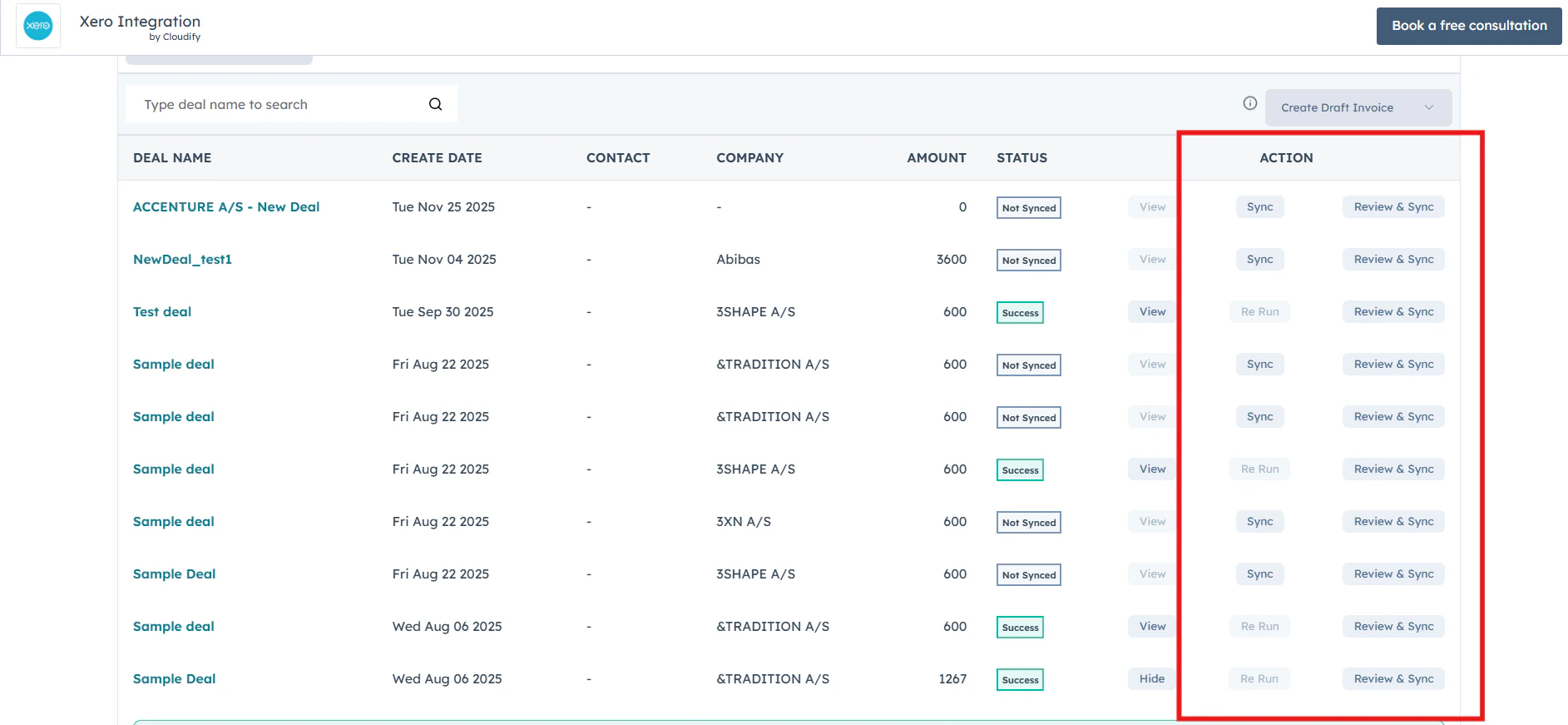
- Use the “Sync” and “Re Run” buttons to instantly trigger or retry invoice syncing, while “Review & Sync” allows you to inspect and edit invoice or quote details before sending them to Xero.
- If you wish, click “Settings” to update your preferences or adjust integration options; the Cloudify Dashboard is your unified place to manage everything.