

Sync Rules
Choose a product search method
When a Shopify order comes in, the integration needs to find the matching product in Xero. You have two options: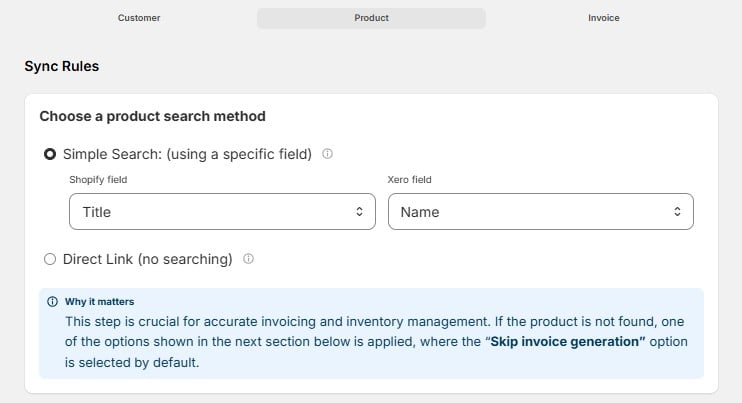
Simple Search
Automatically match products using specific fields. Select a Shopify field and a corresponding Xero field to match against.Similar fields work best — for example, matching SKU to Product Number. If you don’t use SKUs in Shopify, try matching using Product Name fields instead.
Direct Link (no searching)
Manually link each Shopify product to a specific Xero item. Best for smaller product catalogs where you want precise control over every mapping.
Why it matters: This step is crucial for accurate invoicing and inventory management. If the product is not found, one of the fallback options below is applied — where “Skip invoice generation” is selected by default.
If Product Not Found in Xero
When the integration can’t find a matching Xero item, choose what should happen: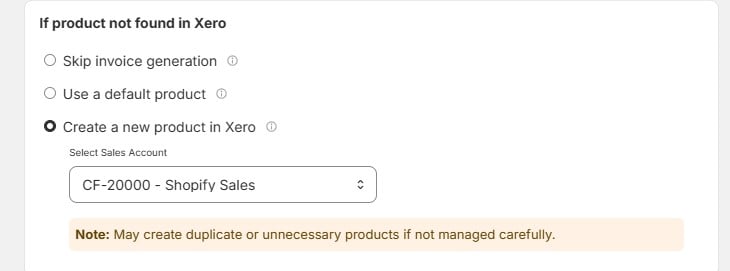
Tax Settings
Exclude Shopify Tax from Xero invoices

Field Mappings
How should product data fields be mapped?
This section defines how product information transfers from Shopify to Xero when creating new items.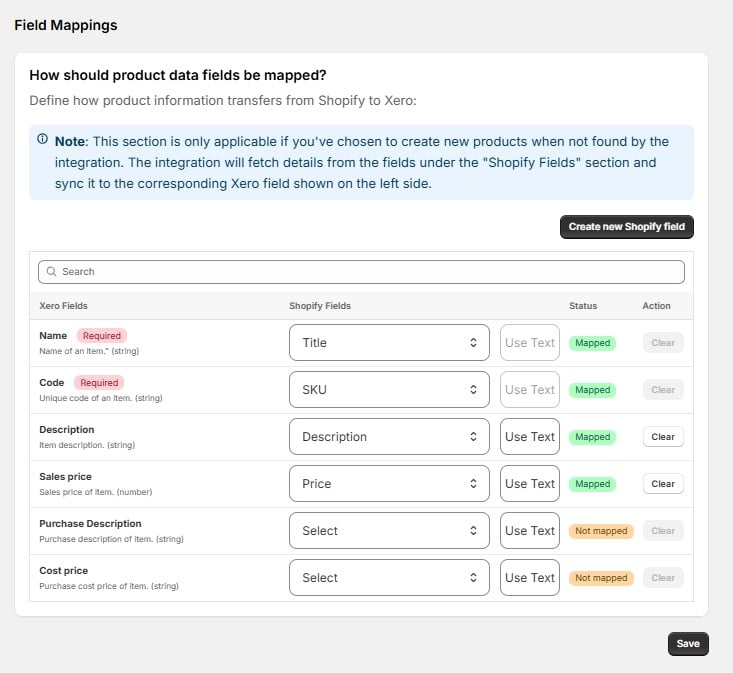
Note: This section is only applicable if you’ve chosen “Create a new product in Xero” as your fallback option above. The integration fetches details from the Shopify fields and syncs them to the corresponding Xero field.
To update a mapping, click the field box and select a different Shopify field. Use “Clear” to remove a mapping, or “Create new Shopify field” if your store uses custom data that doesn’t map to a standard field.
Click Save when you’re done.