

Product Matching Method
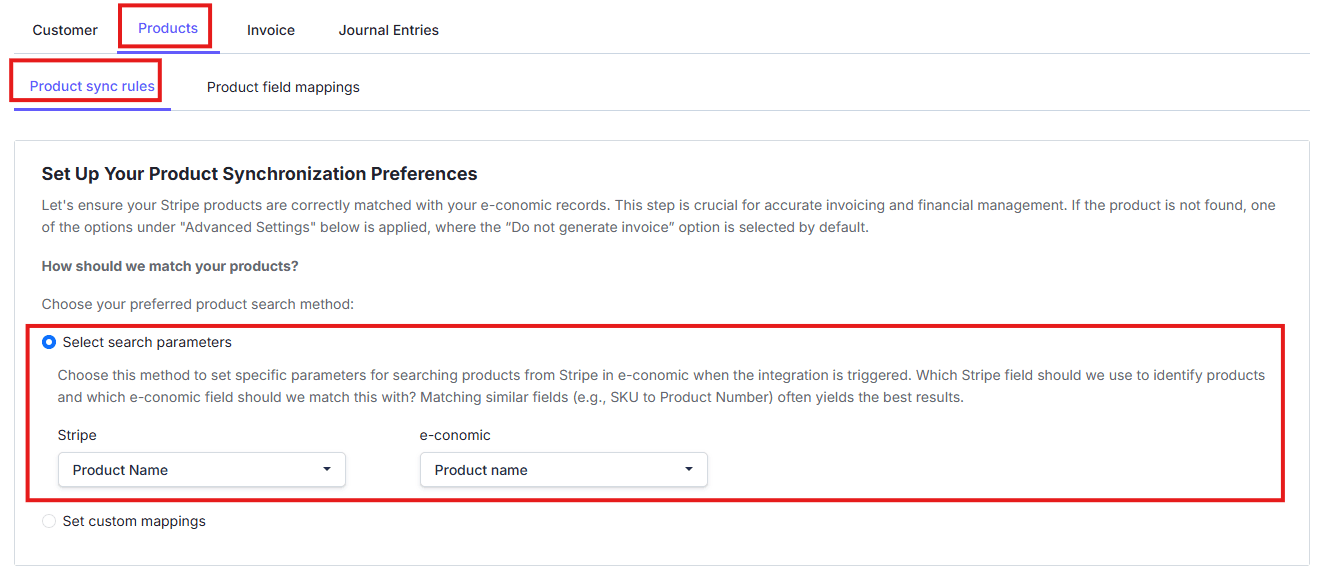
Choose how products should be matched between Stripe and e-conomic.Select Search Parameters
Use this option when you want to match products using specific fields. For example, you can match:- Product Name to Product Name
- SKU to Product Number
Set Custom Mappings
Use this option when you want to connect products manually between Stripe and e-conomic. This works well for smaller inventories where you want tighter control over which Stripe product maps to which e-conomic product.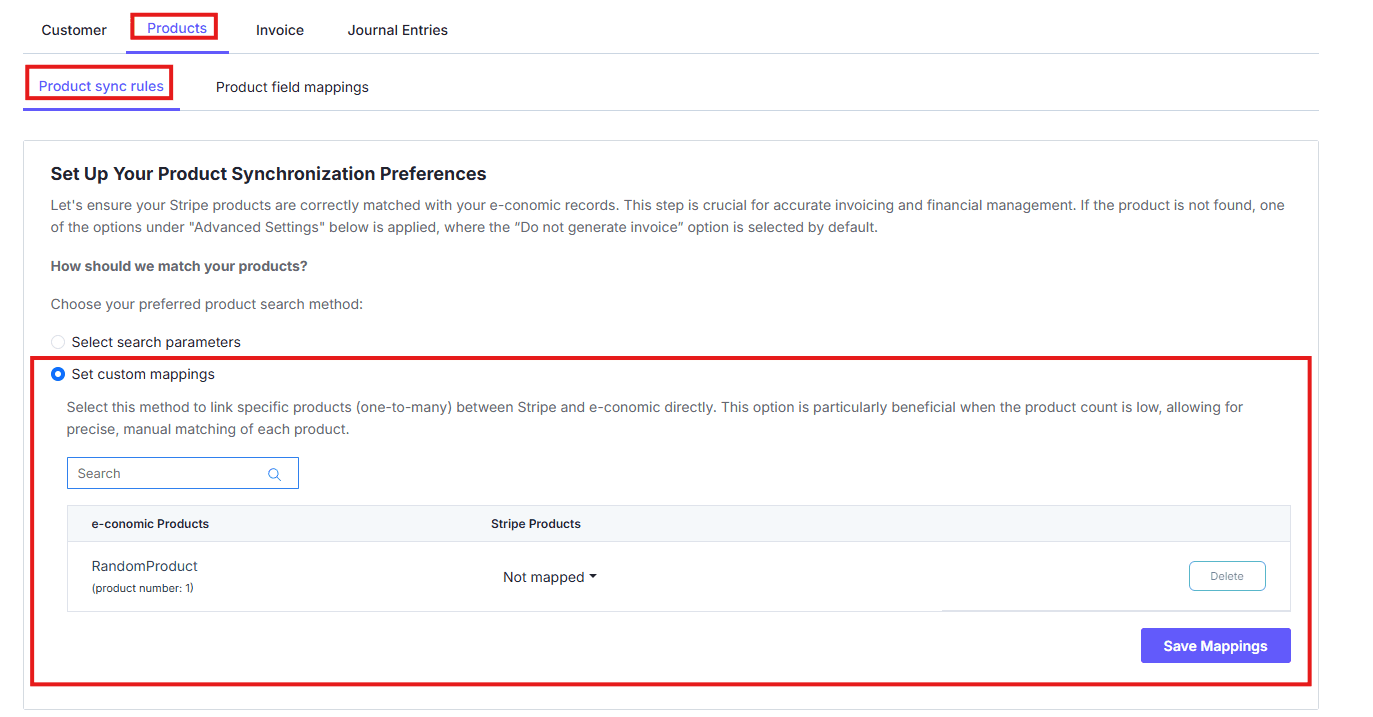
Matching similar field types usually gives the best results. For example, SKU to Product Number is often a strong choice.
Product Not Found Handling
Choose what should happen if a Stripe product does not match any product in e-conomic.Do Not Generate The Invoice
Choose this option if you want the integration to stop when a matching product is not found. This is useful when you want to review mismatches manually before anything is created.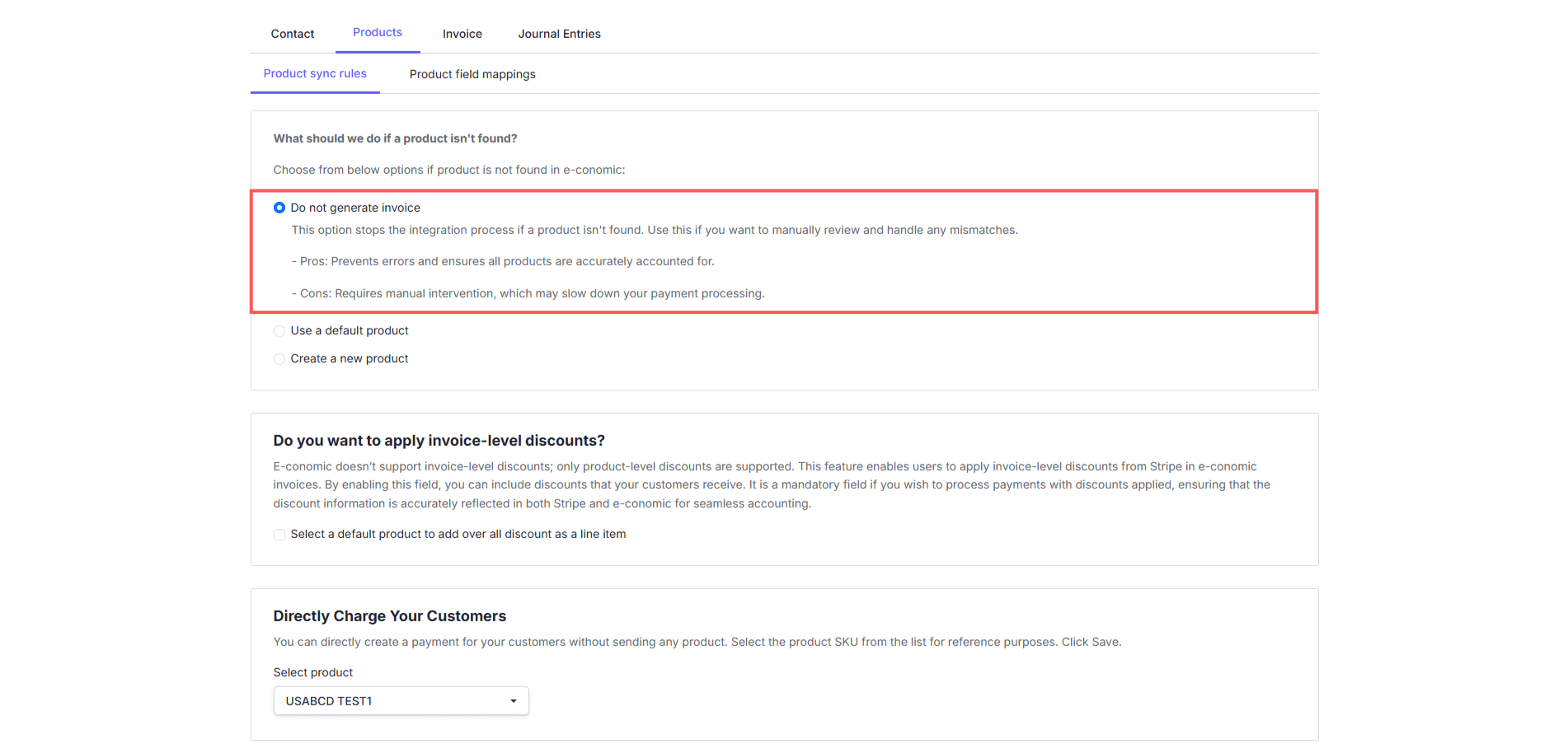
Use A Default Product
Choose this option if you want the integration to use a predefined e-conomic product as a fallback. Only the product number comes from the default product. Other line-item details such as name, quantity, and price still come from Stripe.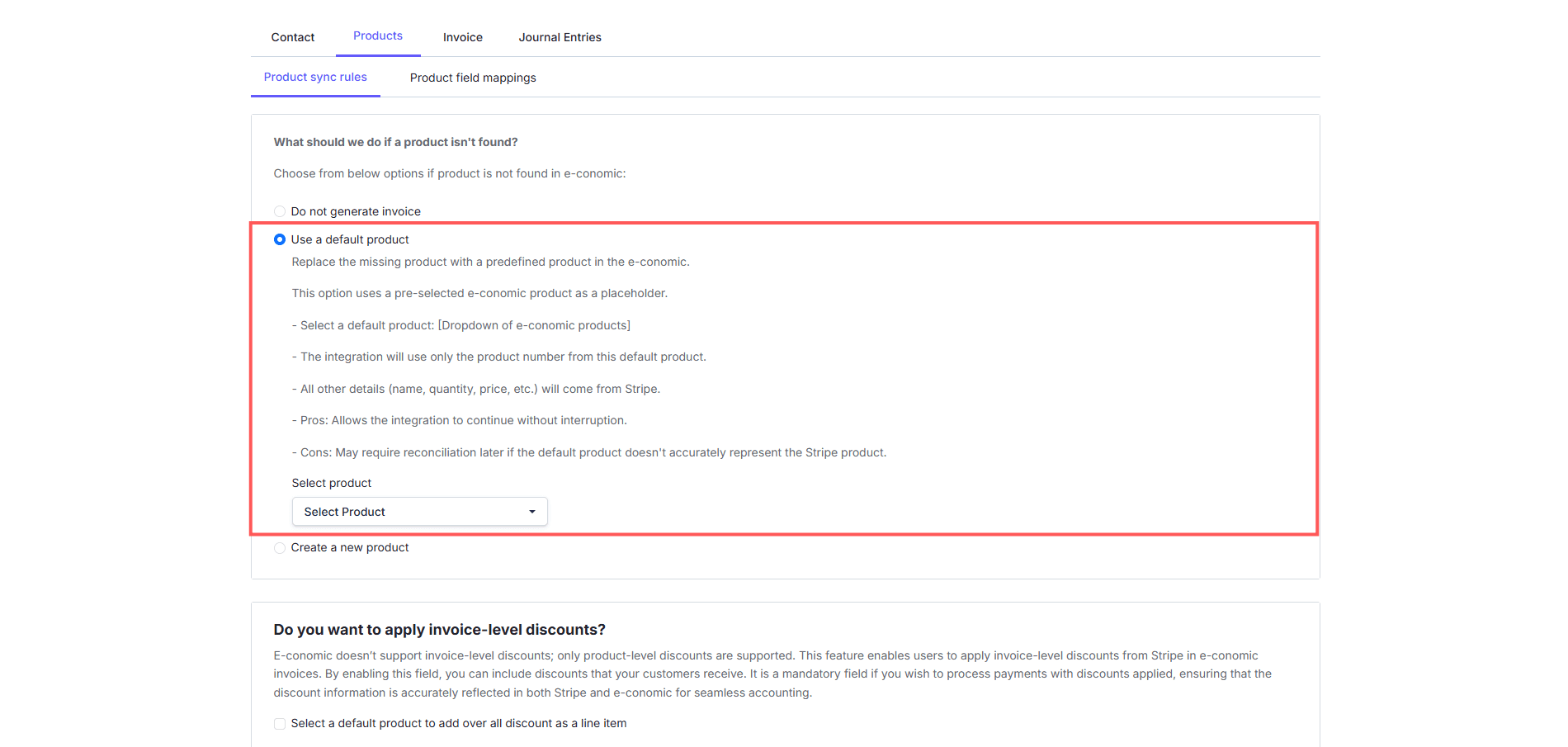
Create A New Product
Choose this option if you want the integration to create a new product in e-conomic automatically from the Stripe product. You also need to choose the e-conomic product group that should be used for newly created products.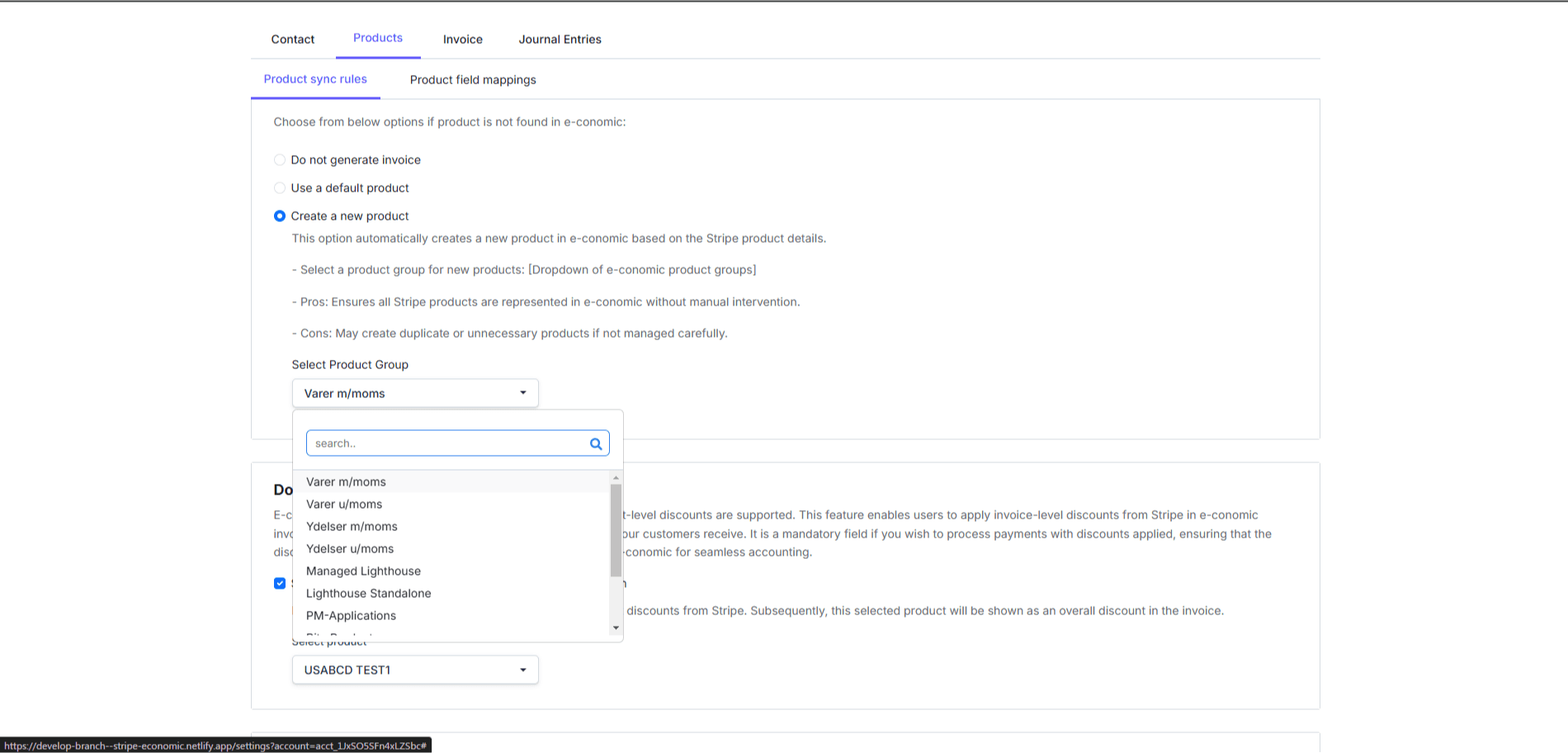
If you want invoices to keep flowing even when a Stripe product is missing, the default-product option is often the safest choice.
Invoice-Level Discounts
You can apply invoice-level discounts even though e-conomic supports discounts at product level. When enabled, the integration adds a selected e-conomic product as a line item to represent the overall discount.
Directly Charge Your Customers
You can create a payment for customers without sending any product. To do this, choose the product SKU that should be used for reference purposes.
Product Field Mappings
Use the Product field mappings tab to define how Stripe product fields should map to e-conomic fields. Some common fields may already be pre-mapped. To update mappings:- Click Edit on the row you want to change
- Choose the correct Stripe field
- Repeat for any other fields you want to update
- Click Save Mappings
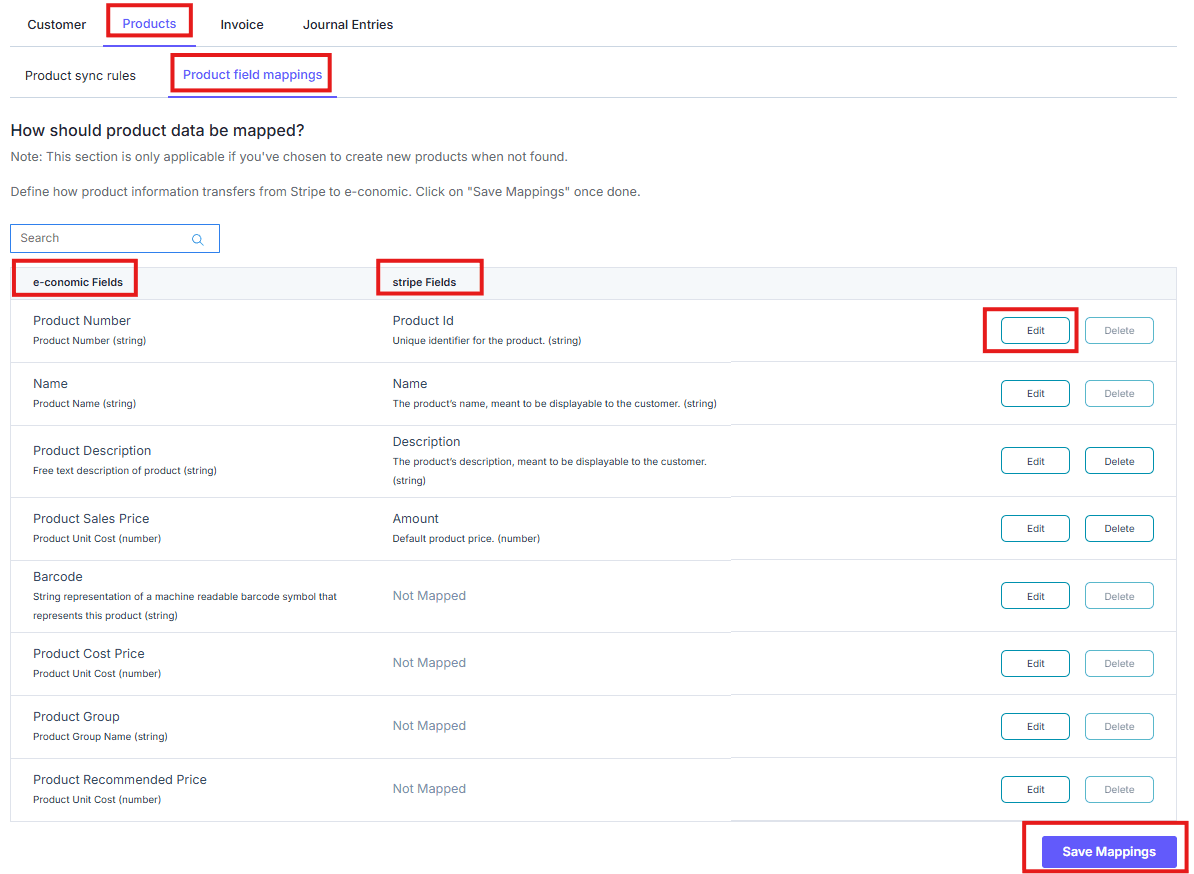
The Product Field Mappings section is only used when you choose Create A New Product under the product-not-found settings.