

- Ensure accurate product matching between HubSpot and Fortnox
- Streamline invoice and order creation
- Maintain consistent product data across platforms
- Handle scenarios where products may not match exactly
Setting Up Product Sync Settings
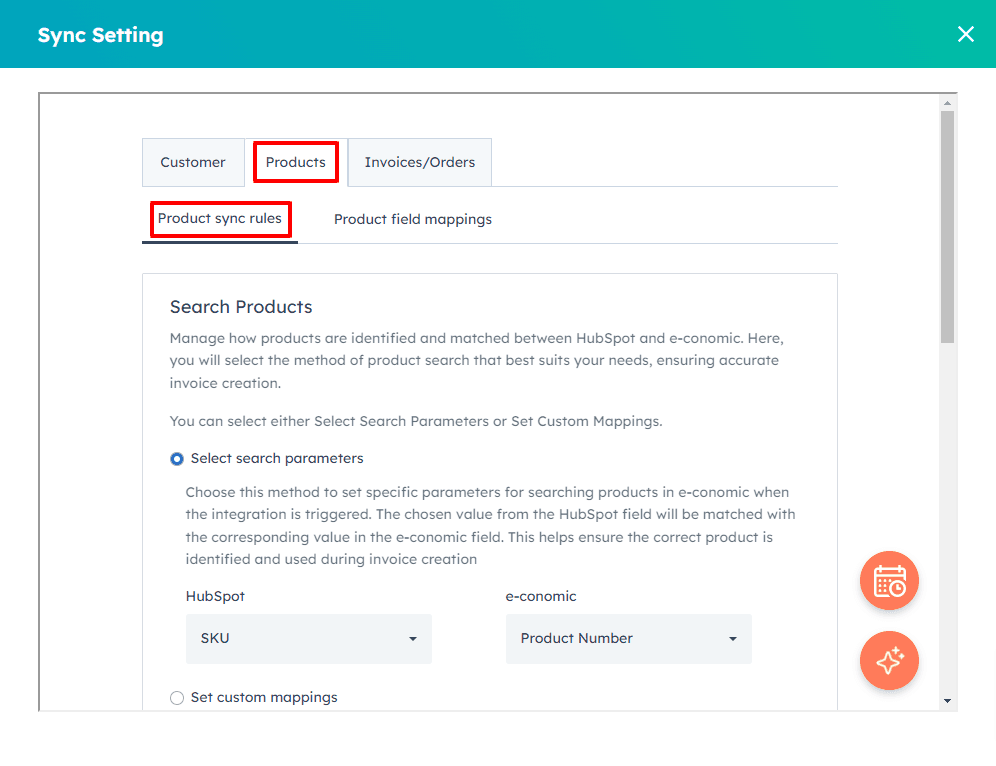
Option 1: Searching for Products
This method is best when you have a large number of products and want to match them automatically based on a unique identifier.1
Go to the “Product Sync Rules” tab.
2
Select “Select Search Parameters”.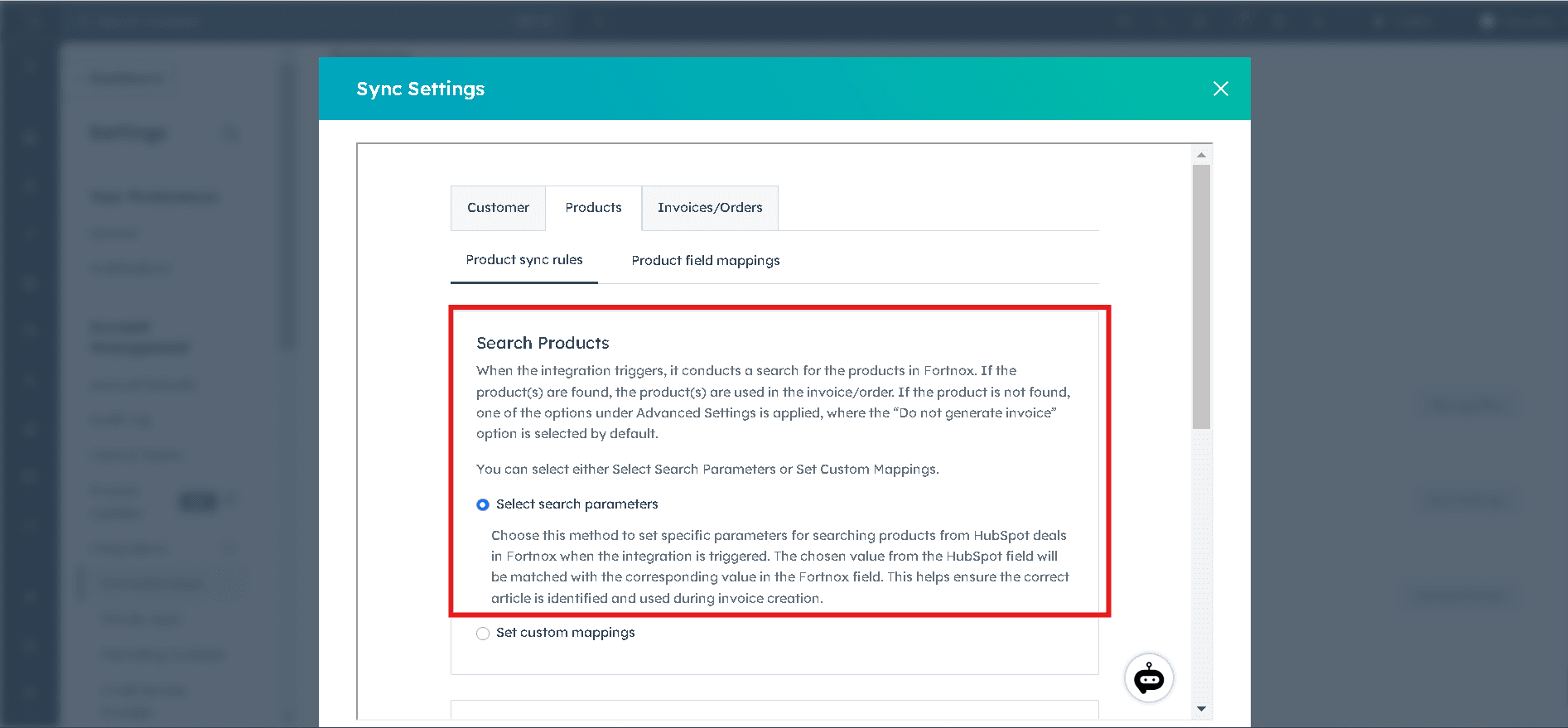
3
Choose a HubSpot field (e.g., SKU) and match it with a Fortnox field (e.g., Product Number). When creating an invoice or order, the integration will use this identifier to find the correct product in Fortnox.
Example: If you set SKU (HubSpot) to match with Product Number (Fortnox), a product with SKU “ABC123” in HubSpot will be matched with a product that has Product Number “ABC123” in Fortnox.
Option 2: Custom Mappings
This method is ideal when you have a small number of products or when product identifiers don’t match exactly between HubSpot and Fortnox.1
Go to the “Product Sync Rules” tab.
2
Select “Set Custom Mappings”.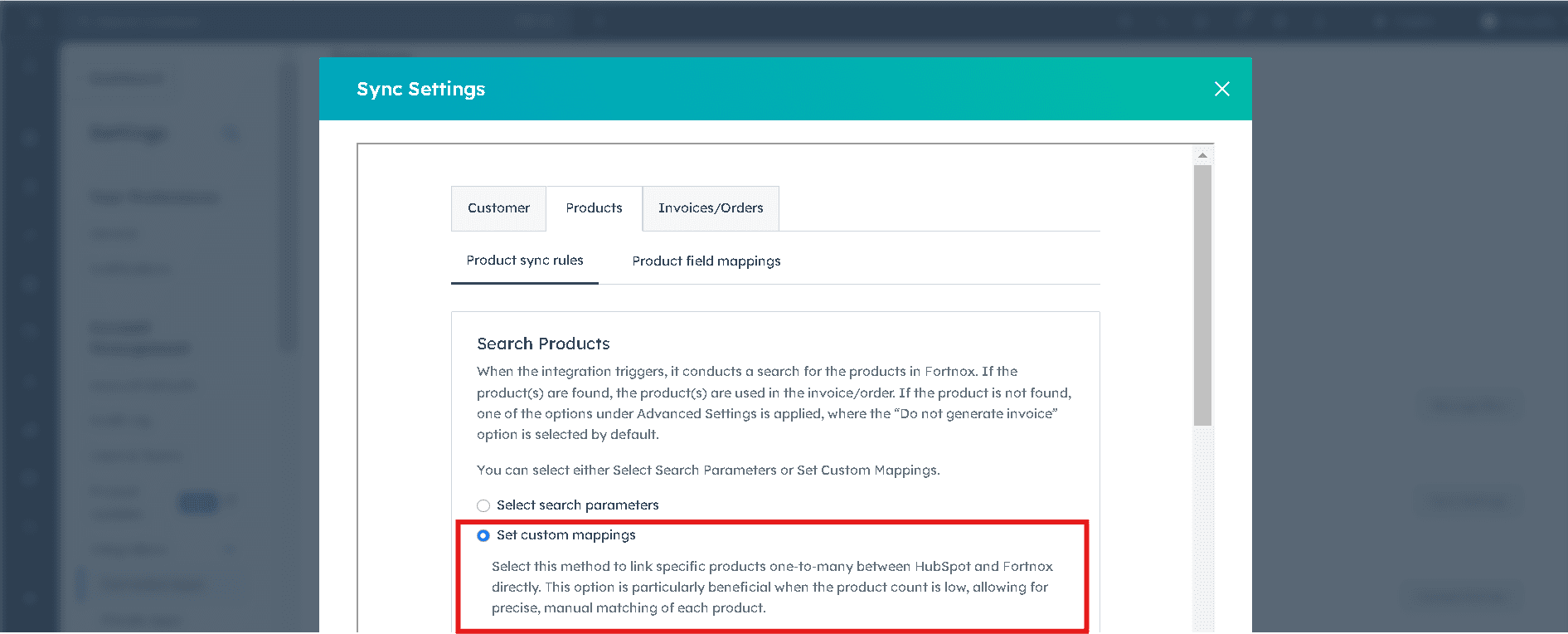
3
For each Fortnox product, manually select which HubSpot product(s) it corresponds to.
Example: You might map the HubSpot product “Premium Package” to the Fortnox product “Premium Service Bundle”, even though their names or identifiers don’t match exactly.
Option 3: Handling Products Not Found in Fortnox
1
Scroll down in the “Product Sync Rules” tab.
2
Choose one of three options:
- Do not generate invoice
- Use a default product
- Create a new product
3
Follow the prompts to set up the necessary details for your chosen option.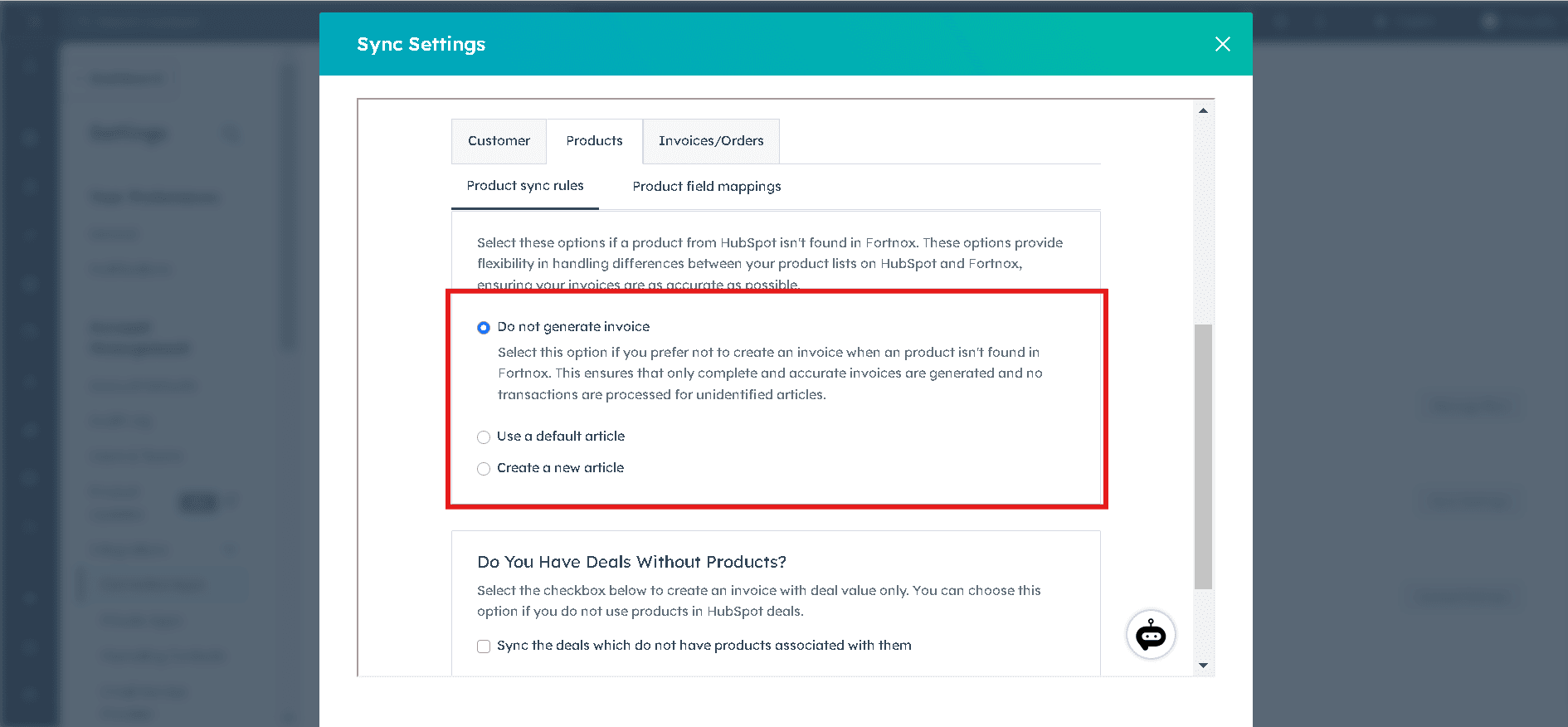
Option 4: Deals Without Line Items
1
At the bottom of the “Product Sync Rules” tab, find the “Deal Syncing When Products Are Unavailable” section.
2
Check the box to “Sync the deals which do not have products associated with them”.
3
Select a default product from Fortnox to use in these cases.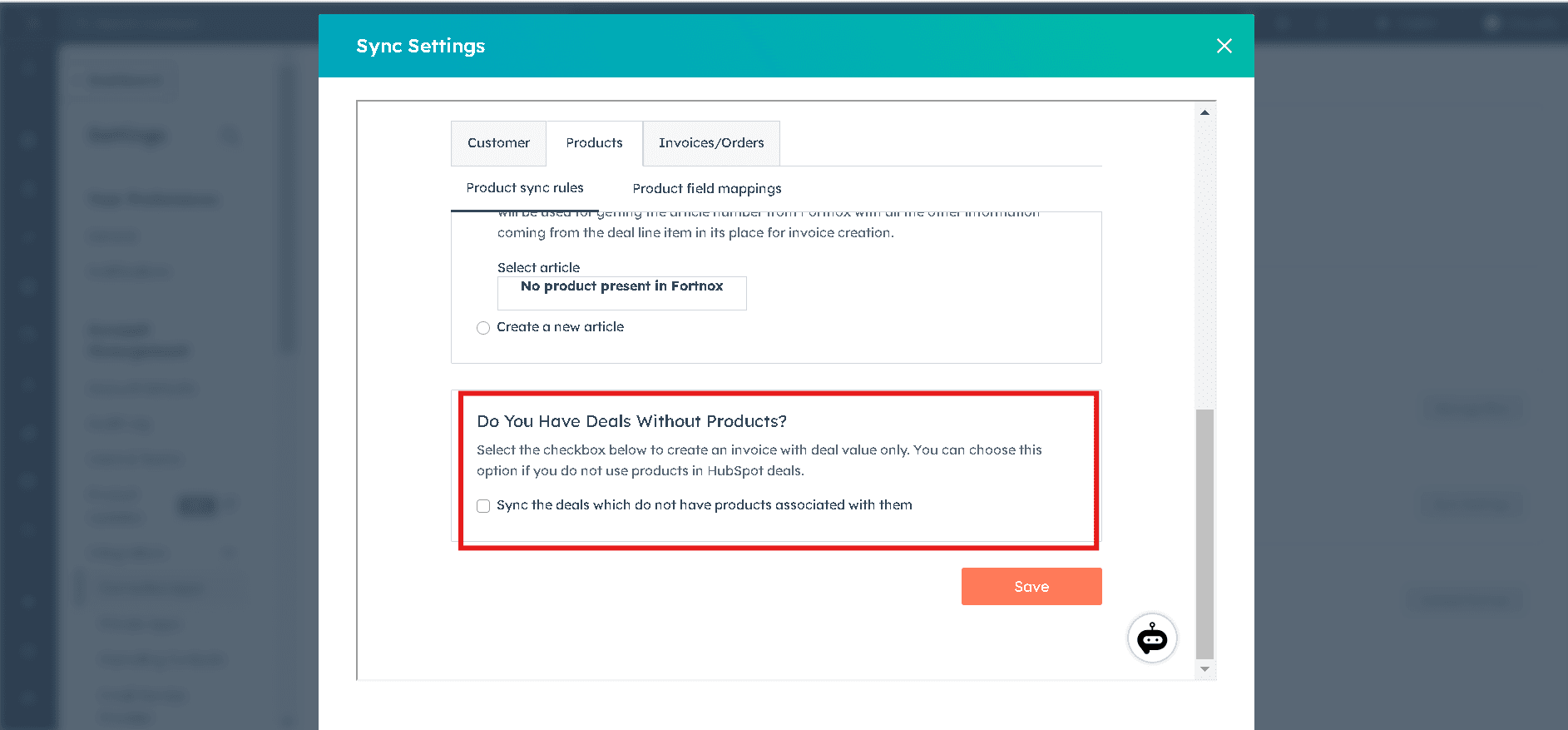
Product Field Mappings
Why Product Field Mappings Matter
- Ensure data consistency: Align product information between HubSpot and Fortnox.
- Customize for your needs: Tailor the product data transfer to fit your specific requirements.
- Maintain data accuracy: Ensure that essential product information is correctly represented in Fortnox for proper accounting.
Setting Up Product Field Mappings
1
Navigate to the “Product Field Mappings” tab in your integration settings.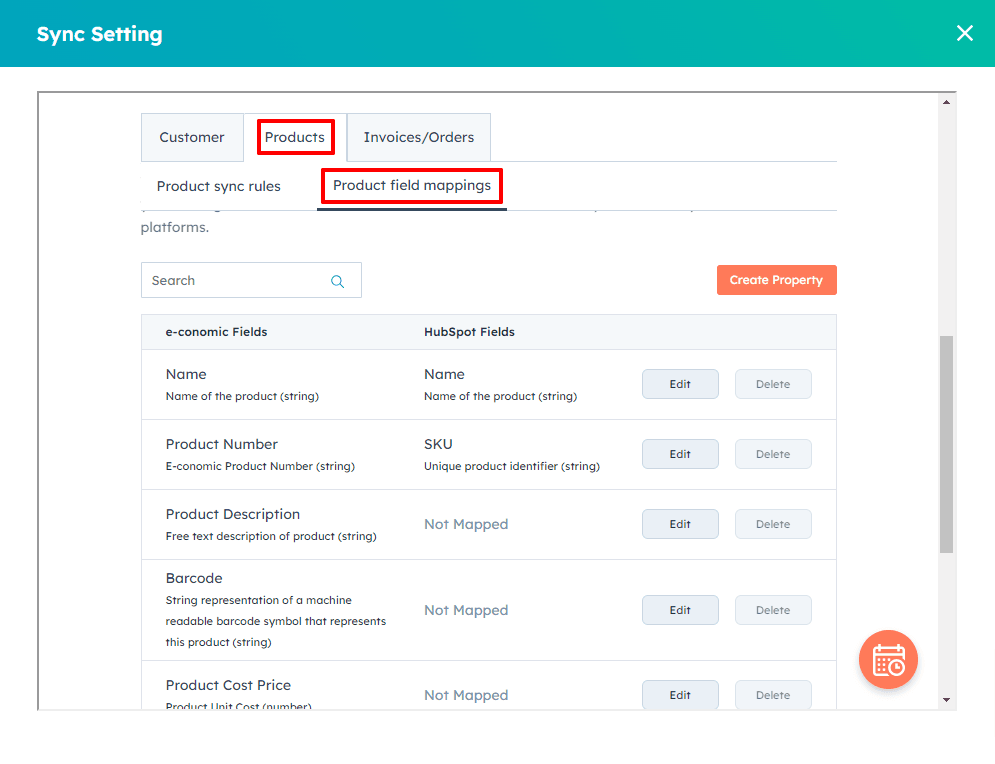
2
For each Fortnox field, the default HubSpot field will be shown (if applicable). Click “Edit” to change the mapping or “Delete” to remove it.
3
Pay special attention to these required fields:
- Name — default mapped to Name in HubSpot
- Product Number — typically mapped to SKU in HubSpot
- Product Group
4
After setting your preferred mappings, click “Save Mappings” to apply your changes.