

How to Access the Integration Dashboard
1
Navigate to Fortnox Settings
In HubSpot, click Connected Apps → Fortnox → Settings.
2
Open the Cloudify Dashboard
Under the Settings tab, go to Cloudify Dashboard and click the View Dashboard button on the right side.This opens the full Cloudify HubSpot–Fortnox dashboard where you can monitor sync statuses, manage invoices and orders, and take action on your deals in real time.
Benefits
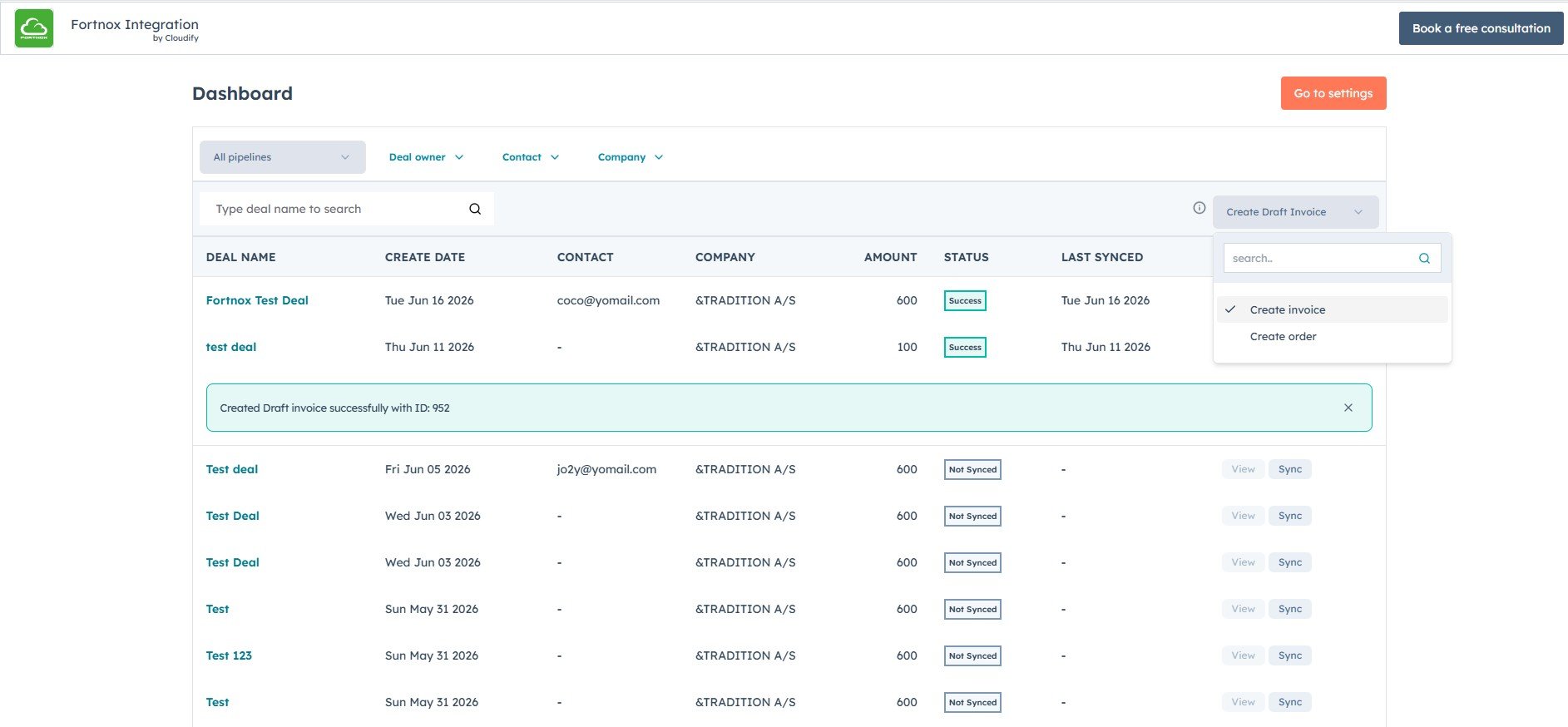
Filter by Pipeline, Owner, Contact, or Company
Refine your deal view by filtering on Pipeline, Deal Owner, Contact, or Company — so you find exactly what you need in seconds.
Choose invoice or order type
Select whether to create an Invoice or Order in Fortnox directly from the dashboard — no screen-switching required.
Real-time deal and sync status
See all your HubSpot deals alongside their create date, contact, company, amount, and live sync status — instantly know what’s synced, pending, or needs attention.
View deal logs
Click the View button on any deal to open its full sync log — review the history of sync attempts and any errors for that deal.
Dashboard Features
Filtering Deals
Use the filter bar at the top of the dashboard to narrow results by:- All Pipelines — scope to a specific HubSpot pipeline
- Deal Owner — filter by the responsible sales rep
- Contact — find deals linked to a specific contact
- Company — filter by associated company
Selecting Invoice or Order Type
Use the document-type dropdown (top right of the deal list) to choose what to create in Fortnox before syncing:
The selected type applies when you trigger a sync from the dashboard.
Deal List with Sync Status
The deal table displays the following columns:Syncing Deals
Each unsynced deal has a Sync button. Click it to immediately trigger creation of the selected document type in Fortnox. On success, a confirmation banner appears at the top of the list:Created invoice successfully with ID: 952Previously synced deals show a Re Run button to retry or force a fresh sync.
Viewing Sync Logs
Click the View button on any deal row to open the deal’s sync detail panel. This shows:- The full log of all sync attempts for that deal
- Any errors or warnings returned during sync
- Invoice or order details associated with the deal