

1
Find the app in the Shopify App Store
Log in to your Shopify admin (the page where you manage your store).In the left menu, click Apps. A search field appears at the top. Type Visma e-conomic Integration and press Enter.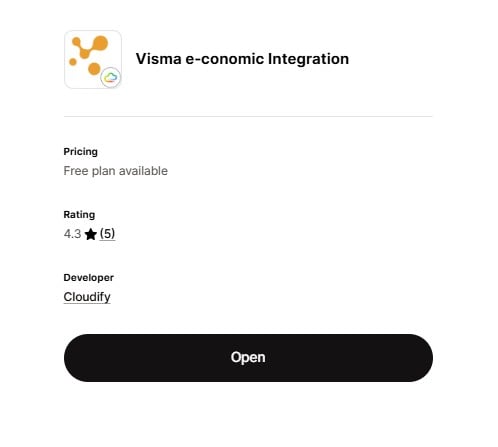
2
Install the app
On the app page, click the Install button.Shopify will show you a list of permissions the app needs. This is standard for all Shopify apps. The app needs permission to read your orders, customers, and products, because this is the data it sends to e-conomic.Click Install again to confirm. The app is now added to your store.
3
Start the setup
After installation, the app opens with a welcome screen.Click the green Get started button to begin the setup.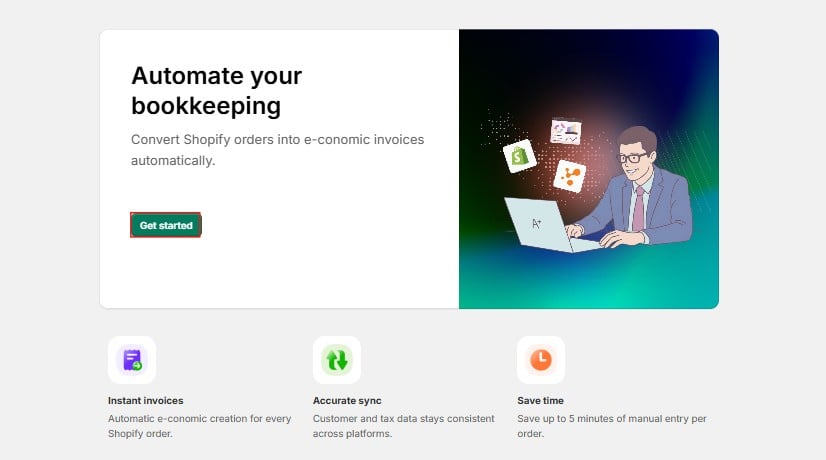
4
Connect your e-conomic account
This step links your Shopify store to your e-conomic account, so the two systems can share data.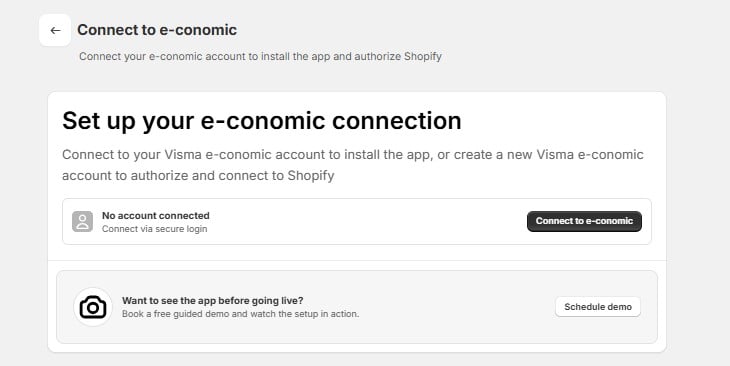
- If you already have an e-conomic account: log in with your usual e-conomic username and password, and approve the connection.
- If you do not have an e-conomic account yet: you can create one in the same window before connecting.
If you want to see how the app works before connecting your real account, click Schedule demo instead. A team member will walk you through the setup live, free of charge.
5
Review your settings
After connecting, you land on the You’re All Set page. The app has already chosen sensible settings for you. You can use these as they are, or change them at any time.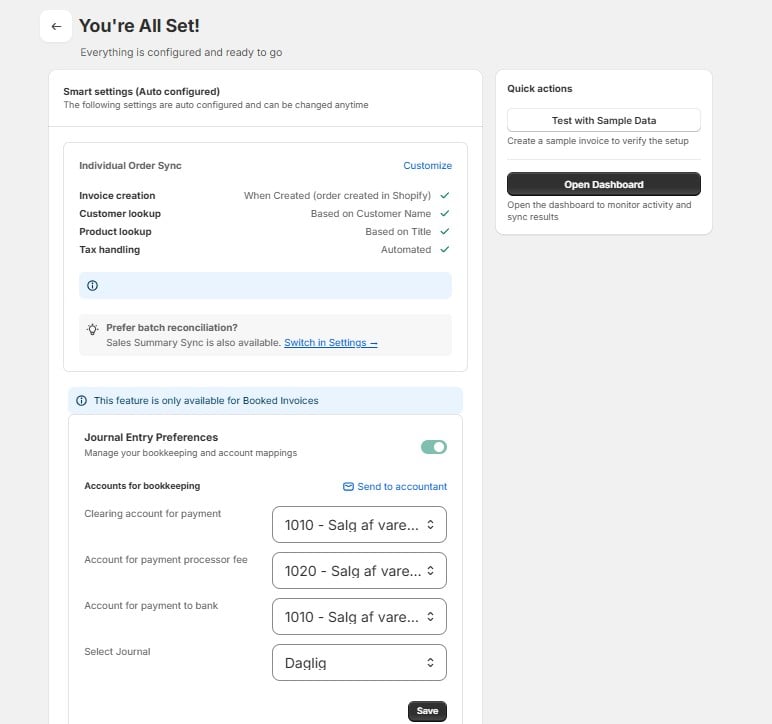
To change any of these, click Customize in the top right of the settings box.
By default, every order is sent to e-conomic as its own invoice. If you would rather book your sales as one daily summary instead of individual invoices (common for shops with many small orders), click Switch in Settings and choose Sales Summary Sync.
6
Set up journal entries (optional, for Booked Invoices)
This section only applies if your invoices are booked (finalized) in e-conomic. It tells the app which accounts in your chart of accounts to use when recording payments.When you turn on the Journal Entry Preferences toggle, a confirmation popup appears: Enable bookkeeping?This popup explains that once you confirm, the app will start creating journal entries in the e-conomic accounts you select below.Click Confirm to enable bookkeeping, or Cancel if you are not ready yet.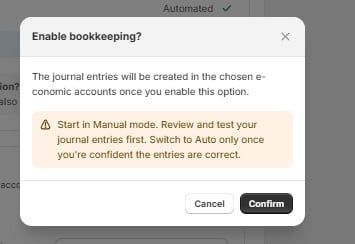
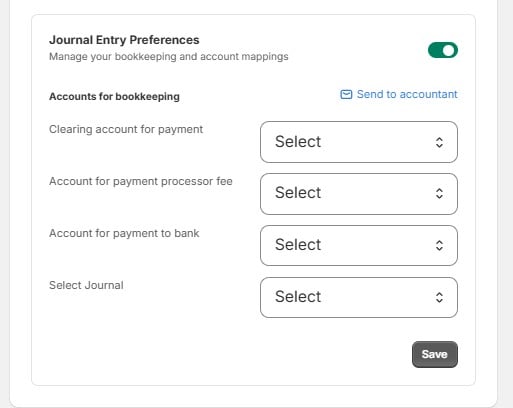
- Clearing account for payment – a temporary “waiting” account where the payment is recorded until the money actually arrives in your bank. This keeps your bookkeeping tidy while payments are on their way.
- Account for payment processor fee – the account where fees from your payment provider (for example Shopify Payments or PayPal) are recorded as a cost.
- Account for payment to bank – the account that represents your bank account, where the money is recorded once it is paid out to you.
- Select Journal – the journal in e-conomic where these entries are placed. A journal is simply a folder where bookkeeping entries wait for approval.
7
Test that everything works
Verify your integration before using it with live data.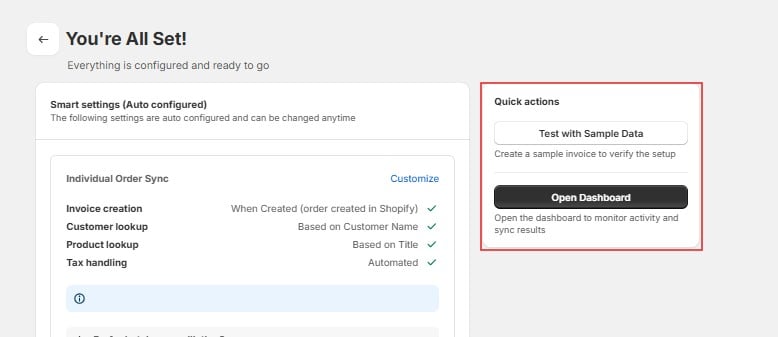
- In the Quick actions box on the right, click Test with Sample Data. The app creates a test invoice in e-conomic using sample information.
- Open e-conomic and confirm the test invoice appeared.
- Back in the app, click Open Dashboard. The dashboard shows every order that has been synced, so you can always see what was sent to e-conomic and when.