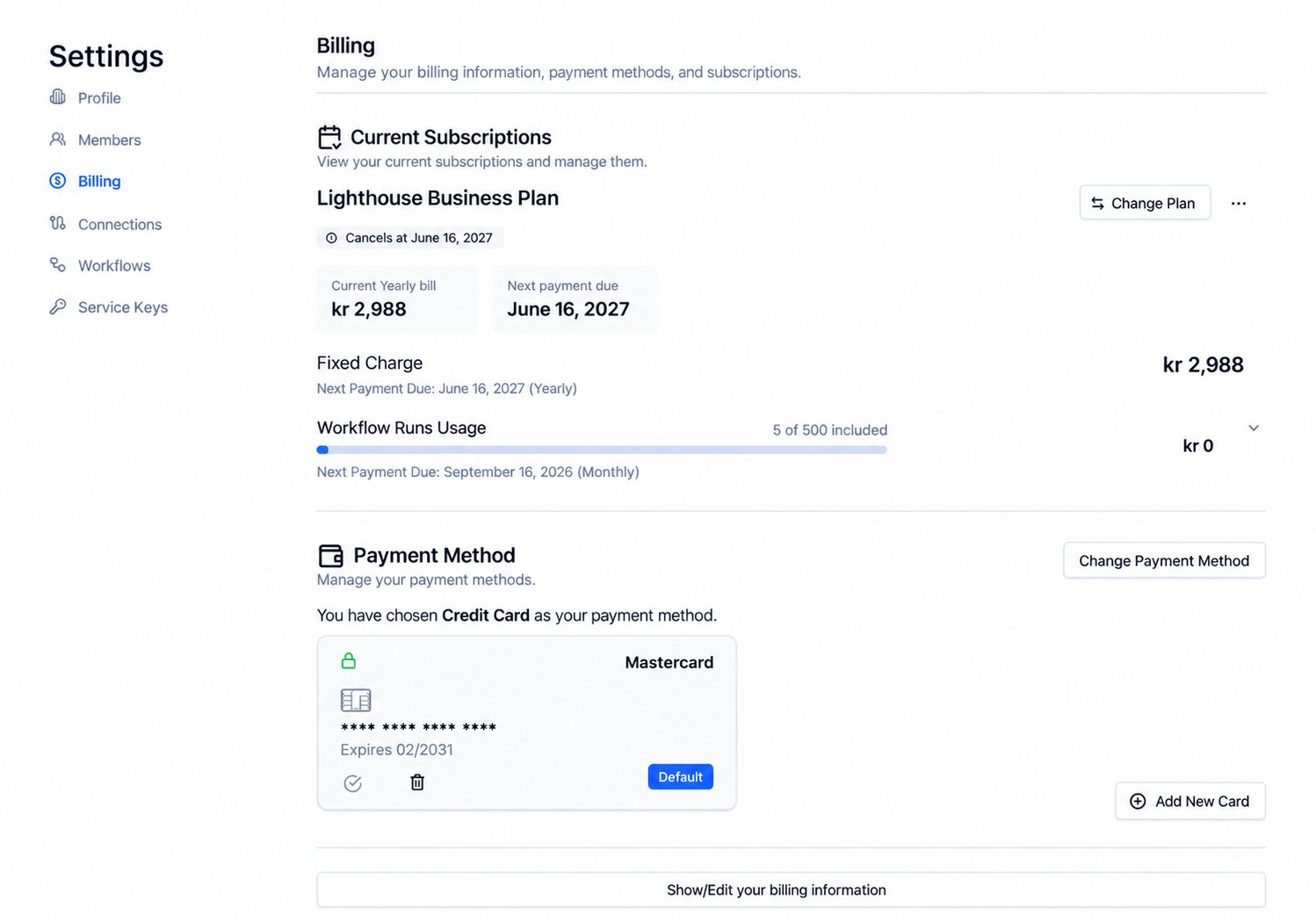
01 Billing Info

02 Select a Plan

03 Members

04 Profile


01 — Billing Information

Billing → Show/Edit billing information Enter your payment and company details so every invoice is correctly addressed and tax-compliant.
1

Open the sidebar and go to Billing

2

Click Show / Edit your billing information

3

Complete all required fields in the form

4

Click Save — takes effect on your next invoice cycle

Billing Information Form
FieldRequiredDescription
NameBilling or company name as it should appear on invoices
Email AddressInvoices and billing notices are sent here — keep current
Street AddressYour registered billing street address
CityCity of your billing address
CountrySelect from dropdown — determines tax treatment
Zip / Post CodePostal or ZIP code
Phone NumberOptionalBilling contact number
State / RegionOptionalRequired for certain countries
VAT / GST No.OptionalEnsures correct tax treatment on invoices. Click Change to update

Updating Your VAT/GST Number

Click Change next to the VAT/GST info field to open the update popup.
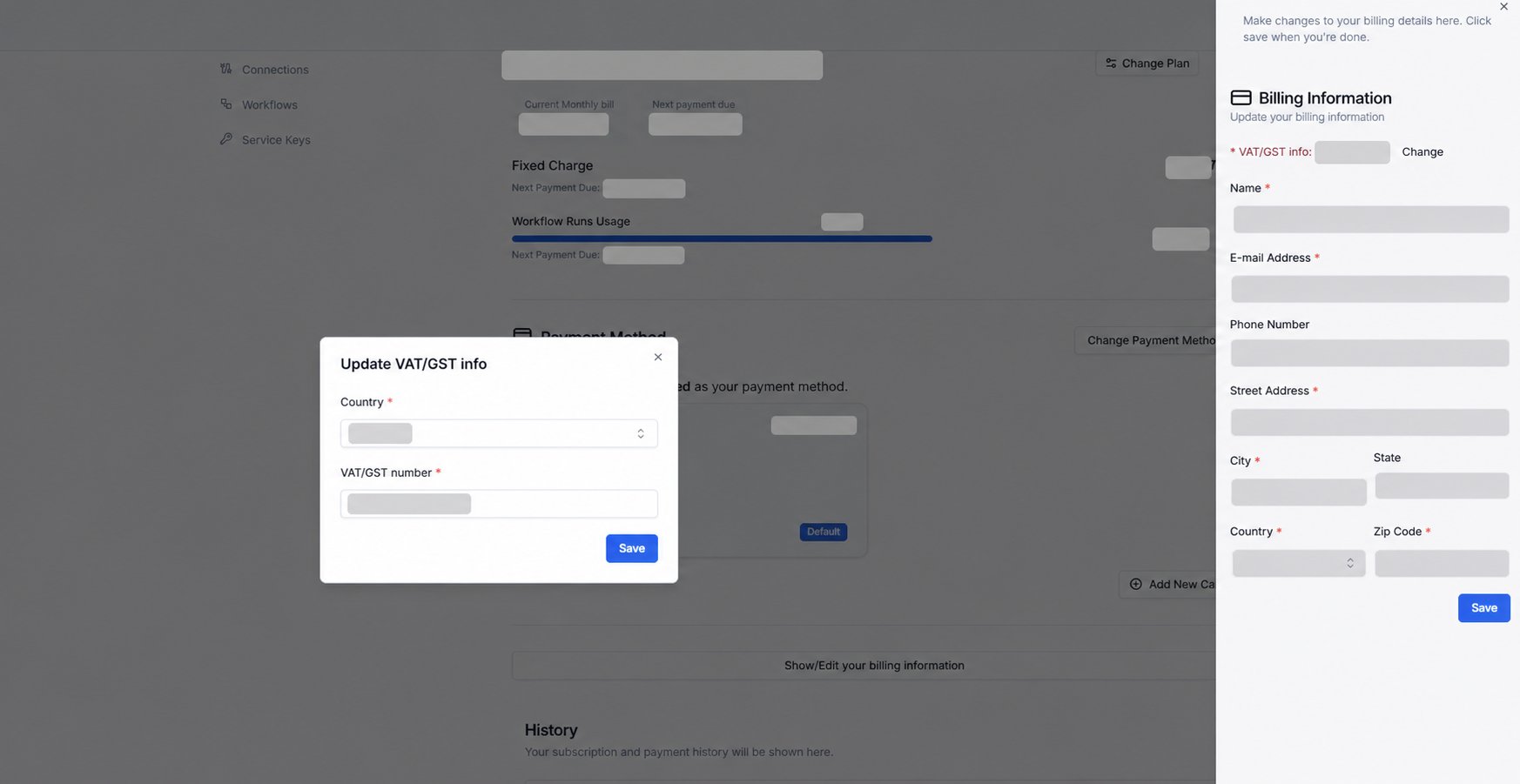
Update VAT GST Modal
FieldNotes
CountrySelect the country your VAT is registered in
VAT/GST NumberEnter your registration number
Click Save to update.
Billing updates apply on your next invoice cycle. Contact Cloudify directly if you need a change before an upcoming charge.

02 — Select a Plan

Billing → Current Subscriptions Choose the subscription tier that matches your expected monthly workflow run volume.
1

On the Billing page, locate the Current Subscriptions panel

2

If no plan is active, click Select a Plan

3

Choose your payment method — Credit/Debit Card or Invoice (Bank Transfer)

4

Click Confirm

5

Review available tiers — each shows included run volume and price

6

Toggle between Monthly and Annual billing using the frequency toggle

7

Switch currency if needed: DKK · EUR · USD

8

Click Activate to confirm your subscription
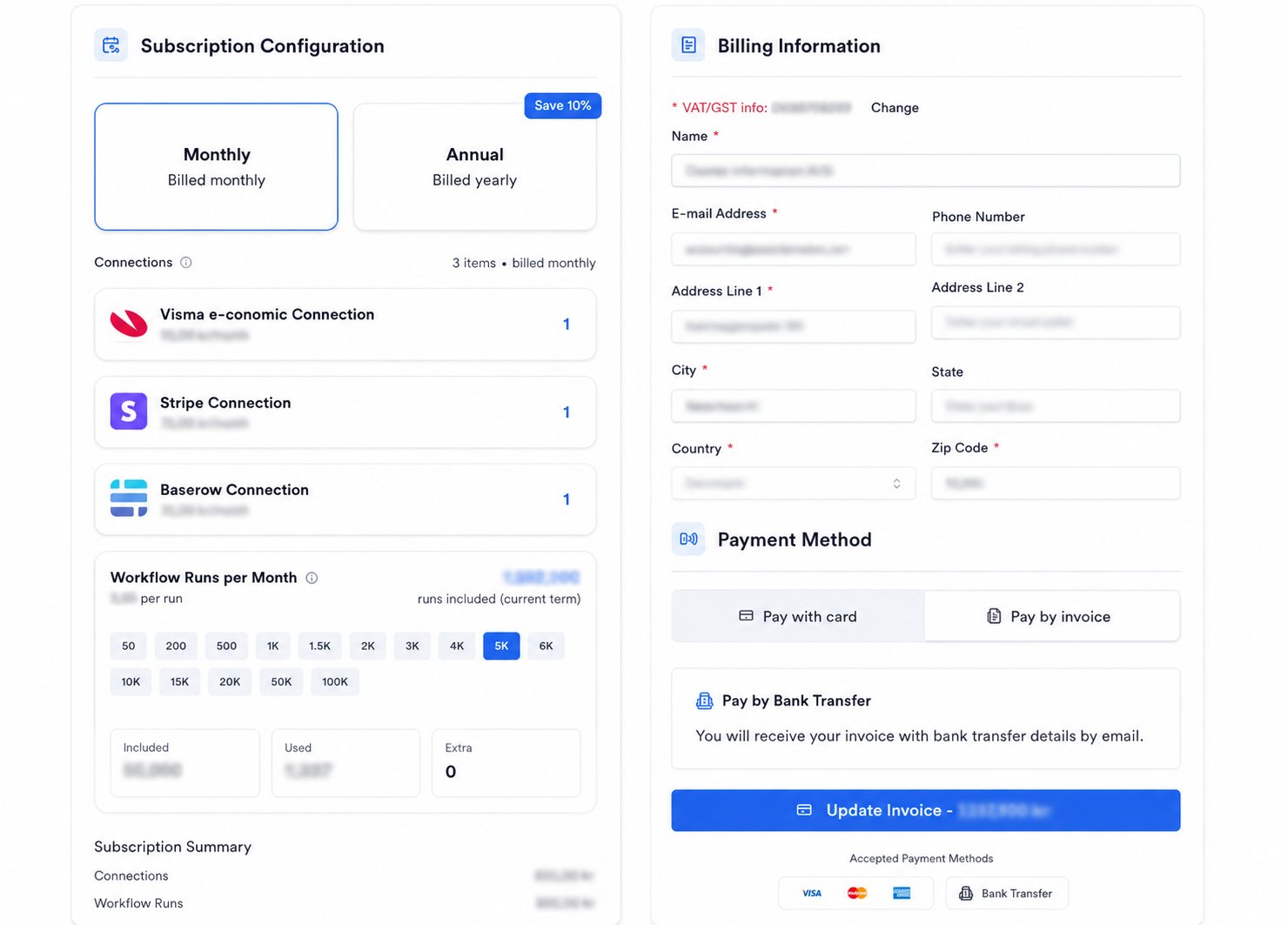
Payment Method Modal

Credit / Debit Card

Payments are processed automatically each cycle. No manual action needed.

Invoice (Bank Transfer)

Receive an invoice and pay manually. An administrative fee applies — review Terms & Conditions for details.

Billing Frequency

MonthlyAnnual
RateStandard per-month rateDiscounted rate vs monthly
FlexibilityCancel or change anytimeBest value for ongoing use
Annual billing offers a lower per-month rate. Ask your Cloudify account manager about annual plan options before selecting.
Keep your payment method up to date. If a payment fails, Cloudify will contact you — an outdated card may cause service interruption.

03 — Team Members

Settings → Members Invite colleagues who need access to monitor or manage the Lighthouse integration.
1

Navigate to Settings

2

Click the Members tab — second option in the Settings sidebar

3

Enter the team member's email address in the invitation form

4

Assign a role — see role reference below

5

Click Invite People — they receive an email link to join

Members Page

Member Roles

RoleWhat They Can Do
OwnerFull access — billing, workflows, settings, and member management
EditorModify workflows and configurations — no access to billing, team management, or account settings
ViewerRead-only — monitor runs and view statuses, no configuration changes
Only Owners can edit workflows, update billing, or add new members. Assign Viewer for anyone who only needs to monitor integration activity.
Removing a member immediately revokes their access. You would need to re-invite them if removed by mistake.

04 — Company Profile

Settings → Profile Your company profile details appear on all Lighthouse invoices. Complete this before your first billing date.
1

Navigate to Settings

2

Click the Profile tab

3

Enter your VAT Number and click Search

4

Lighthouse auto-fills your Company Name and Country from the VAT registry

5

Confirm or manually enter Company Name and Country if auto-fill is unavailable

6

Click Update Profile to save your changes

Settings Page
FieldDescription
VAT NumberClick Search to auto-populate company name and country
CountryThe country your company is registered in
Company NameYour registered legal name — printed on every invoice
Company Unique IdentifierAuto-assigned by Lighthouse — read-only, contact Cloudify to change
Enter your VAT Number first and click Search — it auto-fills Company Name and Country, saving time and reducing errors.

Invoice History

The Invoice History table lists all invoices generated for your Lighthouse subscription.
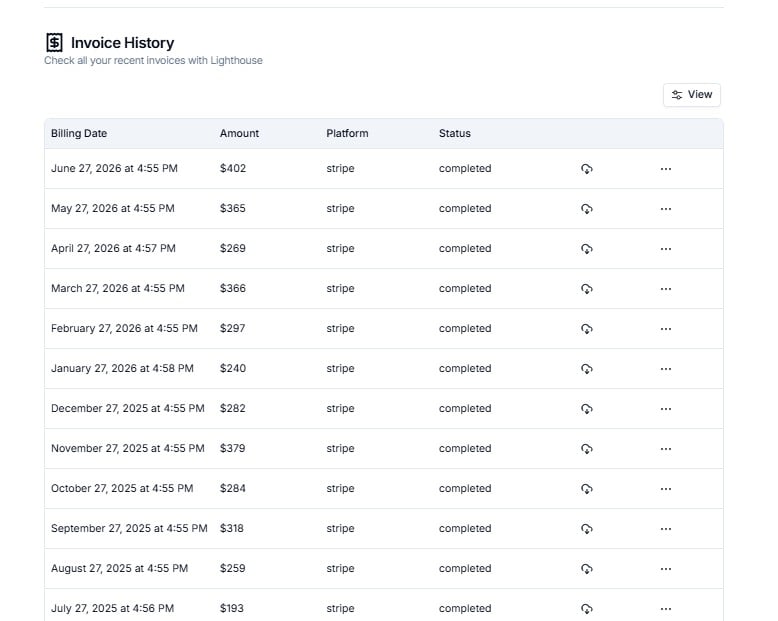
Invoice History
ColumnDescription
Billing DateThe date the invoice was generated
AmountThe amount charged for that billing period
PlatformThe Lighthouse plan the invoice relates to
StatusWhether the invoice has been paid or is outstanding
Click View in the top-right to show or hide columns: CreatedAt, Amount, Platform, Status.

Frequently Asked Questions

This can happen if your subscription is managed at the organisation level or is being provisioned by Cloudify. Contact your account manager to confirm your billing status.
Yes. Contact Cloudify to change your payment method. Note that switching to Invoice billing carries an administrative fee.
Yes. Contact Cloudify to switch your billing cycle. Annual billing typically offers a discounted rate.
Yes. Contact Cloudify to update the billing currency on your account.
Find the invoice in the Invoice History table and click the row to view or download it. Contact Cloudify support if you need invoices in bulk or a specific format.
Cloudify will contact you if a payment fails. Keep your billing information and payment method up to date to avoid service interruption.

Next Steps

Overview

Monitor your run usage against your current plan allowance.

Support

Contact Cloudify for billing questions or plan changes.