

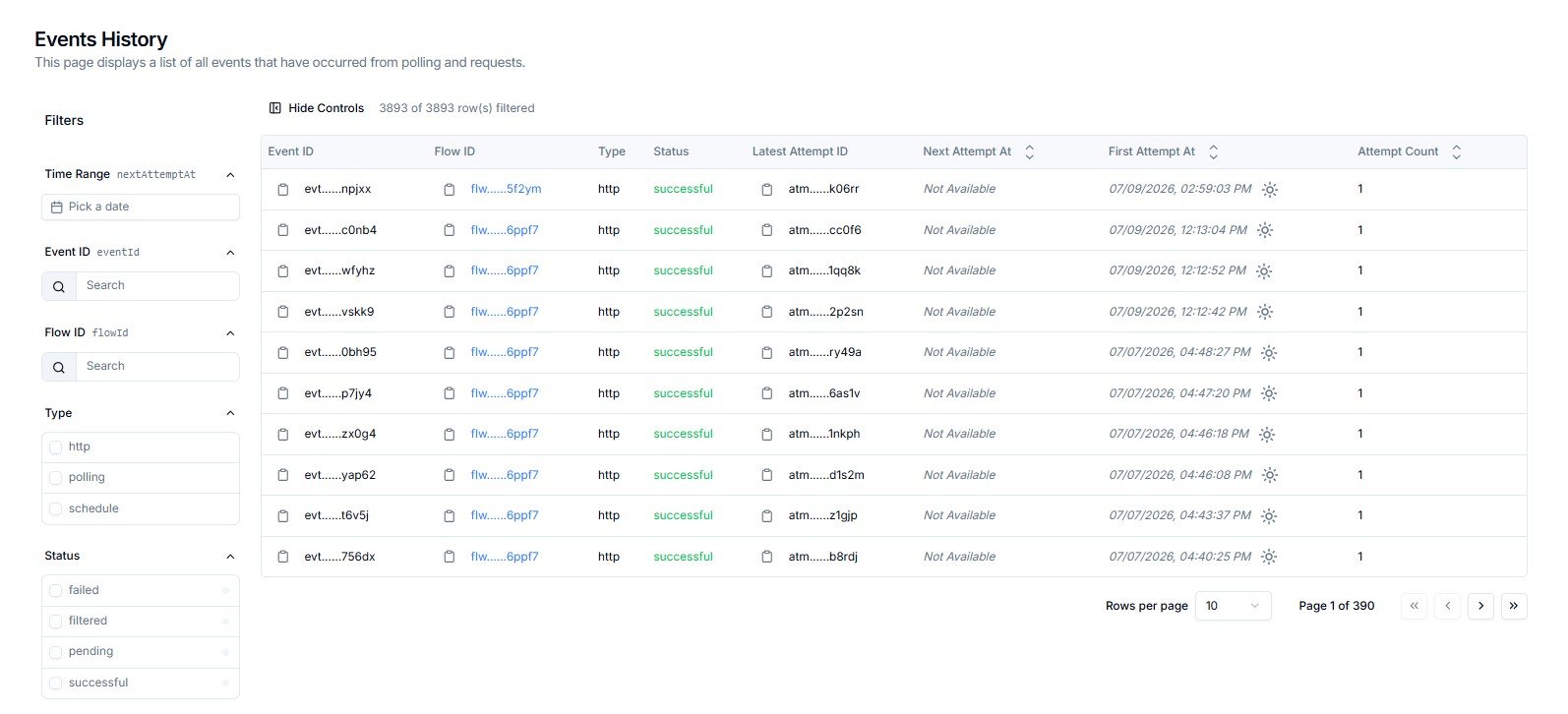
Events History — event log with Flow ID, status, attempt tracking, and filters
Events History vs Request HistoryRequest History records every raw inbound HTTP request received at your trigger endpoints.Events History records what happened to each request after it entered a Flow — whether it was delivered, filtered, retried, or failed. Use this page to understand the outcome of each event.
Reading the Events Table
Each row represents a single event processed through a Flow. Scroll horizontally to see all columns.Event Status Reference
A filtered status is not an error. It means an event was intentionally stopped by a rule configured in the Flow. Contact Cloudify if you are seeing unexpected
filtered results.Filtering Events
The left-hand Filters panel lets you narrow results across four dimensions.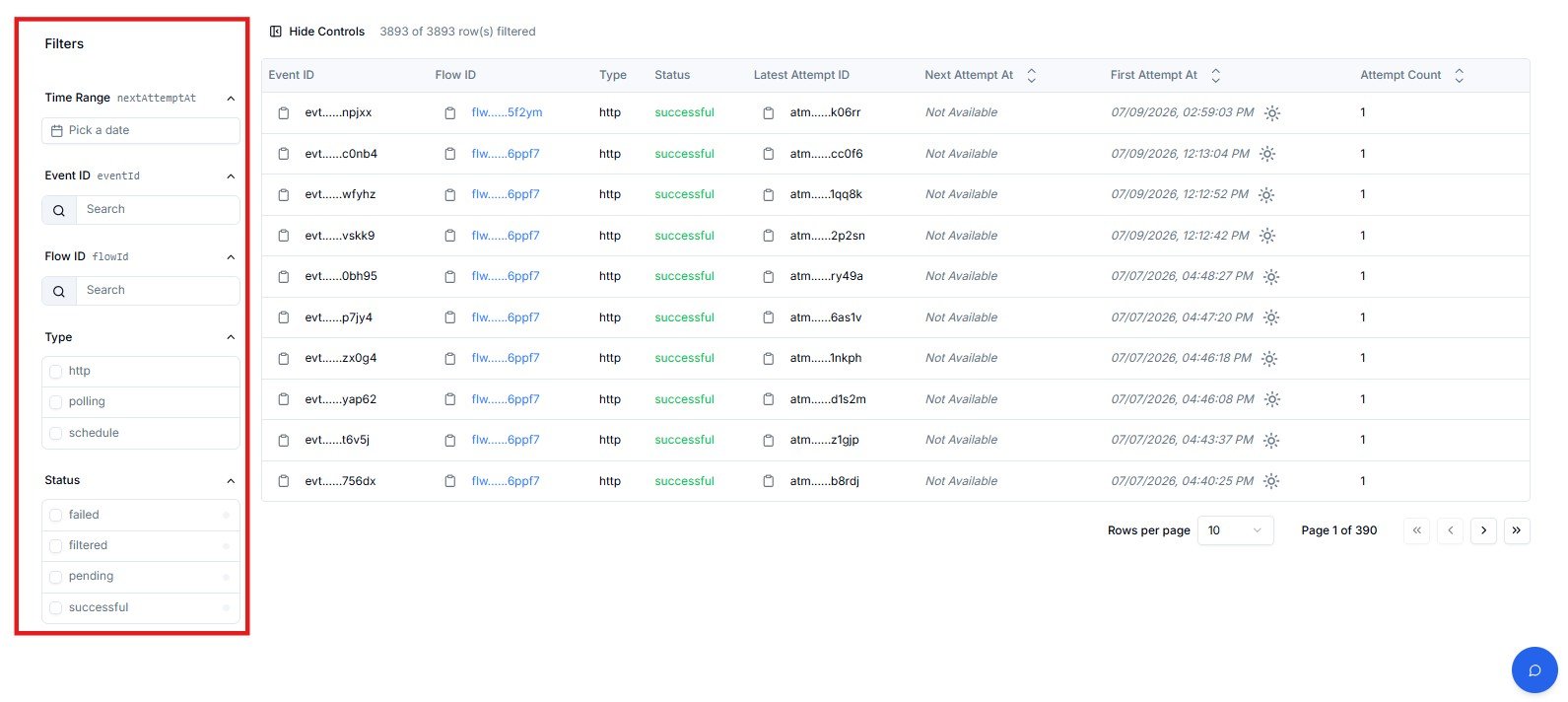
Filter panel — Time Range, Event ID, Flow ID, Type, and Status
Table Controls
Frequently Asked Questions
What is the difference between an event and a request?
What is the difference between an event and a request?
A request is the raw inbound HTTP call received at your trigger endpoint — logged in Request History. An event is created when a Flow processes that request and attempts delivery. If a request was received but no event was created, the Flow may have rejected it before processing (e.g. failed signature validation).
An event shows 'filtered' — is something broken?
An event shows 'filtered' — is something broken?
No.
filtered means a CEL filter rule in the Flow determined this event should not be delivered. This is working as designed. If events are being filtered that you expected to go through, review the filter conditions in that Flow with Cloudify.An event shows 'failed' — what do I do?
An event shows 'failed' — what do I do?
Check the Attempt Count to see how many retries were made, then note the Latest Attempt ID. Raise a support ticket with Cloudify including both the Event ID and Latest Attempt ID.
Next Attempt At shows 'Not Available' — does that mean retries are finished?
Next Attempt At shows 'Not Available' — does that mean retries are finished?
Yes. For
successful events this is expected — delivery succeeded so no retry is needed. For failed events, it means all configured retry attempts have been exhausted.How do I find all events for a specific Flow?
How do I find all events for a specific Flow?
Use the Flow ID filter. Copy the Flow ID from the Flows page and paste it into the search field. The table will show only events processed by that Flow.