

Ticket Summary
At the top of the Support page, four counters give you an at-a-glance view of your support activity.Total Tickets
All-time tickets — the total number of support requests ever raised on your account.
Open Tickets
Awaiting resolution — tickets raised that the Cloudify team is yet to pick up or action.
In Progress
Being worked on — tickets the Cloudify team is actively investigating or resolving right now.
Closed Tickets
Successfully resolved — tickets that have been fully resolved and closed.
Viewing and Filtering Tickets
The ticket table below the summary shows all your support requests.
Filter options:
The Chat Bubble — Available on Every Page
You don’t need to be on the Support page to get help. The blue circular chat button sits in the bottom-right corner of every page in Lighthouse — on Overview, Billing, Workflow Runs, Connections, and everywhere else.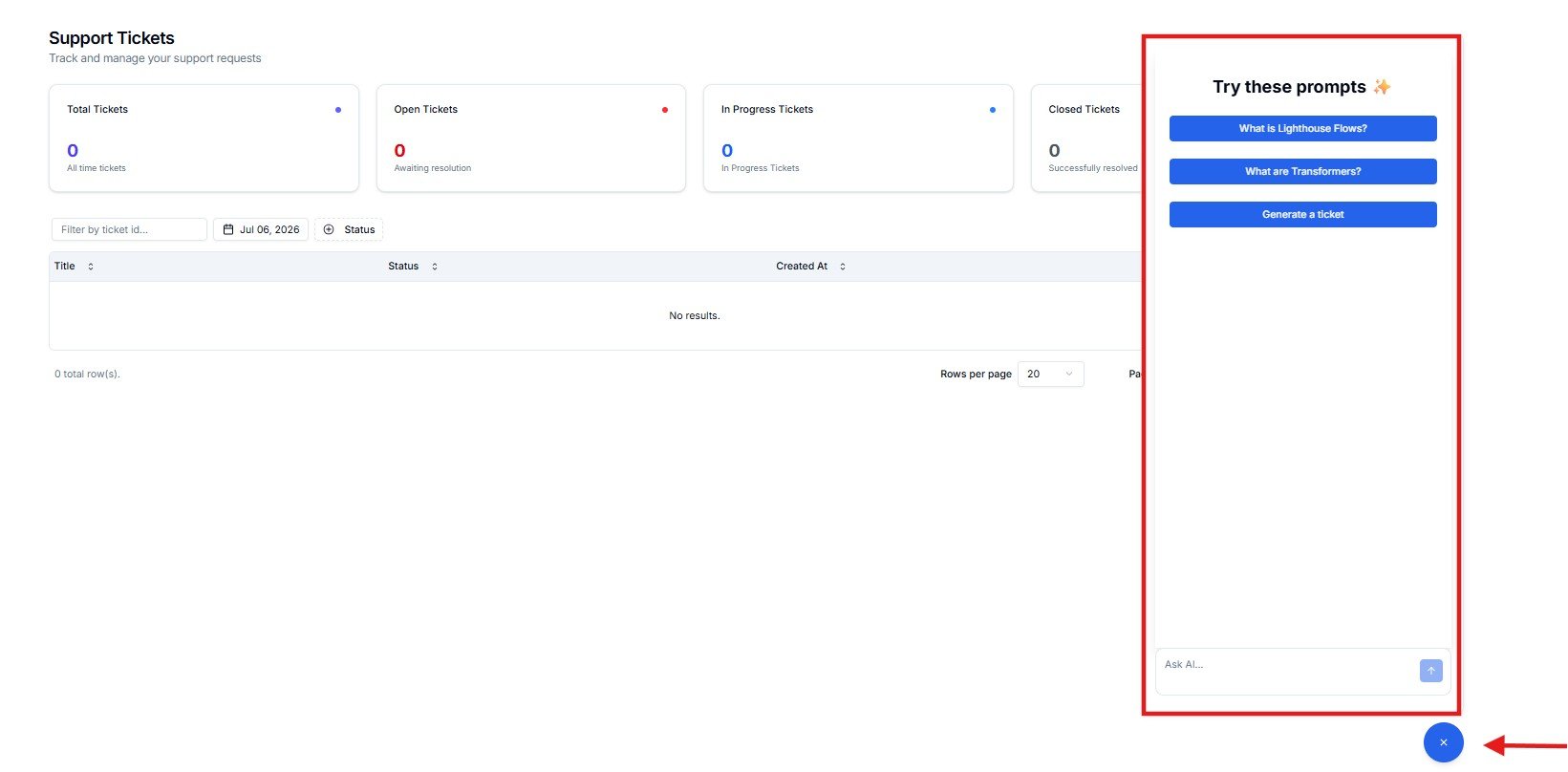
Chat bubble — available on every page in Lighthouse
How do I change my plan?
Quick answers about your subscription and billing options — without raising a ticket.
Show billing settings
Jump directly to billing configuration guidance — useful when you’re already on the Billing page and need help.
When to Raise a Support Ticket
Raise a ticket for...
- A workflow run that fails repeatedly after replaying
- A connection that appears to have broken
- A workflow that isn’t triggering when expected
- A data error in the destination app that you can’t resolve in the source app
- A request to modify or expand an existing workflow
- Billing or subscription questions
Fix yourself first...
- A single failed run where the source data issue is clear (fix in your app → Replay)
- A missing field in a source app record (fill it in → Replay)
- A run showing as Pending (wait for it to process — this is usually temporary)
- A question about what a workflow does (refer to the Workflows page description)
What Happens After You Raise a Ticket
1
Ticket is received
Your ticket is logged in the Cloudify system and appears in your Support page immediately with Open status.
2
Cloudify reviews and assigns
A Cloudify engineer reviews your ticket and begins investigation. The status updates to In Progress.
3
Resolution and communication
Cloudify resolves the issue — whether that’s a code fix, a connection repair, or a configuration change — and communicates the outcome to you.
4
Ticket closed
Once resolved and confirmed, the ticket moves to Closed status and remains in your history for reference.
Frequently Asked Questions
How do I raise a new support ticket?
How do I raise a new support ticket?
In the Support page, look for the option to create a new ticket (button or form). Provide a clear description of the issue, the affected workflow or connection, and any relevant run IDs from the Workflow Runs page. The more context you include, the faster Cloudify can resolve it.
How quickly does Cloudify respond to tickets?
How quickly does Cloudify respond to tickets?
Response times vary by plan and issue severity. Critical issues affecting live integrations are prioritised. Contact your Cloudify account manager if you need information about your specific SLA.
Can I add more information to a ticket after submitting it?
Can I add more information to a ticket after submitting it?
Yes. Open the ticket and add a comment or update. Always include the run ID from Workflow Runs if the issue relates to a specific failed execution — this helps Cloudify investigate immediately.
I have an urgent issue — is there a faster way to reach Cloudify?
I have an urgent issue — is there a faster way to reach Cloudify?
For critical issues, contact your Cloudify account manager directly. The Support ticket system is for standard requests. Urgent issues affecting live data flows should be escalated through your primary contact at Cloudify.