

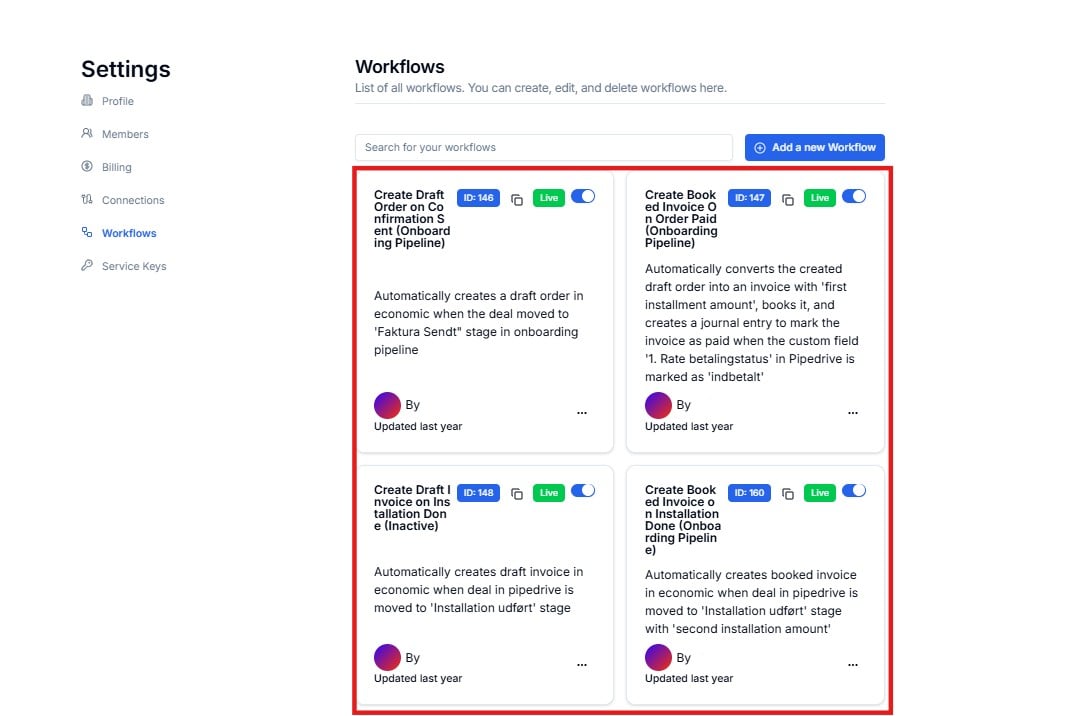
Workflows — all integrations deployed in your Lighthouse account
Reading a Workflow Card

A workflow card showing ID, status badges, description, owner, and last updated
Deployment Status — Dev vs Live
Every workflow has a coloured status badge in the top-right of its card.Live
The workflow is active and processing real data. Events from your connected apps will trigger this workflow automatically.
Dev
The workflow is in development or testing mode. It is not processing live data yet. Cloudify will move it to Live once it has been tested and approved.
You do not need to change workflow status yourself. The Cloudify team manages the promotion from Dev to Live as part of your integration delivery.
The Three-Dot Menu
Click the ⋯ menu on any workflow card to access management options.
Three-dot menu — Enable, View Details, Edit, Triggers, and Delete
Enable
Activates a paused workflow so it begins processing events again.
View Details
Opens a read-only view of the full workflow configuration.
Edit
Opens the workflow editor. Contact Cloudify before making any edits — changes to live workflows affect real data.
Triggers
Shows the webhook URL used to trigger this workflow. See below for details.
Delete
Permanently removes the workflow. This cannot be undone.
Viewing Trigger URLs
Selecting Triggers from the ⋯ menu opens a modal showing the webhook endpoint for that workflow.
Triggers modal — webhook URL for the selected workflow
Trigger URLs are managed by Cloudify and pre-configured as part of your integration setup. You typically only need to view this if you are troubleshooting a webhook connection with your source system.
Requesting a New Workflow
Click Request new Workflow in the top-right corner to submit a request to the Cloudify team.Searching Workflows
Use the Search for your workflows field to find a workflow by name — useful when you have a large number of integrations deployed.Frequently Asked Questions
What is the difference between Dev and Live?
What is the difference between Dev and Live?
Dev workflows are in development or testing — they do not process real data. Live workflows are active and handling real events from your connected apps. Cloudify promotes workflows from Dev to Live after testing and sign-off.
A workflow is toggled off — is something wrong?
A workflow is toggled off — is something wrong?
A grey toggle means the workflow is paused. It will not process any events until re-enabled. If you did not intentionally pause it, contact Cloudify to investigate.
What does the AI badge mean?
What does the AI badge mean?
The AI badge indicates the workflow uses AI-assisted logic — for example, intelligent data mapping or conditional routing. These workflows are built and managed by Cloudify.
Can I edit a workflow myself?
Can I edit a workflow myself?
You can access the editor via ⋯ → Edit, but we strongly recommend contacting Cloudify before making any changes to a Live workflow. Incorrect edits can break running integrations and cause data issues in your connected apps.
What is a trigger URL?
What is a trigger URL?
A trigger URL is a webhook endpoint that your source system uses to notify Lighthouse when an event occurs. These are pre-configured by Cloudify — you only need to view them if you are troubleshooting why a workflow isn’t firing.