

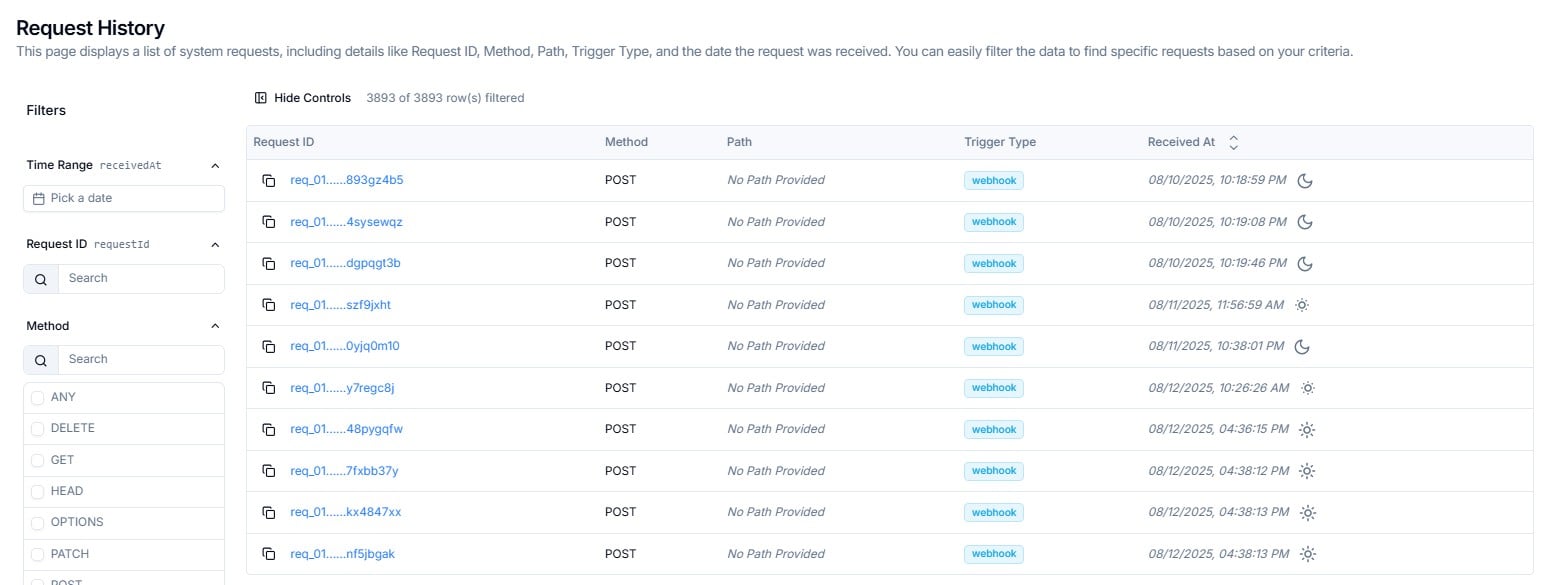
Request History — full log of incoming requests with filter panel
- Confirm that a specific webhook reached Lighthouse Flows
- Investigate missing or unexpected requests by time range or trigger type
- Copy a Request ID to share with Cloudify for troubleshooting
Reading the Requests Table
Each row represents one inbound request.Trigger Type Badges
Filtering Requests
The left-hand Filters panel lets you narrow the list across five dimensions.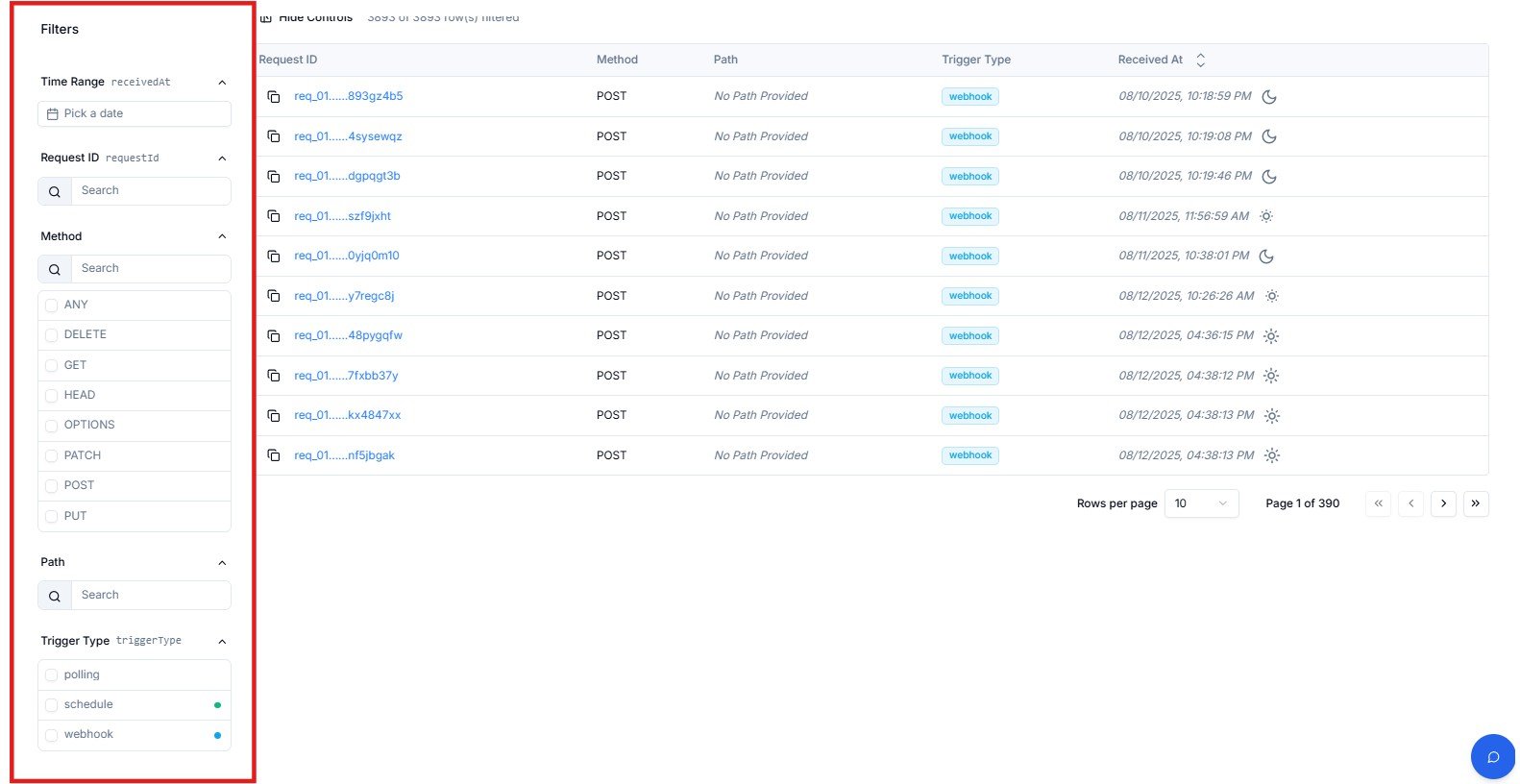
Filter panel — Time Range, Request ID, Method, Path, and Trigger Type
Table Controls
Frequently Asked Questions
A webhook was sent but I can't find it in Request History — what should I check?
A webhook was sent but I can't find it in Request History — what should I check?
Set the Time Range filter to the window when the webhook was sent, then filter Trigger Type to
webhook. If the request still doesn’t appear, it may not have reached Lighthouse — check the webhook URL is correct and the request was not blocked at the network level. Raise a support ticket if the issue persists.What does 'No Path Provided' mean in the Path column?
What does 'No Path Provided' mean in the Path column?
This means the webhook request did not include a URL path beyond the base trigger endpoint. This is normal for webhooks that send payloads directly to the root trigger URL without a path suffix.
What is the difference between webhook, schedule, and polling trigger types?
What is the difference between webhook, schedule, and polling trigger types?
Webhook — an external system pushed data to your Flow trigger URL in real time. Schedule — the trigger fired automatically at a configured time. Polling — Lighthouse checked a source system at regular intervals for new data.
Can I export the Request History?
Can I export the Request History?
Export is not available directly from this page. Contact Cloudify support if you need request history records for audit or analysis purposes.