

rate() or cron() expressions.
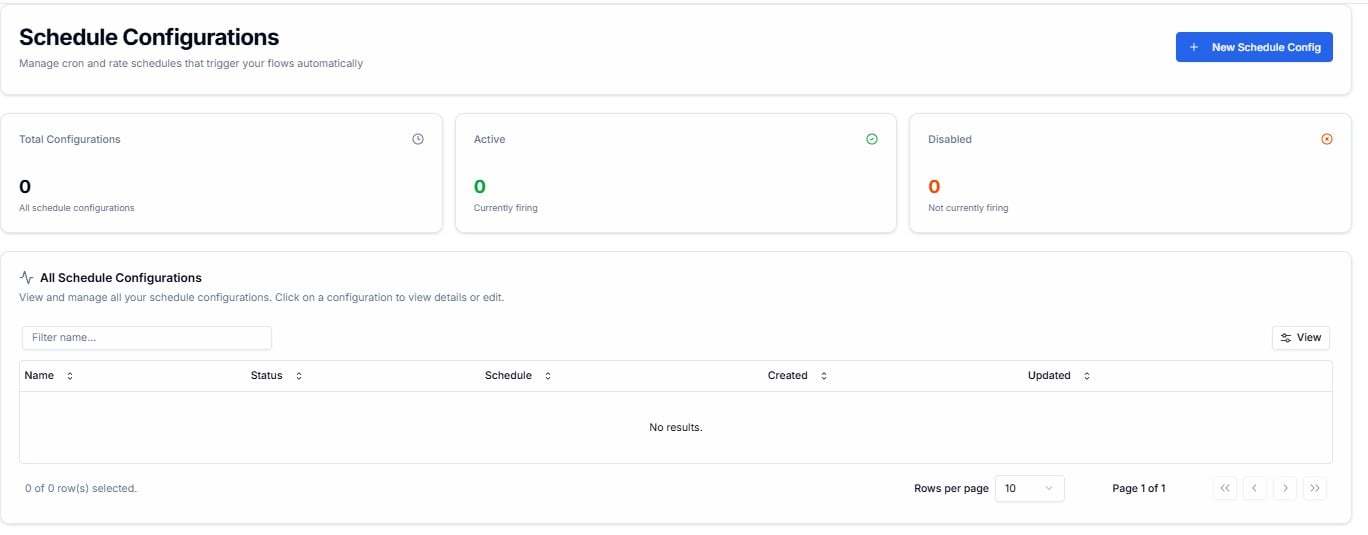
Schedule Configurations — summary counters and configuration list
Schedule vs Polling
- Schedule — fires a Flow trigger at a set time. No external data is fetched.
- Polling — calls an external API at a set interval to pull data.
Summary Counters
Total Configurations
All schedule configurations on your account — active and disabled combined.
Active
Configurations currently firing on their schedule. Shown in green.
Disabled
Configurations that exist but are not currently firing. Shown in orange.
All Schedule Configurations
The table lists every configuration on your account. Click any row to view or edit it.
Use the Filter name… field to search by name. Click View to toggle visible columns. Rows per page defaults to 10.
Creating a New Schedule Configuration
Click + New Schedule Config in the top-right corner.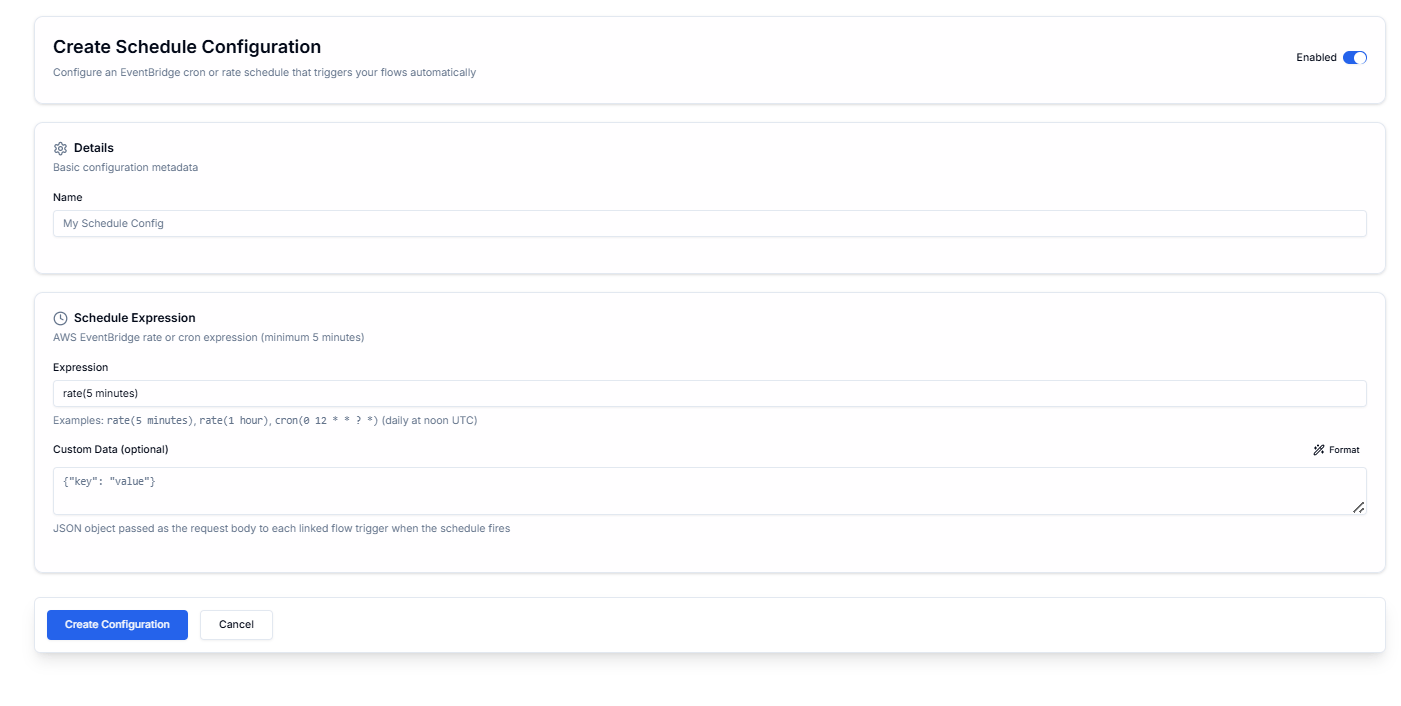
1. Details
The Enabled toggle in the top-right activates the configuration immediately on creation.
2. Schedule Expression
Uses AWS EventBridgerate() or cron() syntax. The minimum interval is 5 minutes.
Expression examples:
Contact Cloudify before creating a schedule configuration. Cloudify will typically configure schedules as part of your integration delivery to ensure the timing aligns with your source system and workflow logic.
Frequently Asked Questions
A schedule configuration shows Disabled — will it still fire?
A schedule configuration shows Disabled — will it still fire?
No. A disabled configuration will not execute until re-enabled. Contact Cloudify if a configuration is unexpectedly disabled.
What is the minimum schedule interval?
What is the minimum schedule interval?
The minimum is 5 minutes, as enforced by AWS EventBridge. You cannot schedule a trigger more frequently than every 5 minutes.
How do I verify that a schedule fired correctly?
How do I verify that a schedule fired correctly?
Go to Flows Events and filter by Type → schedule. This shows all events generated by schedule triggers with their delivery status and attempt history.
What timezone do schedule expressions use?
What timezone do schedule expressions use?
AWS EventBridge cron expressions run in UTC. Contact Cloudify if you need a schedule aligned to a specific business timezone.
Can I pause a schedule temporarily without deleting it?
Can I pause a schedule temporarily without deleting it?
Yes — disable the configuration to pause it. Re-enable it when you are ready to resume. Contact Cloudify if you need help with this.