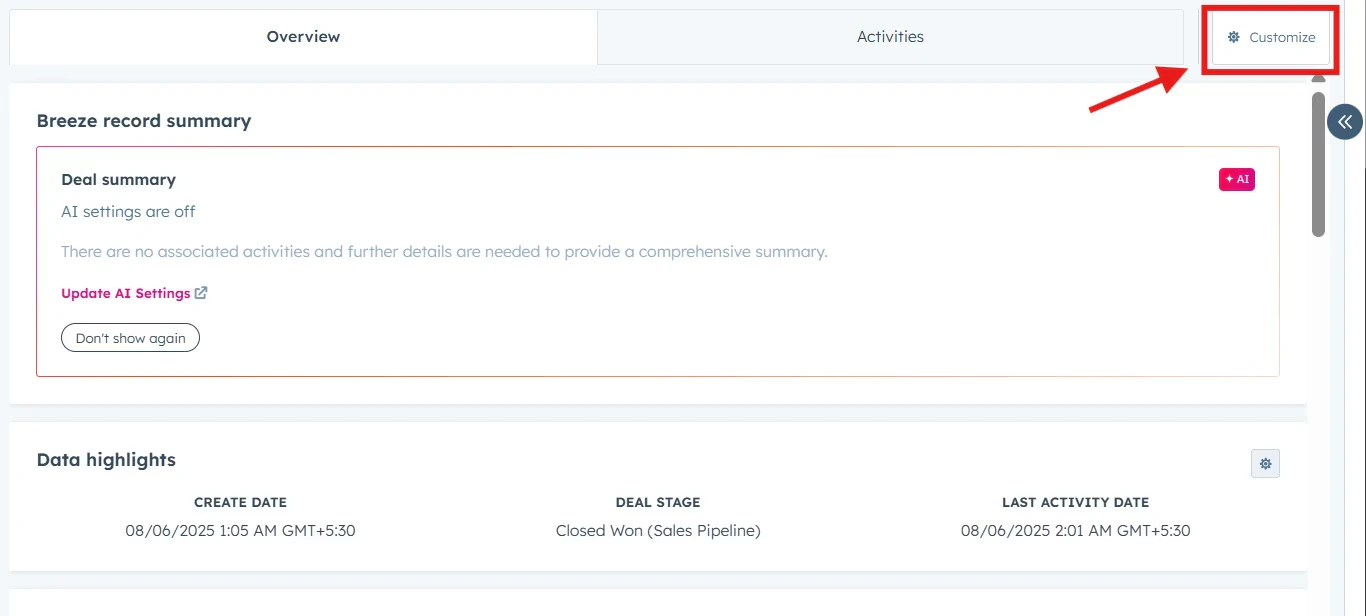
Customer Sync Rules
Define Search Parameters
Set search preferences to match HubSpot companies with e-conomic customers using specific fields, reducing duplicates by verifying existing records. Select a field (such as Company Name) from a drop-down in HubSpot for the customer sync rules and select a corresponding field (Customer Name) from the drop-down in e-conomic. Click “Save”.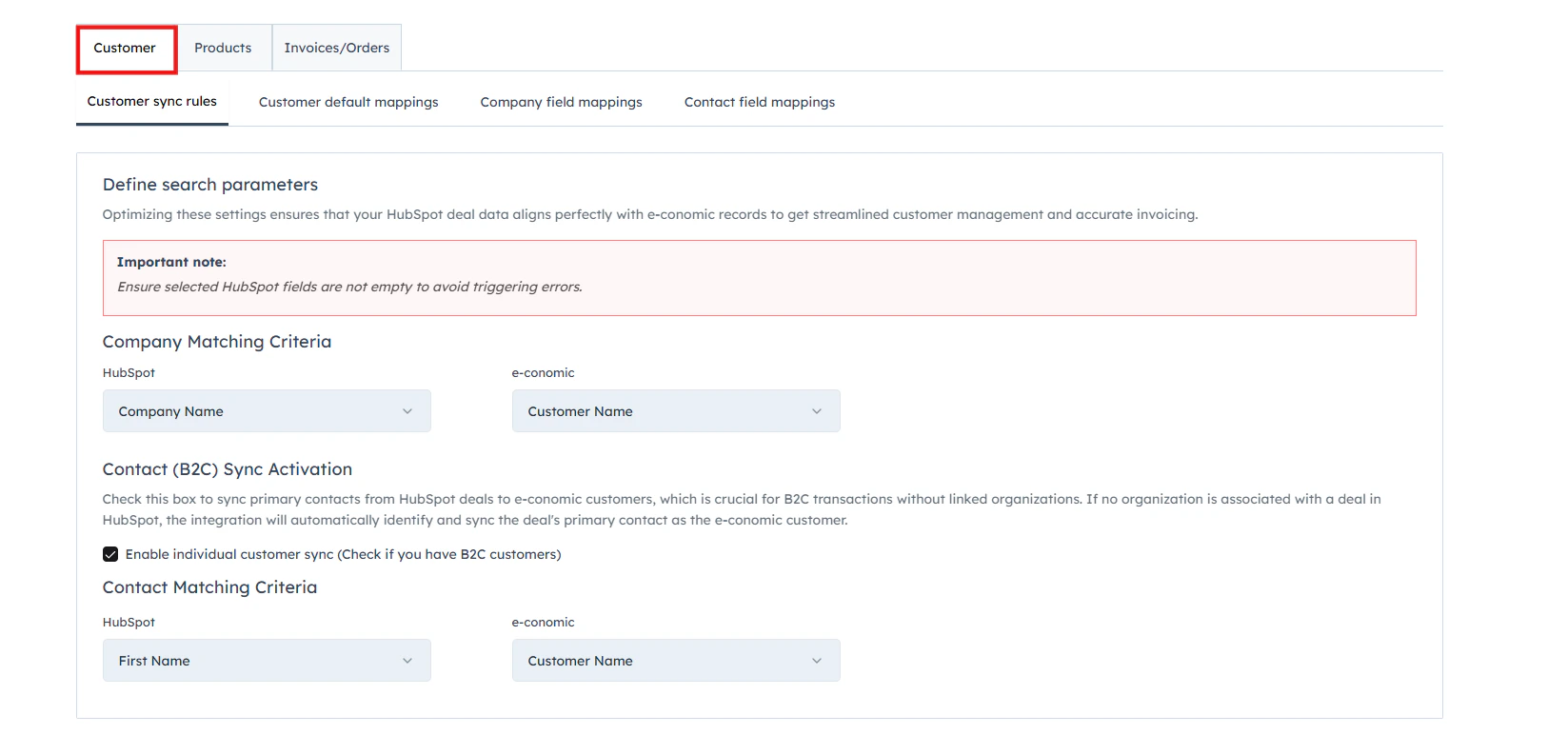
Enable Primary Sync Contact
This feature is essential for businesses dealing directly with consumers, allowing seamless addition of individual contacts from HubSpot to e-conomic as customers when there’s no associated company. Therefore, if this is the case, check “Enable Primary Sync Contact.” From the “HubSpot Contact Identifier” dropdown menu, select the HubSpot field that uniquely identifies your contacts, such as person name and email. From the “E-conomic Contact Field” dropdown menu, select the corresponding field in e-conomic that should be used to match and identify the same contact. This should also be a unique identifier like an email address or customer number in e-conomic. Click “Next”.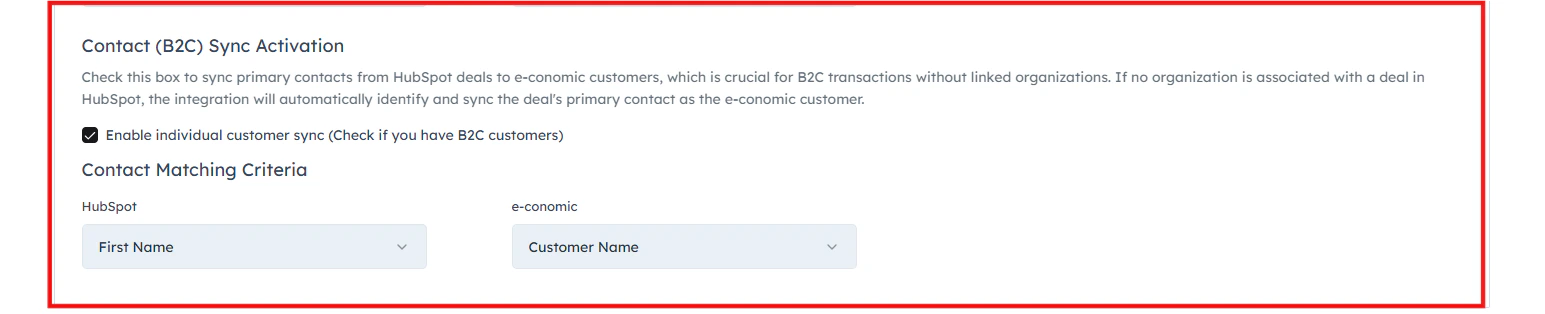
- Select one of two options for handling the customer number when a company is created in e-conomic: You can select whether e-conomic creates the customer or takes the account number from Hubspot when creating new customer records.

e-conomic Customer Number Field
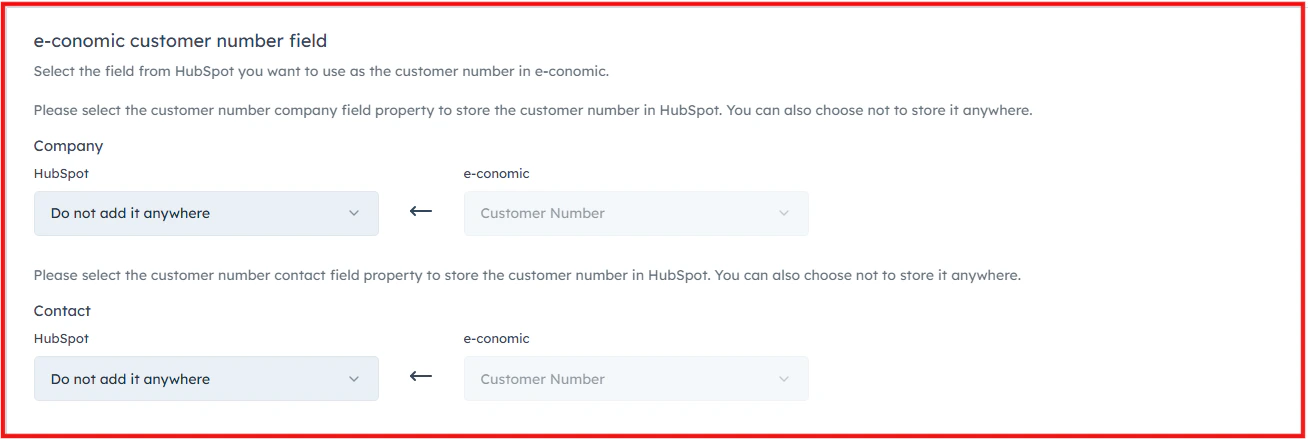
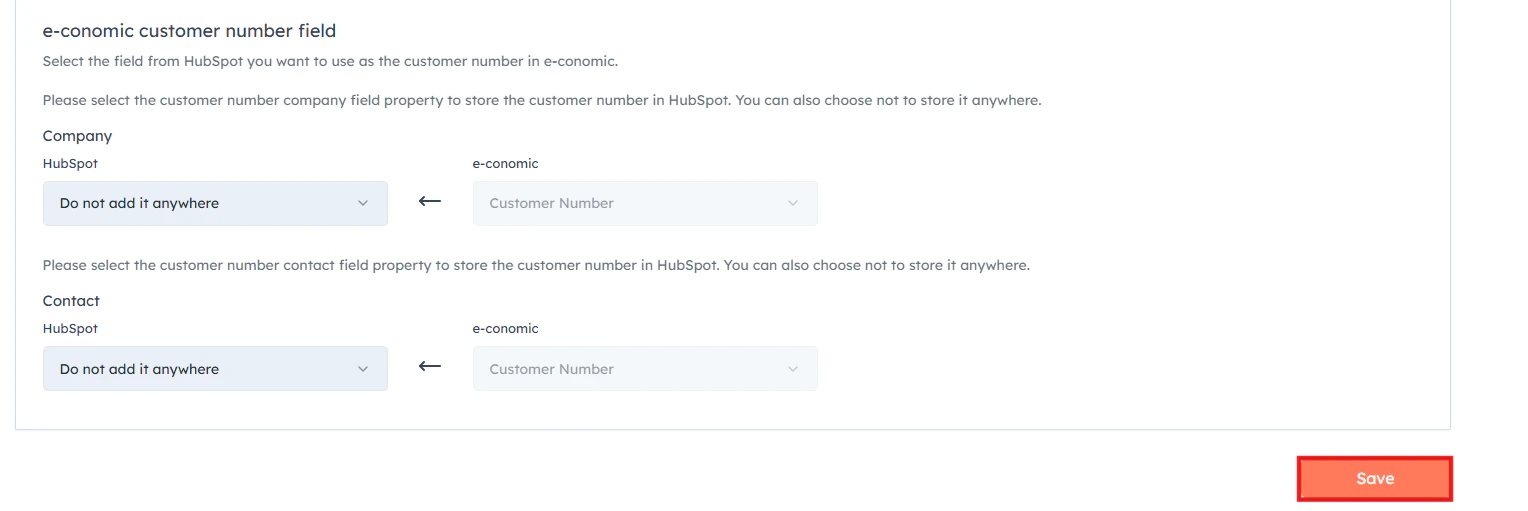
This option is conditional based on the previous selection.In this step, you will choose where the e-conomic Customer Number should be stored in HubSpot. This helps maintain a clear link between HubSpot records and customers created in e-conomic.Company Mapping
Select the HubSpot company property where the e-conomic Customer Number should be stored.- Use the dropdown under HubSpot to select an existing company field.
- If you prefer not to store the customer number in HubSpot, select “Do not add it anywhere.”
- The selected value will map to Customer Number in e-conomic.
Contact Mapping
You can also choose to store the e-conomic Customer Number in a HubSpot contact property.- Select the contact field from the dropdown under HubSpot.
- This will map to Customer Number in e-conomic.
- If you do not want to store the number in a contact field, select “Do not add it anywhere.”
Customer Default Mappings
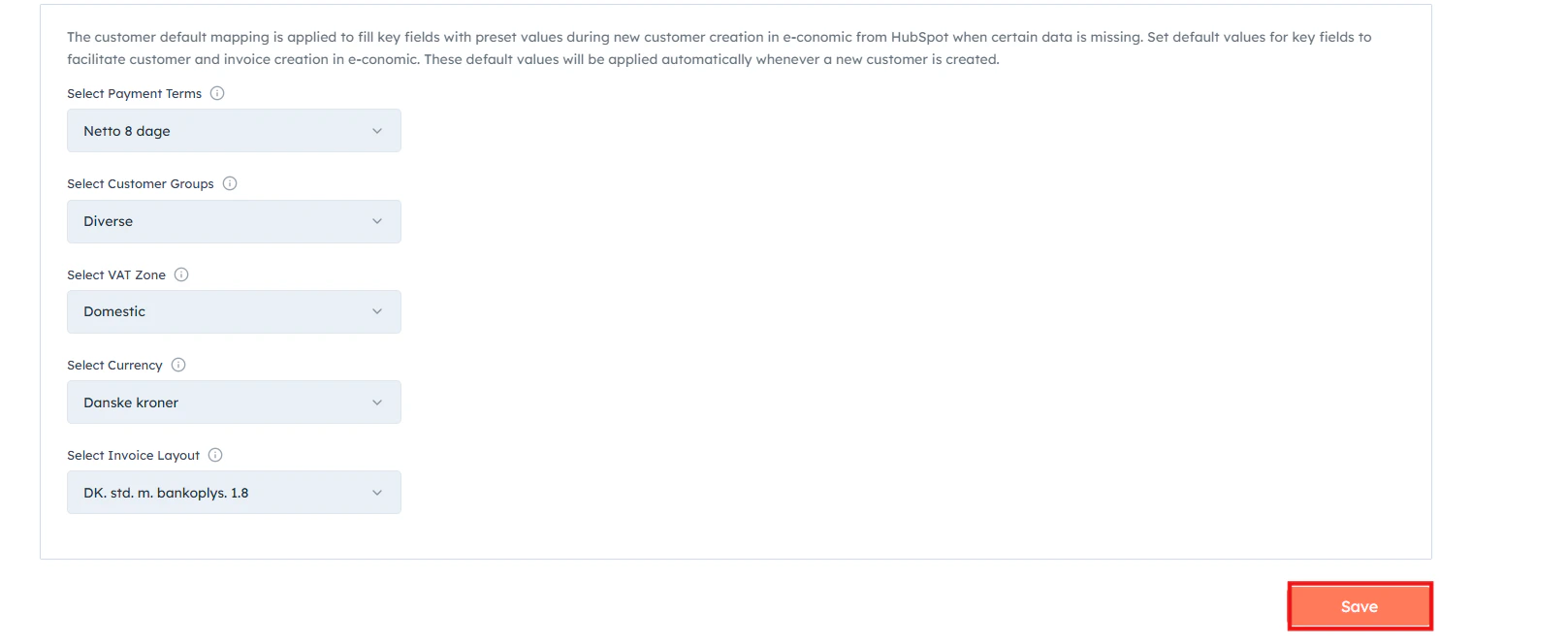
This step allows you to set default values that will automatically be applied when a new customer is created in e-conomic from HubSpot. These defaults help ensure that important fields are filled even if the data is missing in HubSpot. Configure the following fields according to your business requirements:- Payment Terms
Example: Netto 8 dage.
- Customer Group
Example: Diverse.
- VAT Zone
Example: Domestic.
- Currency
Example: Danske kroner.
- Invoice Layout
Company Field Mapping
Company field mapping controls how customer data from HubSpot is transferred to e-conomic. By mapping fields correctly, you ensure that company information from HubSpot is synced to the appropriate customer fields in e-conomic. You can customize these mappings based on your business requirements.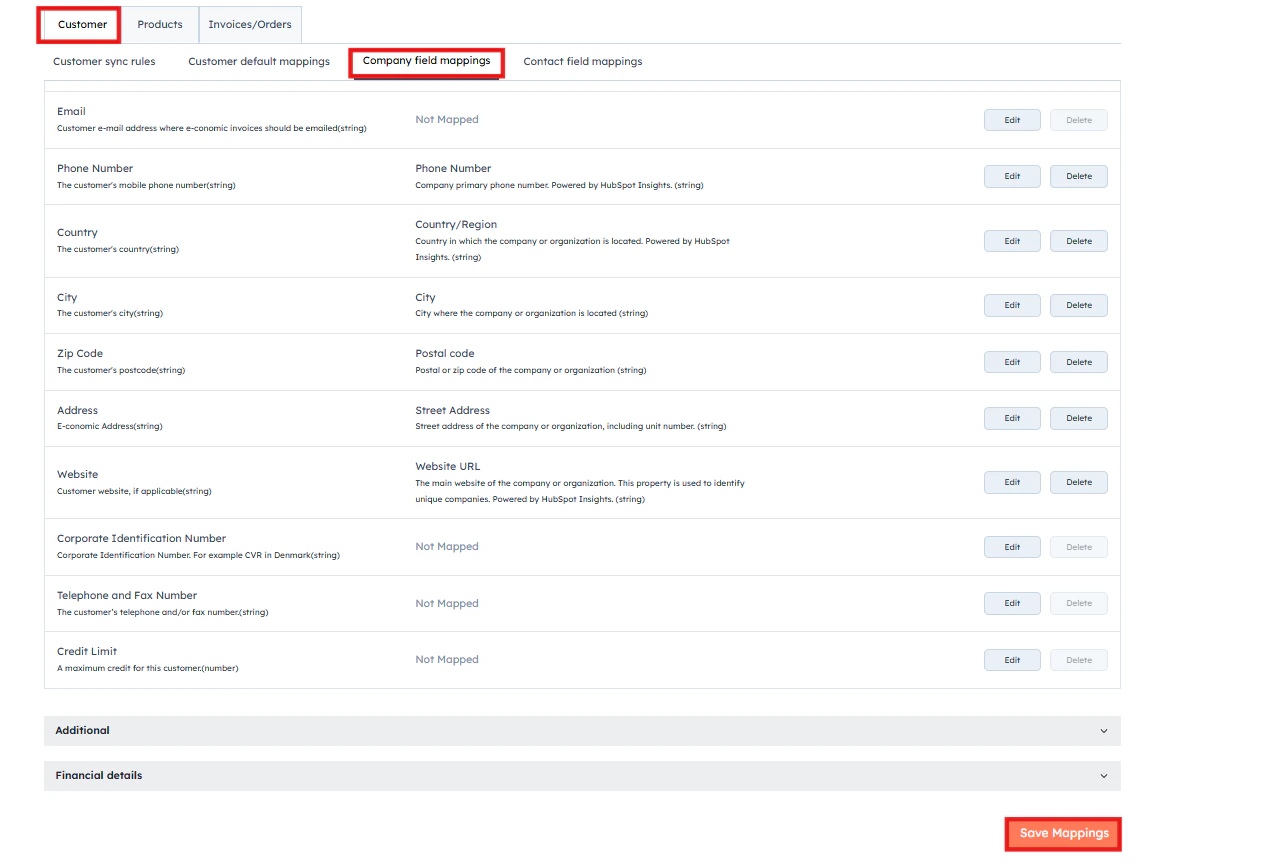
Contact Field Mappings
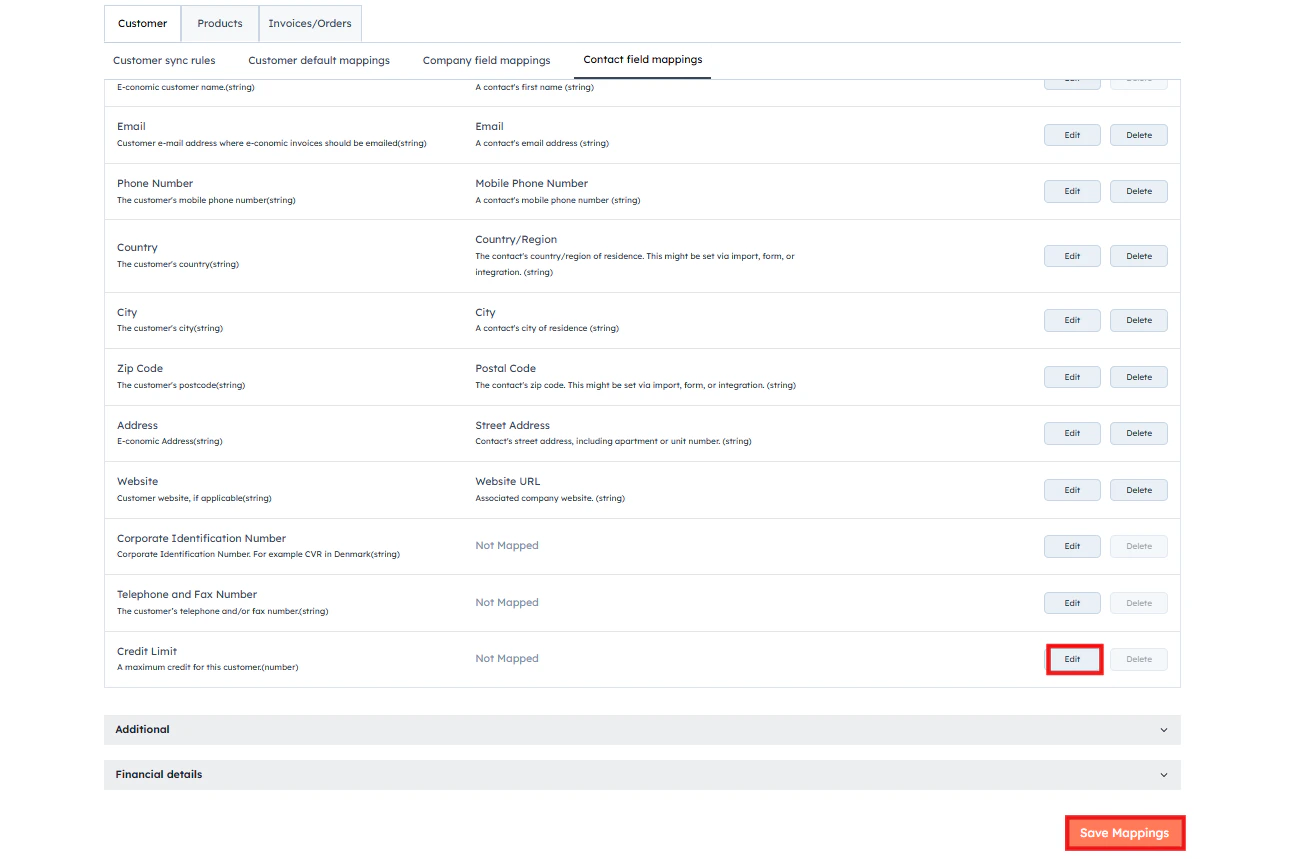
Define the field mapping between HubSpot contact and e-conomic customers. This step shows how customer data will flow from HubSpot to e-conomic during the creation of a new customer. You can customize these mappings according to your specific business requirements by clicking “Edit” > Select the HubSpot field from the drop-down box and click “Save Mappings”.