

Why Invoice/Order Sync Rules Matter
Automate invoice creation
Trigger invoice or order creation in e-conomic at exactly the right moment in your sales process.
Ensure data consistency
Automatically create or update customer information in e-conomic based on your HubSpot deals.
Save time
Eliminate manual data entry and reduce the risk of errors across both platforms.
Setting Up Invoice/Order/Quote Sync Rules
1
Navigate to Invoice/Order sync rules
Go to the Invoice/Order sync rules tab in your integration settings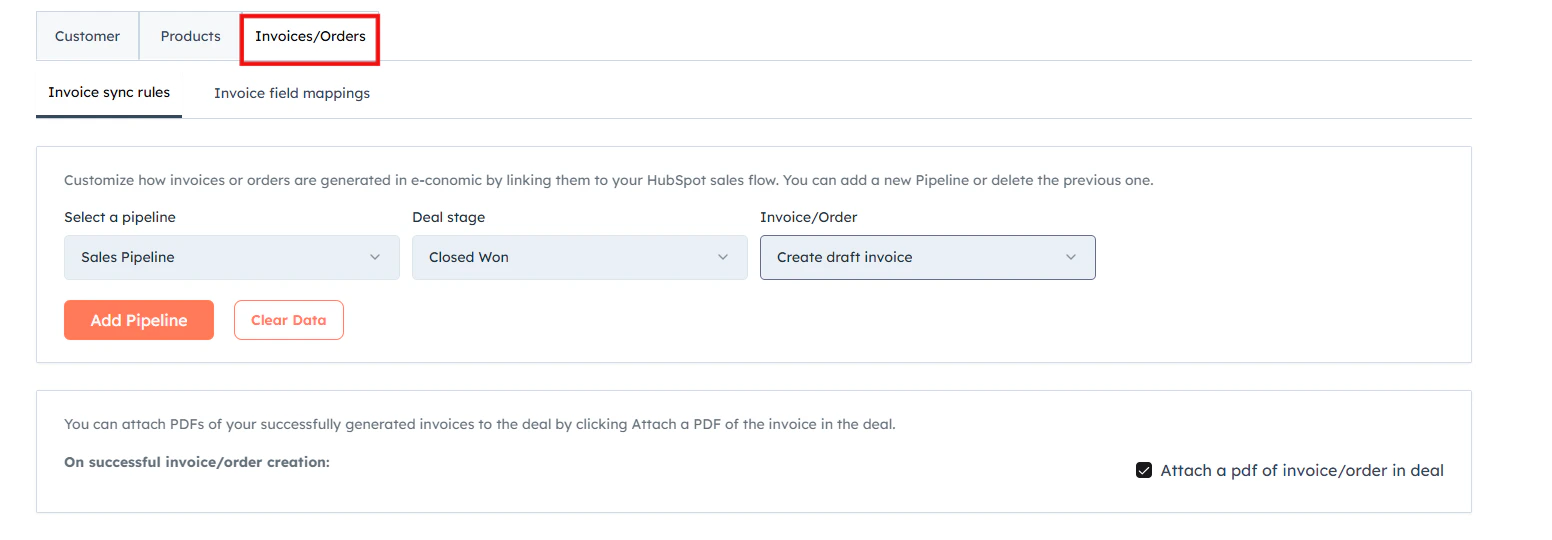
2
Define the three key elements for each rule
For each rule, configure the following: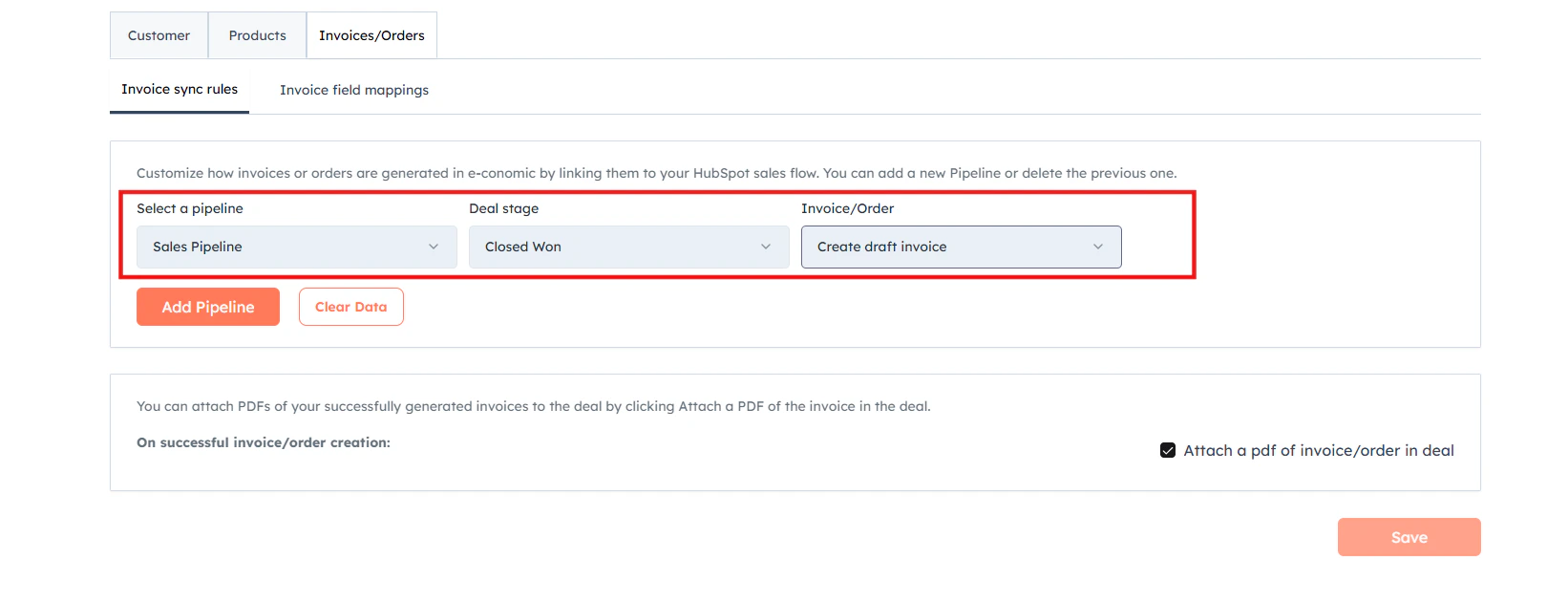
- Pipeline — select the HubSpot pipeline you want to trigger from.
- Deal Stage — choose the specific stage in the pipeline that will trigger the integration.
- Generate — decide whether to create a draft invoice, quote or a order in e-conomic.
3
Add multiple rules if needed
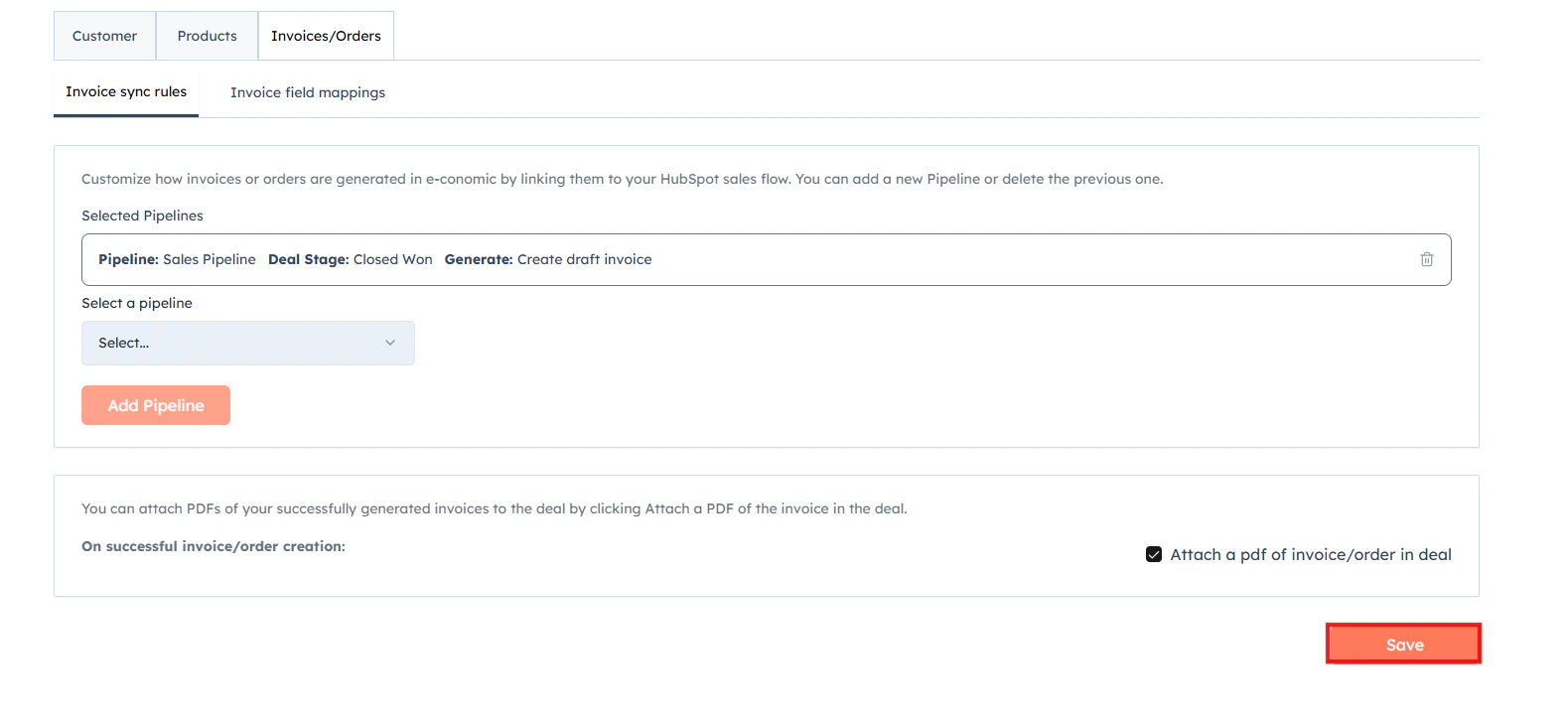
You can add multiple rules for different pipelines or stages as needed.
4
Save your changes
You can attach PDFs of your successfully generated invoices to the deal by clicking “Attach a PDF of the invoice in deal”.
Invoice/Order/Quote Field Mappings
Why Invoice/Order/Quote Field Mappings Matter
- Ensure data consistency — match the right information between HubSpot and e-conomic.
- Customize for your needs — adapt the integration to fit your unique invoicing process.
- Save time — automate the transfer of invoice data, reducing manual entry and potential errors.
- Guarantee accuracy — correct field mapping is crucial for ensuring accurate invoices in e-conomic.
Setting Up Invoice/Order/Quote Field Mappings
1
Click “Edit”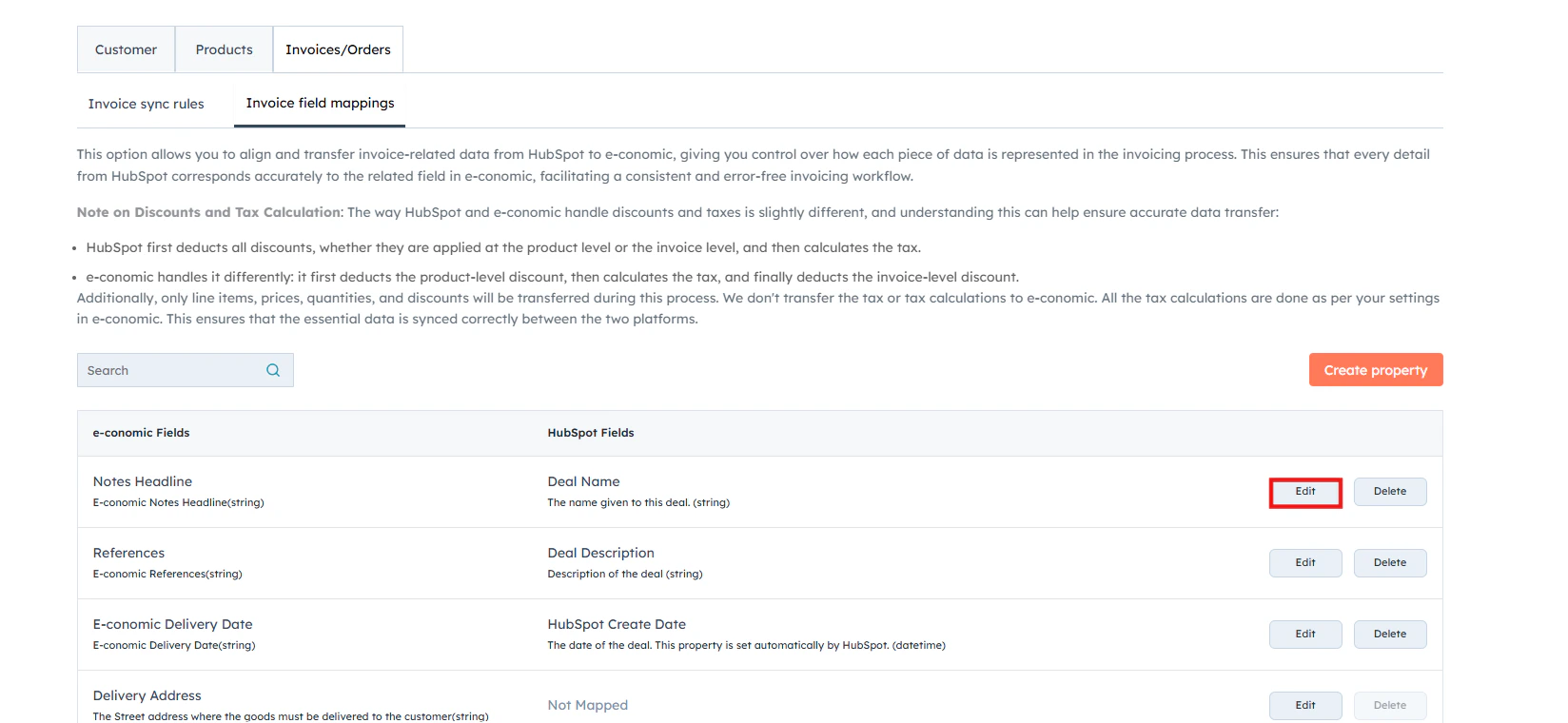
2
Select the option from the drop-down box.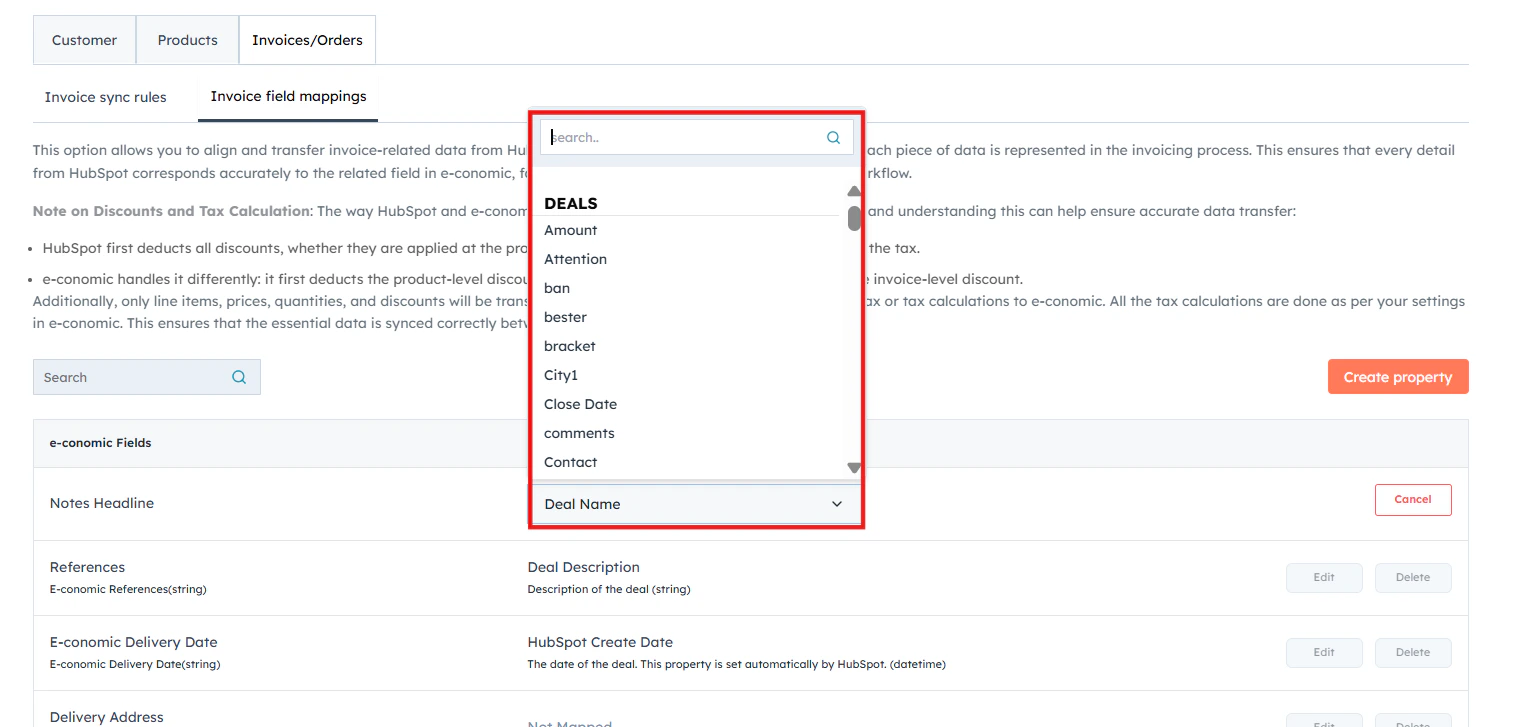
3
Click “Save” once you have edited your preferred options.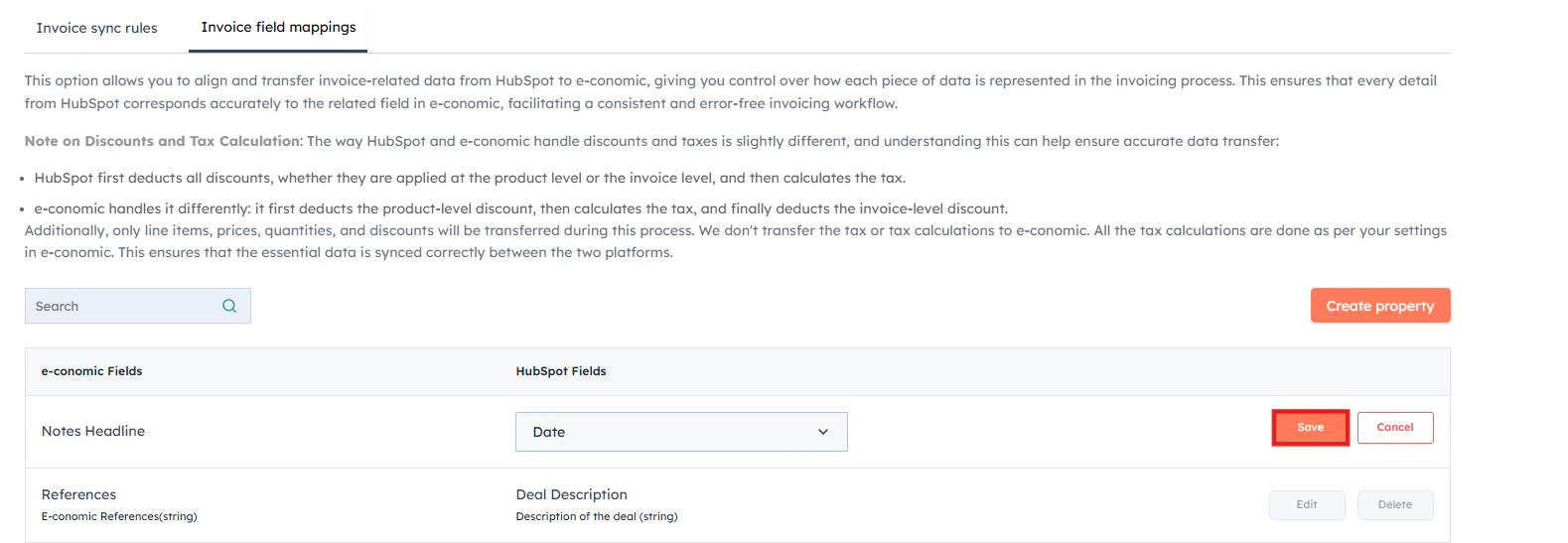
4
Click “Save Mappings” to confirm your settings and apply the configured field mappings.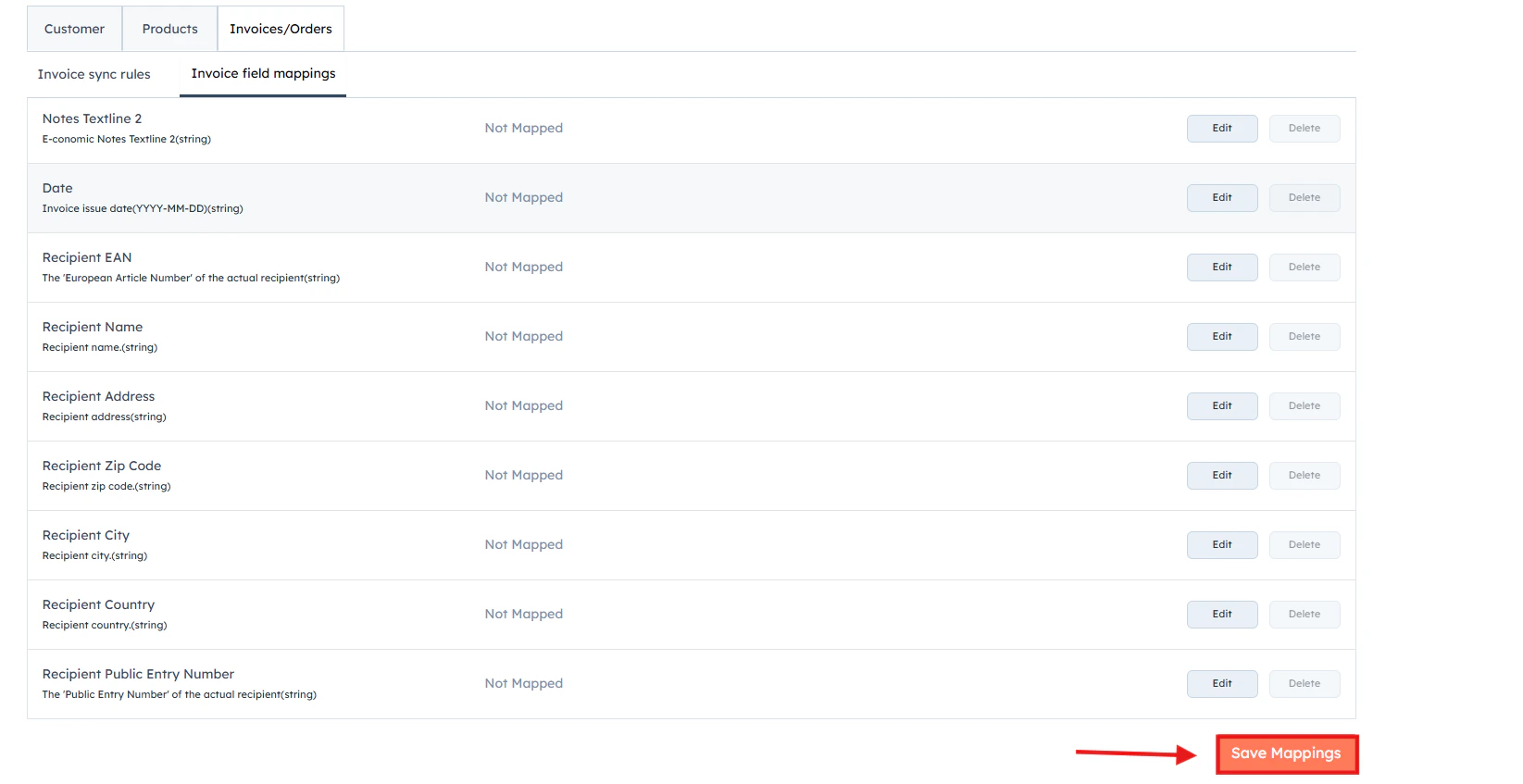
Correct field mapping is essential for ensuring accurate invoices in e-conomic. Review and optimise these mappings regularly. If you’re unsure about which fields to map or how to handle specific scenarios, contact our support team — we’re here to help you get the most out of your integration.