Simple Search
This feature is used to match products between HubSpot and e-conomic by correlating a specific field, such as SKU or product number. It’s particularly useful for users who have long product lists. Choose the corresponding field in HubSpot and e-conomic for automatic identification from the respective dropdowns.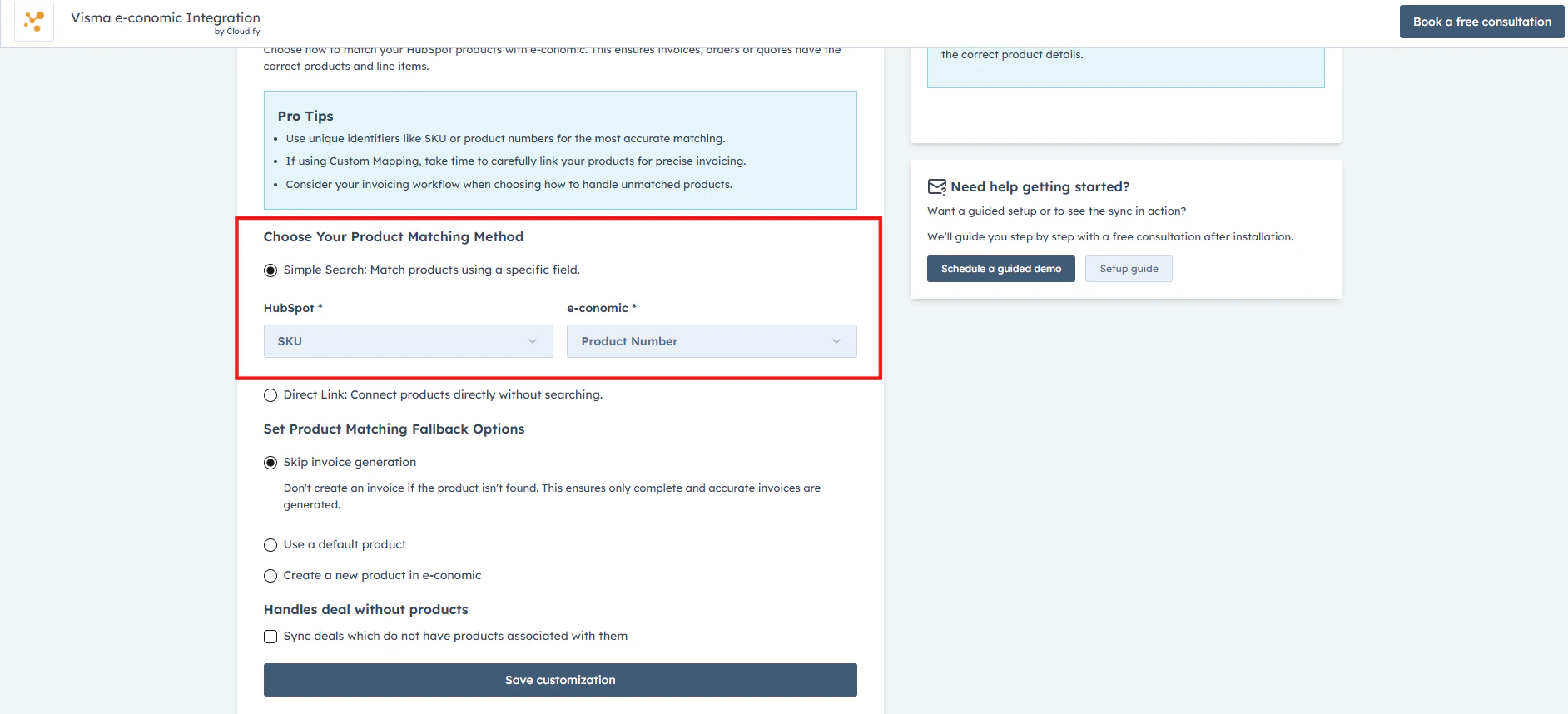
Direct Link
Select this method to link specific products one-to-one between HubSpot and e-conomic directly. This option is particularly beneficial when the product count is low, allowing for precise, manual matching of each product.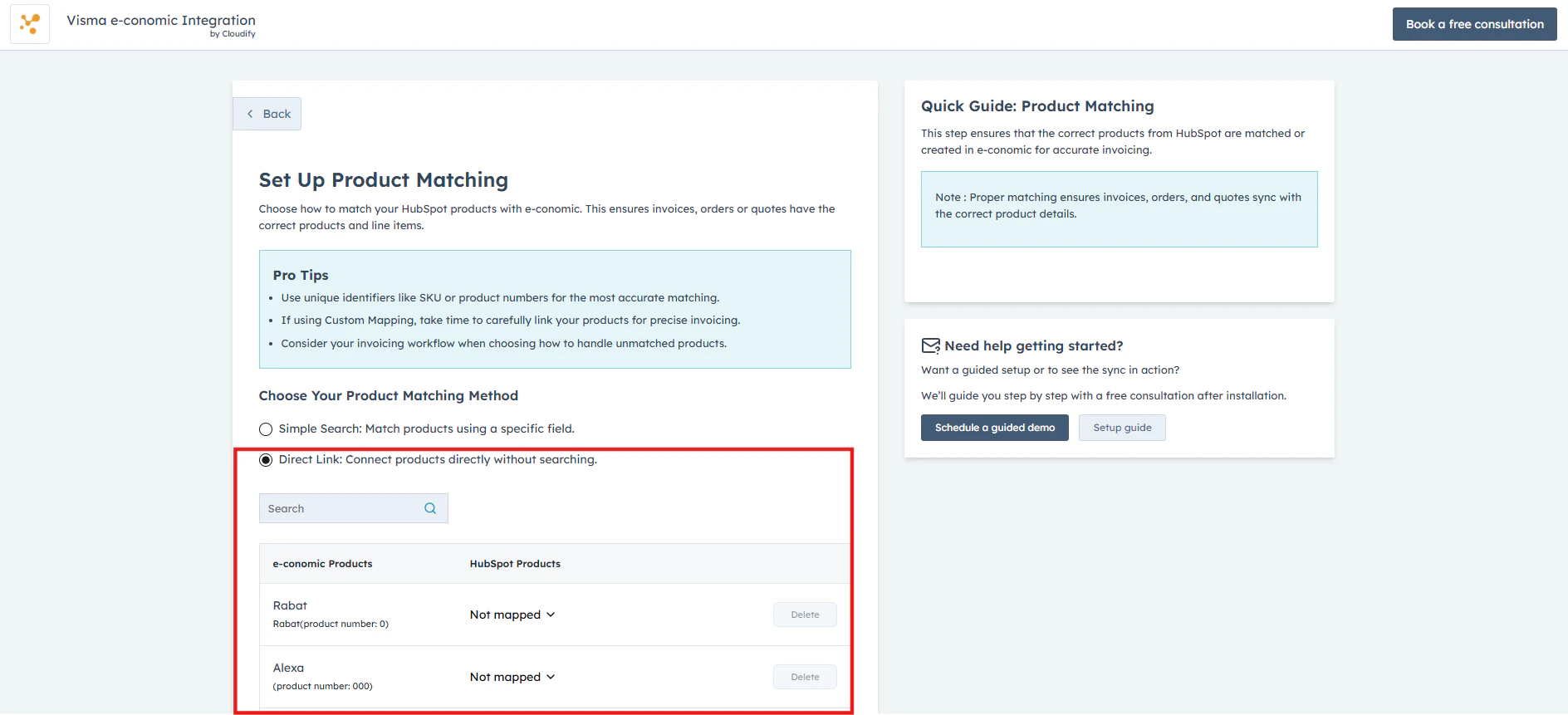
Advance Settings
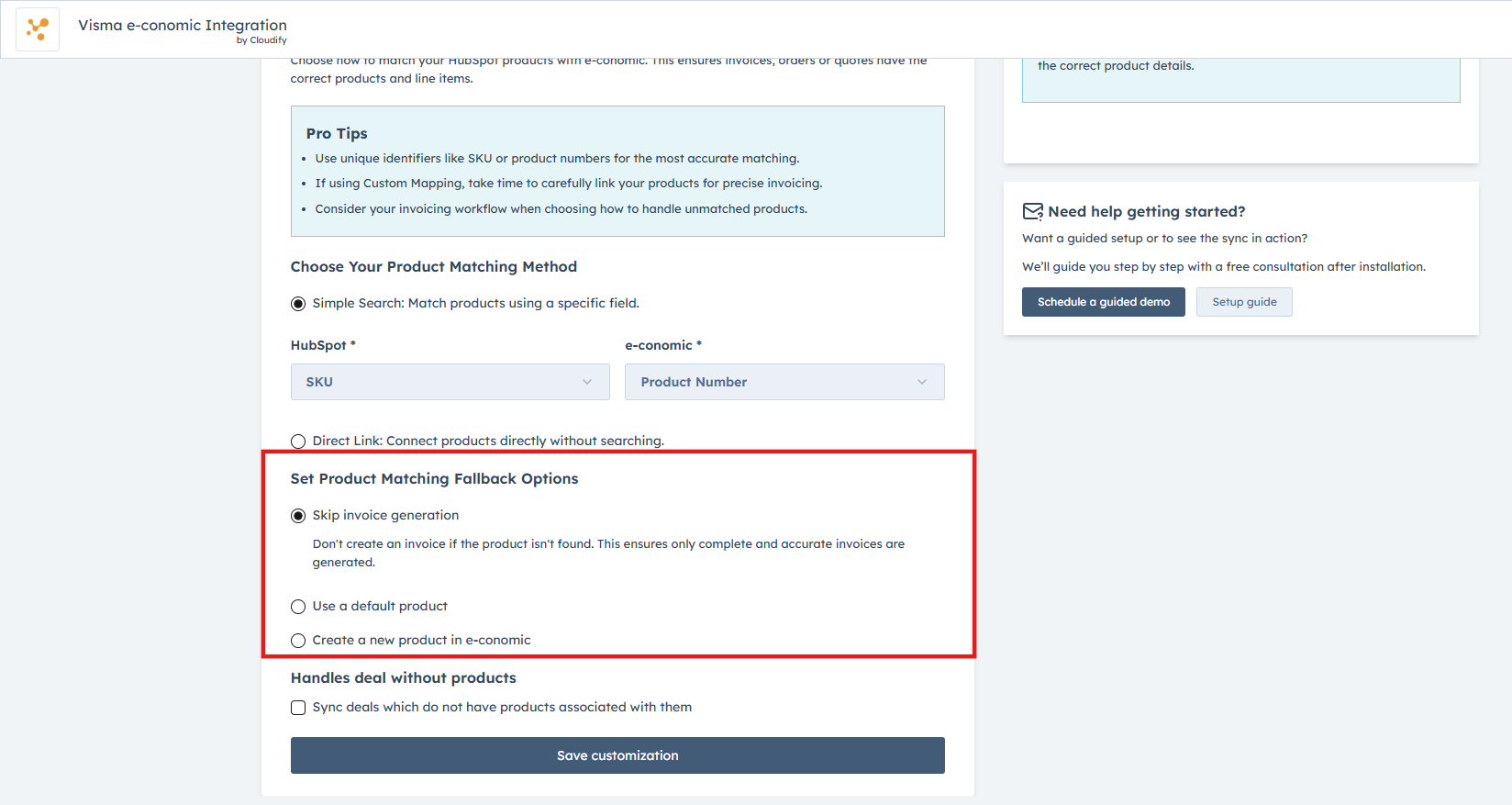
Set Product Matching Fallback Options
This option is useful when a product is not found in the search. It offers three options, which are:- Skip Invoice Generation: Select this option if you prefer not to create an invoice when a product isn’t found in e-conomic
- Use a Default product: When an item is not found in e-conomic, a default item from e-conomic will be used to generate the invoice. If you select this option, you must specify a default product from your e-conomic item list.
- Create a new product in e-conomic : This option automatically generates a new item entry in e-conomic when a matching item isn’t found using product details from HubSpot.
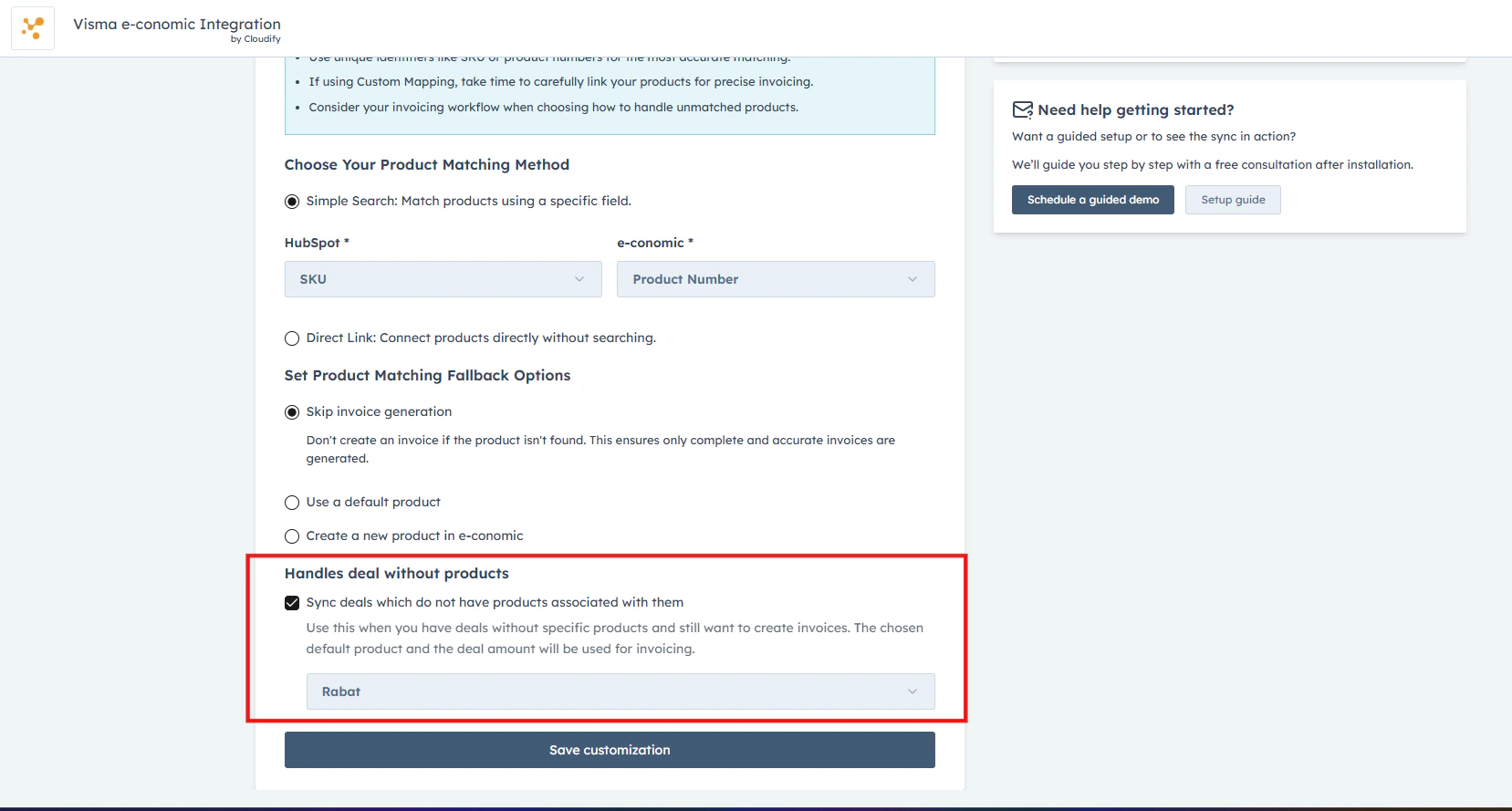
Sync deals which do not have line-items (products) associated with them
This additional option is provided to create an invoice, order/quote with deal value only. You can choose this option if you do not use line items in HubSpot deals. Select a default product from the list to handle this scenario. Click on “Save customization” once done.