

Setting Up the UI Extension
1
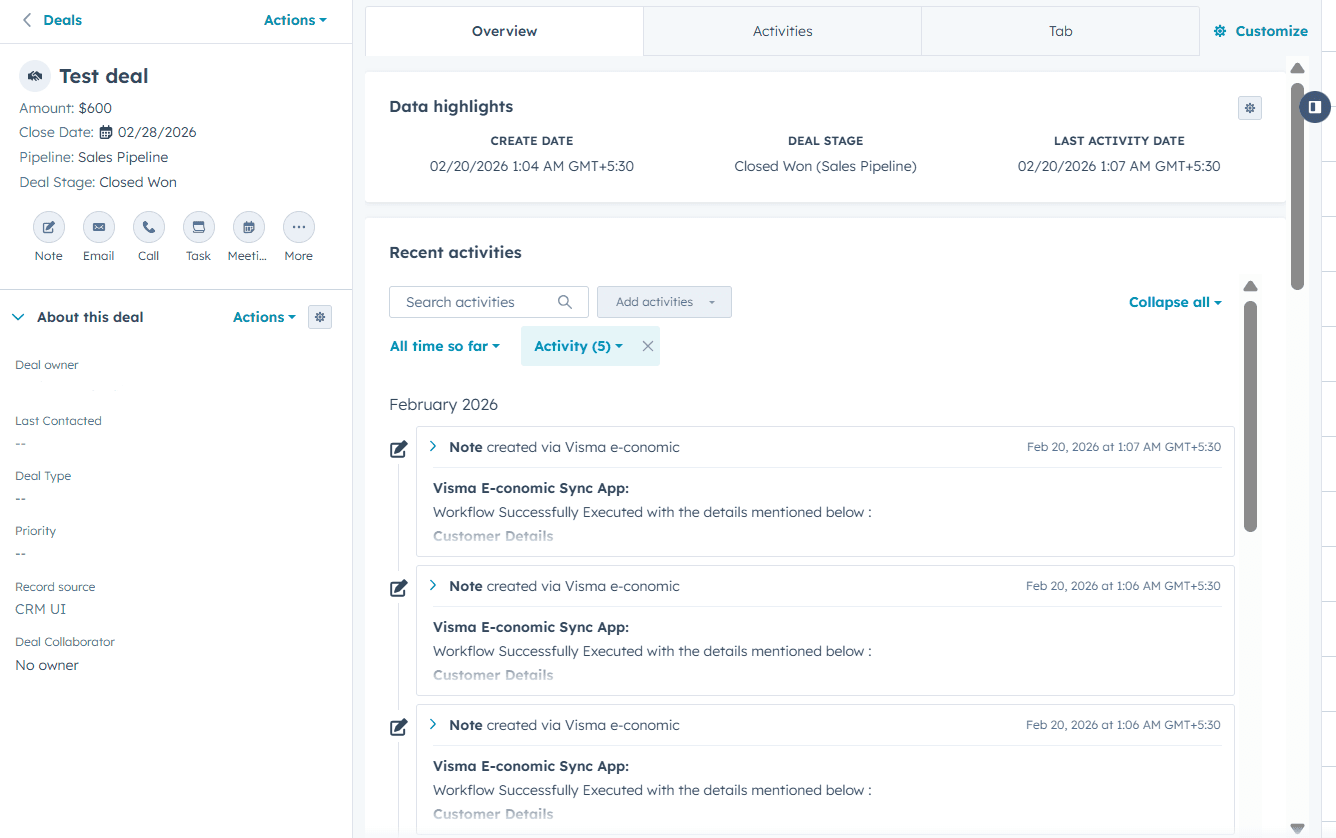
Open a Deal in HubSpot
2
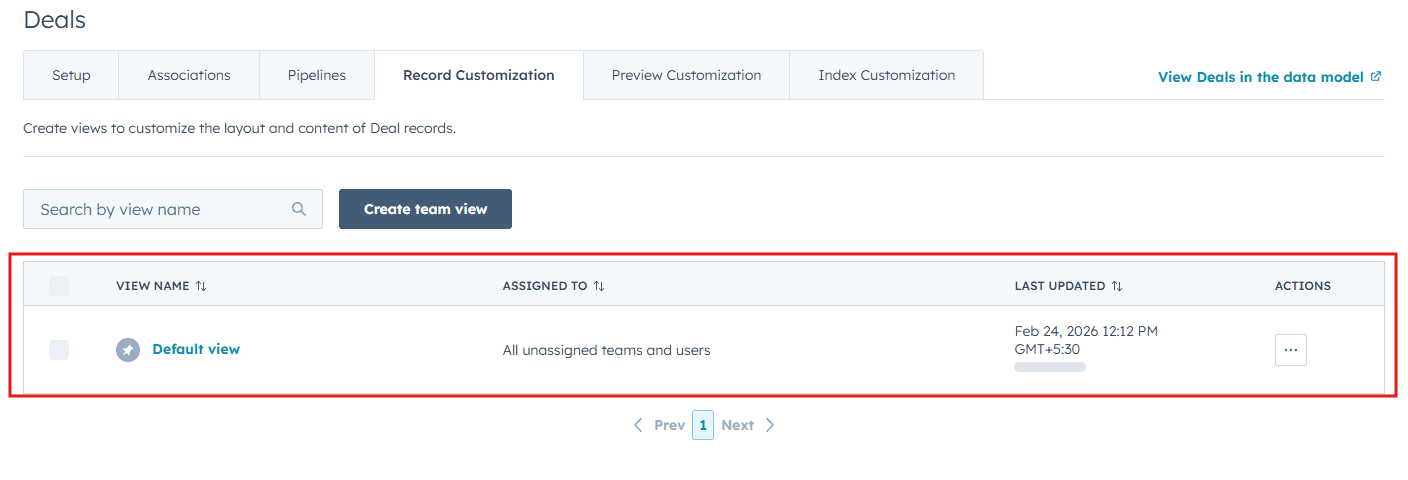
Customize the Default view
Click Customize and select Default view.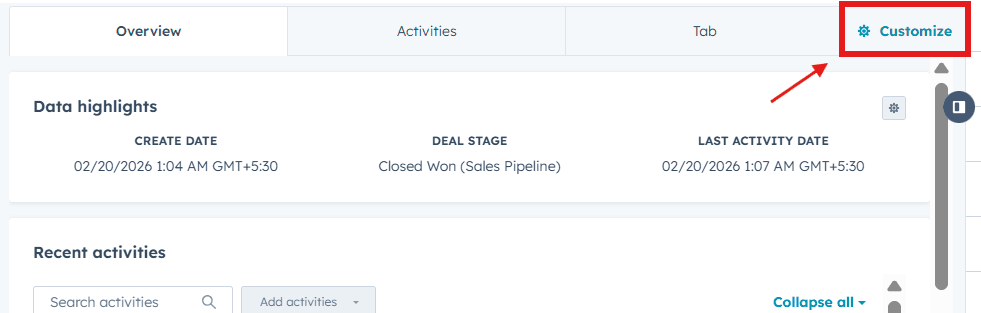
3
Add a new card
Under Edit layout, click the + icon where you want to place the card.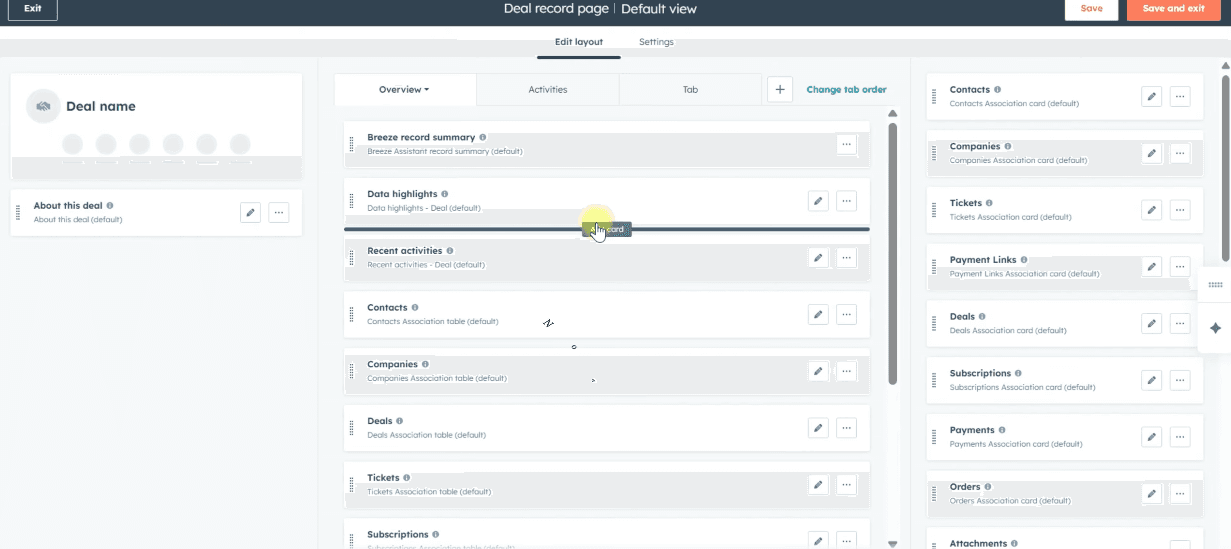
4
Search for and add the Cloudify card
Search for Visma e-conomic by Cloudify in the Card Library, then click Add card.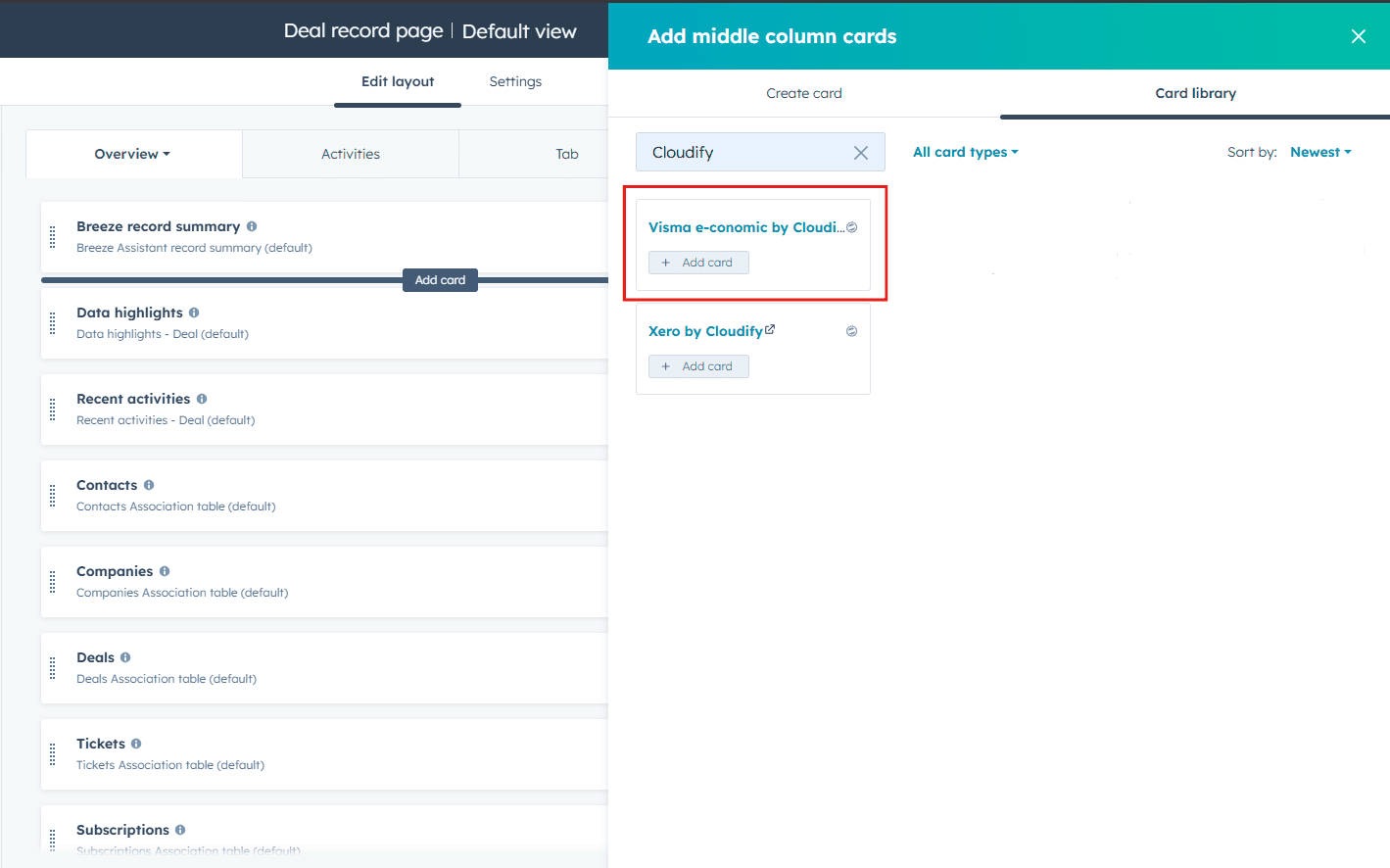
5
Save and Exit
Click Save and Exit to apply the layout changes.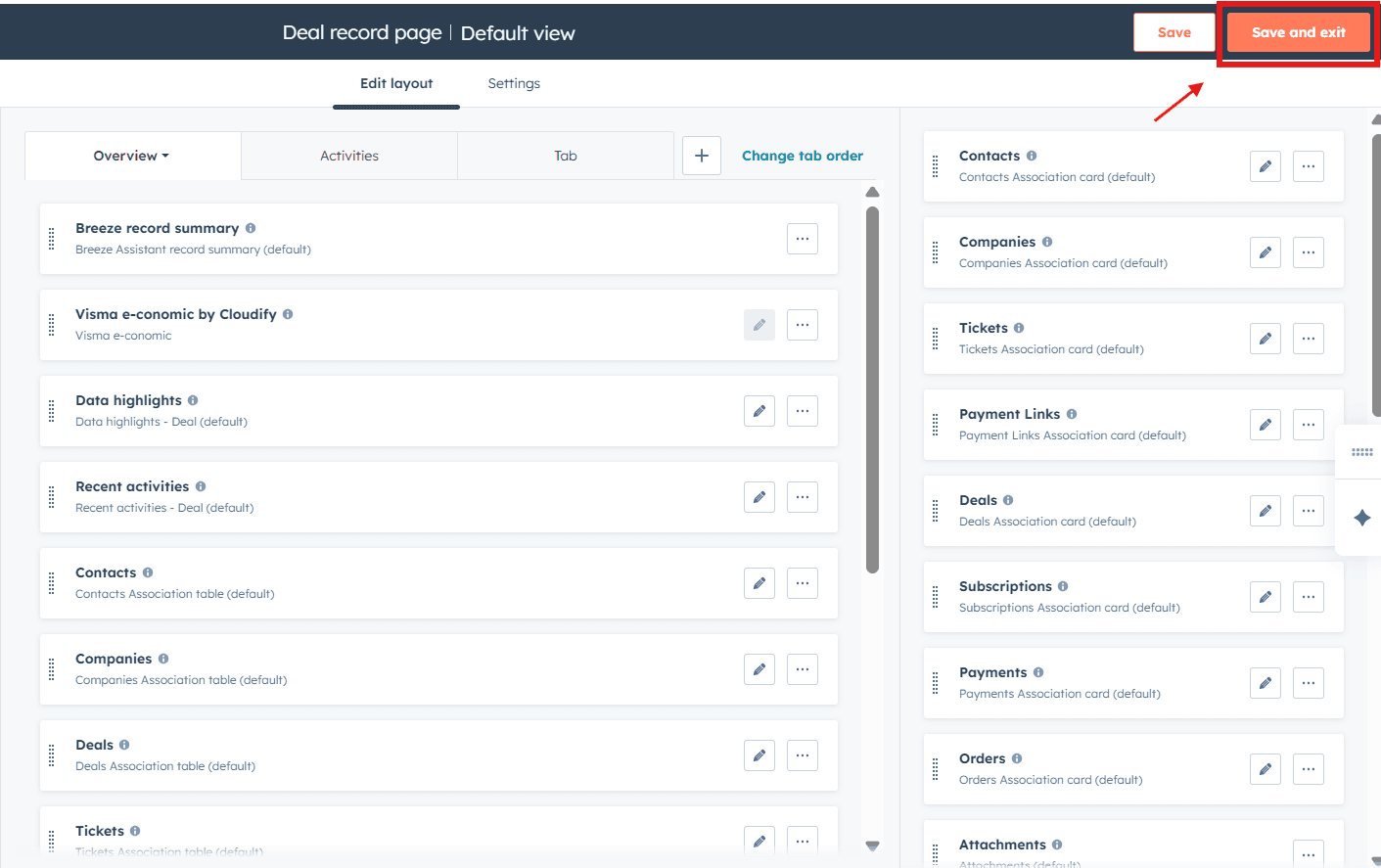
Creating an Invoice, Order, or Quote
1
Access the UI extension
Access the UI extension under the Overview tab of any Deal.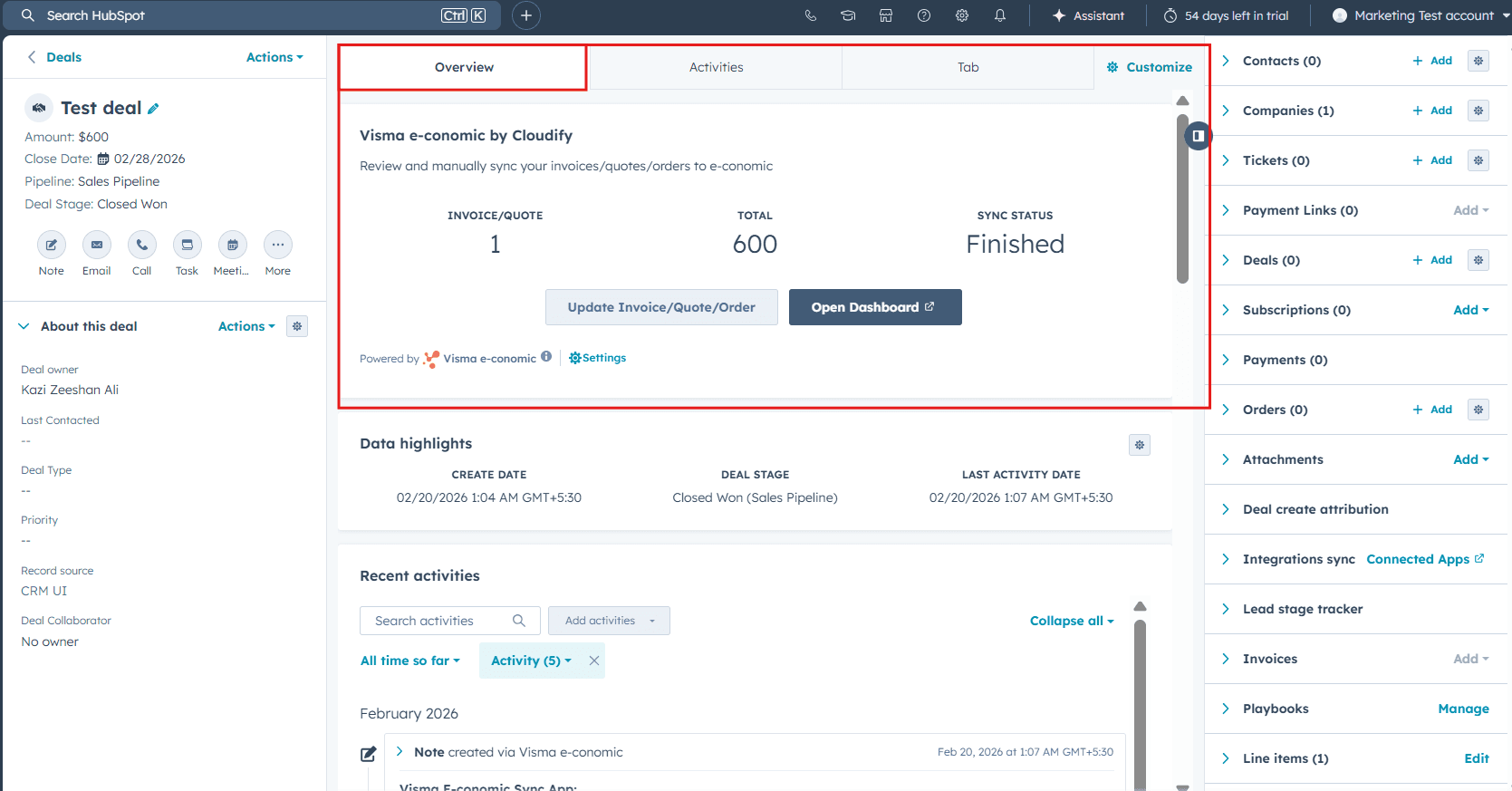
2
Create or update a record
Use Update or Create Invoice, Order or Quote to manually sync your records to e-conomic.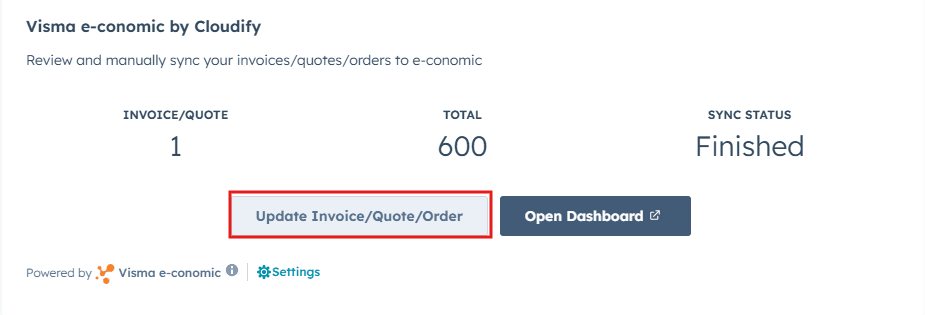
3
Finalize and sync
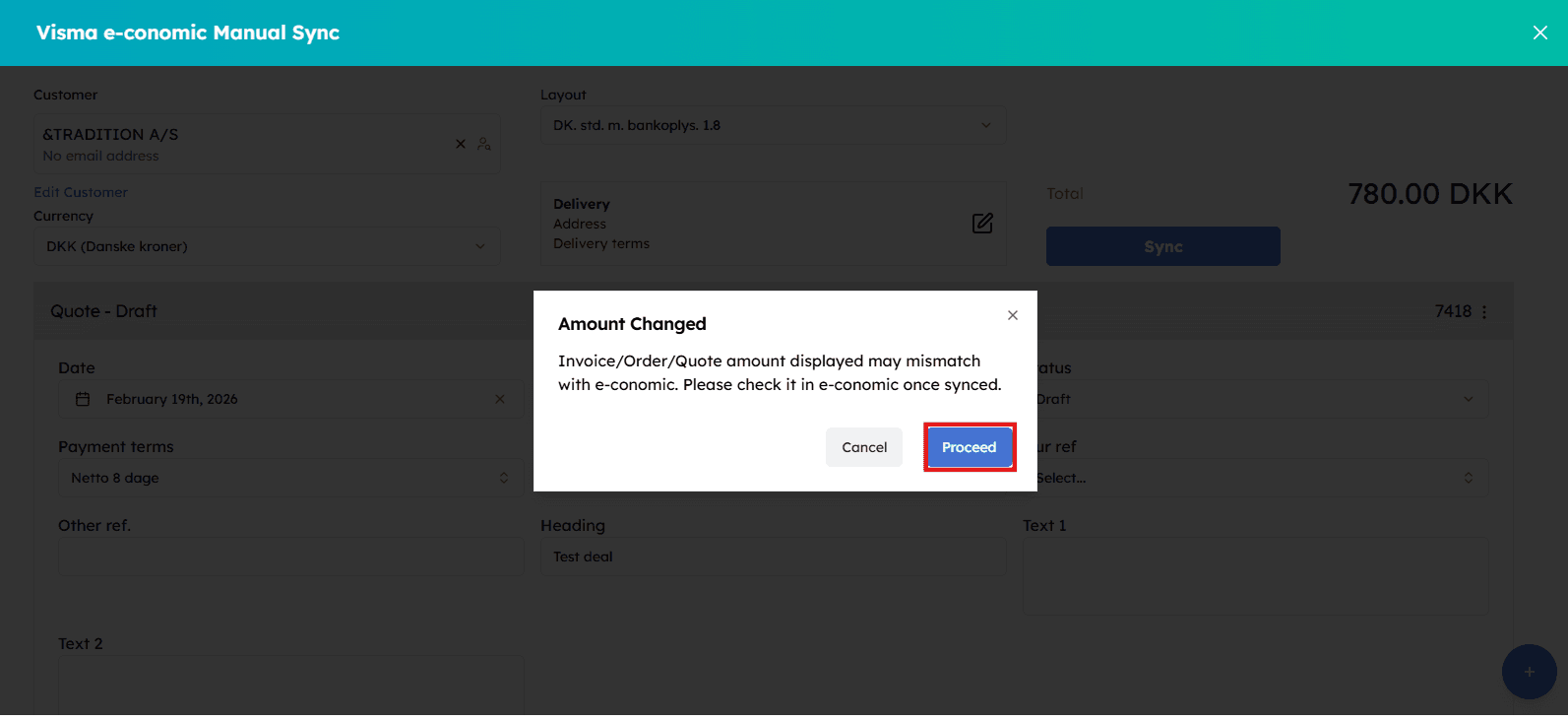
Finalize the changes, select Sync to synchronize the invoice, order, or quote, then select Proceed.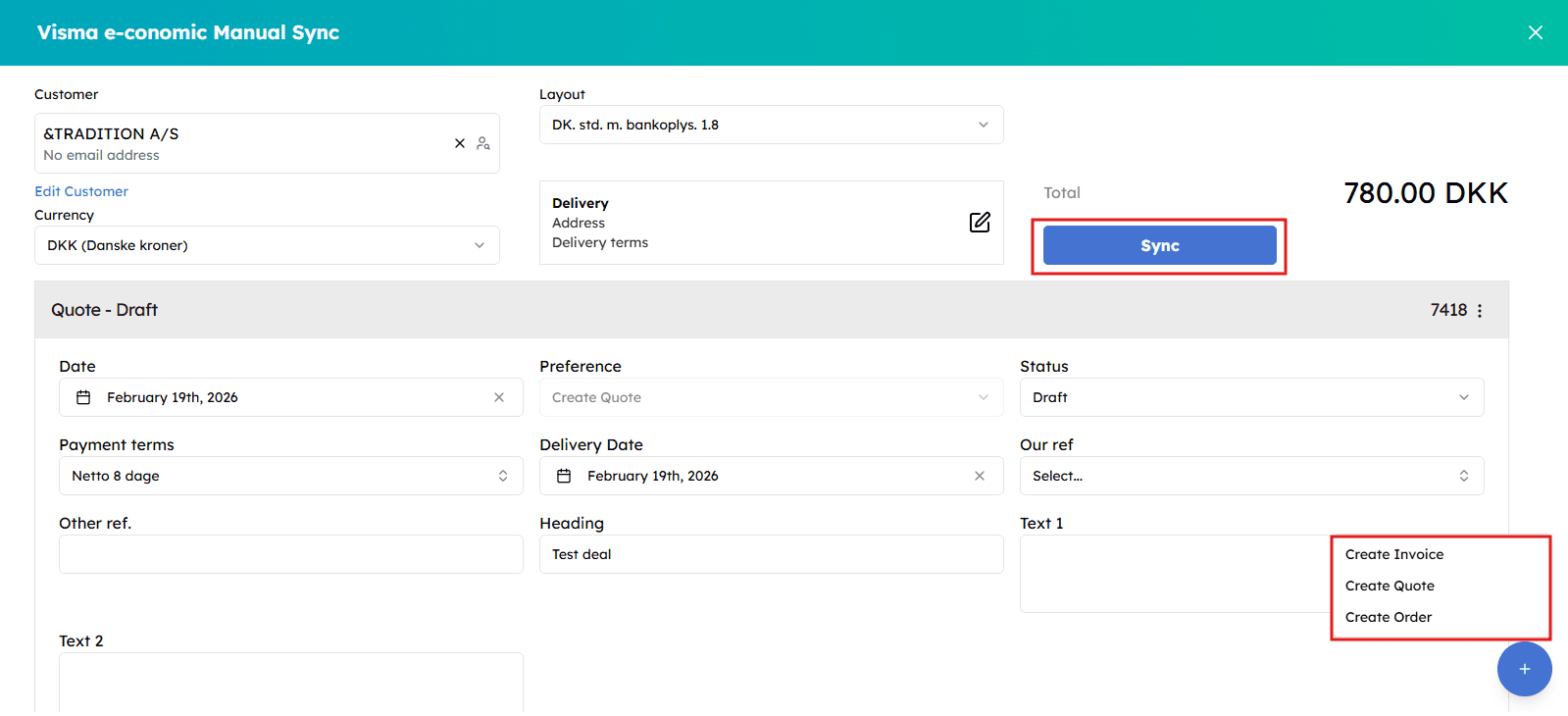
4
Confirm success
A success window will appear confirming that the sync has been triggered. Wait a few seconds and reload the page to check the updated status.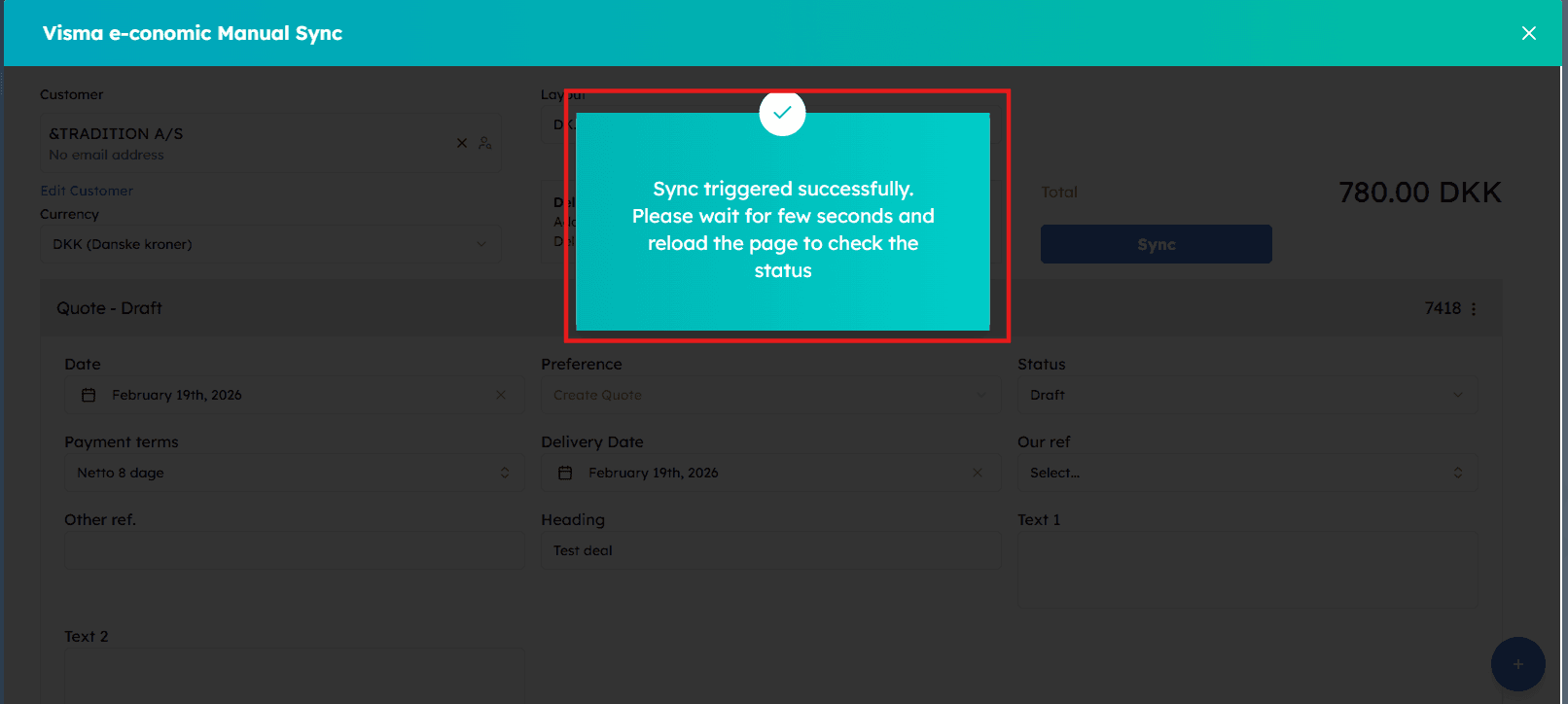
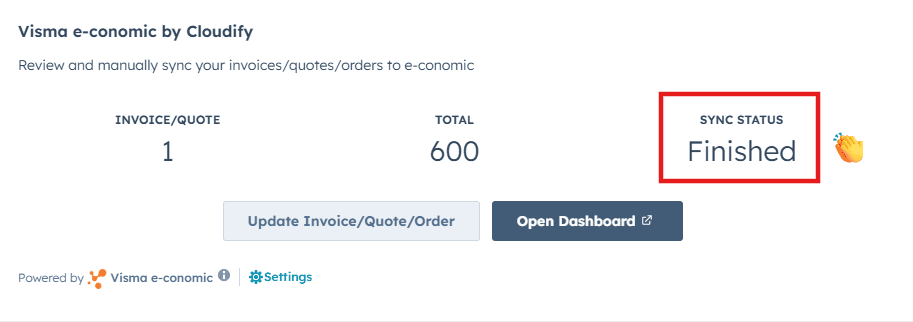 Your invoice, quote, or order has been successfully created in e-conomic!