Why Product Sync Settings Matter
Define how products from HubSpot are matched with those in e-conomic, enabling field-based matching or direct connection for accurate product syncing and invoicing.Accurate product matching
Ensure products are correctly matched between HubSpot and e-conomic every time.
Streamlined invoicing
Automatically create invoices and orders without manual product lookups.
Consistent product data
Maintain uniform product information across both platforms at all times.
Handle mismatches gracefully
Define fallback behavior for scenarios where products don’t match exactly.
Setting Up Product Sync Settings
1
Navigate to Product sync rules
Go to the Product sync rules tab in your integration settings.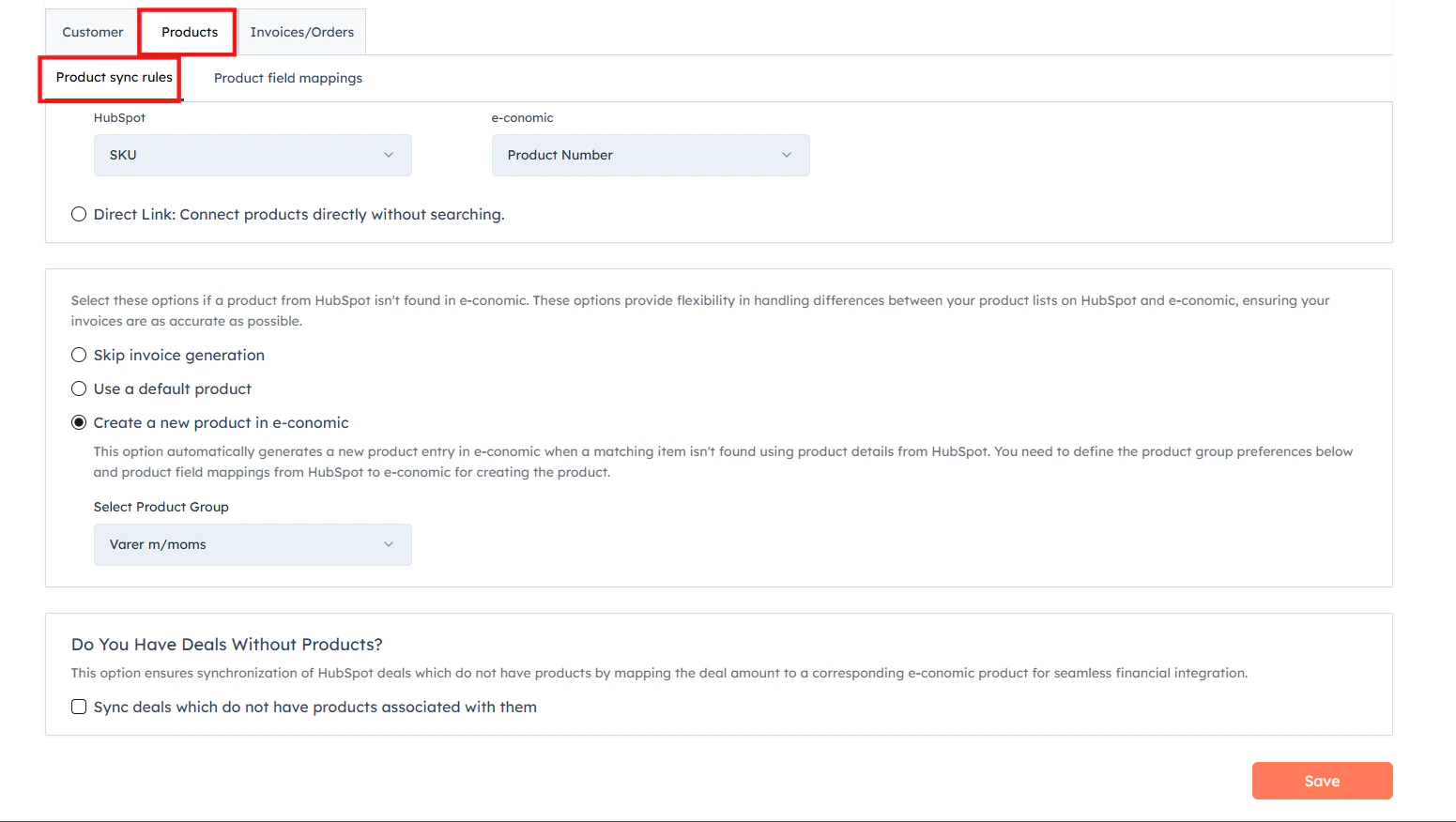
2
Searching for Products
This method is best when you have a large number of products and want to automatically match them based on a unique identifier.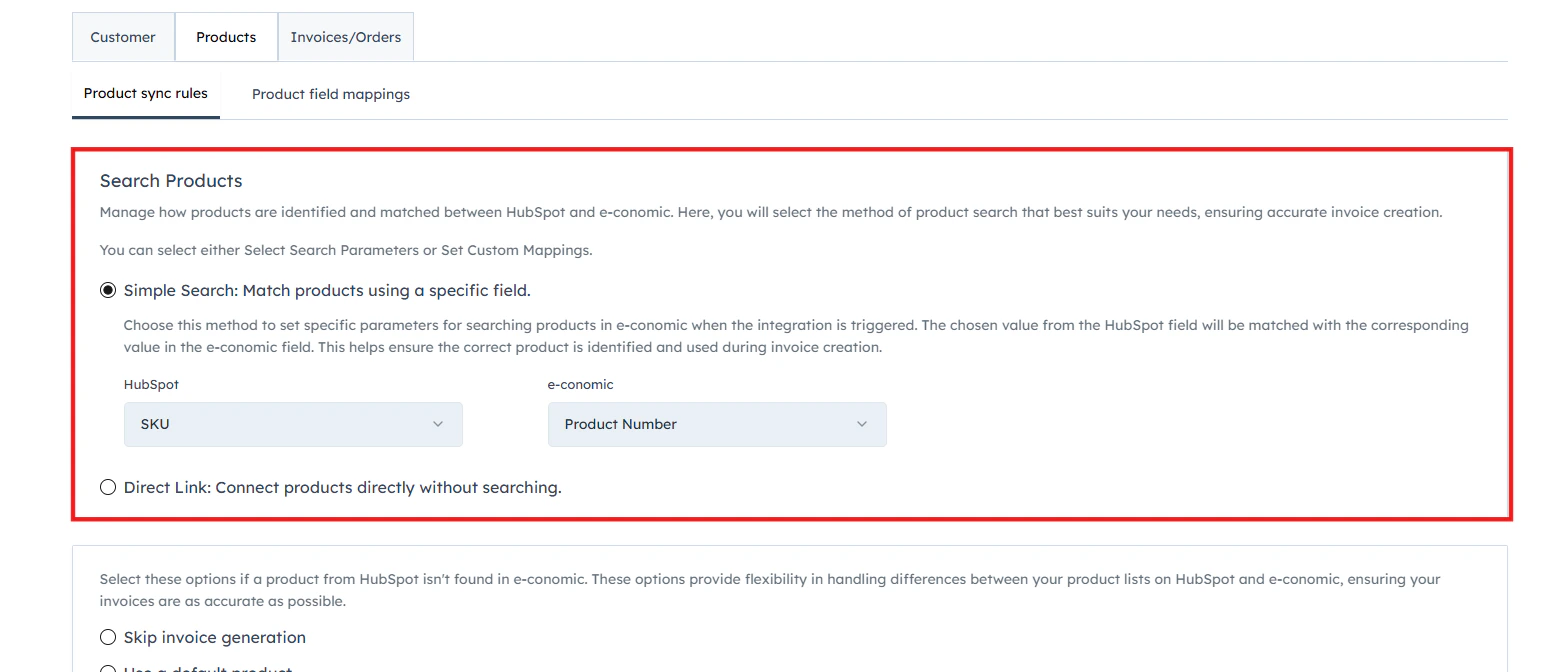
- Go to the Product sync rules tab.
- Select Select search parameters.
- Choose a HubSpot field (e.g., SKU) and match it with an e-conomic field (e.g., Product Number).
- When creating an invoice or order, the integration will use this identifier to find the correct product in e-conomic.
Example: If you set SKU (HubSpot) to match with Product Number (e-conomic), a product with SKU
ABC123 in HubSpot will be matched with a product that has Product Number ABC123 in e-conomic.3
Handling Products Not Found in e-conomic
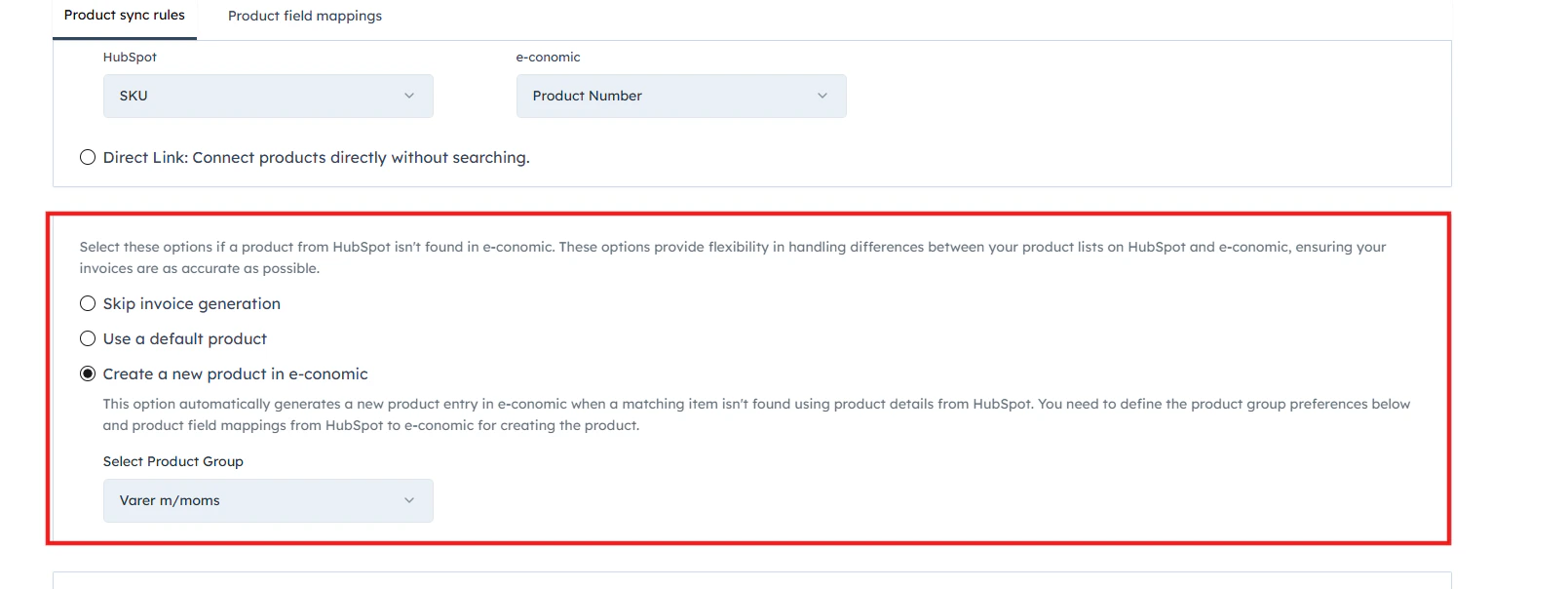
Scroll down in the Product sync rules tab and choose one of the three fallback options:
Do not generate invoice
Do not generate invoice
If no matching product is found in e-conomic, the invoice will not be generated.
Use a default product
Use a default product
When a product is not found, the integration will fall back to a default product from e-conomic to generate the invoice.
Create a new product
Create a new product
The integration will automatically create a new product entry in e-conomic using product details from HubSpot.
4
Deals Without Line Items
At the bottom of the Product sync rules tab, find the Deal Syncing When Products Are Unavailable section.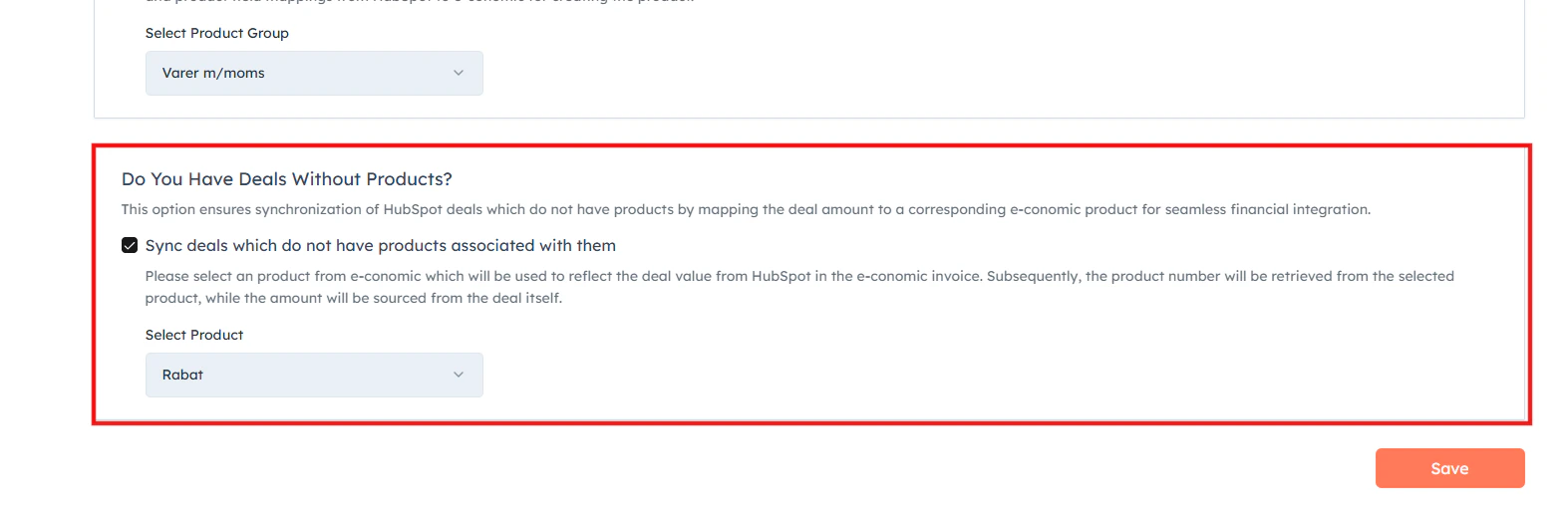
- Check the box to Sync the deals which do not have products associated with them.
- Select a default product from e-conomic to use in these cases.
5
Click "Save" to apply your preferred mappings
Product Field Mappings
Why Product Field Mappings Matter
- Ensure data consistency — align product information between HubSpot and e-conomic.
- Customize for your needs — tailor the product data transfer to fit your specific requirements.
- Maintain data accuracy — ensure essential product information is correctly represented in e-conomic for proper accounting.
Setting Up Product Field Mappings
1
Navigate to Product field mappings
Go to the Product field mappings tab in your integration settings.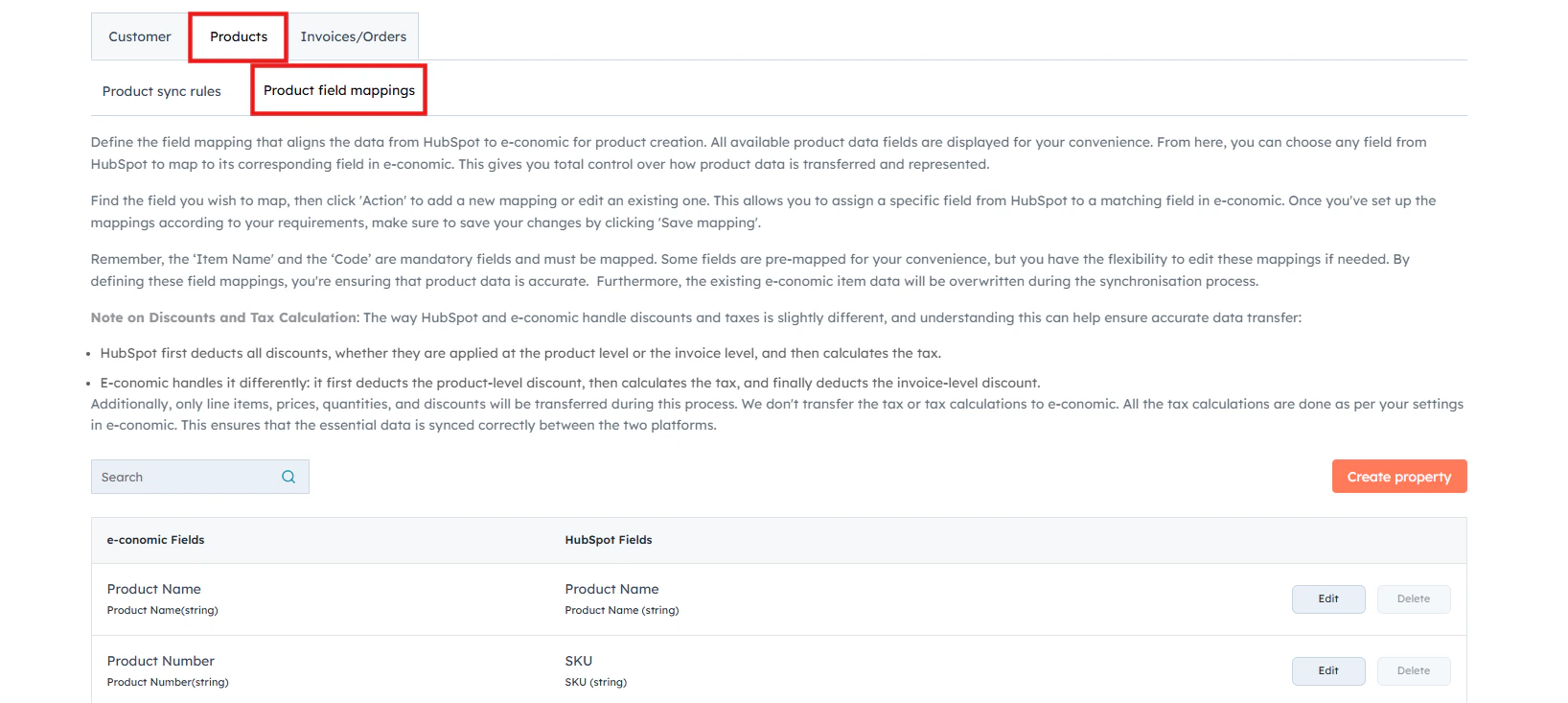
2
Review and edit existing mappings
For each e-conomic field, the default HubSpot field will be shown (if applicable). Click Edit to change the mapping or Delete to remove it.
3
Prioritize required fields
Pay special attention to these required fields:
- Name (default mapped to Name in HubSpot)
- Product Number (typically mapped to SKU in HubSpot)
- Product Group
4
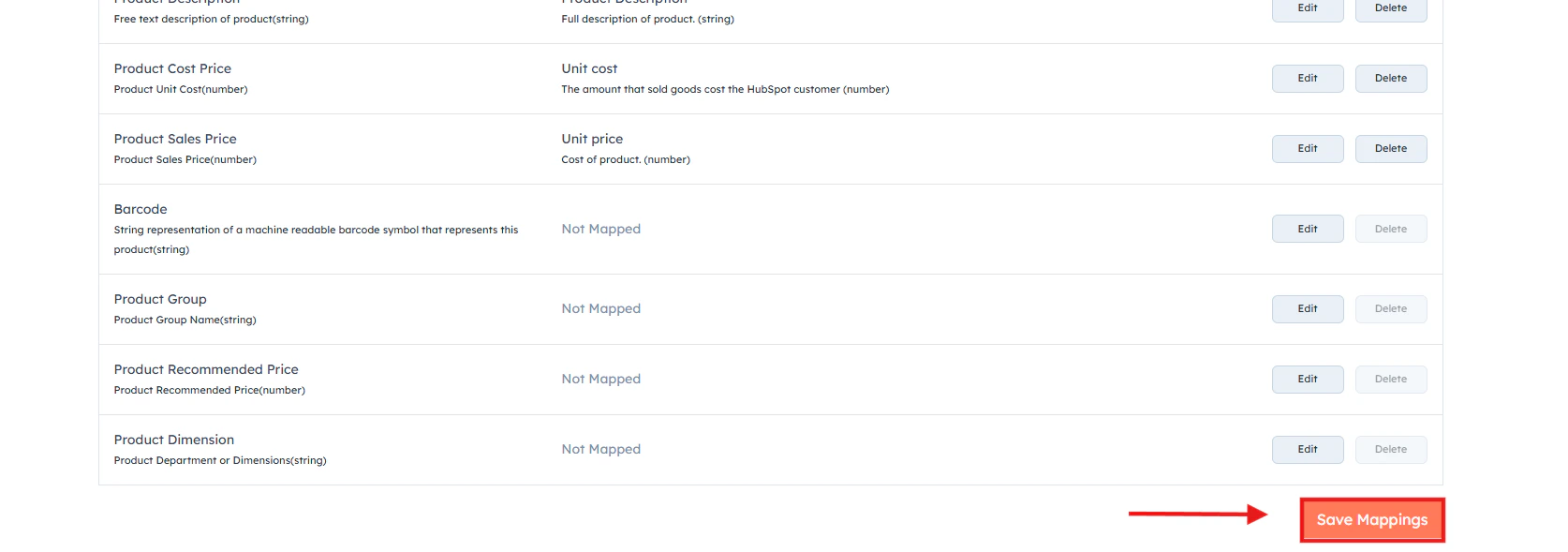
Save your mappings
After setting your preferred mappings, click Save Mappings to apply your changes.