Installation process
1
Log in to your HubSpot account and search for the ‘Visma e-conomic’ app in HubSpot Marketplace. If you have already logged in to your Hubspot account, visit the application link directly.
2
Click Install app.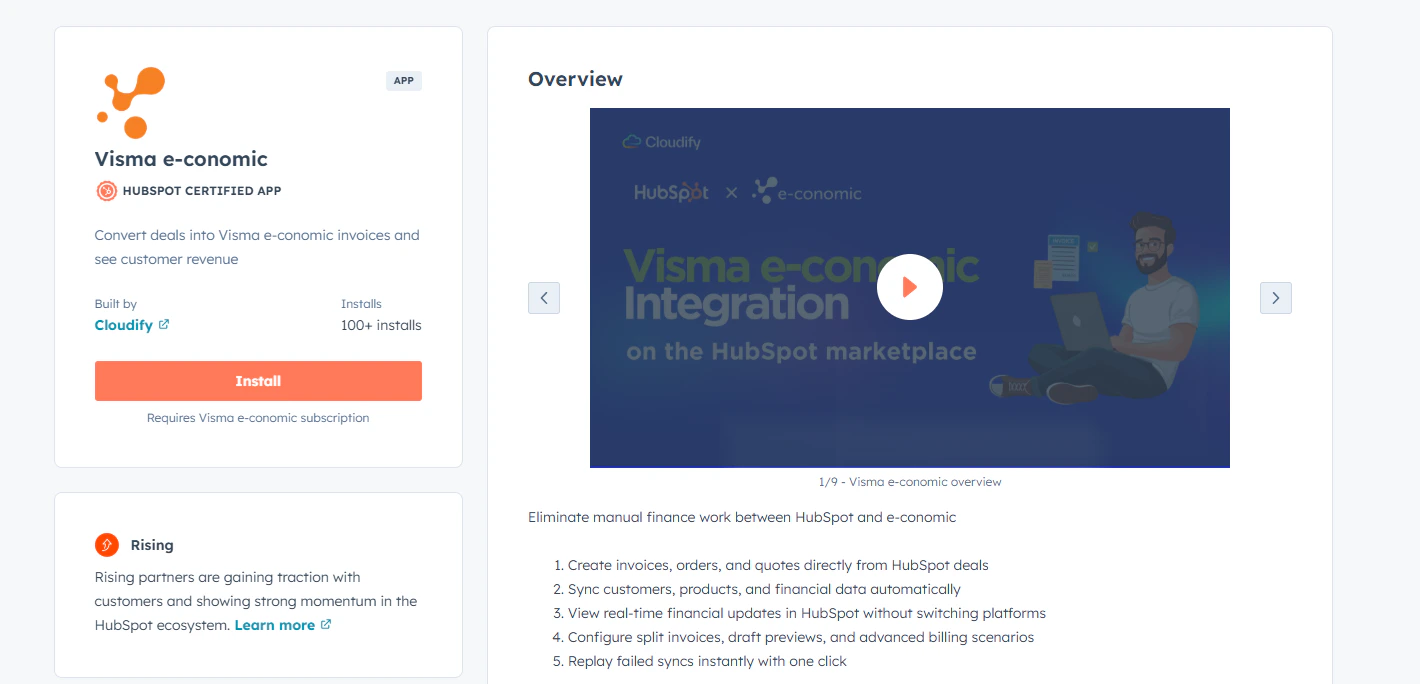
3
Select the account you want to use to install the e-conomic app and click ‘Choose account’.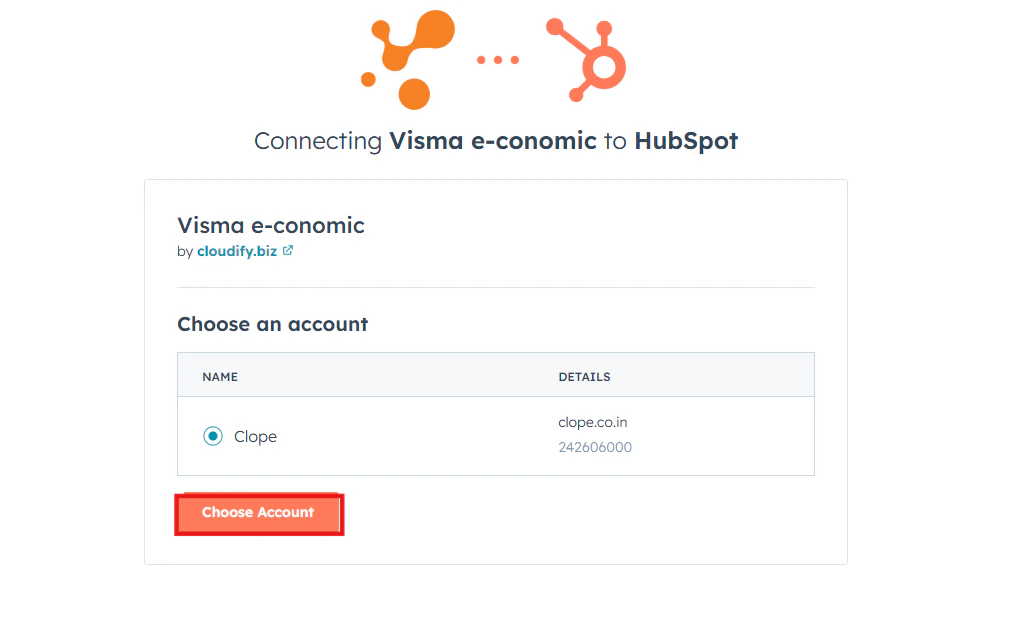
4
Mark the tick option and click “Connect App”.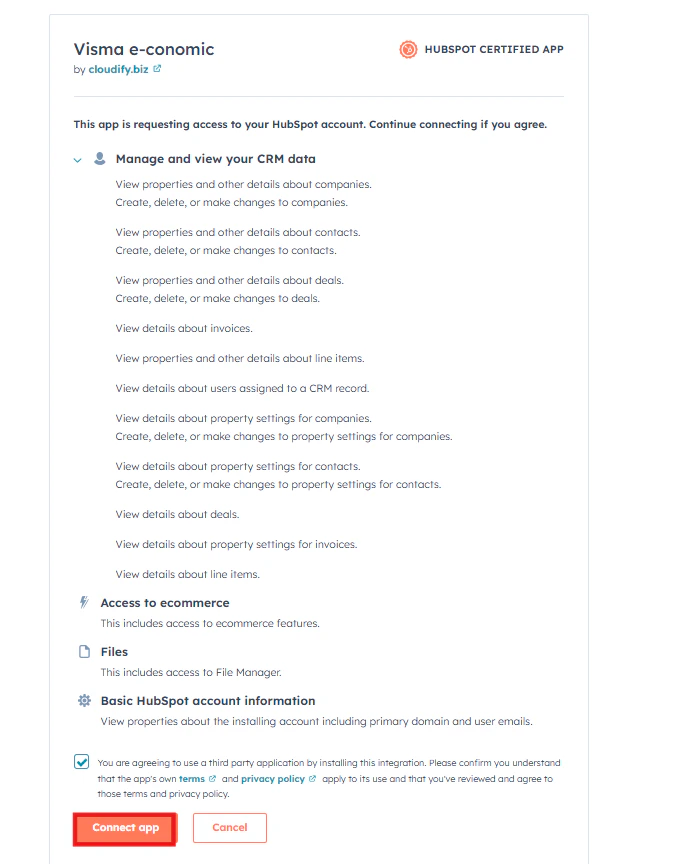
5
Click on “Let’s get started”.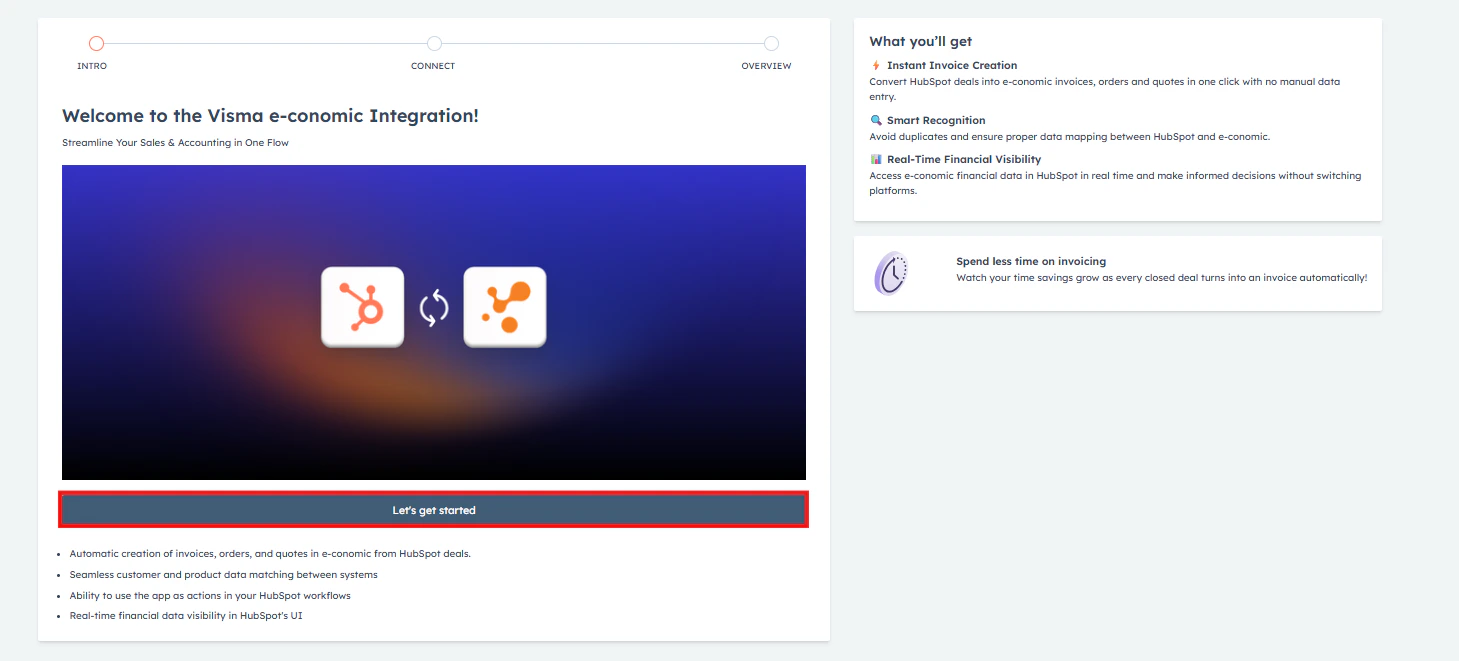
Connecting Visma e-conomic account
1
Click on “Connect” to connect your e-conomic account.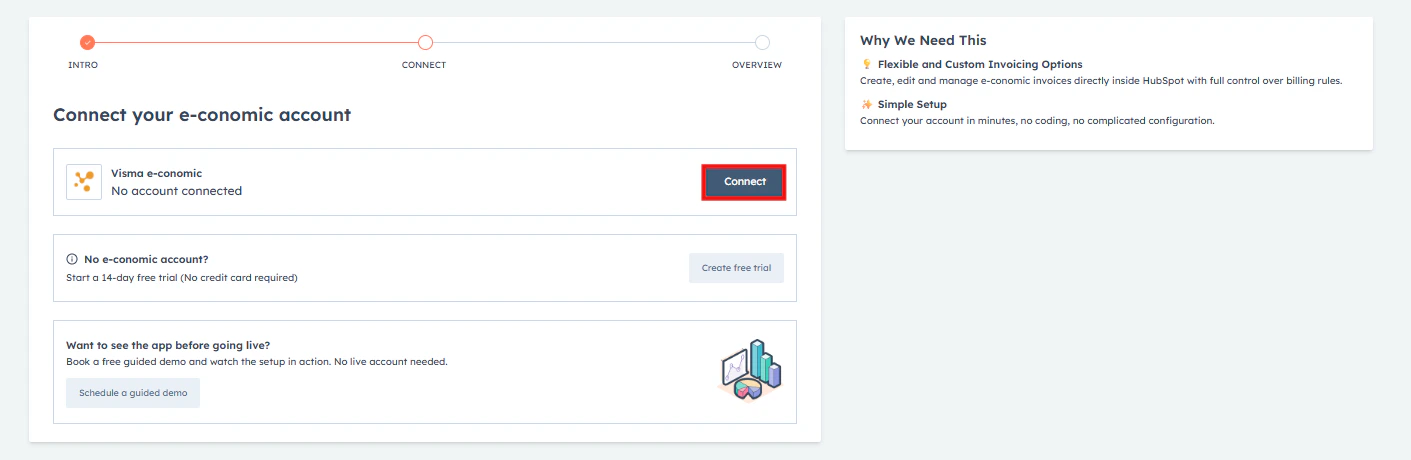
2
You will be asked to input your e-conomic credentials. First, fill in the email ID connected to your e-conomic account. Click “Next”.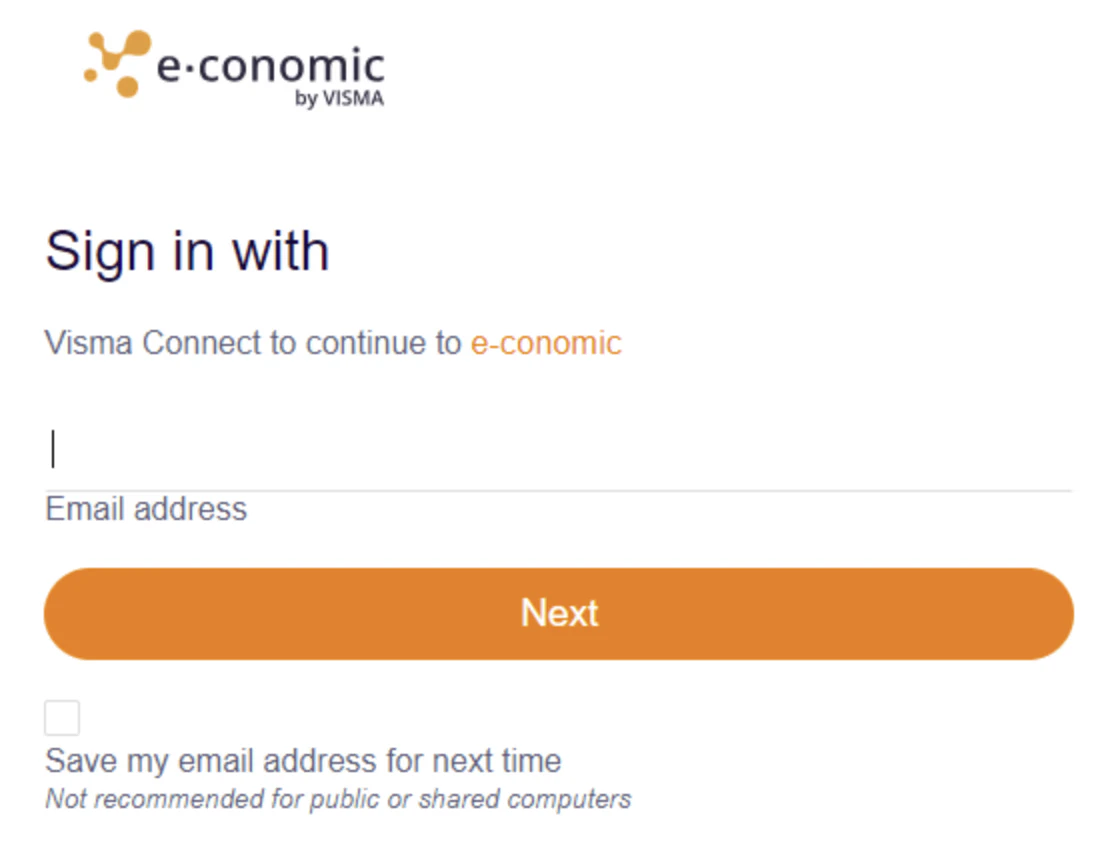
3
Input the password and click “Sign In”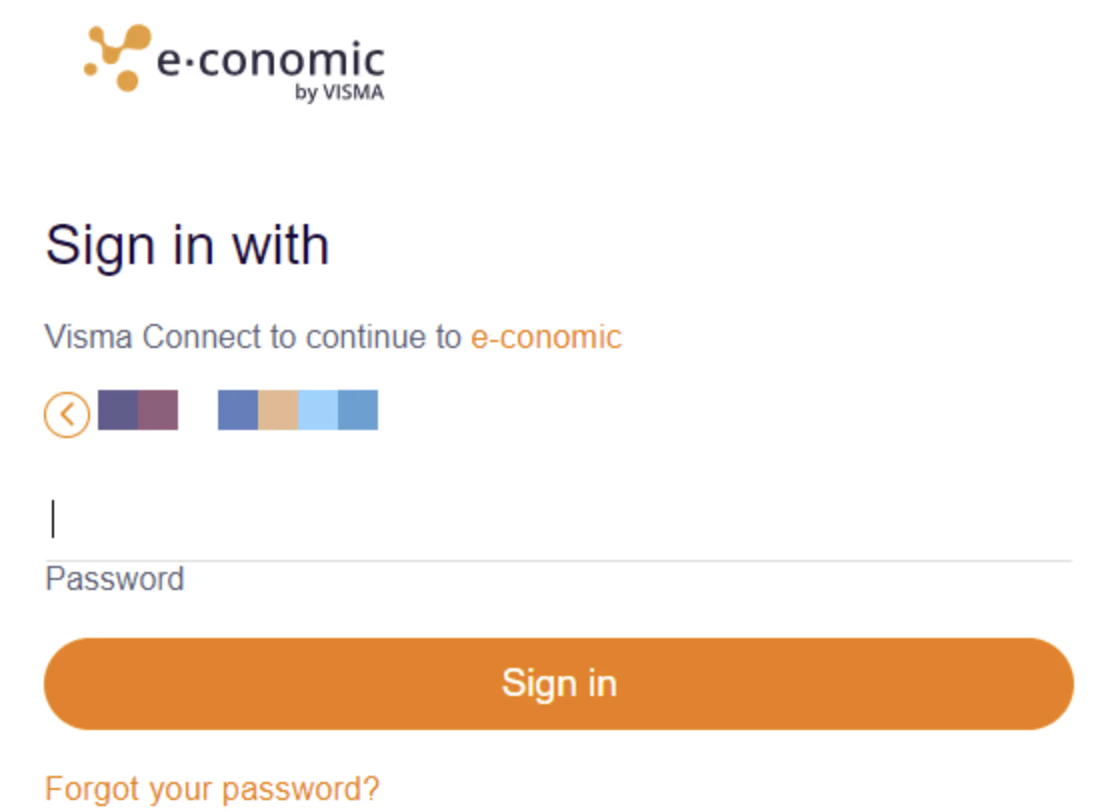
4
Permission will be asked from you to add the app to your agreement. Click “Add App”.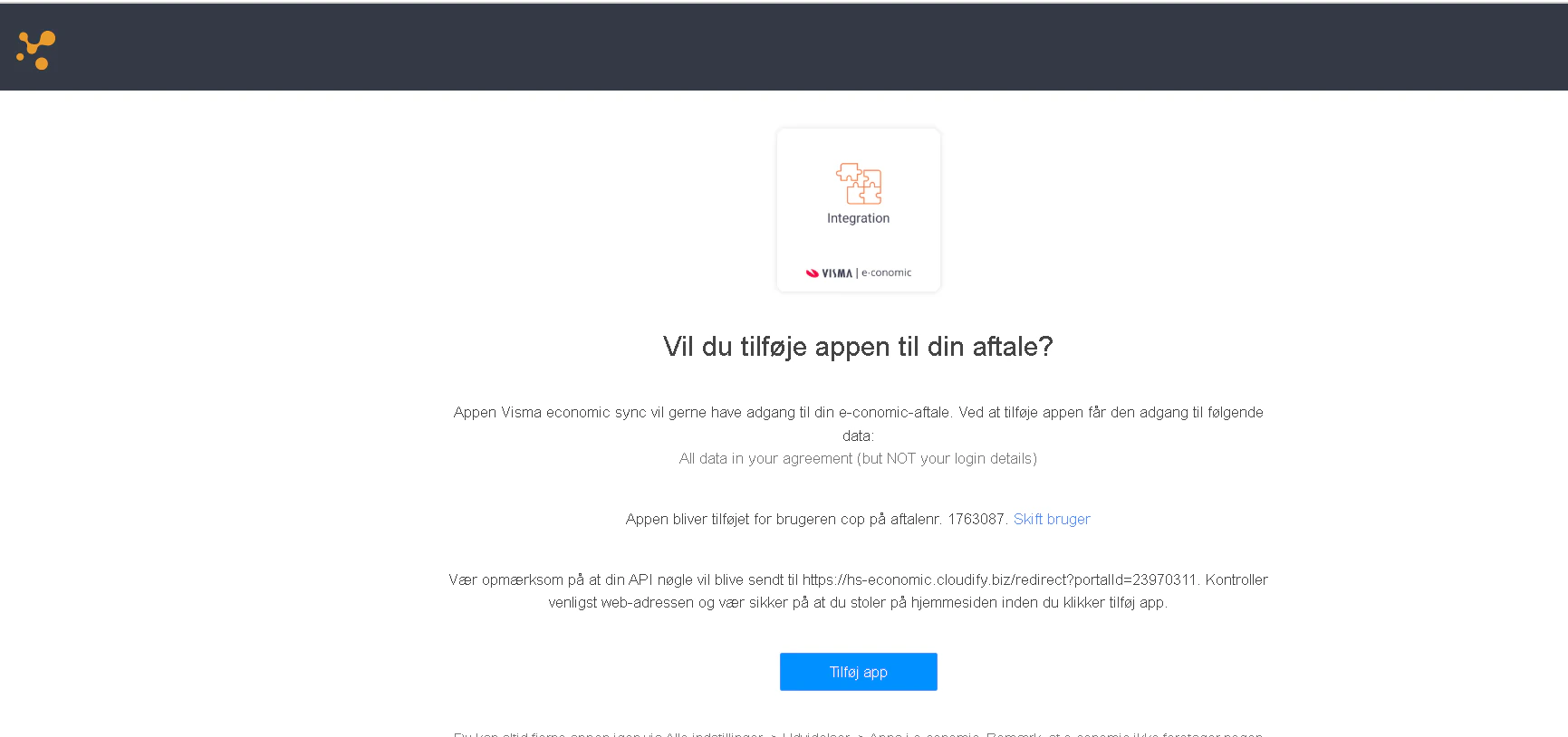
5
Once you have connected your e-conomic account, you will be automatically redirected to the final step.
6
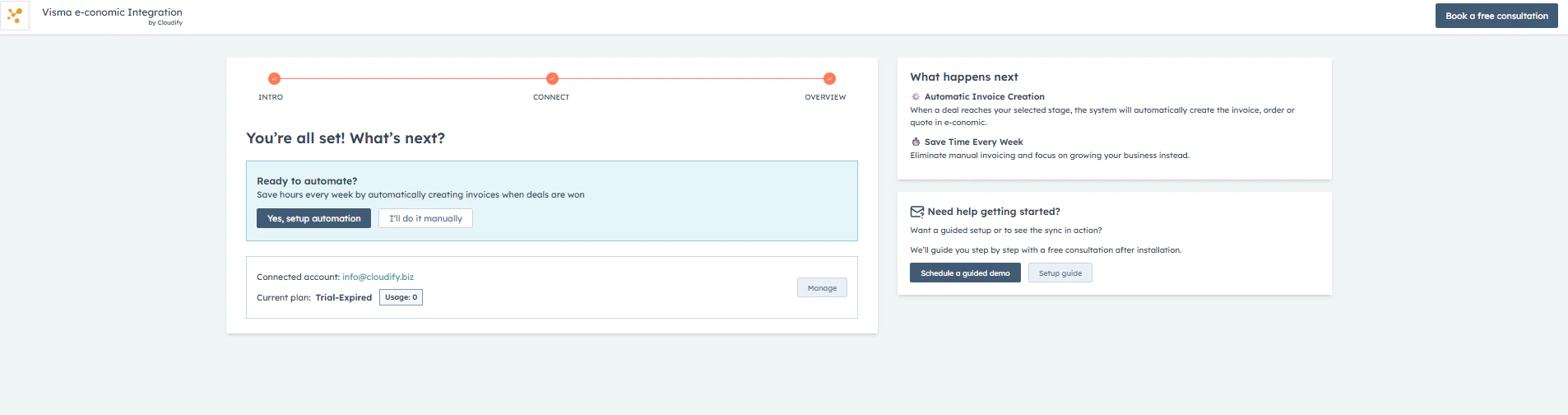
Click on “Yes, setup automation” or “I’ll do it manually” to proceed. Choose the option that best fits your workflow.