
Manual Sync via the Dashboard
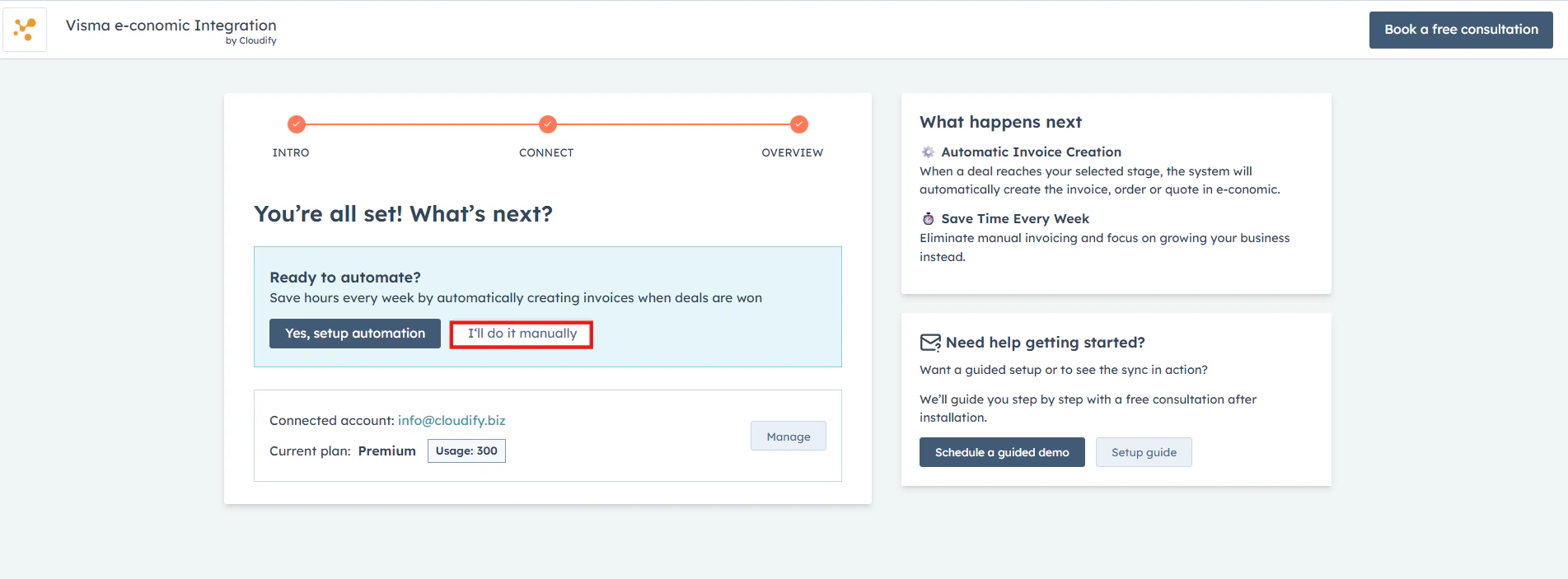
Once you click Dashboard, follow these steps to complete a manual sync: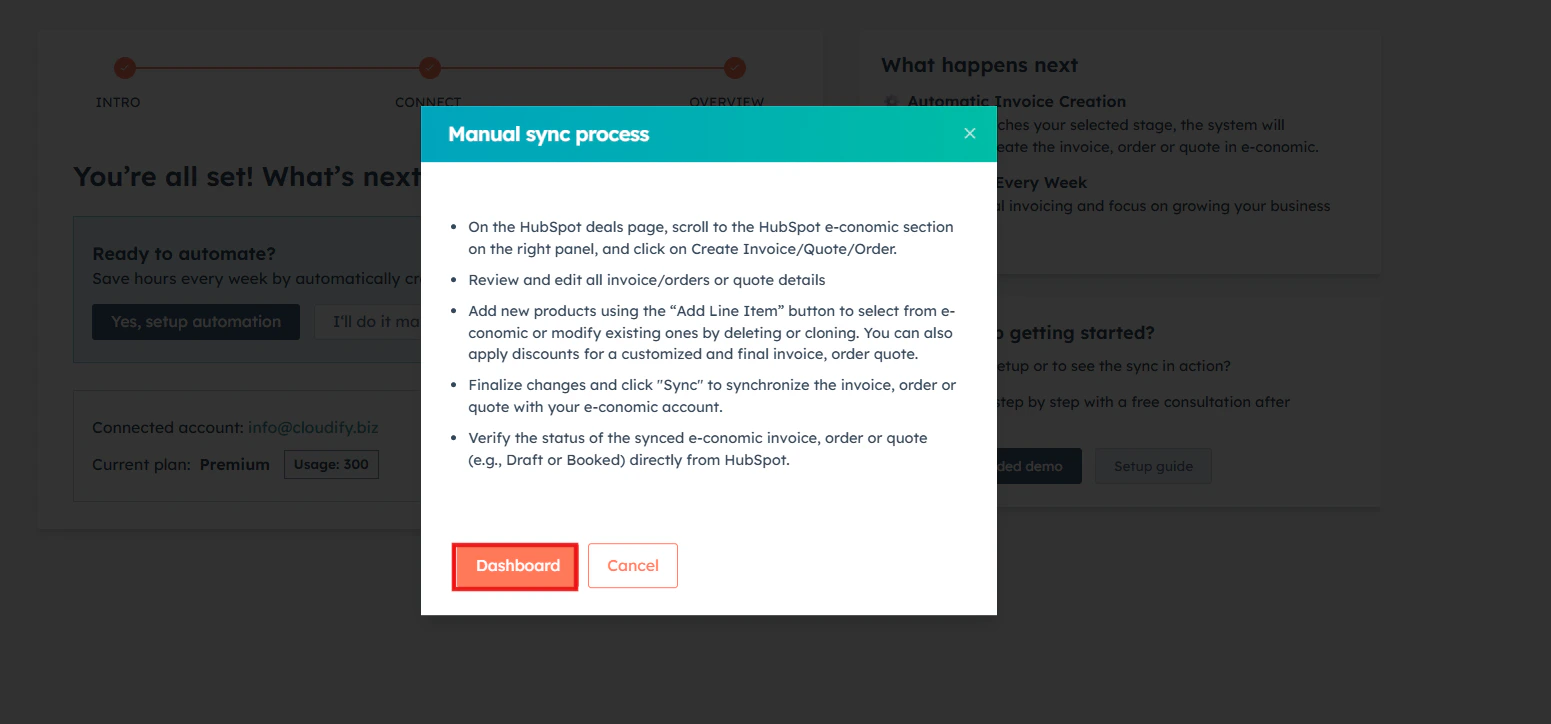

1
Access the invoice
Go to any invoice on the dashboard you wish to update and click Review and Sync. The manual sync window will immediately appear on your screen.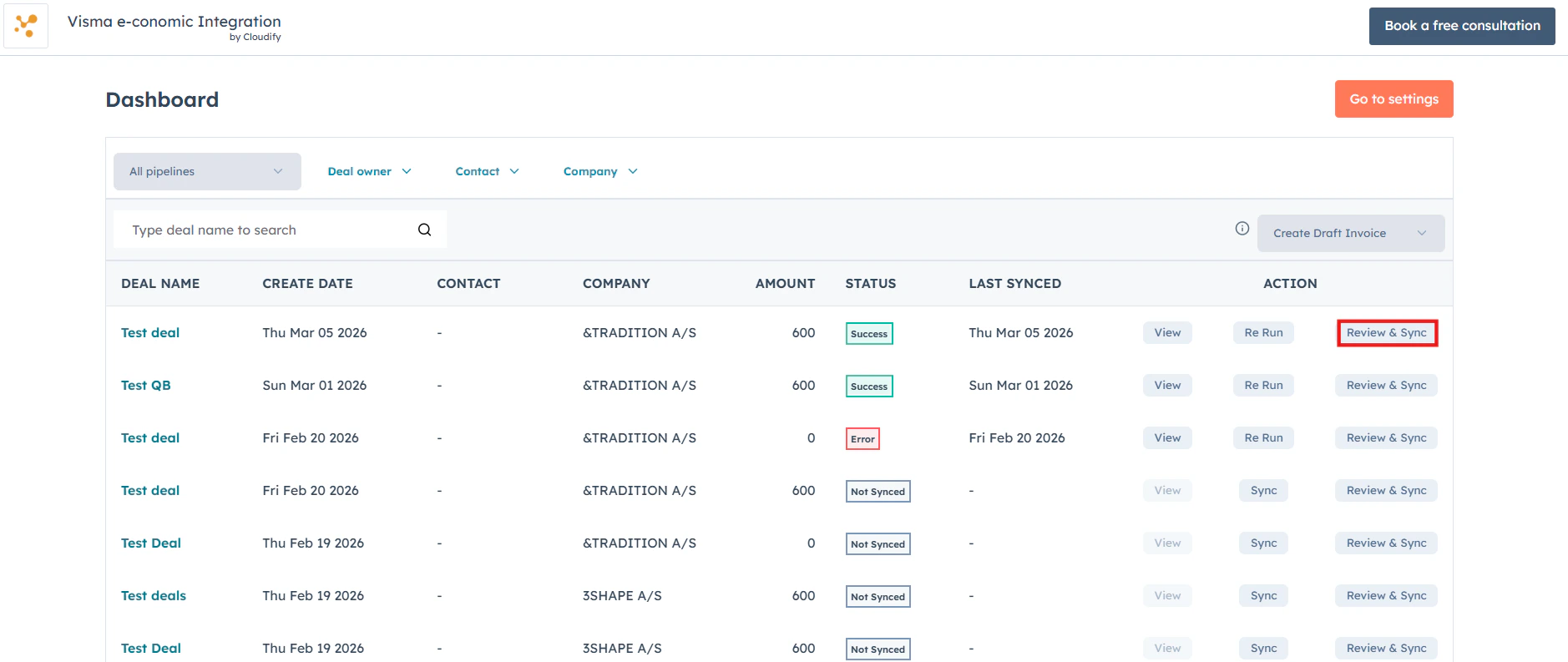

2
Enter basic details
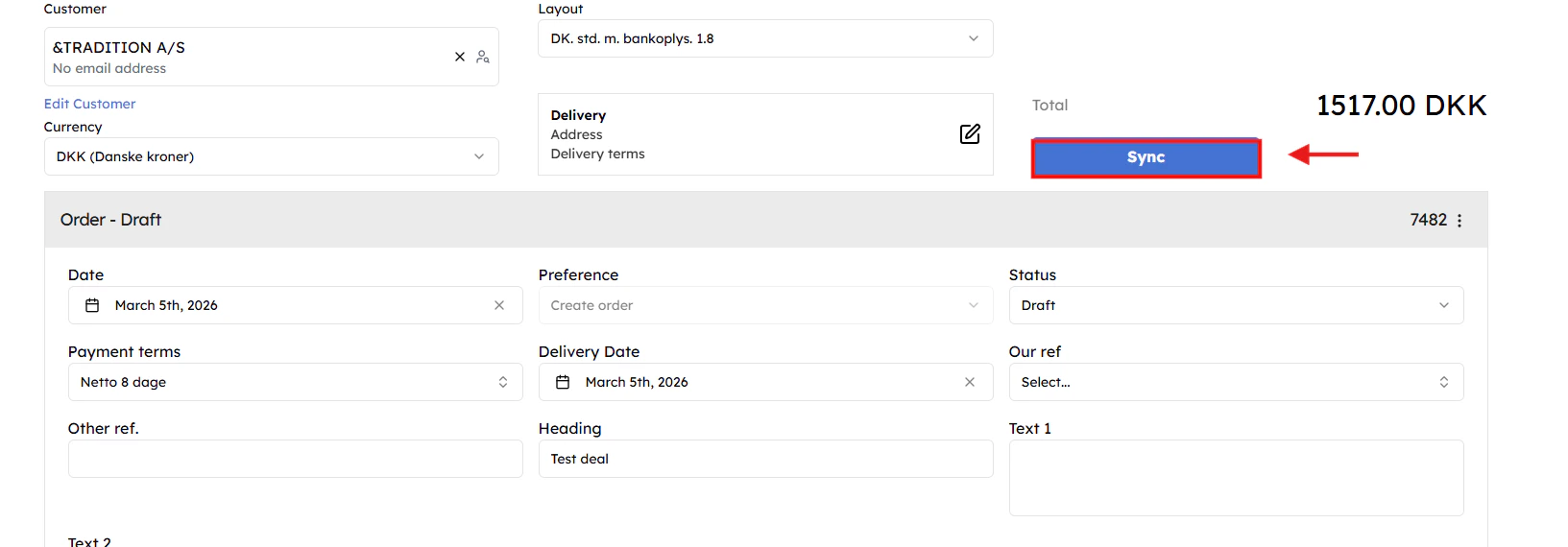
Ensure customer, currency, layout, and delivery details are correctly selected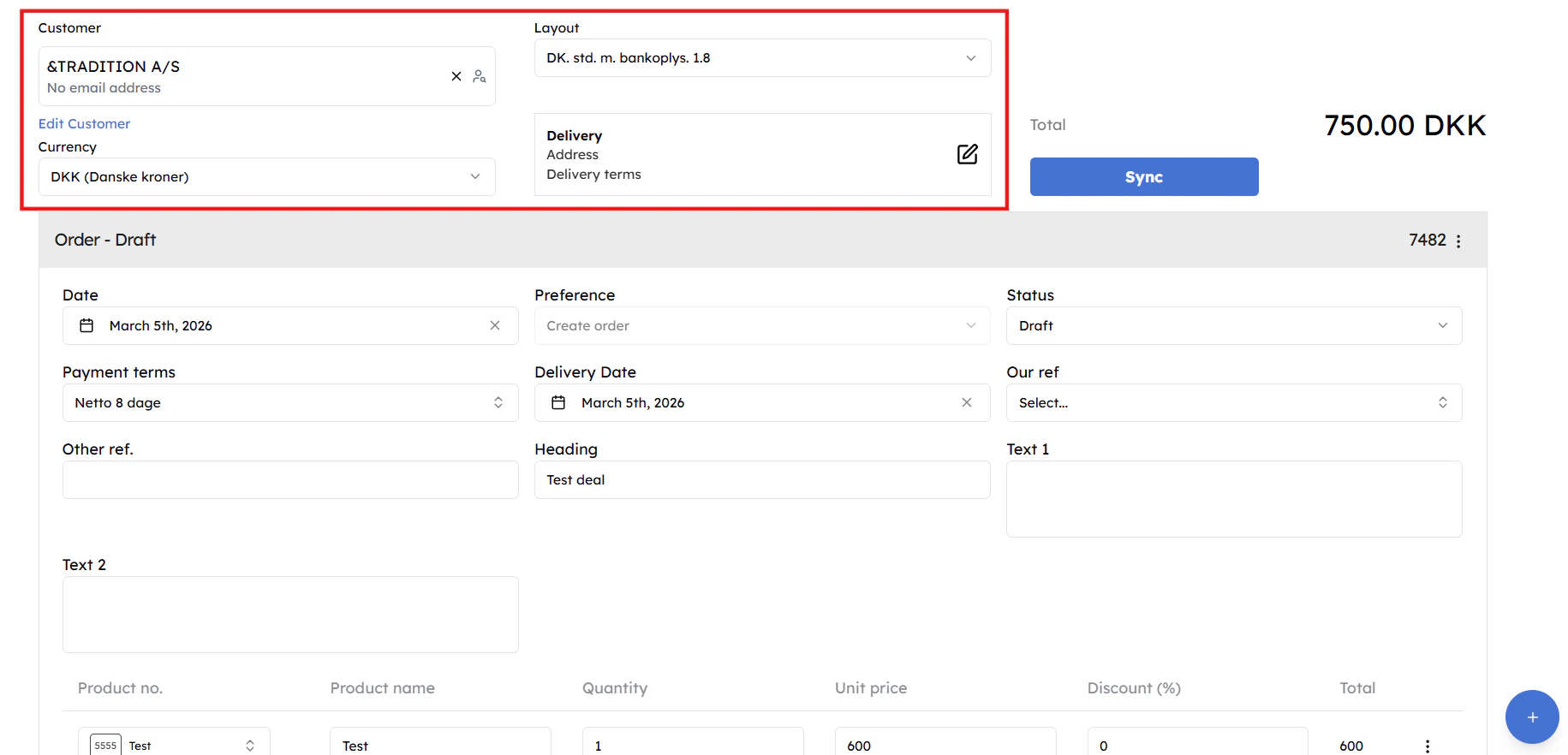

3
Complete Details
Review and update date, payment terms, delivery info, references, and line items, then choose the appropriate action (Invoice, Quote, or Order) to proceed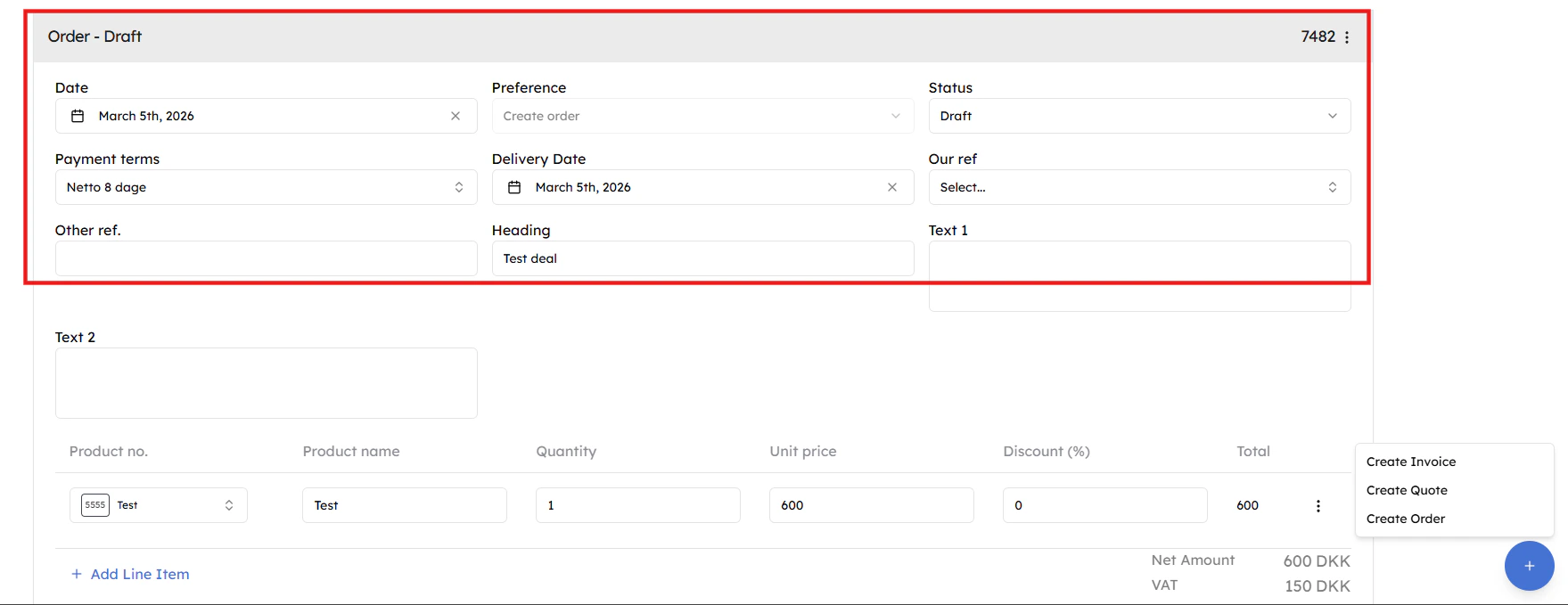
4
Add products
Add new products using the “Add Line Item” button to select from e-conomic or modify existing ones by deleting or cloning. You can also apply discounts for a customized and final invoice, order quote.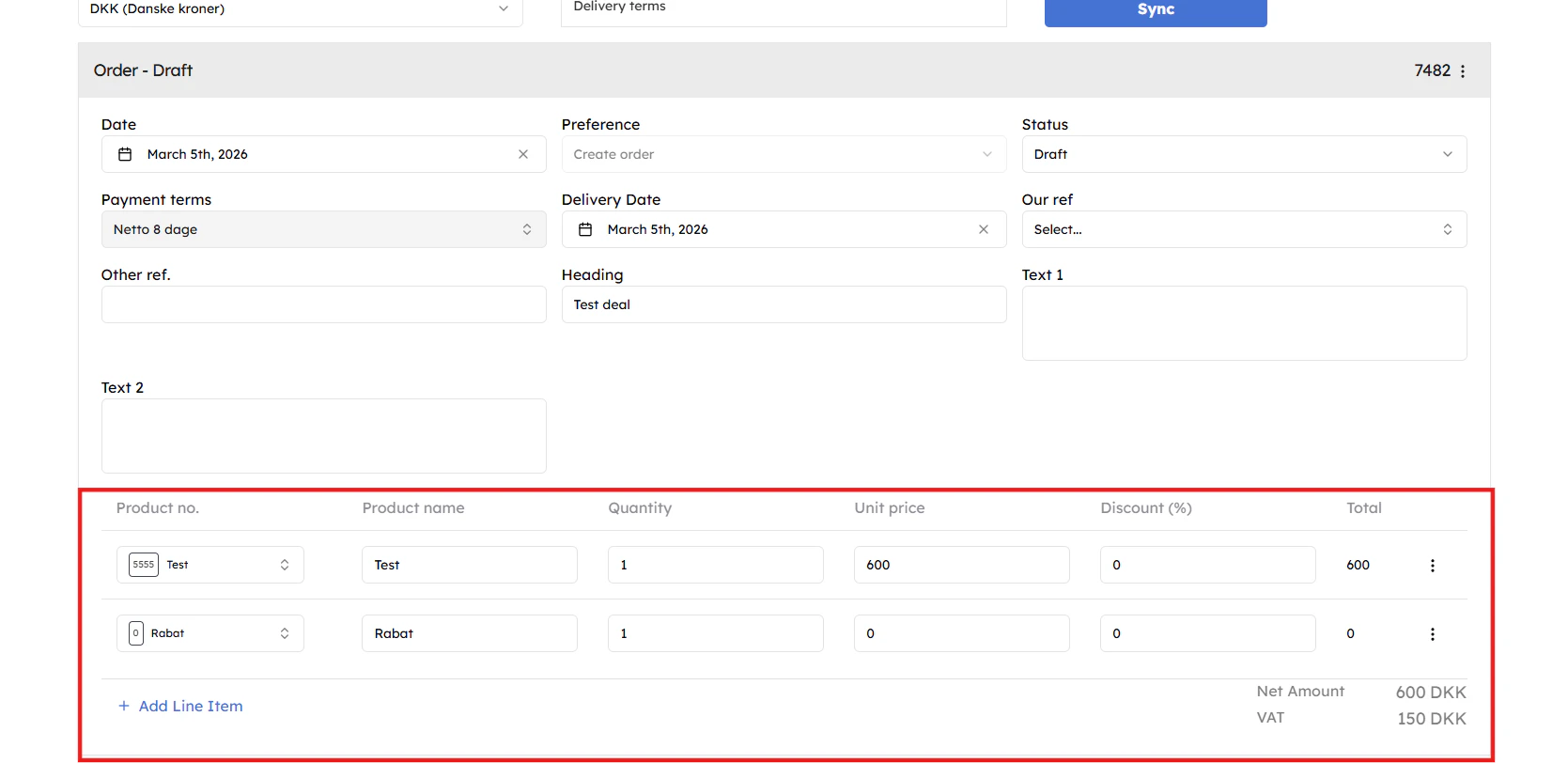

5
Adjust the invoice (Optional)
Click the three-dots menu to Split your invoice by percentage or Duplicate it.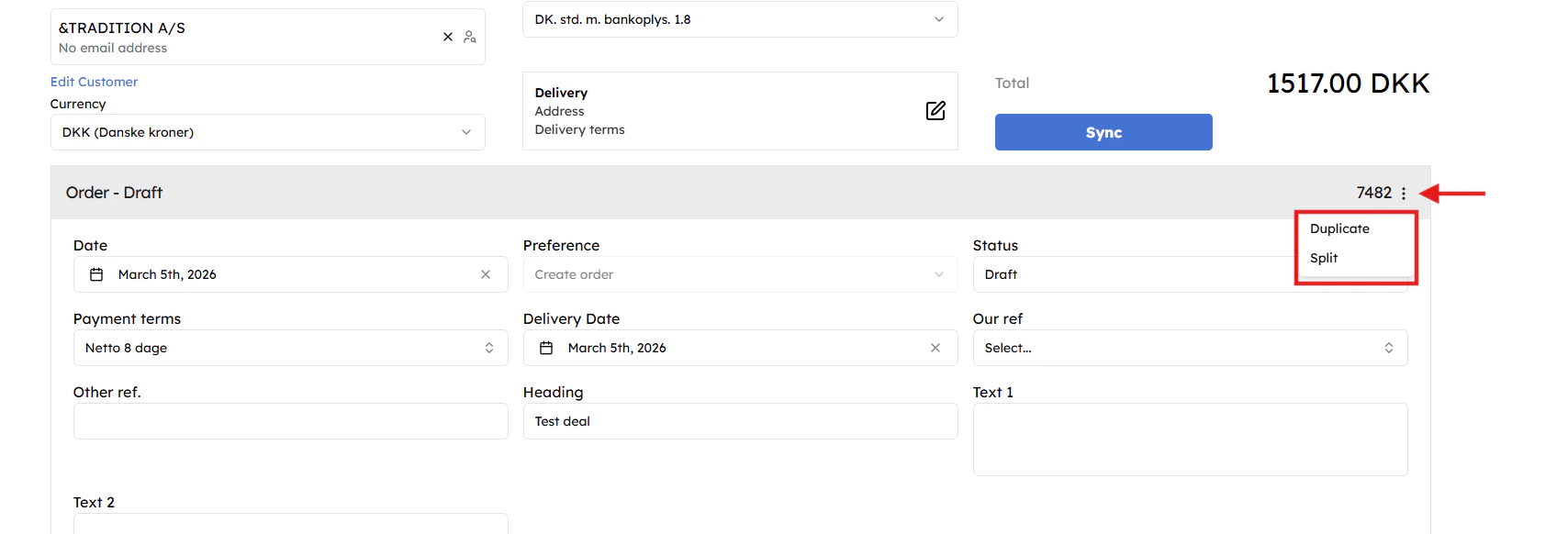

6
Finish and sync
Click Sync to push the draft to e-conomic. You can view the final invoice in the deal’s attachments or notes.